
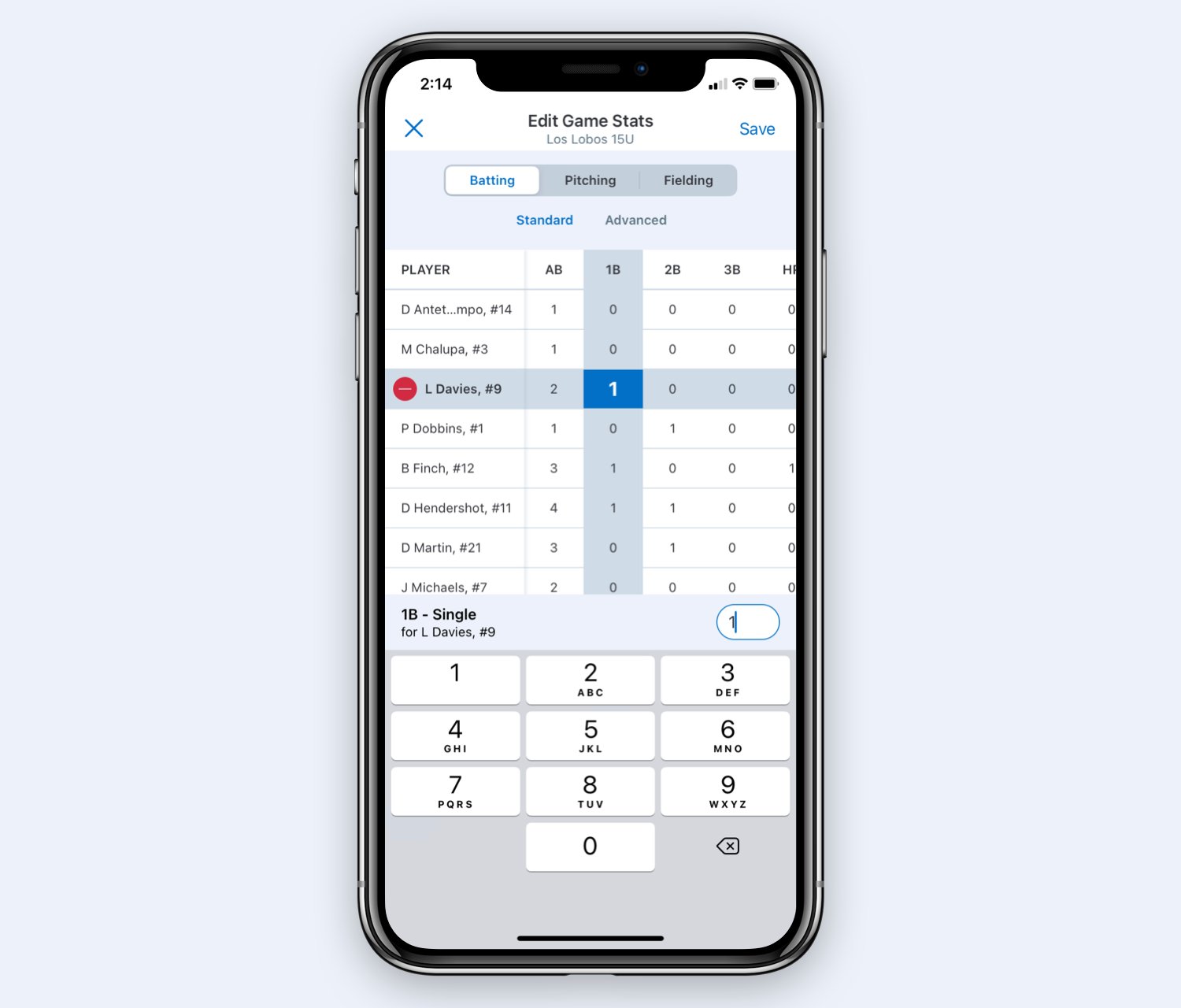
You can edit stats in Game Changer by navigating to the specific player or game, selecting the stat you wish to modify, and then inputting the new value.
Have you ever felt the need to adjust some numbers after a game? Perhaps a stat was recorded incorrectly, or you want to make some tweaks? Knowing how to edit stats in Game Changer is simpler than you might think. This article will quickly guide you through the process, so you can keep your game data as accurate as possible. We will show you exactly how you can make the necessary changes with just a few steps.

How to Edit Stats in Game Changer
So, you’re ready to take control of your Game Changer experience and make those stats reflect what really happened on the field or court? That’s awesome! Game Changer is a fantastic tool for tracking all the details of your team’s games, but sometimes, a little tweaking is needed. Maybe you accidentally marked a hit as an error, or forgot to log a stolen base. No sweat! We’re going to walk through how you can easily change those stats and make sure everything is accurate. Let’s jump right in!
Understanding Game Changer Data
Before we dive into the editing process, it’s helpful to understand how Game Changer organizes data. Think of it like a digital scorecard that records every action during a game. It keeps track of things like hits, runs, errors, strikeouts, and even things like pitch counts. Each play creates a piece of data, and all these pieces come together to form the final game stats. Being familiar with this helps us navigate the editing process much easier. Game Changer organizes data in an intuitive manner.
Here’s a quick breakdown of common data points you might encounter:
- Batting Stats: Hits, runs, RBIs (Runs Batted In), walks, strikeouts, stolen bases, at-bats, and batting average.
- Pitching Stats: Innings pitched, earned runs, walks allowed, strikeouts, hits allowed, and pitch count.
- Fielding Stats: Putouts, assists, errors.
- Game Events: Things like substitutions, time outs, and scoring plays.
Knowing these categories helps you find the exact stat you want to adjust.
Accessing the Game Editing Screen
Okay, now let’s get into the nuts and bolts of editing! First things first, you need to get to the right place in the app.
Finding the Game
Open the Game Changer app on your phone or tablet. You’ll see a list of your teams. Tap on the team whose game stats you want to fix. Now, you’ll see a list of games. Choose the game you want to edit. This is where you’ll be making your stat changes.
Navigating to the Edit Mode
Once you’ve selected the game, look for an “Edit” button, which usually appears at the top right or somewhere clearly visible on the screen. Tap this button to enter edit mode. Sometimes it might be represented by a pencil icon or have other related wording. Now, you are ready to modify game events and their resulting stats.
Editing Individual Player Stats
With the game now in edit mode, you can begin to change the stats for individual players. The key here is to be careful and specific. Let’s check a few ways to do this.
Changing Batting Statistics
To change a player’s batting stats, find the player within the game summary. This might be a list of players, or you can choose the at-bats directly from a timeline. When you locate the specific at-bat that has the incorrect data, select the at-bat. From this point, you may have options to change the outcome of the at-bat. For example, if a player was originally given a hit, but it was actually a fielder’s error, you could change the outcome from “Hit” to “Error.” Game Changer may provide options to edit the type of hit (single, double, triple, home run), the number of RBIs and other related details.
Adjusting Pitching Statistics
Editing pitching stats is very similar to editing batting stats. Choose a pitcher’s name from the game view. Select specific innings or events. Again, you will be given options to edit the results of the action. For example, if a pitcher was charged with a walk, but the play should have been recorded as a hit by pitch, you have options to make that change. Other stats like earned runs, strikeouts, and pitch counts can also be adjusted based on your corrections.
Modifying Fielding Stats
Fielding stats often need correction. For example, if an error was recorded when the fielder actually made a great play, it is important to change this. When you select a fielding play in the game timeline, you will have the ability to change the outcome of the play. If you see an error that should have been an assist or a putout, you can change the player’s stats accordingly. Game Changer usually gives you options to choose the type of fielding play (putout, assist, error) and the player that made the play.
Correcting Game Events
Sometimes, it’s not just the stats themselves that need fixing, but the events that happened in the game. Perhaps you need to add a substitution you missed or remove an event that shouldn’t have been there.
Adding or Removing Substitutions
If you forgot to add a substitution, no problem! In the edit mode, you should see an option to add a new event. Choose “Substitution” and then select the player that came into the game and the player that went out of the game. You will also select the inning that the substitution occurred. You can also remove substitutions the same way by finding it on the timeline and deleting it, if needed.
Editing Scoring Plays
Scoring plays are super important, and sometimes we miss marking all the details. When you see a scoring play on the timeline of your game in edit mode, you can make changes to how many runs were scored, or by whom. You can also edit who got the RBI for the scoring play.
Managing Timeouts and Other Events
Game Changer also tracks things like timeouts. You can edit the start and end times, or remove them if they were added accidentally. The process is the same as editing other game events – find it on the timeline, click edit, and change the data.
Tips for Accurate Editing
Editing stats accurately is very important to getting a full picture of the performance of the team and the player. Here are a few tips to keep in mind:
- Be Patient: Take your time and don’t rush through the editing process. Rushing through can make you create more errors than you correct.
- Double-Check: Once you’ve made your edits, always review them to ensure you haven’t made new mistakes. Sometimes, our fingers can hit the wrong buttons or select the wrong options, so review is critical.
- Use the Timeline: Game Changer has a timeline that shows events in order. This is super useful for seeing the context of plays and makes it easier to find what you’re looking for.
- Consult with Others: If you are not the only scorekeeper on the team, compare notes with other team members to ensure that everyone agrees on the stat changes.
Common Editing Scenarios
Let’s run through a few typical situations where you might need to use the editing functions in Game Changer.
The Misidentified Hit
Imagine a batter hits a ball that bounces off the glove of the shortstop. The scorekeeper marks it as a hit, but it could have been scored as an error. In this case, you go back to the game, find the event on the timeline, and change the play from a hit to an error. Now the batting average and fielding stats will be correct.
The Overlooked Stolen Base
Perhaps you had a runner swipe second base, but it didn’t get marked in real time. When you go back to the game, you add the stolen base event, and the correct stats will be reflected. It will also change the player’s statistics and make the game more accurate.
The Unnoticed Substitution
Sometimes, substitutions get missed because there are so many moving parts during a game. If a player comes into the game, and it was missed during the live game, the edit function in Game Changer can be used to properly track the substitution and adjust player’s in-game status.
Saving Your Changes
After you’ve carefully made all of your needed edits, it’s critical to save them!
The Save Button
Look for a “Save” button or similar option (like “Done” or “Apply”). Usually, it is in the corner, often in the top right corner, of your screen. Tap the save button, and the program will save the changes. Your game stats are now updated.
Confirming Your Updates
After saving, go back to the game summary screen and see if the stats reflect your changes. It’s just good practice to make sure you have made all the corrections you intended and that you did not make any errors as you were correcting the data. Double check all the changed stats before closing the game.
Dealing with More Complex Edits
Sometimes the stat changes are more complicated than just one or two events. If you need to make a lot of edits, here are some tips.
Use the Timeline Wisely
The timeline is your best friend for complex edits. You can go back play-by-play to make sure all the stats were properly recorded. This makes it easier to track the flow of the game and make all of the necessary corrections.
Break it Down
Don’t try to make all edits at once. Take your time and go inning by inning, or even play by play. Working through the game methodically makes complex edits less challenging and helps to avoid mistakes.
Seek Help if Needed
If you are finding the edit process to be challenging, don’t hesitate to reach out to the Game Changer support team. Game Changer has great help resources to make sure that everyone can use the program. It’s better to ask for assistance than to struggle or make more errors.
Editing stats in Game Changer can seem a little tricky at first, but with practice, you will become proficient and comfortable making the adjustments to ensure that the team’s data is accurate. Now you have the power to fine tune every game and make sure that all the hard work is properly recorded. This gives a more accurate story of the team’s successes and areas for growth.
Edit Game Stats | GameChanger University
Final Thoughts
Editing player stats in Game Changer requires navigating to the specific player profile. Then, locate the statistics section and change the desired figures. Remember, accuracy is essential when modifying data.
Understanding this process helps you manage your team’s performance metrics effectively. So, you can directly affect the data. Now you know how to edit stats in game changer.

