
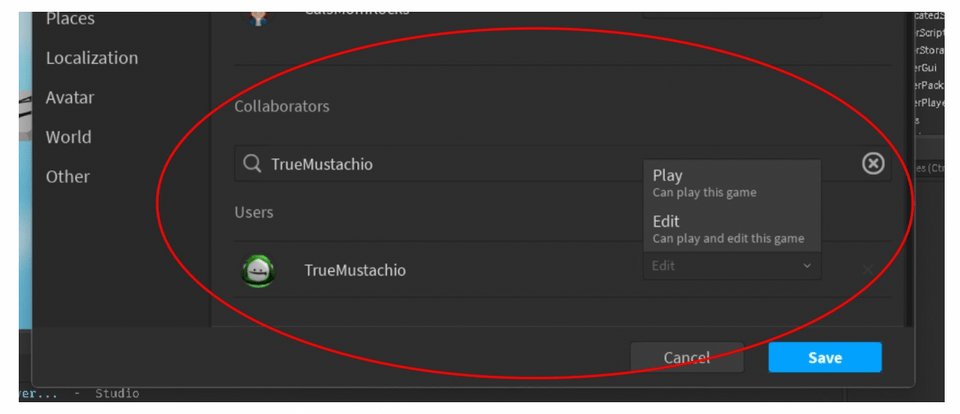
To edit your game on Roblox, you must use Roblox Studio, where you can modify its elements, scripts, and overall design.
Have you ever dreamed of changing the world of your Roblox game? Imagine, tweaking the terrain, adding cool new features, or even changing the entire gameplay. This is precisely what you can do when you learn how to edit your game on Roblox.
Roblox Studio gives you the tools to bring your ideas to life. You can add, remove, or change anything within your game. With practice, you will soon be creating the experience you always wanted!

How to Edit Your Game on Roblox
So, you’ve built a cool world in Roblox, and now you want to make it even better! That’s awesome! Editing your Roblox game is like being a movie director, but for video games. You get to decide what happens, where things are placed, and how it all looks. Let’s jump into how you can do just that and make your game super fun and engaging.
Getting Started with Roblox Studio
First things first, you need Roblox Studio. Think of it as your game-making workshop. It’s where all the magic happens. If you don’t have it yet, go to the Roblox website, log in, and then click on “Create” at the top. You’ll see a big button that says “Start Creating.” Click that, and Roblox will guide you through downloading Roblox Studio. It’s totally free!
Opening Your Game
Once you have Roblox Studio installed and opened, you’ll see a list of your games. You might see some example games or a blank place. Find the game you want to edit (if you have many, you can use the search bar!), and click on it to start editing.
Roblox Studio might look a little intimidating at first, but don’t worry! It’s like any new tool. You’ll get used to it soon. We’ll explore each part step by step to show you what it does.
Understanding the Roblox Studio Interface
Roblox Studio is organized into different sections. Each section has a special purpose to help you create and edit your game. Let’s explore the main ones:
- The Toolbar: This runs across the top and has all the basic tools. You’ll use these a lot. Tools like the select tool (to pick things), the move tool (to move things around), the scale tool (to make things bigger or smaller), and the rotate tool (to turn things around).
- Explorer Window: This is on the right side. It’s like a list of everything in your game. You can see all the parts, models, scripts, and even the lighting. It helps you find things and see how they are organized.
- Properties Window: Also on the right side, usually below the Explorer, is the Properties window. This lets you change the way things look and act. You can change colors, sizes, materials, names, and so much more.
- Viewport: The big area in the center of the screen is the viewport. This is where you see your game world. It’s where you’ll build and edit everything.
- Output Window: This window usually sits at the bottom. It shows messages and errors from your game scripts. It’s very useful when you’re using scripts or if things aren’t working correctly.
Don’t worry about memorizing all of this right now. The more you use Roblox Studio, the faster you’ll learn about these sections. Let’s start making real changes now!
Making Changes to Your Game World
Okay, now for the fun part: changing your game! Here are some basic editing techniques.
Selecting and Moving Objects
First, you need to know how to pick things. Click on the ‘Select’ tool on the toolbar (it looks like a mouse cursor). Then, click on any object in your game world (like a block, a tree, or a building) to select it. You’ll see a blue outline around the object you selected.
Now, to move it, use the ‘Move’ tool on the toolbar (it looks like a four-way arrow). Click and drag the arrows to move the object in different directions – up, down, left, or right.
Changing the Size of Objects
Want to make something bigger or smaller? Use the ‘Scale’ tool (it looks like a box with arrows). Select an object, and then click and drag the colored circles that appear around it. Dragging the circles makes the object change size. Keep an eye on the proportions, you don’t want to squish your objects too much!
Rotating Objects
Sometimes, you might want to turn an object. Use the ‘Rotate’ tool (it looks like a curved arrow). When you select an object, you’ll see colored circles around it. Click and drag these circles to rotate the object around different axes.
Adding New Objects
To add new things to your game, you can use the toolbox. The toolbox is usually on the left side (or you can find it by going to View and selecting Toolbox). In the Toolbox, you’ll find lots of pre-made items like parts (like squares, spheres), models (like trees, cars), audio, and more! There’s a search bar at the top, type what you want to find, and then click on the object you want to insert. It will appear in your game world, and you can move it around.
Changing Object Properties
Let’s make the object look the way you want it to. Select an object, and look at the Properties window. You’ll see lots of options. Here are a few cool ones you can play with:
- Color: Change the color of the object. Click on the color box and choose a new one.
- Material: Change the texture of the object (like make it look like wood, metal, or grass). Click on the Material dropdown and choose a material.
- Transparency: Make the object see-through. Play with the Transparency slider.
- Name: Give the object a special name. This helps you keep things organized, especially when you have lots of parts.
Remember, there are a lot more properties. Experiment and see what each one does!
Working with Terrain
Want mountains, valleys, or a lake in your game? You can use the Terrain Editor. Find this by going to the “Editor” tab and clicking on “Terrain Editor.” It’ll bring up a tool set for sculpting your world.
Basic Terrain Tools
- Paint: Lets you draw different types of terrain like grass, rock, and water onto your existing flat land.
- Add: Adds new terrain to your existing landscape, allowing you to build mountains.
- Subtract: Removes terrain allowing you to create valleys, caves or moats.
- Smooth: Softens the edges of terrain that are very harsh to make it more natural.
- Flatten: Makes selected terrain flat again.
Try the different tools. You can change the size and strength of the brush tool in the terrain editor, this changes how much the tool changes the terrain at once. Try making a small hill and a small valley using different tools.
Adding and Editing Scripts
Scripts are like instructions that tell your game how to act. They can make things move, do things when you touch them, and so much more. Even if you haven’t done much programming yet, you can still use some basic scripts. Let’s get to it!
Accessing and Creating Scripts
To add a script, you need to put it somewhere in your game world. Usually, we add a script inside an object (like a block or a model). Find the object you want the script to control in the Explorer window. Then, click the little plus sign (+) next to the object and choose “Script”. A new script window will pop up.
Basic Script Structure
Scripts on Roblox use the Lua programming language. It might seem complex, but the structure of a script is quite simple. A typical simple script often consists of three parts:
- Variables: These store things like numbers, text, or objects.
- Functions: These are groups of code that do a specific task, you can use one already available, or you can make your own.
- Events: These are things that happen, like when a player touches something.
Example Script: Making a Block Disappear
Let’s write a simple script that makes a block disappear when a player touches it:
Copy and paste this into the newly created script window:
        local block = script.Parent

        function onTouch(otherPart)
            block:Destroy()
        end

        block.Touched:Connect(onTouch)
Let’s break down what this script does:
local block = script.Parent: This line makes a variable called block that refers to the object that contains the script (which is your block).function onTouch(otherPart): This line starts a function called onTouch that will get activated when something touches the block.block:Destroy(): This line makes the block disappear.block.Touched:Connect(onTouch): This line tells the block to run the onTouch function when it gets touched.
Try it out! Put the script inside a block. Now, when you play the game and touch the block, it should vanish!
More Advanced Scripting Ideas
There’s so much more you can do with scripting. Here are a few concepts:
- Movement: Make things move on their own.
- Changing Properties: Change the colors or the size of objects based on a trigger.
- Scoring: Keep track of points for players.
- Interactivity: Make players able to pick up items or interact with buttons.
You can learn a lot more about scripting by looking at examples or completing online tutorials.
Testing Your Game
After making changes, you definitely need to test your game! Click the “Play” button (it looks like a play button) at the top of the Roblox Studio. This will start a test session and launch your game as if you were a player.
Walk around, test your new features, and see if everything works how you expect it to. If you see any problems, you can click the “Stop” button to go back to editing and fix the issues. This play test is the best way to find mistakes and make improvements.
Saving Your Work
It’s important to save your game as you go. You don’t want to lose all the hard work you put into it. Here’s how to save:
- Save to Roblox: Click the “File” menu, and choose “Save to Roblox” to save your changes to the cloud. Your game is saved in the Roblox environment, and can be accessed from any computer.
- Save As: If you want to create a new version of the game without deleting your previous save, use the “Save As” option. This allows you to save a completely new game with all the features you had, this can be useful in making copies of your game to test new ideas without affecting your main game.
Make sure you save your game every now and then, it’s usually better to save too often, rather than not enough!
Publishing Your Game
Once you’re happy with your game, you might want to share it with other people. To do this, you need to publish the game. Go to the “File” menu and choose “Publish to Roblox.” If you haven’t published your game yet, you’ll need to give it a name, description, and some tags. Make sure to choose a good thumbnail so that players can find your game easily!
After you publish, your game will be available for other players to visit and play. You can update your game any time by making changes in Roblox studio, saving, and then publishing your game again.
Tips for Creating Amazing Games
Editing your Roblox game is a skill, so be patient with yourself. You’ll get better with each game you create. Here are some extra tips to help you create a better experience.
- Get Inspired: Play other Roblox games and see what you like about them. Don’t copy everything, but getting ideas from other games is a great way to improve your own.
- Plan Ahead: It’s good to have a plan for your game, write down a few ideas, even if they are not final, it will help the creative process.
- Keep it Simple: If you’re new to editing games, start with small, simple projects. As you get better, you can start adding more complicated systems.
- Ask for Help: There are many forums and online communities where people create games on Roblox, ask for help if you need it. People enjoy seeing new ideas from other developers!
- Experiment: Don’t be afraid to try new things. There are lots of features, properties, and effects you can add. The most valuable knowledge is the knowledge gained from experimenting yourself.
Editing your Roblox game is a journey, not a race. It’s all about having fun and using your creativity. Start small, learn each new concept, and you’ll be making incredible games in no time. Have fun creating!
HOW TO CHANGE YOUR ROBLOX GAME ICON IN 2024
Final Thoughts
Editing your Roblox game involves accessing Roblox Studio and utilizing its tools. Start by selecting the game you wish to change. You can then modify various elements like terrain, objects, and scripts. Remember to regularly test your game to verify any edits you make.
Experimenting with different features is crucial. The ‘how to edit your game on roblox’ process gets easier with practice. Save your work frequently to prevent losing progress.
By understanding these basic steps, you can enhance your gameplay experience. These simple edits contribute significantly to your game’s quality. Further exploration will reveal the power of Roblox Studio.

