
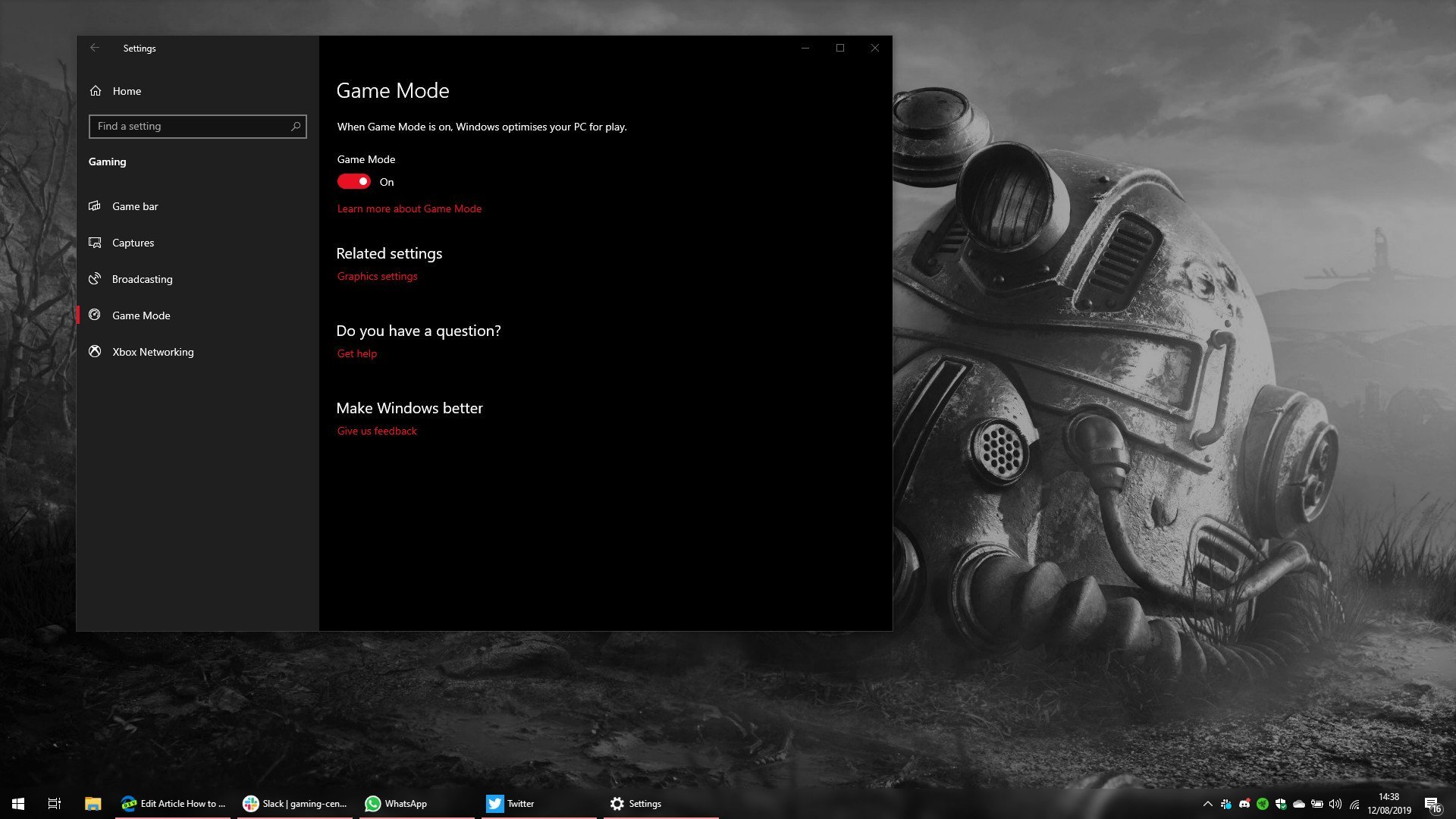
To enable game mode on Windows 10, navigate to Settings > Gaming > Game Mode and toggle it to the “On” position.
Want better performance while gaming on your Windows 10 PC? You’re in the right spot, as learning how to enable game mode on windows 10 can significantly improve your gaming experience. This handy feature prioritizes your game and reduces background activity. This will help your computer dedicate more resources to your gameplay. It’s really simple to turn on. Let’s get your gaming optimized now!

How to Enable Game Mode on Windows 10
Let’s dive right into making your gaming experience better on Windows 10. Game Mode is a super cool feature that’s designed to make your games run smoother by giving them more of your computer’s attention. When you turn it on, Windows tries to reduce background activity and focus more on the game you’re playing. It’s like having a dedicated pit crew for your virtual race car! But how exactly do you turn this helpful setting on? Don’t worry, it’s easy, and we’re going to walk through all the steps.
Understanding Game Mode
Before we jump into enabling it, let’s quickly chat about what Game Mode actually does. Imagine your computer is like a busy city. There are lots of different things happening at once – programs running, emails coming in, maybe music playing. Game Mode is like a traffic cop that helps make sure the game you are playing has a clear path. It does this by:
- Minimizing background processes: This means less of your computer’s power is being used by things you’re not actively using.
- Prioritizing game performance: Your game gets the most resources it needs to run smoothly.
- Reducing updates: Windows won’t bother you with updates while you’re gaming.
These adjustments can often mean less lag, smoother frame rates (how many pictures your game shows each second), and a better overall experience. Game Mode aims to create an environment where your gaming session feels more fluid and responsive.
Checking if Your PC Supports Game Mode
Most Windows 10 computers should be able to use Game Mode. However, it’s a good idea to double-check just to be sure. Here’s how:
Accessing Windows Settings
First, you need to open the Settings app. You can do this by:
- Clicking on the Start button (the Windows logo) in the bottom left corner of your screen.
- Click on the little gear icon, which is the settings icon. This will open the Windows Settings window.
Navigating to the Gaming Section
Once you’re in the Settings app, look for an option called “Gaming”. It usually has an Xbox logo. Click on this option, and you’ll be taken to the gaming settings page.
Finding the Game Mode Option
On the left side of the Gaming settings, you’ll see several choices. Click on “Game Mode”. This is where you will see if Game Mode is available on your computer.
Verifying Game Mode Compatibility
If you see a switch labeled “Game Mode”, that means your computer can use it! If you don’t see it, there might be a very old version of windows running, which you may need to update for this feature.
Enabling Game Mode
Okay, let’s get down to the fun part – turning on Game Mode!
Using the Settings App to Enable Game Mode
- Go back to the “Game Mode” page within the Gaming settings in Windows. We talked about how to reach this point above.
- You will see a switch that says, “Game Mode”. If the switch is off, meaning it is greyed out and is on the left side, click it to turn it on.
- When the switch turns blue, it indicates that the Game Mode is active and ready to go.
That’s it! You’ve turned on Game Mode. It’s that simple.
Customizing Game Mode Settings
While enabling Game Mode itself is pretty simple, you can actually take a closer look at how the setting works. Windows provides some additional controls which can be helpful to get the best gaming experience.
Exploring Game Bar Options
The Game Bar is a handy overlay that appears when you are gaming. To access these features:
- Press the Windows Key + G to open the Game Bar while in a game.
- Here, you can see options to take screenshots, record your gameplay and other options.
Managing Background Recording
Game bar allows you to record gameplay in the background. However, this can use up system resources, which is not what you want for better game play. If you’re experiencing lags or slowdown, consider turning off background recording. The steps to do this are:
- Access the Game Bar.
- In the Game Bar, locate the settings icon (it looks like a little gear).
- Find “Capturing” on the left pane and click it.
- Turn off “Record in the background while I’m playing a game.”
Adjusting Game Mode for Specific Games
Sometimes, Game Mode works better for some games than others. If you find one game is not running so well, there’s a good tip for that!
- Go to Windows Settings, click “Gaming” and “Game Mode” again.
- Click “Graphics Settings” that is present at the bottom.
- Here, you will see a list of games that you have installed on your computer.
- You can choose “High Performance” from the dropdown menu for the game.
By doing this, you ensure that this specific game gets priority over other programs.
When to Use and Not Use Game Mode
Game Mode isn’t always a magic button, even though it is designed to make games better. Here are some points to keep in mind.
Times When Game Mode is Most Helpful
- When your computer is running multiple programs: Game Mode can help focus the system’s power on your game when many other apps are also open.
- Playing graphics-intensive games: Games with lots of action and details can benefit from the extra performance provided by Game Mode.
- If you see stuttering or lag: If your game is not running smoothly, try turning Game Mode on to see if it helps.
Times When Game Mode Might Not Help
- If your computer is already very powerful: If your computer has very strong components, Game Mode might not make a big difference, as your computer is already performing well.
- On older games: Some older games might not take full advantage of Game Mode as they are not designed for it.
- When your system is already optimized: If your computer’s settings are already fine-tuned for gaming, the impact of Game Mode might be minimal.
Sometimes it’s just a matter of experimenting to see if Game Mode makes a difference for the games you like to play.
Troubleshooting Common Game Mode Issues
Even with all settings configured correctly, you might still encounter some hiccups. Let’s look at some common problems and how to fix them.
Game Mode Not Working
If Game Mode doesn’t seem to be working, try these steps:
- Restart your computer: Sometimes simply restarting can solve many problems.
- Check for Windows updates: Make sure your operating system is up-to-date.
- Update your graphics drivers: Having the latest drivers for your graphics card is important for smooth game performance.
- Temporarily turn off antivirus programs: Sometimes, antivirus software can interfere with Game Mode. Try turning it off temporarily to see if it helps. If this works, you can check your antivirus settings to see if you can allow game mode.
Game Performance is Worse with Game Mode
It’s rare, but sometimes, Game Mode can actually make a game perform worse. If this happens, try:
- Turning off Game Mode: If you notice a decrease in game performance after enabling it, turn it off to see if that improves the situation.
- Adjusting Graphics Settings for the Game: As mentioned before, you can manually adjust each game’s performance settings in the “Graphics Settings” to ensure they are in High Performance.
- Checking for conflicting software: See if any other programs might be competing with your games or causing problems.
Game Bar Doesn’t Appear
Sometimes the Game Bar might not open properly when you press the Windows Key + G. You can do the following to make sure the game bar is working:
- Ensure Game Bar is Enabled: From Windows Settings, access Gaming and then Game Bar. Make sure the option “Record game clips, screenshots, and broadcast using Game bar” is turned on.
- Check Keyboard Shortcuts: See if any other programs or settings are using the Windows Key + G shortcut. You may need to change or disable that, then you can use your shortcut again.
- Restart Windows Explorer: This is the program responsible for the graphical user interface in Windows. Open the task manager (press CTRL+SHIFT+ESC), find Windows Explorer under the process tab, click it and choose restart.
Keeping Your Gaming Experience Smooth
Game Mode is just one part of making sure your gaming runs well. Here are other things you can do:
Regularly Updating Drivers
Keep your graphics card drivers up to date. The latest drivers are often optimized to work well with the newest games and can improve performance.
Closing Unnecessary Applications
Before playing a game, close all other applications you aren’t using. This frees up resources for your game.
Adjusting In-Game Settings
Many games have their own graphics settings. Adjust these to match the abilities of your computer for the best balance between visual quality and performance.
Keeping Your Computer Clean
Make sure your computer doesn’t have a lot of unused files. Uninstall programs and games that you don’t use anymore, as this helps with how fast and well it performs.
Game Mode is definitely a tool that you should try out, and you can see if it improves your gaming performance. If you follow the simple steps here, you should be enjoying your games with improved smoothness. Don’t be afraid to experiment with the settings and find what works best for you and your computer. Happy gaming!
How To Turn On Game Mode In Windows 10
Final Thoughts
Enabling game mode on Windows 10 is straightforward. Open the Settings app, then go to “Gaming.” Within the Gaming settings, select “Game Mode”.
Toggle the Game Mode switch to the “On” position. This simple action can optimize your system for gaming. You can see improvements in performance and a smoother experience.
To recap, how to enable game mode on windows 10 involves a few clicks in the settings menu. This optimizes your PC for game play quickly.

