
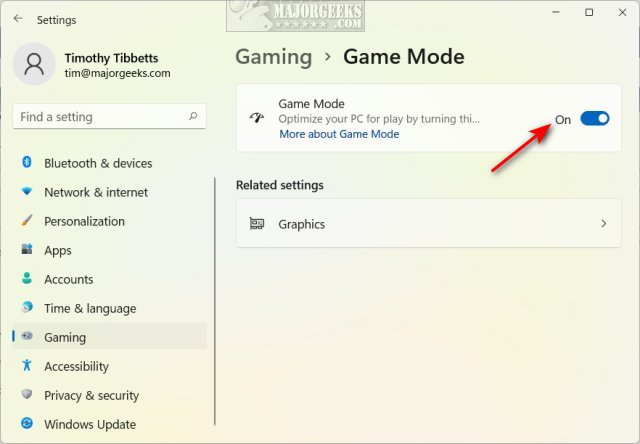
To enable game mode on Windows 11, navigate to Settings, then click on Gaming, and finally toggle the Game Mode switch to the On position.
Want to improve your gaming experience on Windows 11? Many users want to know how to enable game mode on Windows 11, and it’s actually quite simple. This feature prioritizes gaming performance, optimizing your system for smoother gameplay.
Turning game mode on can help reduce background processes. This can potentially lead to fewer frame rate drops and a more responsive gaming experience overall. Let’s walk through how you activate this beneficial setting.

How to Enable Game Mode on Windows 11
Windows 11 offers a special feature called Game Mode that can make your games run smoother and better. When you turn Game Mode on, your computer focuses its power on the game you’re playing, instead of other things running in the background. This can lead to fewer stutters, less lag, and a generally more enjoyable gaming experience. It’s like giving your game a VIP pass to use your computer’s resources! Let’s dive deep into how you can easily enable Game Mode and get the most out of your games.
Understanding Windows 11 Game Mode
Before we jump into the how-to, let’s understand what Game Mode actually does. It’s not a magical button that suddenly makes your computer super powerful. Instead, it works behind the scenes to prioritize your game. Here’s how it helps:
- Reduces Background Activity: Game Mode limits tasks that aren’t important while you’re gaming, like Windows updates or app notifications. This frees up processing power for your game.
- Prioritizes Game Performance: It gives your game the highest priority for using your computer’s CPU and GPU. This means your game gets the resources it needs to run smoothly.
- Improves Frame Rates: By reducing background tasks and focusing on your game, you may see a boost in frame rates, making the game look and feel more fluid.
- More Stable Experience: Less interference from other programs can lead to a more consistent and reliable gaming experience, reducing the chance of freezes or slowdowns.
It’s important to note that Game Mode won’t dramatically improve the performance of very old or low-powered computers. However, it can still make a noticeable difference even on older machines. For most modern computers, it should provide an improved overall experience.
Step-by-Step Guide to Enabling Game Mode
Enabling Game Mode is a straightforward process. Let’s look at two easy methods you can use.
Method 1: Using the Settings App
This is the most common way to turn on Game Mode, and it only takes a few clicks.
- Open the Settings App: Click on the Start button (the Windows logo) on the taskbar. Then, click the “Settings” icon, which looks like a gear. You can also open it using the shortcut, Windows Key + I.
- Navigate to Gaming Settings: In the Settings app window, click on the “Gaming” option in the left-side menu.
You will see a few different options related to gaming here. - Select Game Mode: In the Gaming settings page, click on “Game Mode” in the right-hand pane. You will see a toggle switch here.
- Turn Game Mode On: Toggle the switch from “Off” to “On”. The switch should turn blue or some other color to indicate that Game Mode is active.
That’s it! Game Mode is now enabled. Windows 11 will automatically use Game Mode whenever it detects that you’re playing a game. You don’t have to do anything else.
Method 2: Using the Xbox Game Bar
The Xbox Game Bar is a built-in Windows feature that gives you quick access to many gaming options. You can also enable Game Mode using it.
- Open the Xbox Game Bar: While playing your game, press the Windows key + G on your keyboard. This should open the Game Bar overlay. If it does not show up the first time, try again or go into the setting and enable it from there.
- Find the Game Mode Icon: Look for the Game Mode icon on the Game Bar overlay. It often looks like a controller or gamepad. You might have to look to the upper area of the screen on the bar. If you are having trouble, look for the ‘Settings’ icon and then click that and find the game mode option.
- Activate Game Mode: If Game Mode is off, you will see a notification or visual indication that it is not currently on. Click the Game Mode icon, and you will see the indicator will change to show that it has been enabled.
Using the Xbox Game Bar is a convenient way to turn Game Mode on or off directly from your game. It’s especially helpful if you want to toggle Game Mode quickly.
Game Mode Settings: Going Deeper
While enabling Game Mode is easy, there are a few other settings you might want to explore for more control over your gaming experience. These settings are also in the Gaming section of the Settings app.
Graphics Settings
The graphics settings area can improve your games overall experience, you should take a look here before you start your game for the best experience. Here you can pick the application that your game is running and set what GPU you want it to use. If you have multiple graphics cards, you can choose the best one. It also has an option to improve the graphics for the app. Here are the steps you can follow:
- Go to the settings app and go to the gaming section.
- Choose Graphics from the left-hand menu.
- Click the option to “Change default graphics settings”
- Make sure the “Hardware-accelerated GPU scheduling” toggle is set to “On”.
- Click the “Browse” button and select your game’s executable file.
- Click “Options” and select the graphic card you want it to use. If you only have one, leave it at default.
Xbox Game Bar
This section allows you to toggle the game bar on or off. You can customize the features of this bar by toggling settings on and off. It’s helpful to know that the game bar can be turned off if you don’t want to use the bar while gaming.
Captures
If you like to capture and record your gaming, the Captures section is for you. You can customize the features of recordings and screenshot here. For optimal game performance, you might consider setting your recordings to use the dedicated graphics card. Or, you might consider lowering the recording quality for a better overall experience.
Audio
In the Audio section you can customize how the audio comes from your system. You can adjust your mic, and also your audio out here. Depending on if you use headphones or not, you can change the audio device. It’s good to double check this setting before starting a game.
When to Use (and Not Use) Game Mode
Game Mode is great for most gaming scenarios, but it’s not always the best choice. Here are some guidelines:
When to Use Game Mode:
- When playing games: This is the main reason to have Game Mode. It optimizes your computer for playing games.
- For resource-intensive games: If a game seems to run slowly or have issues, Game Mode can help make it smoother.
- When multitasking is not needed: If you are only going to be running the game, then Game Mode is a great choice.
When Game Mode May Not be as Helpful:
- For very old or simple games: Some old or simple games may not benefit much from Game Mode. The resource use of the game might be so small that it won’t make a difference.
- For other programs that require heavy processing: Game Mode is designed for games, if you are using a resource-intensive program that is not a game you will not see a positive result.
- When you need background processes to run smoothly: If you are recording and streaming and the settings are not set up correctly then it will not be a good choice to enable Game Mode.
In most cases, leaving Game Mode on is completely fine, as it usually kicks in automatically when needed. If you notice issues, you can try turning it off and seeing if that helps. The best way to know for sure is to experiment. Start a game with game mode off, and then try again with game mode on and see which works better for you!
Troubleshooting Common Game Mode Issues
Sometimes, Game Mode might not work perfectly. Here are a few common issues and how to fix them:
Game Mode Not Activating
Sometimes, Windows might not detect that you are playing a game. To fix this issue you can use these steps:
- Make sure Game Mode is on in the Settings app.
- Restart your computer. This can sometimes fix minor glitches.
- Ensure your game is running in full screen and not windowed mode.
Game Performance Not Improving
If Game Mode does not seem to be helping your game, here are some possible solutions:
- Make sure you have the latest updates for windows and your video drivers.
- Close any unnecessary programs that are running in the background.
- Check to see if your video card and processor meets the minimum system requirements of the game you are playing.
Game Mode Causing Issues
In rare cases, Game Mode can cause conflicts. If this is happening you can:
- Try turning Game Mode off to see if the problem goes away.
- Update your drivers to the latest version.
- Try reinstalling the game and running again with game mode on.
Game Mode on Other Windows Devices
Game Mode is a feature of Windows 11, but it’s worth noting that a similar feature exists on older versions of Windows. If you have a friend or family member using an older computer they may also have a game mode available on their computer.
Game Mode on Windows 10
Windows 10 also has a Game Mode, and the steps to enable it are very similar to Windows 11. You will find the options in the “Gaming” area of the settings app. It operates in basically the same way as windows 11.
Game Mode on Xbox Consoles
Xbox consoles (such as the Xbox Series X/S) also have game optimization features that work similarly to game mode. These features will be enabled on your console by default and you do not need to do anything to start using them.
In general, Microsoft is committed to improving the gaming experience on its operating systems. This means that most of their devices will have some form of game optimization features.
Enabling Game Mode on Windows 11 is a simple yet effective way to make your games run better. It’s like giving your games a little boost, reducing stutters and improving performance. Remember that it’s not a magic fix, but it can make a noticeable difference for most gamers. So, if you’re a Windows 11 user who enjoys playing games, turning on Game Mode is definitely worth doing!
How to Turn on Game Mode on Windows 11
Final Thoughts
Enabling Game Mode on Windows 11 is simple. Go to Settings, then select Gaming. Find the Game Mode option and switch it on.
This ensures your games receive priority resources. You should see improved performance.
In short, how to enable game mode on windows 11 involves just a few steps. Turning it on is a quick and easy process. Make it a part of your gaming setup.

