
You can erase game data on iPhone by deleting the game app itself, or, if the game uses iCloud, by managing the game data within iCloud settings.
Frustrated with old game progress taking up space? You’re not alone, many users wonder how to erase game data on iPhone. It’s a common problem when you want a fresh start or need to free up storage.
This process varies depending on how a game saves data, whether it’s locally on your phone or through iCloud. We’ll guide you through the simple steps to clear unwanted game progress.

How to Erase Game Data on iPhone
So, you’re ready to say goodbye to some old game data on your iPhone? Maybe you’re starting fresh, giving your phone to someone else, or just want to free up some space. Whatever the reason, getting rid of game progress is a pretty common need. It’s not always as simple as deleting the game app itself, because many games store your progress in other places. Don’t worry! This article will walk you through different ways to completely erase your game data on your iPhone, covering all the different situations. We’ll be looking at options to delete data connected to Game Center, individual app storage, and even data tied to your iCloud account.
Understanding Where Game Data is Stored
Before we dive into deleting game data, it’s helpful to understand where this information lives. Think of it like this: your game isn’t just one thing; it’s made up of different parts, and each part might store data in a different spot. Here’s a breakdown of the usual places where game data on your iPhone is stored:
- Local App Storage: This is the space on your iPhone where the game’s files, like your saved games, settings, and maybe even downloaded content, are kept. Think of it like your game’s personal folder on your phone.
- Game Center: Apple’s Game Center is like a social network for gamers. It tracks your achievements, scores, and sometimes even save data if the game chooses to use it.
- iCloud: Many games use iCloud to store your progress so you can pick up where you left off on a different iPhone or iPad. This is super handy, but it means you have to manage this storage separately.
- Game Specific Servers: Some games, especially online multiplayer ones, store your progress on their own servers. This is really common in popular online titles. Deleting data here requires you to go through the game itself.
Knowing where the data is stored helps us know how to erase it.
Erasing Game Data from Local App Storage
Let’s start with the easiest type of data to remove. This is the data stored directly on your iPhone inside the game’s app itself. The good news is, you can clear this by deleting and then reinstalling the app.
Deleting the App and Reinstalling
This method is a quick way to clear local data and game progress for the majority of games. Here’s how it works:
- Find the Game App: Go to your iPhone’s home screen. Find the icon for the game you want to clear the data for.
- Delete the App: Press and hold the game app icon. After a moment, a menu will appear. Tap “Remove App.” Then, confirm by selecting “Delete App” on the prompt that appears. The app will disappear from your home screen.
- Reinstall the App: Go to the App Store. Search for the game that you just deleted. Tap the download or cloud icon to download and reinstall the game to your iPhone.
By following these steps, you are essentially wiping the game from your phone and installing a fresh copy without any old data. However, keep in mind this usually only takes care of the local saved data. Game Center or iCloud linked saves would still persist if the game used them.
Managing Game Data via Game Center
Game Center is a popular place for many games to keep track of your data, and also your achievements. Sometimes, if the game you are playing allows, it even stores your save information. While Apple does not give direct options to remove this data, we can try to trick it by using this information to remove game progress. Here is how to remove it.
Removing Game Center Data (Indirectly)
While you can’t directly delete data through Game Center, you can use a trick to try and remove your data. Here is how to do it.
- Sign Out of Game Center: Navigate to Settings on your iPhone. Tap on your name (at the top) to reach the Apple ID settings. Tap on “Game Center”. Toggle the Game Center switch to the “off” position. Now restart your iPhone and go back to Settings again to turn Game Center back on again, then Sign into it.
In some cases, this reset of Game Center may prompt the game to start with a fresh save when you next load it. Note that this is not a guaranteed fix, it may not work for all games, but is worth trying.
Important Note: Since there is no direct way to delete Game Center data, if the game is pulling the data from iCloud then you would have to clear the iCloud data for that game.
Clearing Game Data from iCloud
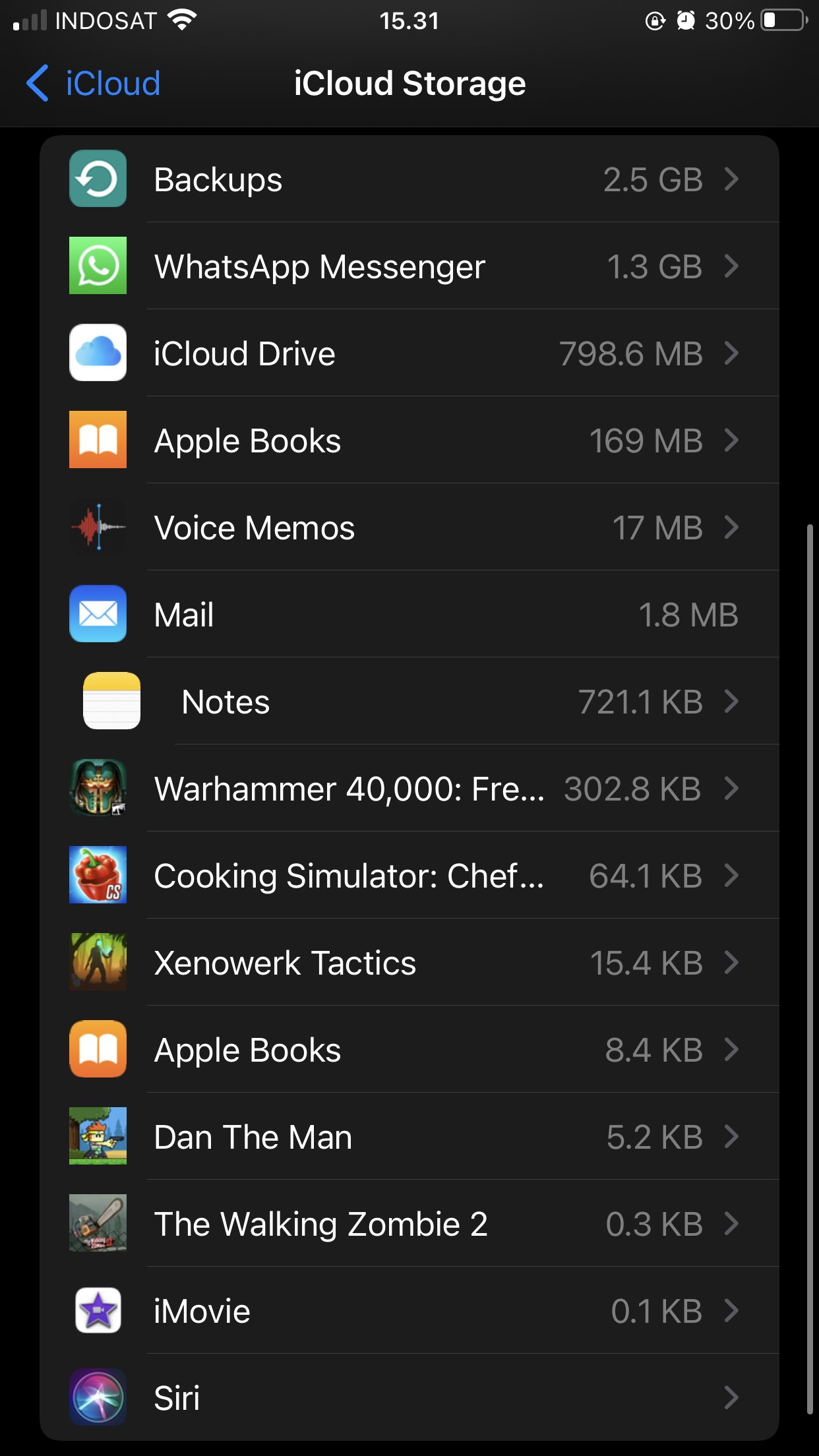
Many games are smart and use iCloud storage to backup your progress. This is great if you’re switching devices but, if you’re trying to erase game progress, it can be tricky. You can try and clear this to completely remove your data. Here is how to do that.
Deleting iCloud Game Saves
Here are the steps on how to clear your game data in your iCloud storage.
- Open Settings: Navigate to the “Settings” app on your iPhone.
- Tap Your Name: Tap on your name at the very top of the Settings screen. This takes you to your Apple ID settings.
- Go to iCloud: Tap “iCloud”.
- Manage Storage: Select “Manage Storage.”
- Find Your Game: Scroll down until you see the list of apps that use iCloud. Locate the game you want to remove the save data from.
- Remove data: Now tap on the game and then you will see the option to “Delete Data” from iCloud. Tap on this to remove your save data.
Important Note: iCloud data will be removed for that specific game in any of your other Apple Devices connected to that same iCloud. So, if you are doing this, be aware that you will be deleting the data from everywhere, not just on the device where you are currently deleting it.
Handling Game Data Stored on Game-Specific Servers
Many online games rely on their own servers to store your game progress, profile, and items. This is especially common with big multiplayer games. In these instances, you don’t have much control over the data, but there are a few approaches you can try, which will be discussed.
Contacting Game Support
The best way to deal with data stored on game servers is to contact the game’s support team. Here’s how:
- Find Contact Information: Open the game. Look for a “Settings” option, or “Help,” “Support,” or “Contact Us” section. This could be inside the game’s menus or on their website.
- Explain Your Situation: In your message, explain clearly you would like your account data erased. Many game companies provide an option for this if you’re handing over an account or starting from scratch.
- Be Patient: Game Support might take some time to respond and process your request. Be patient and keep following up, if necessary.
While game support will be able to remove your account from their servers, it is also important to know that not all games offer this option for users. Game Support will inform you whether or not they can help you.
Starting a New Account
If the game you play does not offer an option to remove your data, you may not have any choice but to create a brand new account to start fresh in your chosen game. Here are some steps to take when doing so.
- Sign out of current Account: In your game’s settings you need to find the option to sign out from your current game account.
- Follow game’s instructions: You should now be prompted to create a new game account. Make sure you do so and follow the instructions in game. You will now have a brand new account and be able to start from scratch, without any past saved data.
A Note on Device Reset
If you’re planning on selling or giving away your iPhone, you might want to do a full reset of your phone. A reset will clear all data, including game data. But this is an extreme step that you should take only after you’ve backed up important data from the phone, like personal photos and videos. Here’s how to reset your iPhone:
- Open Settings: Tap the “Settings” app on your iPhone.
- Go to General: Tap on “General”.
- Select Transfer or Reset iPhone: Scroll down and tap on “Transfer or Reset iPhone”.
- Erase All Content and Settings: Choose “Erase All Content and Settings”. This will erase absolutely everything on your phone.
- Follow the Prompts: Your iPhone will guide you through the process, which will take some time. Be patient!
Warning: A reset like this will remove everything from your iPhone and restore it to its factory settings. Use this only if you want to do a complete wipe of your device.
Tips for the Future
Here are a few tips to help you manage your game data on your iPhone for the future:
- Check Settings: Before starting a new game, check if it saves data to iCloud, Game Center, or its own servers. This way, you can decide if you want to do that.
- Regular Backups: If you want to keep your game data safe, make regular backups of your phone through iCloud or using your computer.
- Clean Up Regularly: If you aren’t playing a game often, you might want to delete it to free up space. Remember, reinstalling it may or may not retrieve your progress, so keep that in mind.
By following the guidelines laid out in this document, you can be assured that the game data you wish to erase on your iPhone, is indeed erased. Using the methods outlined, you should be able to clear the data from various places where it may be stored on your phone, so you can start fresh, or give your phone away confidently.
How To Reset Game Data On iPhone
Final Thoughts
To summarize, you can remove game progress via the specific game’s settings or through iCloud data management. Deleting the app also removes local data. Remember that some games store progress on their servers; you might need in-game options for complete removal.
Therefore, how to erase game data on iphone relies on understanding where the data is stored. You will usually find the method for game data removal within the game settings itself. Also deleting from the game center is an option you have.

