
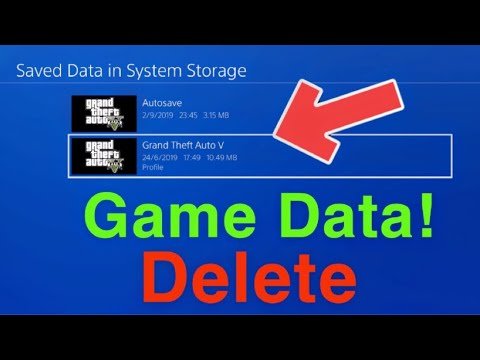
To erase game data on PS4, navigate to Settings > Application Saved Data Management > Saved Data in System Storage, select the game, and choose “Delete.”
Have you ever wanted to start a game completely fresh, or perhaps free up some space on your console? Maybe you’re thinking about selling your PlayStation 4 and need to ensure all your progress is wiped. Understanding how to erase game data on PS4 is a key part of console management.
Clearing this data is actually pretty straightforward once you know where to navigate. This process keeps your console optimized and ready for new gaming experiences. So, lets get started with the guide.

How to Erase Game Data on PS4
Okay, so you’re ready to say goodbye to some game data on your PlayStation 4. Maybe you’re clearing space for new adventures, or perhaps you want a fresh start. Whatever the reason, it’s good to know how to get the job done. Think of it like tidying your room – sometimes you need to clear things out to make space for new toys! Let’s walk through the different ways you can erase game data on your PS4.
Understanding Game Data on PS4
Before we dive into deleting, it’s helpful to understand what we’re dealing with. Game data on your PS4 typically comes in two main flavors: Saved Data and Game Installs. Knowing the difference is important because they are erased in different ways.
Saved Data
This is where all your progress in games lives. Think of it as the bookmarks in your favorite book, only these are for your games. They keep track of your scores, levels, items, and all the important stuff you’ve achieved. This data is usually small in size but very valuable to you if you want to continue your game from where you left off. This data lives separately from the game itself.
Game Installs
These are the actual game files you download from the PlayStation Store or install from a disc. They take up the most space on your hard drive, especially big games, and they are very large in size. If you have a large game library, they can fill up your hard drive quickly. These files contain everything that makes your game work, including the graphics, sounds, and gameplay mechanics.
Why Erase Game Data?
There are several good reasons why you might want to erase game data on your PS4. Here are a few common ones:
- Freeing up Storage: PS4 hard drives can fill up quickly, especially with many games installed. Deleting data can make room for new games.
- Starting Fresh: You might want to replay a game from the very beginning without old progress getting in the way.
- Selling or Giving Away Your PS4: Before passing on your console to someone else, you’ll want to remove all your personal game data to protect your privacy.
- Troubleshooting Game Issues: Sometimes, corrupted game data can cause problems. Deleting and reinstalling the game might fix it.
How to Delete Saved Game Data
Now, let’s get to the nitty-gritty of deleting your saved data. This is how you clear your in-game progress without removing the actual game itself. The steps are pretty straightforward and don’t require any special skills!
Accessing the Saved Data Management Menu
First, we need to navigate to the right place on your PS4.
- Turn on your PS4 and go to the main menu.
- Use the controller to scroll to the Settings icon (it looks like a toolbox).
- Select Settings and press the X button.
- Scroll down the menu and select “Application Saved Data Management” then press the X button.
Selecting Saved Data to Delete
Now that we’re in the Saved Data Management section, we can start to delete our saves!
- You will see a few options. Select “Saved Data in System Storage” and press the X button.
- You will then have the option to either select “Delete” or “Copy to USB Storage Device”. Select “Delete”.
- Now you will see a list of all the games for which you have saved data. Select the game you wish to delete data from.
- Next you will see a list of all the saved data for the selected game. Select the saved data you want to delete or select “Select All” if you want to delete all of the saved data for the selected game.
- Finally, Select “Delete” and confirm that you wish to delete the selected saved data.
That’s it! Your saved data is gone. Remember, once you delete it, it’s gone for good, so be sure before you confirm.
How to Delete Game Installs
If you’re trying to free up lots of space, then deleting the game install is the way to go. Doing this completely removes the game from your console, so you’ll need to reinstall it if you want to play again.
Accessing the Storage Menu
To get started, we’ll need to find the game install management area:
- From the main menu on your PS4, navigate to the Settings icon (the toolbox) and press the X button.
- Scroll down the menu and select “Storage” and press the X button.
Deleting Game Installs
Now you can start removing the game installations.
- Select “System Storage”.
- Select “Applications” or “Games”.
- You’ll see a list of all the installed games on your PS4. Select the game you want to uninstall and press the Options button (the button with three lines).
- Select “Delete” and press the X button.
- You will get a confirmation pop up. Select “OK”.
And just like that, you’ve uninstalled the game! Remember, this deletes the entire game, not just your saved data. If you want to play it again, you’ll need to reinstall it.
Managing Storage with External Hard Drives
Sometimes, even deleting a few games doesn’t give you enough space. If you play many games, you might want to consider using an external hard drive. PS4 consoles can use external hard drives to store game installs, making it easy to manage storage. This is a great way to keep your favorite games at the ready without using your system storage.
Connecting an External Hard Drive
Here’s how you connect an external hard drive to your PS4:
- Make sure your external hard drive is formatted correctly. The PS4 needs it to be formatted as exFAT. If you’re not sure how to do that, there are lots of guides on the internet that can help you.
- Plug the external hard drive into one of the USB ports on your PS4.
- Your PS4 will usually detect the external hard drive automatically and you’ll get a notification saying “Extended Storage is Connected”.
Moving Games to the External Hard Drive
Now that your external hard drive is connected, you can move games over to it.
- Go back to Settings, then to Storage, as you did before to uninstall games.
- Select System Storage.
- Select Applications (or Games)
- Select the game you wish to move to external storage then press the Options button.
- Select “Move to Extended Storage”.
- Confirm the move, and your game will start moving to your external hard drive.
You can also choose to automatically install any new games to your external hard drive if you don’t want to fill up your internal hard drive.
Using PS Plus Cloud Storage
PlayStation Plus members have another useful tool: cloud storage. This is a place where you can upload your saved game data, kind of like putting it on a safe online backup.
Uploading Saved Data to the Cloud
Here’s how you can use the cloud to back up your saved data:
- Go back to Settings and select “Application Saved Data Management”.
- Select “Saved Data in System Storage”.
- Select “Upload to Online Storage”
- Select the games and saves you wish to upload.
- Then select “Upload”.
Downloading Saved Data from the Cloud
If you need your saved data back, you can easily download it from the cloud.
- Go back to Settings and select “Application Saved Data Management”.
- Select “Saved Data in Online Storage”.
- Select “Download to System Storage”.
- Select the games and saves you wish to download.
- Then select “Download”.
Cloud storage is helpful as a backup just in case something happens to your PS4 and can be used to keep save data if you change consoles.
Other Things to Consider
Before you go on a deleting spree, here are some more things to keep in mind:
- Check Game Size: When deciding what to delete, look at the size of the games. Big games take up a lot of space so they’re usually a good place to start when you need to free up storage.
- Think About Your Play Style: If you only play certain games occasionally, those are good candidates for deletion or to be put on an external hard drive. Keep the games you play frequently installed.
- Back Up Important Data: Before doing anything major like deleting a whole bunch of games or saved data, always consider backing it up to a USB drive or the cloud (if you have PS Plus) as a precaution.
A Quick Recap
Let’s have a quick summary of the main points:
- Saved Data: This includes your in-game progress and lives separately from the game. You can delete it from the “Application Saved Data Management” area in settings.
- Game Installs: These are the actual game files. You can delete these from the “Storage” area of settings.
- External Hard Drives: A good way to store game installs, so you don’t fill up your PS4 internal hard drive.
- Cloud Storage: If you have PS Plus, you can use cloud storage to backup and restore your saved data.
Deleting game data on your PS4 is pretty straightforward, and it can be very useful to free up space. By following the steps, you can manage your storage like a pro and keep your console running smoothly. Now you can go and confidently manage your PS4’s storage and decide what to keep and what to say goodbye to! Remember, it’s just like organizing your room; a little bit of tidying up can make a big difference!
How to Delete Saved Game Data On PS4 Console (Easy Tutorial)
Final Thoughts
To erase game data on ps4, navigate to ‘Settings,’ then ‘Application Saved Data Management.’ Select ‘Saved Data in System Storage,’ choose the game, and delete the data you want removed. This action removes game progress and settings.
Ensure you select the correct game. Deleting data is permanent and cannot be reversed. Follow these simple steps when you need to understand how to erase game data on ps4.

