
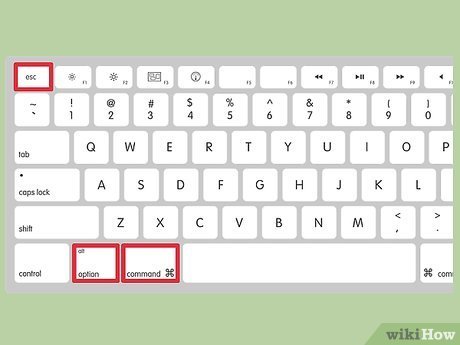
To exit a game on PC, you typically press the ‘Esc’ key, use an in-game menu option, or press ‘Alt + F4’ on your keyboard.
Ever felt trapped in a digital world? You’re engrossed in a game, but real life calls. Suddenly, you might wonder, how to exit a game on pc properly. It’s a common question for all gamers, from beginners to seasoned pros.
Knowing the right techniques makes the process smooth. You don’t want to accidentally shut down your whole computer. This short guide provides some simple methods for ending your gaming session.

How to Exit a Game on PC: A Comprehensive Guide
So, you’ve been playing your favorite PC game, totally immersed in its world, but now it’s time to stop. Maybe your pizza’s arrived, your bedtime’s calling, or you just need a break. But, how do you actually leave the game? It sounds simple, right? Sometimes, it can be a little tricky. This guide is here to help you learn all the ways to exit a game on your PC, from the most common methods to those handy tricks for when things get a little stuck.
The Classic Method: Using the Game Menu
Most games make it pretty easy to quit. The most common way is through the game’s own menu. This is usually the safest and most reliable method because it allows the game to save your progress properly. Here’s how it typically works:
- Look for a Menu Button: Often, this is labeled “Menu,” “Options,” or is represented by a pause symbol (two vertical lines). You can usually find this button at the top or bottom of the screen or a corner, most likely in the top left corner or top right corner. Sometimes, pressing the Escape (Esc) key on your keyboard will open the menu too.
- Find the Exit Option: Once the menu is open, look for words like “Exit,” “Quit,” “Return to Desktop,” or “Main Menu.” Choose this option.
- Confirm Your Choice: Usually, a little pop-up box will appear asking if you’re sure you want to leave. Click on “Yes,” “Okay,” or confirm to close the game. Some games may not have a confirmation box, so be prepared for the game to close immediately after you choose this exit option.
Using the game menu is the preferred way to exit since it will try to save your progress before shutting down. This ensures that you don’t lose all your hard work if the game has an auto-save feature. If it does not have an auto save feature, then you can save your game, before choosing the exit option from the menu.
The Alt + F4 Shortcut: A Quick Exit
Okay, what if you are in a hurry? Or the game menu is acting weird? There is another quick way to close most applications, including games, on your PC, it is using a shortcut on the keyboard. This is often called the “Alt + F4” method.
How to Use Alt + F4
Alt + F4 is a shortcut key combination on your keyboard. Here’s how to use it to exit a game on your PC:
- Make sure the game is active: Click on the game window once, to make it the active application on your desktop.
- Press the Alt key and the F4 key at the same time: Hold down the Alt key, and then press the F4 key.
- The game should close immediately: Most of the time, this will close the game window without any further prompts or notifications.
Important Note: While Alt + F4 is a fast way to exit, it doesn’t always allow the game to save progress properly. Use this method with caution, especially if you’ve made significant progress since the last save.
Alt + F4 is like an emergency exit. It gets you out quick, but doesn’t guarantee that you’ve followed all the proper procedures. So, it is not a good option if you have unsaved game progress, you may lose that, so use the exit button from the menu instead of using this shortcut, if you have unsaved game progress.
Using the Windows Task Manager: For When Things Get Stuck
Sometimes, a game can get stuck. The game might freeze, or it may not respond to your clicks, even using Alt+F4 may fail to close the game. This can be frustrating! When that happens, the Windows Task Manager is your friend.
What is Task Manager?
The Task Manager is a Windows tool that shows you all the programs and processes running on your computer. It is great for forcing stubborn programs to close.
How to Open the Task Manager
There are a few different ways to open Task Manager, choose whichever way is the most comfortable for you:
- Using the Keyboard Shortcut: Press Ctrl + Shift + Esc at the same time.
- Using the Right-Click Menu: Right-click on the taskbar (the bar at the bottom of your screen), and choose “Task Manager” from the menu.
- Using Ctrl + Alt + Delete: Press Ctrl + Alt + Delete at the same time. A screen with a few options will appear, choose “Task Manager.”
How to Use Task Manager to Close a Game
Once the Task Manager is open, follow these steps to close your game:
- Find your game in the list: Usually, the Task Manager opens to the “Processes” tab. Scroll through the list until you find the name of the game you want to close. If you are in a hurry, click the ‘Name’ tab at the top to list all the running processes in alphabetic order. This way you can find your game name easily.
- Select the game: Click on the game name to highlight it.
- Click “End Task”: At the bottom of the Task Manager window, you’ll see a button labeled “End Task.” Click this.
The Task Manager will force the game to close. Again, remember that when using the Task Manager to exit a game, you might lose unsaved game progress, so this is the final and most powerful method you must use, when every other method fails to close your game.
Using the Game’s Built-In Exit Features
Some games have very unique ways to exit, these methods may be a bit different from the usual menu options, or by using Alt + F4. These exits can come in a form of special key on the keyboard or any on screen button.
Examples of Special Exit Features
Lets see some common methods that games use to exit:
- Dedicated Exit Buttons: Some games use a specific key on your keyboard (e.g., the “Home” key) or an on-screen button for exiting, such as ‘Exit to Desktop’ button on main menu or in game menu options.
- Context-Specific Exits: In games with multiple levels or areas, the exit might be an in-game object or character you need to interact with to leave the game.
- Command Line Exit: Some older or simulation games might have an option to type an ‘exit’ command in the in-game command line.
If you cannot find a way to exit, look in the games manual, the game’s website or online forums, or check youtube videos if someone already encountered such an unusual exit method for that game. Because every game is different, its always best to find the games manual or a proper tutorial for it.
Saving Before Exiting
It’s always a good idea to save your game before you exit. This makes sure you don’t lose any of your game progress. Here’s what to keep in mind:
Autosave vs. Manual Save
- Autosave: Some games save your progress automatically at regular intervals. This is helpful, but it’s not always reliable. It is possible that some games might not have this feature.
- Manual Save: This is when you have to save the game yourself. Always make sure to use a save option from the menu, before you quit the game, especially if the game doesn’t have auto save feature.
Tips for Saving
- Save Often: Don’t wait until the very end to save. Save every now and then, especially after completing a difficult part of the game.
- Double Check: Before closing a game, check that your progress has actually been saved properly. Most games will give a confirmation message after saving the game.
Troubleshooting Common Exit Problems
Sometimes exiting a game can be tricky. Here are some common issues and how to fix them:
Game is Frozen
If the game is completely frozen, and you cannot use the game menu or Alt + F4, use the Task Manager to close it as described before. This is a most effective method to shut down a game, when all other options fail.
Game Won’t Close with Alt + F4
If Alt + F4 does not work, try clicking on the game window again to make it the active window. Then try Alt + F4 again. If it still does not work, use the Task Manager method, explained before.
Game is Minimised and Not Responding
If the game is minimized and not responding, try to bring it up by clicking the game icon on the task bar, if you can’t bring it up, use task manager to end the task.
Game is still running even after closing
Sometimes, when a game has some issues, it may continue to run in the background even if you shut it down. You can close it from the ‘Processes’ tab of task manager. First go to the processes tab in task manager, then search for the name of the game and then end the task as you did previously when game was stuck.
By learning these different methods, you will be able to exit any PC game smoothly and without any frustration. Remember that using the game menu is the best way to exit if you want to save game progress, and using Alt + F4 is a fast way to exit a game quickly. The Windows Task Manager is there for when your game freezes. Always check if you saved your game and confirm you saved successfully before you exit from the game. Happy gaming!
HOW TO EXIT APP IN WINDOWS 10 WITH KEYBOARD SHORTCUT ⌨️#technology #tech #shorts #short
Final Thoughts
Exiting games typically involves using the in-game menu. Find the “quit” or “exit” option, usually located in the settings or main menu. Some games let you close directly via the operating system.
The Alt + F4 shortcut is a forceful method for closing the application. Remember, this might not save progress.
Ultimately, ‘how to exit a game on pc’ depends on the specific title. Always try the in-game options first for a clean and safe exit.

