
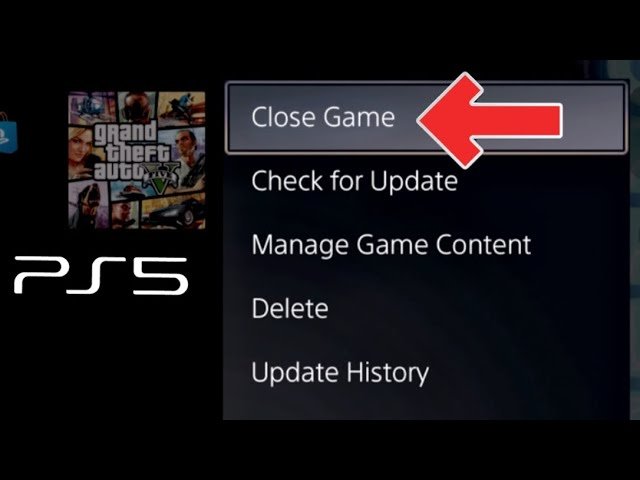
To exit a game on PS5, press the PlayStation button on your controller to open the control center, then select the game from the list, press the Options button, and choose “Close Game”.
Ever found yourself lost in a gaming world and wondered how to exit a game on PS5? It’s a simple process, but easy to overlook when you’re in the heat of the moment. This guide will quickly explain the steps.
We’ve all been there, ready to switch games or maybe just take a break. Don’t worry, exiting is straightforward.

How to Exit a Game on PS5
So, you’re deep into an awesome game on your PlayStation 5, and suddenly, real life calls. Maybe it’s dinner time, homework time, or time to get some sleep! Whatever the reason, knowing how to properly exit a game is super important. It’s not as simple as just turning off your console, you know! Doing that could cause problems with your game progress. This guide will walk you through all the safe and easy ways to close out your games on the PS5, ensuring your progress is saved and your console stays happy. Let’s dive in!
The Basics: Using the PlayStation Button
The most common and generally easiest way to leave a game is by using the PlayStation button on your DualSense controller. This is the button with the PlayStation logo on it, located right in the center of the controller. Here’s how you do it:
- Press the PlayStation button once: When you press the PlayStation button, a control center will pop up at the bottom of your screen. Think of it like a quick menu for important things.
- Navigate to the ‘Home’ icon: Using the directional pad (the arrows) or the left stick, move the selector over to the icon that looks like a little house. This is your home screen.
- Select the ‘Home’ icon: Press the ‘X’ button to select the ‘Home’ icon. This will take you back to the main PlayStation 5 menu, showing all your games and apps.
- The game is now closed in the background: The game is not completely closed, but it’s paused. Now you can select a new game, or do other things in your console.
Understanding the Control Center
The control center is more than just a way to get back to the home screen. It offers quick access to many features, like adjusting sound, checking notifications, or managing your downloads. Spending some time exploring it can save you time later. However, for the purpose of exiting a game, the ‘Home’ icon is your primary target.
Closing Games Completely: The Options Button Method
Sometimes, you might want to close a game completely instead of just pausing it in the background. This might be useful if a game is acting buggy, using lots of system resources, or you just want to be sure it’s fully shut down. Here’s how to completely close a game:
- Make sure you are on the game you want to close on the home screen: Navigate to the game you want to close using the d-pad or analog sticks.
- Press the Options button: On your controller, find the ‘Options’ button. It’s the small button to the right of the touchpad and is sometimes called the ‘Start’ button on other consoles.
- A menu will appear on screen: This new menu provides you several actions you can choose for this game.
- Select ‘Close Game’: Navigate downwards and press “X” button on the option “Close Game”. This will completely shut down the game.
- Game is now closed completely: Now your game is completely closed, it is no longer in background.
When Should You Fully Close a Game?
Fully closing a game can be useful in a few situations. Here are a couple of examples.
- If a game is running poorly: Sometimes a game might freeze, lag, or crash. Closing and restarting it can often solve the problem.
- If you are switching to a new game: Closing out your current game ensures that the PS5 isn’t working harder than it needs to. It helps keep the system running smoothly when you’re switching between different games or apps.
- Troubleshooting: When you face issues like error codes, or bugs, restarting the game, and if that doesn’t work, restarting the PS5 can resolve these problems.
The Long Press: Returning to the Home Screen
There is also a third way to get back to the home screen, and it’s one of the quickest methods. A long press of the PlayStation button can take you directly to the home screen.
- Press and hold the PlayStation button: Instead of tapping it briefly, press the PlayStation button and hold it down for about one second.
- You’re now at the home screen: You will be taken straight to the home screen, and the game will be paused in the background.
Benefits of This Method
- Speed and convenience: This is a very quick way to move between the game and the home screen.
- Easy to remember: If you struggle to remember steps, this method is easiest for quick access back to the home menu.
Understanding Save Data and Game Progress
Before you close a game, whether by returning to the home screen or completely shutting it down, it’s super important to understand how saving works. Most games have an automatic save feature that kicks in at certain points, like when you finish a level or hit a checkpoint. However, sometimes you have to manually save.
- Automatic Save: Most modern games use auto-save features. Always double-check for that ‘saving’ icon on screen before closing.
- Manual Save: It’s always a good idea to manually save if the option is available within the game before closing it. You can do this by going into the game’s menu and selecting the ‘Save’ or ‘Save Game’ option. This will make sure your progress is saved.
Why Saving is Important
Proper saving habits are vital to avoid losing all your progress. No one wants to lose hours of gameplay, so always make sure that the game has been saved correctly, either automatically or manually before you close out the game.
What Happens When You Just Turn Off the Console?
Now, you might be wondering, “What if I just turn off my PS5 without closing the game?” Well, while the console is smart and will try to save things for you, it’s not a good habit. Here’s why:
- Potential Data Loss: You may lose any unsaved progress, or even corrupt your saved file if your PS5 gets shut off in the middle of a saving process.
- Risk to Console: While the PS5 is designed to manage abrupt power offs, doing it repeatedly might cause problems with the system software or files.
- Game Corruption: Games can sometimes have files become corrupted if they are not shut down properly. This can result in having to re-install the game.
Best Practices
It’s always better to take a few extra seconds to properly exit a game before turning off your PS5. This helps to make sure all data is saved and prevents any issues.
Troubleshooting: Common Problems When Exiting
Sometimes, you might run into a problem when trying to exit a game. Here are some common situations and solutions:
Game Freezes or Won’t Close
- Wait a Minute: Sometimes the game is just being slow. Give it a moment to see if it resolves the problem.
- Force Close the Game: If the game is frozen solid, you might have to force it to close. To do this, you can hold down the PlayStation button and select ‘Close Application’.
- Restart Your PS5: If force closing the game doesn’t help, try restarting your PS5. Hold the power button on your console for about ten seconds to force a power off, then turn it back on.
Saved Progress Not Loading
- Check Your Saved Files: In the game menu, look for the saved files to make sure they are available.
- Try Loading a Different Save: If there are multiple save files, try loading a different one.
- Try an older save if available: If the problem continues, try loading an older save file.
Console Issues
- Check for Updates: Make sure your PS5 is updated with the latest system software. System updates fix many common issues.
- Internet Connection: If you’re playing an online game, make sure your internet connection is stable.
Tips for a Smooth Gaming Experience
Here are some general tips to make your gaming experience as good as possible:
- Save Often: If a game has manual saves, make sure you save often, especially before starting any new challenges or levels.
- Be Aware of Auto-Save: Most games nowadays have auto-save features. Look for that auto-save indicator on the screen.
- Check Updates: Keep your PS5 console and games updated with the latest version.
- Handle Controllers With Care: Handle controllers with care to prevent them from being damaged.
- Maintain your console: Clean your console every now and then, to prevent dust build up which can reduce the consoles efficiency.
PS5: How to Close Games & Applications Tutorial! (For Beginners) 2024
Final Thoughts
To exit a game on your PS5, simply press the PlayStation button on your controller. This action will bring up the Control Center. From there, navigate to the game you want to close.
Select the game and then press the Options button. A menu will appear; choose ‘Close Game’. This will promptly end the application. This demonstrates how to exit a game on ps5 easily.

