
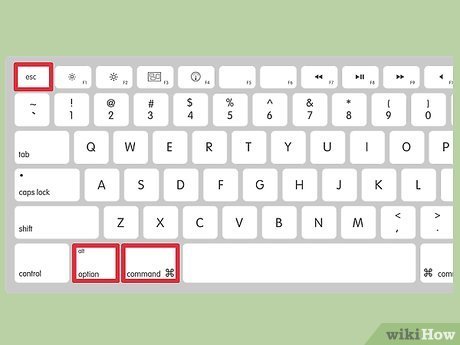
To exit a game on PC, press the ‘Esc’ key, then find and click on the ‘Exit’ or ‘Quit’ option within the game’s menu. Alternatively, you can try pressing ‘Alt + F4’ to close the game window directly.
Ever been lost in a virtual world, only to realize you need to quickly get back to reality? Knowing how to exit game on PC is a basic skill that every gamer needs. It might sound simple, but games often have different methods.
Sometimes the escape key works perfectly, bringing up the game’s menu with an exit button. Other times, you’ll need to press a combination of keys like Alt and F4. This quick guide will help you navigate these various methods, ensuring you can leave your game safely and promptly.

How to Exit Game on PC: A Complete Guide
Have you ever been stuck in a video game, unsure how to get back to your computer? It happens to everyone! Sometimes the exit button isn’t obvious, or maybe your game is acting a little funny. Don’t worry, this guide is here to help you understand all the ways you can safely exit a game on your PC. Whether you’re playing a fast-paced action game or a relaxing puzzle, knowing how to close it properly is important. Let’s explore all the options, from the simplest to the slightly more advanced, so you can always get back to your desktop when you want.
The Basic Exit: In-Game Menu Options
Most games offer a very simple way to exit through their main menu. This is usually the easiest and most recommended way to close a game because it allows the game to save your progress and quit properly. Here’s what to look for:
- “Exit,” “Quit,” or “Main Menu” buttons: These are often found in a menu that pops up when you press the ‘Escape’ key (Esc) or a similar key on your keyboard, or sometimes an options/settings button. Sometimes a little gear icon represents these options.
- Saving Before Exiting: Often, the game will prompt you to save your game before quitting, to save all of your progress. It’s good practice to always save before exiting so that you don’t lose your game data.
- Following On-Screen Prompts: Read the prompts and messages carefully. Games often provide clear instructions on how to exit. Don’t just click randomly, but pay attention to what it is telling you.
For example, if you’re playing Minecraft, you’ll likely need to press “Esc” and then click “Save and Quit to Title.” Or, in a racing game, you may need to go to the “Pause” menu and select “Exit.”
Using the Taskbar to Close Games
Sometimes, the game menu might be unresponsive, or you might want a faster way to close. Your computer’s taskbar, that strip usually at the bottom of your screen, offers another method to shut down a game. This is a convenient and reliable way to close down an unresponsive window:
Locating the Game Icon
First, look for the icon of the game in the taskbar. It’s usually the same icon you use to open the game. If you have several windows open, you will need to see the exact game icon that you’re trying to close. Games might also appear in your taskbar with a window preview, showing what is displayed in the game.
Right-Clicking and Selecting Close
Once you find the game’s icon or window preview in the taskbar, right-click on it. A small menu will appear, showing many options. Find the option that says “Close window,” “Close” or something similar. Click on this, and the game should close.
Force-Closing: When the Normal Close Doesn’t Work
If the normal “Close” option doesn’t work, you can select “Close window” again, and this time, your computer will force close the application. This might cause the loss of unsaved data. It’s generally better to try the game’s own exit button first, but force closing is an option when all else fails.
Using Keyboard Shortcuts to Close the Game
Keyboard shortcuts are the quickest method of exiting a program or game on your computer. They’re like secret codes that tell your computer to perform specific actions. Here are some handy shortcuts for closing games:
The Alt + F4 Combination
The “Alt + F4” keys, pressed together, is a very popular method for closing any active window on your computer, including games. Press and hold the “Alt” key, then press the “F4” key. Usually, this will close your game immediately. If the game is frozen or not responding correctly, it might not work as effectively. This is a commonly used method that is a valuable addition to your pc skillset, and can help you close a game quickly.
The Windows Key + D Shortcut
While not directly closing the game, pressing the “Windows Key” and “D” together will minimize all open windows, including your game. This can help you get back to your desktop quickly if you need to do something else. From your desktop, you can then close your game from the taskbar, as discussed earlier.
The Ctrl + Shift + Esc Combination
This opens the Task Manager (we will go into this in more detail later). Once open, you can select your game from the list and click “End Task,” which is similar to a force close, but you can see all your running programs in one go. This method is handy when many things are running, or you can’t find the program in your taskbar.
Each shortcut is useful in different situations and these are important options when a game fails to respond.
When Games Freeze: Force Quitting with Task Manager
Sometimes a game might freeze, stop responding to your inputs, or seem completely stuck. In these cases, you can use the Task Manager to close the game. The Task Manager is like a control panel for your computer’s programs. You can see all the programs currently running, as well as other computer information. It allows you to close non-responsive programs quickly.
Accessing the Task Manager
You can open the Task Manager in several ways:
- Ctrl + Shift + Esc: This is the most common keyboard shortcut to open the Task Manager.
- Ctrl + Alt + Delete: This combination brings up a screen with several options; choose “Task Manager” from this screen.
- Right-Clicking the Taskbar: You can right-click on an empty space on the taskbar and choose “Task Manager” from the menu that appears.
Identifying the Frozen Game
Once the Task Manager is open, you will see a list of applications, processes, and other things using your computer’s resources. Look for the game that is not working properly. It might be listed under “Apps” or “Processes.” Games are generally easy to identify, as their name will be very clear, such as “Minecraft.exe” or “Fortnite.exe”
Ending the Task
After you have found the frozen game, click on its name in the list, then click the “End Task” button at the bottom of the Task Manager window. This will force the game to close. Remember that unsaved data in the game may be lost. If the game continues to be an issue, you can always try and restart your PC.
Game Launcher Exiting
Many games are launched through game platforms or launchers like Steam, Epic Games, Battle.net, Origin, or Ubisoft Connect. To fully exit a game, it can be important to close these launchers as well, as they may be running in the background, and might keep your game running. Here’s how you can manage these:
Closing the Launcher Directly
After you exit the game, look at the system tray. This is often found in the lower right corner of your desktop (where the clock is). Here you can usually find the icon for the game launcher. Right-click on the launcher’s icon and choose the option to “Exit” or “Quit.” This shuts down the launcher itself. You can also find the launcher in your taskbar and select “Close” the same way you would a game.
Using the Launcher’s Menu
Many launchers also have an “Exit” option within their own menus. Open the launcher itself (if you have not closed it). Usually, there is a “File” menu or something similar, and within it, you can often see “Exit” or “Quit.” This method shuts down the launcher properly. It’s not always necessary to close the game launcher, however, if you want to fully exit all of the game related programs, this is the option for you.
Using the System Tray
The System Tray, which is located next to the clock in the bottom-right corner of your screen, is a small area of your desktop that shows the programs that are running in the background. Some game-related programs may be minimized in your system tray even after you have closed the game. Here’s how to deal with those programs:
Identifying Game-Related Programs
Sometimes background game software (like a launcher or anti-cheat) may appear as icons in your system tray. Sometimes they are very small or hidden and may need to be unhidden by clicking on the small arrow, often facing upwards. Hover your mouse over each icon to identify the program. They may be game logos or even some third-party applications which need to be closed.
Closing Programs From the System Tray
To close a program from the System Tray, right-click on the icon and choose the option that says “Exit”, “Quit”, or “Close”. If it’s a game launcher, this will fully close the launcher process. If it is not, then it will close any other program running related to your game. Closing these programs fully will ensure they do not continue to run in the background and take up valuable computer resources.
Additional Tips for Smooth Game Exits
Here are some extra points to remember to avoid frustration when exiting games:
- Check for Updates: Keeping your games and graphics drivers updated can reduce the risk of crashes and freezes, making exits smoother.
- Save Regularly: Always save your game progress frequently. This helps prevent losing progress if something goes wrong. Most games have autosave features, however it’s usually good practice to save yourself, and you will feel a lot more secure that all of your progress is saved.
- Close Other Programs: Having too many programs running at the same time as a game can cause issues. Close programs you aren’t using to free up computer resources.
- Restart your PC: If your game is consistently misbehaving, restarting your computer is sometimes the best solution. This can help clear out any temporary problems that might be causing the game issues.
By understanding these methods, you can confidently close any game on your PC, ensuring that your game data is saved and your PC is running smoothly. It’s important to be flexible and use the method that best suits the situation. With a little practice, you’ll be able to exit games like a pro!
HOW TO EXIT APP IN WINDOWS 10 WITH KEYBOARD SHORTCUT ⌨️#technology #tech #shorts #short
Final Thoughts
To exit most PC games, you can usually press the ‘Esc’ key to access the game menu. From there, find an option labeled “Quit”, “Exit”, or something similar. Some games might require you to click a specific button icon instead.
Alternatively, you can often press Alt+F4 to immediately close the active game window. This method forces the game to shut down instantly. Now you know how to exit game on pc using different methods.

