
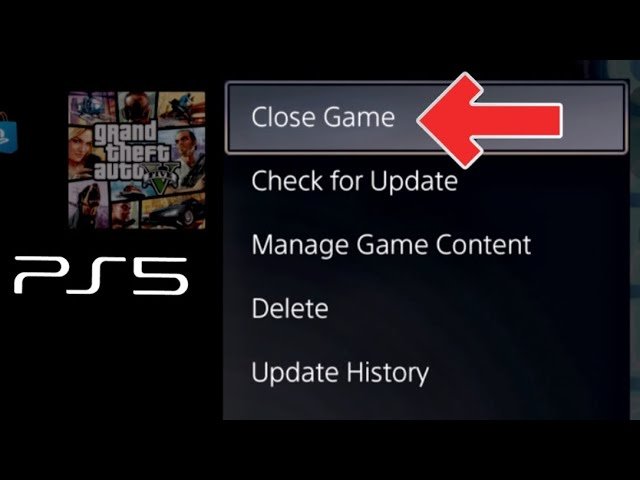
To exit a game on your PS5, press the PlayStation button on your controller, navigate to the game icon in the Control Center, then select “Close Game”.
Ever found yourself immersed in a PS5 adventure, only to realize it’s time to switch gears? Knowing exactly how to exit game on ps5 efficiently can save you precious gaming minutes. It’s a common query, and thankfully, the process is straightforward.
This simple guide will provide the quick steps you need. We will walk you through the process of correctly closing the game you are currently playing so you can easily return to the PS5 home screen, ready for the next experience.

How to Exit Game on PS5: A Complete Guide
So, you’re having a blast playing your favorite game on the PlayStation 5, and now it’s time to stop. Maybe dinner’s ready, or you’ve got some homework to do (don’t forget!), or maybe you just want to switch to a different game. Knowing how to correctly exit a game is important. It’s like turning off the lights when you leave a room; it’s a good habit. This guide will show you all the different ways you can do this. We’ll cover everything from the simple, standard method to some handy shortcuts. We will also touch on why it’s important to exit properly and what could happen if you don’t.
The Standard Way: Using the PlayStation Button
The most common way to exit a game is by using the PlayStation button on your DualSense controller. It’s the button with the PlayStation logo on it. This is your magic button for all things PS5.
Steps to Exit a Game with the PlayStation Button:
- First, press the PlayStation button. This will take you to the Control Center. This is where you see all your quick access stuff. It’s also a place where you can see the game you are playing.
- Once in the Control Center, look for the game icon that’s highlighted. It’s usually at the bottom of the screen.
- Now, press the Options button on your controller. The Options button looks like three horizontal lines. You will find it to the right of the triangle button. This will bring up a menu of options for the game.
- From that menu, choose “Close Game.” You’ll see it among other choices.
- The game will then close, and you’ll be taken back to the main PS5 home screen.
This is the go-to method for most players, and it’s very easy to remember. The control center is your friend when navigating the PS5 system and is used to take many different actions. Remember to always use the Options button to close out a game.
Using the Quick Menu
The Quick Menu is another way to get to the same options. It’s very similar to using the Control Center, but some people find this method faster.
Accessing the Quick Menu:
- Press the PlayStation button on your DualSense controller. This opens the control center.
- In the control center look for the game’s card.
- Press the Options button on your controller, and then select “Close Game.”
The quick menu is a very convenient way to quickly get back to the main screen of the PS5. It is also the most popular way for people to close out of the games.
Closing the Game Through the Home Screen
You can also exit a game directly from the main PS5 home screen. This is helpful if you’re already there.
Closing Game Directly from the Home Screen:
- Navigate to the game on the home screen, you can usually see the game tile you were recently playing
- Highlight the game that you were playing.
- Press the options button.
- Select Close Game.
This approach is pretty straightforward, but again it serves the same purpose as using the options button from the control center or the quick menu. Any of the methods would be correct and effective.
Why Properly Exiting Games Matters
You might wonder, “Why bother closing the game correctly? Why not just turn off the console?” Well, there are a few good reasons.
Importance of Properly Closing Games
- Saving Game Progress: When you close a game properly, it usually saves your progress. If you just turn off the console, you might lose some of what you’ve done. Auto save is not the only way to save your progress and manually saving games is always a good practice as well.
- Preventing Data Corruption: Shutting down a game mid-process can sometimes corrupt the game files or your saved data. This is rare, but it’s a good idea to be careful. No one wants to lose hours of gameplay by accidentally corrupting files.
- Freeing Up Resources: When a game is running, it uses the PS5’s resources. By closing it properly, you free up these resources, making the system run better and faster for other games. This helps with preventing any glitches or other issues.
- Preventing Game Crashes: Some games can experience crashing if you don’t properly exit them from the system. Closing the game properly will decrease the chances of the game crashing.
Think of it like this: when you finish reading a book, you close it carefully so you don’t bend the pages. The same goes for video games!
What Happens If You Don’t Exit Properly?
Now, let’s say you just turn off the console without closing the game. What might happen?
Potential Problems if You Don’t Exit Properly
- Loss of Progress: The game might not have a chance to save properly, and you may lose some of your game progress.
- Potential File Issues: It is rare, but it may corrupt the game files, this can cause problems with the game later.
- Slower System Performance: Sometimes, not closing a game can cause issues where your PS5 slows down.
- Game Crashes: Some game can crash if they are not closed properly.
While these are all possible issues that may occur, you are generally okay if you do not close a game properly, but it is still best practice to close the game before turning off the console.
Exiting Multiple Games Simultaneously
Sometimes you might have several games running in the background. Here’s how you can close them all, so the system resources can be used in other places.
Closing Multiple Games
- First, press the PlayStation button to go to the Control Center.
- Look for the “Switch Games” icon. It looks like two cards overlapping. It is located at the bottom of the control center.
- Press X and then the options button.
- You will see options to either close all games or individually close games.
- Select the desired option to close games.
This feature is really useful when you have multiple game running at the same time, and you want to start a new one. It helps clear up the system and speeds things up.
Troubleshooting: If a Game Won’t Close
Occasionally, you might run into a situation where a game just won’t close. Don’t worry, there are a few things you can try.
If a Game Refuses to Close
- Try Again: First, try to close the game using the standard steps again. Sometimes it just takes a second try.
- Force Quit: Sometimes you can “force quit” the application. To do this, you have to highlight the game from the main home screen. Press the options button, and there should be an option that says “close game”.
- Restart Your PS5: If the game still won’t close, you might need to restart your PS5. This will force close all games and applications. You will lose any unsaved progress, so that should be a last resort option.
- Check for Game Updates: Sometimes problems with games are fixed in updates. Make sure your game is updated to the latest version.
If the issue continues to happen, contact PlayStation support. They have a better understanding of the systems and can help further. But usually these methods should work fine in order to resolve the issue.
Tips for a Smooth Gaming Experience
Here are some extra tips to keep your gaming experience smooth and enjoyable.
Tips for a Smooth Gaming Experience
- Always Exit Games Properly: Make a habit of closing games through the menu. It’s a simple habit that can save you headaches later.
- Keep Your System Updated: Make sure your PS5 system software is always up to date. Updates usually fix bugs and improve system performance.
- Manage Storage: If your storage is full, it can also cause problems. Always ensure that you have enough storage on your console.
- Check your internet: Playing games online requires a stable connection. Make sure your console is connected to your network.
These tips are great to follow and help ensure that you have a smooth and seamless experience when using the Playstation 5 console. It will also reduce the chances of error.
Using The Controller Shortcut
The PS5 also has a convenient controller shortcut that can be used for most things. This is the most quickest way to exit the game.
Exiting With a Controller Shortcut
- Press the PlayStation button to go to the control center.
- Press the options button.
- Select close game.
This is a very helpful feature to know about. The controller shortcut is used for many other functions that are quick to use.
Closing a Game While Playing Music
Sometimes, you might be listening to music while playing a game. When you close the game, the music may keep playing. Here’s what to do.
Stopping Music after Closing a Game
- When you close a game with a music app running, you will notice the music is still playing.
- In order to stop the music, you will have to close it using the option button method, the same as closing a game.
- This is important to know as it is not very obvious.
It is very important to know how to do this as it may continue to play music in the background while you are not in the game. This method closes the app, and not just pauses the music.
Quickly Exiting to the Home Screen
Sometimes you might just want to go to the Home Screen without fully closing out the game. Here is how to do that
Quickly Exit to Home Screen
- Press the PlayStation button on your controller.
- You will now be at the home screen.
The game will still be running in the background when you do this. You can still resume the game where you left off as you did not fully close the game.
Knowing all the different methods to exit a game will help you be more comfortable with the PS5. These methods are all very easy to do, and once you learn them, you won’t have to think about them much.
Closing out a game properly is not hard to do, and doing this will ensure that you don’t run into any problems when using your PlayStation 5.
PS5: How to Close Games & Applications Tutorial! (For Beginners) 2024
Final Thoughts
To exit a game on PS5, press the PlayStation button on your controller. This opens the control center. Then, you can select the game card and hit the options button.
Afterwards, a menu appears and choose ‘Close Game.’ This shuts down the application. That’s the primary method for how to exit game on PS5. You can also use the Home screen to do so.

