
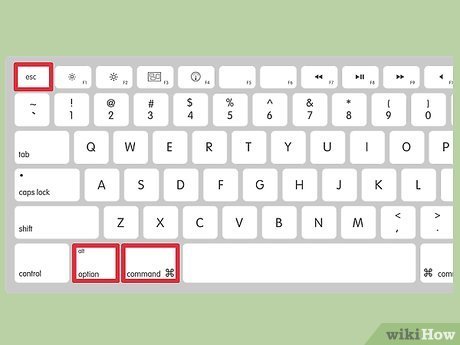
To exit out of a game on PC, typically press the ‘Esc’ key, find a ‘Quit’ or ‘Exit’ option in the in-game menu, or use ‘Alt + F4’ as a shortcut.
Ever found yourself stuck in a virtual world, wondering how to exit out of a game on pc? It’s a common scenario, and thankfully, the solution is usually straightforward. Most games offer simple ways to leave, and we’ll guide you through the most common methods.
Games often have a menu with clearly labeled “Quit” or “Exit” buttons. Alternatively, the ‘Esc’ key frequently opens a menu from which you can exit. There is also a keyboard shortcut method.
If in-game options aren’t working, “Alt + F4” will usually close the game window. Now you can get back to real life.

How to Exit Out of a Game on PC: A Comprehensive Guide
Getting stuck in a game is no fun! Sometimes, the exit button isn’t obvious, or maybe the game just freezes. Don’t worry, we’ve all been there. This guide will show you all the different ways you can close a game on your PC, whether it’s a smooth exit or when you need to take more drastic measures. We’ll cover everything from using the game’s menus to forcing a game to close if it’s not responding. Let’s get started!
The Standard Exit: Using In-Game Menus
Most games are designed to let you exit easily. They usually have a main menu option that you can use to quit. This is the safest way to close a game because it gives the game time to save your progress and shut down properly.
Finding the Exit Option
Here’s how you typically find the exit option:
- Look for the “Menu” or “Options” button. This is often located in the corner of the screen or can be accessed by pressing the Escape (Esc) key on your keyboard.
- Navigate through the menu. Look for words like “Exit,” “Quit,” “Leave Game,” or “Back to Main Menu”. Sometimes you might need to go “Back to Main Menu” first and then find the “Exit” option there.
- Select the exit option. Click on it or press Enter. Usually, a box will pop up asking you to confirm that you want to exit. Click “Yes” or “Ok”.
Why Using the Menu is Important
Exiting a game through the menu is crucial for a few reasons:
- Saving your progress: Games use the exit menu as a prompt to save your game so you don’t lose any hard work.
- Preventing errors: The game gets a chance to shut down all its little pieces nicely, which can stop problems down the road.
- Keeping everything in order: The game’s settings and things like graphic choices also get saved.
What to do if you don’t see the exit option
Sometimes, a game might hide the exit option or make it less obvious. If you can’t find it:
- Press Esc: The Esc key usually brings up the menu.
- Look around all the menus: Check every section of the game’s menus for an exit option.
- Try different keys: Some games use special keys or buttons for their menus, such as the “Start” or “Options” button on a controller.
Alternative Exit Methods: When the Menu Fails
Sometimes, a game doesn’t respond to your commands, or the menu isn’t working. When this happens, you need other methods to close the game.
Using Alt + F4
The keyboard shortcut Alt + F4 is like a universal “close window” button for Windows. It can often close a game quickly, even if it’s not working normally.
How to use Alt + F4: Simply press and hold the Alt key, then press the F4 key. The game window should close.
Things to Know:
- Not always a clean exit: Alt + F4 can force the game closed, so it may not save your game data. Use this method when you have no other option.
- Can close other programs: If you have other programs open, Alt + F4 will close the active window, so make sure you’ve clicked on the game’s window.
Using the Windows Task Manager
Task Manager is a Windows tool that shows you all the programs running on your computer. You can use it to force-close a game that’s not responding.
Accessing the Task Manager
There are several ways to open Task Manager:
- Press Ctrl + Shift + Esc: This is the fastest way to open it.
- Right-click on the taskbar: You’ll see an option that says “Task Manager”
- Press Ctrl + Alt + Delete: A blue menu screen will appear. Choose “Task Manager”.
Closing a Game with Task Manager
- Open Task Manager: Use one of the methods mentioned above.
- Find the Game: In the “Processes” tab, look for the game’s name. Usually, it will be at the top of the list or among the programs you recently used. It may also be grouped under the “Apps” category.
- Select the Game: Click on the game’s name to select it.
- Click “End Task”: This button is at the bottom right of the Task Manager. Click it to force the game to close.
Things to Know:
- Force-Closing: Like Alt + F4, ending a task in Task Manager might mean your game doesn’t save.
- Not always immediate: It might take a moment for the game to close.
Force Quitting Through the Game’s Settings/Files
Sometimes games have configurations that could help you terminate them. This is an advanced method and it’s only recommended if you know what you’re doing. Most users don’t need to go this far to close a game.
Locating the Config Files
Each game stores settings in files, sometimes called configuration files or .ini files.
Here’s how to find these files:
- Go to the Game’s Install Folder: Usually, you can find the game’s installation folder by right-clicking the game’s icon on your desktop or start menu and choosing “Open file location.” It’s usually found somewhere like C:\Program Files or C:\Program Files (x86).
- Look for “Config” or “Settings” folders: Look inside the main folder for subfolders like these. If you find them, explore these files.
- Searching .ini or .cfg files: Use Windows search within the game’s install directory to find these files. Search for files ending in .ini or .cfg.
Finding the Force Quit Option
Within the game files, look for anything that references force quitting or shutting down. Usually, this information is contained in the .ini or .cfg files. These files are editable in text editors like Notepad. It is rare that you’ll find a command like “forcequit=true”.
Caution:
- Don’t change things you don’t understand: Editing the game’s configuration files incorrectly can cause serious problems with the game’s functionality.
- This is a rare method: Usually, standard exit options and Task Manager will work. This is for situations where a game is seriously bugged or frozen.
Specific Game Exit Scenarios
Different games can present unique exit challenges. Let’s look at some common situations.
Online Multiplayer Games
Online games often have extra precautions to stop people from quitting mid-game.
- Use the In-Game Menu: Always exit using the game’s menu to avoid penalties, such as being temporarily banned from the game.
- Look for “Disconnect” or “Leave”: Online games usually have options like “Disconnect”, “Leave Match,” or “Return to Lobby”.
Full-Screen Games
Full-screen games sometimes make it difficult to see anything else on your computer. This can be hard when a game freezes.
How to exit full-screen games:
- Try Alt + Enter: Pressing Alt + Enter sometimes switches the game to windowed mode. This allows you to use your computer’s cursor and close the game with its menu or the Task Manager.
- Use Alt+Tab to switch Window: If Alt + Enter doesn’t work try pressing Alt + Tab and it might show you other open apps and programs. If you can access another window, this will let you access the Task Manager.
- Use the keyboard combination (Windows Key + D): This key combination will show you the desktop, where you can use the task manager.
Games with No Clear Exit Options
Some older or more basic games might not have a formal exit button. Here’s what you should try:
- Try the Esc Key: Check whether the Escape key is an exit button for the game.
- Look for a close button: If a game is in a windowed mode, the ‘X’ button in the corner of the window usually shuts the game down.
- Use Alt + F4: Always a great way to close any window.
- Use Task Manager: If nothing else works, Task Manager can help you shut down the game.
Troubleshooting Exit Issues
Sometimes, games can be stubborn, even with the methods above. Here’s how to handle common exit problems.
Game Freezes or Crashes
If the game freezes, the screen might look like it’s stuck, or the game might not react to your mouse clicks or keyboard input. Here’s how to handle the game freezes:
- Wait a few minutes: Sometimes, a game is just very busy and will unfreeze itself. Wait a minute or two to see if the game starts responding again.
- Use Task Manager: If the game is frozen, and it doesn’t unfreeze itself after a few minutes, use the Task Manager to shut the game.
Game Runs in the Background
Sometimes, a game might appear to be closed, but it’s still running in the background, taking up resources.
- Check the System Tray: Look at the system tray (lower right corner of the screen), a game could be running silently in the background. Right-click and look for an Exit option.
- Use Task Manager: If you can’t find an exit option, you can use Task Manager to close the game, as mentioned above.
Problems Saving Game Data
Always use the game’s menu options to exit, to avoid any game save data loss.
- Check for Save Icons: Some games have an autosave function that saves while you play. Always look for a save notification before quitting.
- Do a manual save before exiting: Before quitting, try to find a “save game” option in the game menu.
- Use a clean exit: Exiting games through the menus will ensure your progress saves correctly.
Exiting games on your PC doesn’t need to be confusing or frustrating. By understanding the different methods, like using the game’s menus, keyboard shortcuts like Alt+F4, and the Windows Task Manager, you can handle any exit situation you come across. Remember to use the in-game exit options whenever possible, so you save your game data, and always be cautious when using force-close methods. By following this comprehensive guide, you will be able to exit your game smoothly every time, and get back to what’s important.
How to Close a Frozen Game when Alt-f4 and the Task Manager don't work
Final Thoughts
To quickly exit, press Alt + F4. This closes the current application, including games. Some games offer in-game menus with an exit or quit option.
Another way is to use the Windows task manager. Press Ctrl + Shift + Esc, find the game in the list, then click “End Task”. Remember, correctly knowing how to exit out of a game on pc prevents system issues.

