
To find a game directory, navigate to the folder where you installed the game. This is often in Program Files or Program Files (x86), sometimes a custom location chosen during setup.
Ever wondered where all those game files actually reside on your computer? It’s common to wonder how to find a game directory. Locating the right folder is essential for modding, backups, or fixing issues.
It can be a bit tricky, since installation folders vary for different platforms. Some platforms have default locations, and you choose a custom install path.

How to Find a Game Directory
Finding where your games are installed on your computer might seem like a tricky treasure hunt, but it’s actually quite simple once you know where to look. A game directory is just a fancy name for the folder where all the files for a game are kept. Think of it like the game’s home address. Inside, you’ll find all the important stuff like the game’s pictures, sounds, and code that makes the game work. Knowing where this folder is can help you do things like making backups, adding mods, or even troubleshooting problems. This guide will show you the different ways to find these directories, so you can become a game file finding pro! We will cover the most common ways and also some tips to help you out.
Understanding Game Directories
Before we start looking, let’s understand what a game directory actually contains. It’s not just one big file. Instead, it’s like a little town with many different types of files all working together. Here’s a quick tour of what you might find:
- Executable Files: These are like the key to the game. They are the files that actually start the game when you click on them, often ending in “.exe”.
- Asset Files: This includes the pictures you see (textures, models), the sounds you hear, and even the videos.
- Configuration Files: These files store your game settings, like how loud the sound is or how bright the screen is.
- Save Files: This is where the game keeps track of your progress, levels you’ve finished, and all the cool items you’ve collected.
- Mod Files: If you’re into adding extra content to your games, these are where those mods go.
Knowing these different types of files can be helpful when you’re trying to modify your game or fix issues.
Finding Game Directories on Windows
Windows is a popular operating system, and most games are installed there. Here are the common ways to find game directories on a Windows computer:
Using the Desktop Shortcut
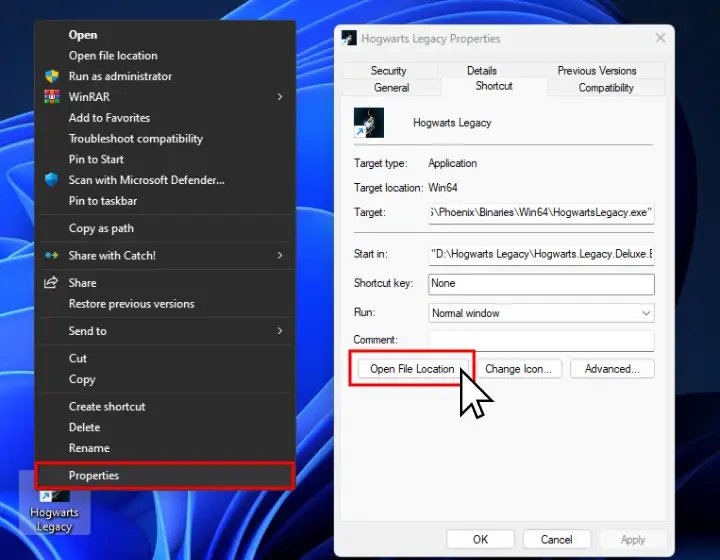
Many games put a shortcut on your desktop. This isn’t the game directory itself, but it can guide you to it. Here’s how:
- Right-Click: Find the game’s shortcut on your desktop and right-click on it.
- Open File Location: Select “Open file location” from the menu. This will open the folder where the game’s executable file is located, which is usually the game’s main directory.
Sometimes the shortcut opens up a different folder and not the main game directory. In that case, explore the sub folders present in the current location, you will find the game directory.
Using File Explorer
File Explorer is your main tool to browse all the files on your computer. You can directly navigate to the game directory if you know where games are installed:
- Open File Explorer: Click on the folder icon in your taskbar, or press the Windows key + E.
- Navigate to Installation Folder: By default, most games install in one of these locations:
C:\Program Files(orC:\Program Files (x86)for older or 32-bit games)C:\Program Files\Steam\steamapps\common(for Steam games)C:\Program Files\Epic Games(for Epic Games Store games)C:\Gamesor any other custom location you may have chosen during the installation.
- Find the Game Folder: Look for the folder named after the game you’re searching for. If you’ve installed many games, it might take a little searching.
Using the Search Bar
If you remember part of the game’s name, you can use the Windows search bar:
- Click on the Search Bar: Click on the search bar in your taskbar (or press the Windows key).
- Type the Game Name: Type in the name of the game or part of the name.
- Right-Click on the Result: From the search results, right-click on the game’s name (typically the app or shortcut), and select “Open file location”.
Using the Apps & Features Settings
You can also find the install location via the settings app.
- Open Settings: Click the Start button, then the Settings gear icon.
- Click on Apps: Select “Apps” from the Settings menu.
- Find the Game: Scroll through the list of apps and find your game.
- Click the Three Dots: Click the three dots next to the game’s name and select “Uninstall”.
- Examine the Dialog Box: Before you actually uninstall, look for a location path in the confirmation popup, usually underneath the game title or in the publisher section. This is the game directory location.
This is useful if you can’t find the location using the earlier steps or if you need to know where some games are installed through windows default install manager.
Finding Game Directories on macOS
Finding game directories on a Mac is a bit different, but still simple:
Using the Applications Folder
Most games on macOS install in the Applications folder:
- Open Finder: Click on the Finder icon in your dock.
- Go to Applications: Click on “Applications” in the sidebar.
- Find the Game: Look for the game’s icon.
- Right-Click or Control-Click: Right-click (or Control-click) on the game icon.
- Show Package Contents: Select “Show Package Contents” from the menu. This will open a folder containing the game’s files, and sometimes that is the main game folder but sometimes a secondary folder opens and you have to search the folders for main game directory.
Using the Spotlight Search
Spotlight search is the macOs version of a search bar:
- Open Spotlight Search: Press Command + Spacebar, or click on the magnifying glass icon in the menu bar.
- Type the Game Name: Start typing the game’s name.
- Right-Click or Control-Click: When you see the game, right-click (or Control-click) on it.
- Show in Finder: Select “Show in Finder” from the menu. This will open the folder where the game is located. Then right click on the game icon then select “Show Package Contents” option.
Using Steam or Other Launchers
If you use game launchers like Steam, finding the files for games is similar to how you do it on windows:
- Steam:
- Open the Steam app.
- Go to your Library.
- Right-click on the game.
- Select “Properties.”
- Click on “Installed Files”.
- Click on “Browse”. The game directory will open.
- Epic Games Launcher:
- Open the Epic Games Launcher app.
- Go to your Library.
- Click the three dots next to the game.
- Select “Manage”.
- Click on the folder icon next to the install directory. The game directory will open.
- GOG Galaxy:
- Open the GOG Galaxy app.
- Go to your games library.
- Select the game from the list.
- Click the “manage” icon.
- Choose “Show Folder”. This will open the game’s folder location.
Tips for Finding Game Directories
Sometimes it can be tricky to find your game directory. Here are some extra tips that could help you out:
Check Installation Paths
When you install a game, you usually get a chance to choose where to install it. If you remember choosing a specific folder, look there first. It’s often in a folder you created, or in a location other than the default “Program Files” folder.
Look for Config Files
Some games store information about their location in a configuration file, usually with the “.ini” extension. If you find a config file, open it in a text editor (like Notepad) and check for a line that mentions the game’s path. This can help you locate the directory directly.
Typically the config file is located inside the game’s main folder, but sometimes they could be in the documents folder.
Use Third-Party Tools
Some third-party tools are specifically designed to find files on your computer. These tools can be more powerful than the built-in search functions and might help you locate your game directories.
Use a File Manager
If the windows file explorer is proving difficult, consider a third party file manager that has more advanced search and navigation options.
Game Launcher Installation Locations
Many people install games through launchers. Knowing their default locations can help:
- Steam:
C:\Program Files\Steam\steamapps\common - Epic Games Store:
C:\Program Files\Epic Games - GOG Galaxy: Often
C:\GOG Gamesor a custom path set during installation. - Origin: Often
C:\Program Files\Origin Games - Ubisoft Connect: Usually
C:\Program Files (x86)\Ubisoft\Ubisoft Game Launcher\gamesor custom locations.
Why Knowing Your Game Directory is Important
Knowing where your game directory is located is helpful for many reasons. It’s not just about satisfying your curiosity. Here’s why it’s good to know:
- Modding: Adding mods is a popular way to change up the game, and mods are usually added to the game’s folder. If you can’t find it, you won’t be able to add new mods.
- Backups: You can make a copy of your game folder to keep your save data safe. If something goes wrong, you can use the backup and continue from where you left off.
- Troubleshooting: If you have a problem with the game, sometimes you can fix it by making changes to the game’s files directly. This is more advanced and not needed for most users, but good to know.
- Accessing Save Files: Sometimes you might need to find your save games for backup purposes, moving it to another device, or to fix save data corruption.
- Directly Launching the Game: Knowing your game’s file location allows you to launch the game directly using the game’s executable file bypassing the launchers.
Understanding how to find your game directories is a basic skill for any gamer. Whether you want to add mods, backup your game, or troubleshoot a problem, knowing where to look will save you time and effort.
We’ve explored several methods to locate game directories on both Windows and macOS, including using desktop shortcuts, file explorers, search functions, and specific platform launchers. Each method provides a pathway to uncovering the important files associated with your favorite games.
How to locate your GTA 5 Main Directory for Steam and Epic
Final Thoughts
Finding your game folder involves checking install locations. Many platforms like Steam, Epic Games, or GOG allow you to view the local files. You can usually find the game directory easily within their settings.
Another method involves searching your computer. Type the game’s name in your file explorer’s search bar. The search may point you to the exact location. Remember, accurately finding how to find a game directory is crucial for modding.

