
To fix lag on PC games, you should update your graphics drivers, lower in-game graphics settings, close background applications, and ensure your computer meets the game’s system requirements.
Is your favorite PC game suddenly stuttering and becoming unplayable? Frustration mounts as your character freezes mid-action, ruining your gaming experience. Many gamers face this issue, but understanding why it happens is the first step.
We’re going to explore simple, effective strategies you can use, and explain how to fix lag on PC games. This includes common culprits and quick fixes that can make your games run smooth. Let’s get started on making your gaming experience enjoyable again.

How to Fix Lag on PC Games
Lag can be a real pain, right? You’re in the middle of an epic battle or a crucial race, and suddenly, everything freezes, stutters, or moves like a slideshow. It’s super frustrating! But don’t worry, you’re not alone, and the good news is, there are lots of things you can do to fix lag on your PC games. Think of it like being a detective – we’re going to explore all the possible clues and figure out what’s causing the slowdown. Let’s dive in and get your games running smoothly again.
Understanding the Causes of Game Lag
Before we jump into fixes, it’s good to know what causes lag. Think of your computer as a team, and sometimes, some members of the team aren’t working as well as they should. Here are some common culprits:
The Graphics Card: The Visual Artist
Your graphics card, or GPU, is like the artist of your computer. It’s responsible for making all the pretty pictures and smooth animations you see in games. If your graphics card isn’t powerful enough for the game you’re playing, or if its drivers (the software that helps it work) are out of date, you’ll definitely experience lag. It’s like asking a painter to paint a giant mural with only a small set of crayons – it just won’t work well.
The Processor: The Brain of the Operation
The processor, or CPU, is like the brain of your computer. It tells all the other parts what to do. If your CPU is too old, is working too hard on other things, or running hot, it can slow everything down, including your games. It’s like having a tired brain – it can’t process information as quickly.
RAM (Random Access Memory): The Short-Term Memory
RAM is like your computer’s short-term memory. It helps your computer quickly access information it needs right now. If you don’t have enough RAM, your computer has to constantly go back to the hard drive, which is much slower. This leads to lag. It’s like trying to remember a long list of things without writing them down – you’re going to have trouble keeping up!
Internet Connection: The Messenger
If you’re playing online games, your internet connection is the messenger between you and the game server. If your internet is slow or unstable, you’ll experience lag even if your computer is powerful enough. Think of it as trying to have a conversation through a broken telephone – the message doesn’t get through clearly.
Storage: The Long-Term Memory
Your hard drive or SSD is where all your games and programs are stored. If your hard drive is almost full, or it’s old, it can also cause lag. It’s like having a cluttered room – it’s hard to find things quickly.
Background Processes: The Distractions
Sometimes, other programs running in the background can use up your computer’s resources. These background programs can steal away power and cause lag. It’s like trying to focus on a game while lots of people are talking to you at once.
Simple Steps to Reduce Game Lag
Now that we have an idea of what might cause lag, let’s talk about some easy ways to help improve the game performance and fix lag. Some are simple and some are bit difficult. lets start!
Restart Your Computer
Yep, that old saying “turn it off and turn it back on again” really does work. Restarting your computer can clear out temporary files and programs that might be slowing it down. It’s like giving your computer a fresh start.
Close Unnecessary Programs
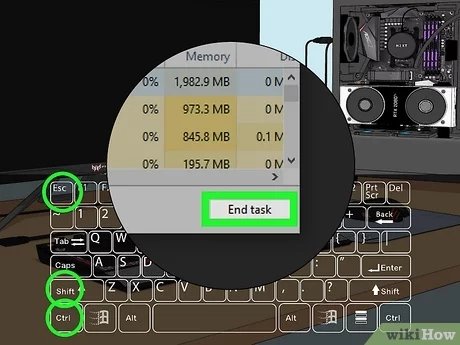
Make sure you’ve closed all those extra web browsers, word documents, and music players before you start gaming. They are using up resources that could be used for your game. Think of it like making sure you have all the tools you need in your workspace and nothing extra cluttering up the space. You can use Task Manager (Ctrl+Shift+Esc on Windows) to see what’s running and close what you don’t need.
Update Your Graphics Drivers
As we discussed earlier, graphics drivers are very important for game performance. Outdated drivers can cause all sorts of problems. Most of the popular graphics card manufacturers like Nvidia and AMD provide a software to make the driver update easy. You can also get the most recent drivers from their official websites.
- For NVIDIA cards: Go to the NVIDIA website and download GeForce Experience.
- For AMD cards: Go to the AMD website and download AMD Radeon Software.
Lower Game Graphics Settings
This is a big one, especially if you’re using an older machine. Most games let you change the graphics settings. Try turning down things like resolution, shadows, and anti-aliasing. You might notice that the game doesn’t look quite as detailed, but it will definitely run smoother. It’s like choosing to drive a smaller car for more speed rather than a bigger one that is slower.
Check Your Internet Connection
If you’re playing online games, a poor internet connection can cause a lot of lag. Try running a speed test to check your internet speed. It’s also a good idea to make sure that no one else in your house is downloading large files or streaming videos while you’re playing. Using an Ethernet cable instead of Wi-Fi can also help, as Ethernet tends to be more reliable. It’s like using a direct line instead of the air to communicate.
Here’s how you can do a speed test:
- Go to a website like Speedtest.net.
- Click on the “Go” button.
- Wait for the results. Make sure to check the download and upload speeds.
Advanced Techniques to Fix Lag
If the simple fixes don’t do the trick, it’s time to get a little more technical. These methods might take a bit more time, but they can make a big difference in your game performance.
Monitor Your System Temperatures
Overheating can cause your computer to slow down and result in lag. Check your CPU and GPU temperatures using monitoring software. If they are consistently running too hot, you may need to clean your computer’s fans and vents, or even consider getting additional cooling like a new CPU cooler, fan, or liquid cooling system.
Optimize Your Hard Drive
Make sure your hard drive isn’t too full. Having lots of free space on the hard drive can make things run faster. You can also defragment your hard drive, but this is mainly for the older, traditional spinning hard drives; this is not needed for Solid State Drives (SSDs).
Here’s how to defragment your drive on Windows:
- Type “Defragment and Optimize Drives” in the Windows search bar.
- Choose the drive you want to defragment.
- Click on “Optimize.”
Increase Your RAM
If you find your computer often uses 80% or more of the RAM while gaming, you may need to add more RAM. It’s like getting a bigger notepad so you don’t run out of space. This can be a more expensive fix, but it can significantly improve game performance.
Upgrade Your Graphics Card
If your graphics card is old, it might be time to upgrade. A more powerful graphics card can make a huge difference in game performance and can eliminate lag in more demanding titles. However, make sure it is compatible with your computer and power supply. It is similar to buying a new, super-powered art kit that lets you create detailed art faster and better.
Upgrade Your Processor
Just like your graphics card, an older processor can be a bottleneck for your games. If you have an older CPU, consider buying a more modern one. But be warned that you may also need to buy a new motherboard to support it. A good CPU is like getting a faster and more efficient brain.
Adjust Windows Performance Settings
Windows lets you adjust some visual settings to improve performance, such as reducing animations or effects. Try turning off some of the fancier visuals to free up some resources.
Here’s how:
- Type “Adjust the appearance and performance of Windows” in the Windows search bar.
- In the Performance Options window, click the “Adjust for best performance” radio button.
- Click “Apply” then “OK”.
Limit Background Programs
Even with programs closed, some might still be running in the background. You can prevent certain programs from starting up automatically by going to the startup tab in the Task Manager. Disable programs that you don’t use regularly, they are like distraction that you don’t need.
To manage startup programs:
- Press Ctrl + Shift + Esc to open Task Manager.
- Click on the “Startup” tab.
- Right-click on programs that you don’t need at startup and click “Disable”.
Update Windows
Sometimes, your operating system can be the source of game issues. Make sure you have the most current Windows updates installed to help keep everything running as well as possible. Software updates often include performance and stability fixes that can make a real difference. It’s like having the most recent rulebook for your game – it helps make everything fair and smooth.
Specific Game Optimization
Sometimes, the issue isn’t with your computer but with specific game settings. Many games have settings you can tweak to help with game performance and reduce lag.
Game Graphics Settings
As we mentioned earlier, lowering the graphics settings within the game can have a big effect. Experiment with lower resolutions, texture quality, shadow details and other similar settings. Start by lowering the graphics settings by one step, and see if it improve the game performance. Adjust it until you find a good balance between visual quality and performance.
Fullscreen Mode
Make sure the game is running in fullscreen mode rather than windowed or borderless windowed. Fullscreen mode often gives the game more resources to work with. It’s like having the whole stage to yourself rather than sharing with other people.
Disable Unnecessary Game Features
Some games have extra effects or features that can slow things down. Things like Motion blur, depth of field, or certain advanced lighting effects can be turned off for more smoother game play.
When All Else Fails
If you’ve tried all of the steps above and you’re still experiencing lag, it may be time to consult with a computer technician or upgrade the hardware. Sometimes, a fresh install of windows can also resolve the issues.
Remember, fixing lag is about troubleshooting and figuring out what works best for you. Don’t be discouraged if you don’t see results immediately. Keep trying these methods one by one and you’ll eventually find a solution. Game on!
Fix Games Stuttering In 15 Seconds
Final Thoughts
To fix lag on pc games, lower in-game graphics settings. Close unnecessary background applications, and ensure your drivers are up to date. These adjustments can significantly improve performance.
Furthermore, check your internet connection for stability. Consider a wired connection for better speed. Upgrading your hardware could also address persistent lag issues.
Remember, these are key steps to understanding how to fix lag on pc games. By employing them you’ll get smoother gameplay.

