
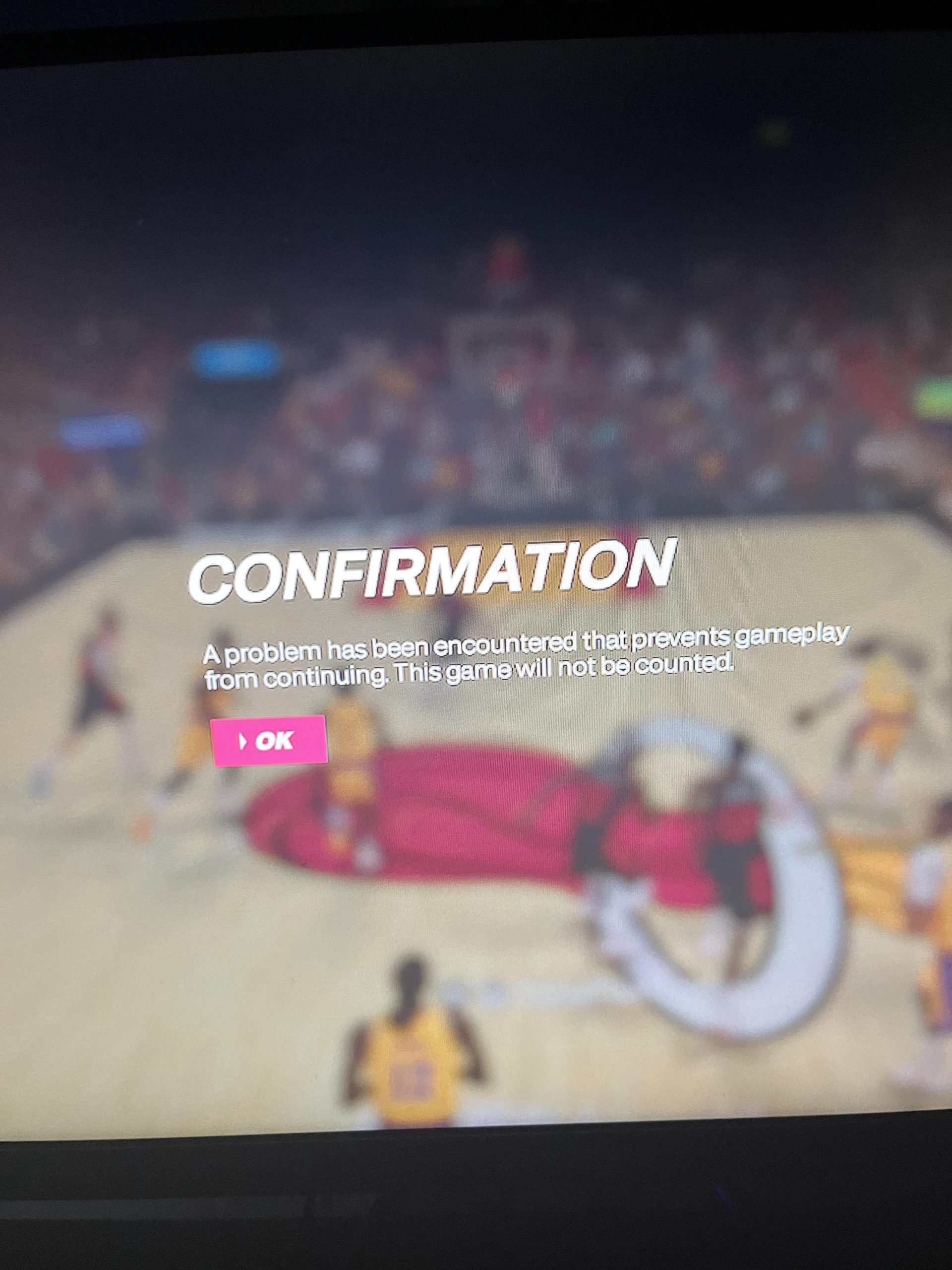
To fix the ‘a problem has been encountered’ error on PC for NBA 2K26, verify the game files through Steam, update your graphics drivers, and ensure your PC meets the game’s minimum system requirements.
Frustrating, right? You’re all set to hit the virtual court in NBA 2K26, but you’re stopped by the dreaded “a problem has been encountered” error. Don’t throw your controller just yet!
This guide will show you how to fix the ‘a problem has been encountered’ error on PC for NBA 2K26 quickly and easily. We’ll cover a few key troubleshooting steps that should get you back in the game in no time.

`## How to Fix the ‘A Problem Has Been Encountered’ Error on PC for NBA 2K26`
This error can be frustrating, but thankfully, there are several ways to troubleshoot it. We’ll guide you through various fixes to get you back on the court.
Often, this error appears due to corrupted game files or outdated drivers. Let’s dive into some solutions.
### Verifying the Integrity of Game Files
Corrupted game files are a common cause of errors. Steam and other platforms offer tools to verify the integrity of your game files.
Steam Verification: Open your Steam library.
Right-Click NBA 2K26: Right-click on the NBA 2K26 listing.
Select Properties: Choose “Properties” from the menu.
Local Files Tab: Navigate to the “Local Files” tab.
Verify Integrity: Click the “Verify integrity of game files…” button.
Steam will then check your game files and replace any corrupted ones. This can take some time, depending on your storage speed.
If you purchased the game through another platform, consult its support documentation for similar verification options. Most platforms offer a similar feature.
### Updating Your Graphics Drivers
Outdated graphics drivers can also cause compatibility issues. Newer drivers often include fixes and optimizations for new games.
Nvidia Drivers: Go to the Nvidia website and download the latest drivers for your graphics card.
AMD Drivers: Visit the AMD website to download the latest drivers for your AMD graphics card.
Intel Drivers: For Intel integrated graphics, check the Intel website for driver updates.
After downloading the drivers, run the installer and follow the on-screen instructions. Restart your computer after the installation is complete.
Clean installations are also a good idea. These remove previous driver files that could be causing conflicts.
### Running the Game as Administrator
Sometimes, NBA 2K26 requires elevated privileges to function correctly. Running the game as administrator can resolve this.
Locate the Game Executable: Find the NBA 2K26 executable file (usually in the Steam installation folder).
Right-Click the Executable: Right-click on the .exe file.
Select “Run as Administrator”: Choose “Run as administrator” from the context menu.
This gives the game the necessary permissions to access system resources. If this works, you can set the game to always run as administrator.
Properties Window: Right-click the executable again and select “Properties.”
Compatibility Tab: Go to the “Compatibility” tab.
“Run this program as an administrator”: Check the box labeled “Run this program as an administrator.”
Apply and OK: Click “Apply” and then “OK.”
### Checking System Requirements
Ensure your PC meets the minimum system requirements for NBA 2K26. Running the game on underpowered hardware can lead to errors.
CPU: Check if your processor meets the minimum requirements.
GPU: Ensure your graphics card is compatible and powerful enough.
RAM: Verify you have enough RAM (at least the minimum required).
Storage: Confirm you have enough free storage space for the game.
If your system doesn’t meet the minimum requirements, you may need to upgrade your hardware. There’s really no way around this.
### Disabling Antivirus Software Temporarily
Antivirus software can sometimes interfere with game files. Try disabling your antivirus temporarily to see if it resolves the error.
Disable Antivirus: Locate your antivirus icon in the system tray.
Temporarily Disable: Right-click and choose the option to temporarily disable the antivirus.
Launch NBA 2K26 and see if the error is gone. If it is, you may need to add the game’s executable to your antivirus’s exception list.
Be sure to re-enable your antivirus after testing. This is crucial for system security.
### Reinstalling the Game
If all else fails, reinstalling NBA 2K26 can resolve persistent issues. This ensures a fresh installation without any corrupted files.
Uninstall the Game: Through Steam or the platform you used to install it, completely uninstall the game.
Delete Game Files: After uninstalling, manually delete any remaining game files in the installation directory. This ensures all traces of the old installation are removed.
Reinstall the Game: Reinstall NBA 2K26.
This can take a while, depending on your internet speed and the game’s size. It’s a last resort but often effective.
### Checking for Conflicting Applications
Certain applications running in the background can conflict with NBA 2K26. Close unnecessary programs to see if it resolves the issue.
Close Unnecessary Programs: Open Task Manager (Ctrl+Shift+Esc).
End Processes: Identify and end any non-essential processes that might be interfering with the game. Pay attention to overlay programs.
Overlays from programs like Discord or MSI Afterburner are common culprits. Close them temporarily to test.
### Adjusting Game Settings
Lowering the game’s graphics settings can improve performance and reduce the chance of errors, especially on lower-end systems.
Lower Resolution: Reduce the game’s resolution.
Reduce Graphics Settings: Lower the graphics quality settings (e.g., from “Ultra” to “High” or “Medium”).
Disable Advanced Features: Turn off advanced graphical features like anti-aliasing or motion blur.
These adjustments can reduce the load on your system and improve stability. Experiment with different settings to find the optimal balance between performance and visuals.
### Checking Event Viewer for Errors
The Event Viewer can provide more detailed information about the error. Check it for clues about what might be causing the problem.
Open Event Viewer: Search for “Event Viewer” in the Windows search bar.
Windows Logs: Expand “Windows Logs.”
Application and System Logs: Check the “Application” and “System” logs for errors related to NBA 2K26.
The error messages in the Event Viewer can help you pinpoint the cause of the problem. Search online for solutions based on the specific error codes you find.
### Disabling Fullscreen Optimizations
Fullscreen optimizations can sometimes cause compatibility issues with games. Disabling them might resolve the error.
Locate the Game Executable: Find the NBA 2K26 executable file.
Right-Click and Select Properties: Right-click the executable and select “Properties.”
Compatibility Tab: Go to the “Compatibility” tab.
“Disable fullscreen optimizations”: Check the box labeled “Disable fullscreen optimizations.”
Apply and OK: Click “Apply” and then “OK.”
### Performing a Clean Boot
A clean boot starts Windows with a minimal set of drivers and startup programs. This can help identify if a third-party program is causing the error.
Open System Configuration: Press Win+R, type “msconfig,” and press Enter.
Services Tab: Go to the “Services” tab.
“Hide all Microsoft services”: Check the box labeled “Hide all Microsoft services.”
Disable All: Click the “Disable all” button.
Startup Tab: Go to the “Startup” tab and click “Open Task Manager.”
Disable Startup Items: Disable all startup items in Task Manager.
Apply and Restart: Close Task Manager, click “Apply” and then “OK” in the System Configuration window. Restart your computer.
After the clean boot, launch NBA 2K26 and see if the error is resolved. If it is, you can re-enable services and startup items one by one to identify the culprit.
### Addressing Specific Error Codes (If Applicable)
If the error message includes a specific error code, research that code online. This can often lead to more targeted solutions.
Search Online: Use search engines like Google or DuckDuckGo to search for the specific error code and NBA 2K26.
Check Forums: Look for forum posts related to the error code. Others may have encountered the same issue and found a solution.
### Checking for Windows Updates
Ensure your Windows operating system is up to date. Updates often include bug fixes and compatibility improvements that can resolve game-related errors.
Open Settings: Press Win+I to open the Settings app.
Update & Security: Click on “Update & Security.”
Check for Updates: Click the “Check for updates” button.
Install any available updates and restart your computer.
### Using the DirectX Diagnostic Tool
The DirectX Diagnostic Tool (DxDiag) can help identify problems with your DirectX installation and hardware.
Open DxDiag: Press Win+R, type “dxdiag,” and press Enter.
Check for Errors: Review the information in the DxDiag window for any errors or warnings.
Save Information: You can save the information to a file and share it with technical support if needed.
If DxDiag identifies any issues, try reinstalling DirectX. You can usually find the latest version on the Microsoft website.
### Resetting Windows (Last Resort)
If none of the above solutions work, resetting Windows to its factory settings is a last resort. This will erase all your data, so be sure to back up important files first.
Open Settings: Press Win+I to open the Settings app.
Update & Security: Click on “Update & Security.”
Recovery: Click on “Recovery.”
“Reset this PC”: Click the “Get started” button under “Reset this PC.”
Follow the on-screen instructions to reset Windows. You’ll have the option to keep your files or remove everything.
### Checking the Game’s Official Forums and Support Pages
The official NBA 2K forums and support pages are valuable resources for troubleshooting. Check them for known issues and solutions.
NBA 2K Forums: Visit the official NBA 2K forums.
2K Support: Check the 2K Support website.
Look for threads related to the “A problem has been encountered” error. You might find a solution or workaround that other players have discovered.
### Monitoring Hardware Temperatures
Overheating hardware can sometimes cause game crashes and errors. Monitor your CPU and GPU temperatures to ensure they are within safe limits.
Monitoring Software: Use hardware monitoring software like MSI Afterburner or HWMonitor to track your CPU and GPU temperatures.
Safe Temperatures: Generally, CPU temperatures should stay below 80°C, and GPU temperatures should stay below 85°C.
If your hardware is overheating, you may need to improve your cooling solution (e.g., by cleaning your fans or installing a better cooler).
### Checking for Drive Errors
Errors on your hard drive or SSD can sometimes cause game-related issues. Run a disk check to identify and fix any errors.
Open Command Prompt (Admin): Open Command Prompt as an administrator.
Run CHKDSK: Type “chkdsk /f /r” and press Enter.
Schedule Disk Check: You may be prompted to schedule the disk check for the next system restart.
Restart your computer to run the disk check. This can take some time, depending on the size of your drive.
### Contacting 2K Support
If you’ve tried all the above solutions and are still encountering the error, contact 2K Support for assistance. They may be able to provide more specific troubleshooting steps or identify a bug in the game.
Behind the scenes with Shai #NBA2K24 🎥👀
Final Thoughts
To fix the “a problem has been encountered” error on PC for NBA 2K26, verify your game files through Steam. Outdated graphics drivers can cause this issue, so updating them is must.
Try reinstalling the game if verification doesn’t work. Ensure your PC meets the minimum system requirements for NBA 2K26.
Remember these steps to help resolve the annoying error. Hopefully, now you know how to fix the ‘a problem has been encountered’ error on PC for NBA 2K26.

