
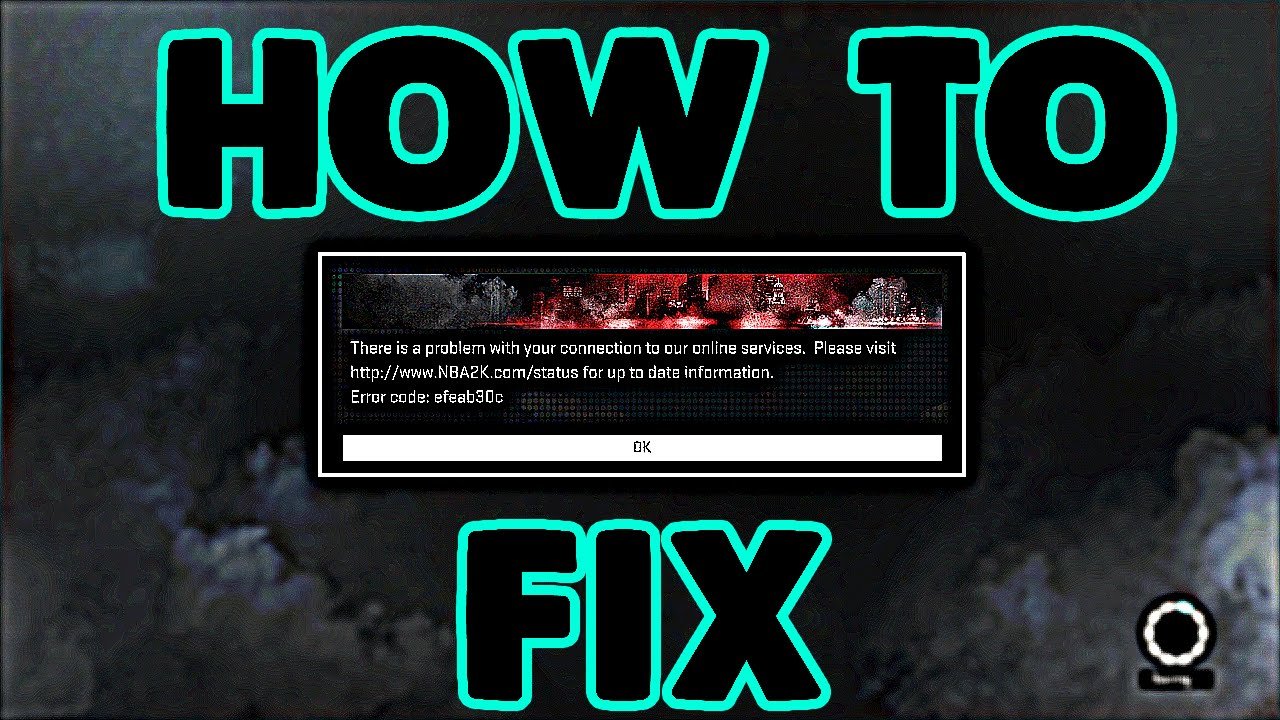
Here’s how to fix the ‘cannot connect to server’ error on launch for NBA 2K26: Verify the game server status, check your internet connection and ensure it’s stable, and restart your router and console/PC.
Frustrated by that “cannot connect to server” error popping up as you try to jump into NBA 2K26? You’re not alone! Nothing is more annoying than eagerly awaiting a new game and then facing this frustrating roadblock right from the start.
This article dives into exactly how to fix the ‘cannot connect to server’ error on launch for NBA 2K26 so you can get back on the court where you belong. We’ll cover common causes and easy solutions.

How to Fix the ‘Cannot Connect to Server’ Error on Launch for NBA 2K26
Experiencing the “Cannot Connect to Server” error when trying to launch NBA 2K26 can be incredibly frustrating. You’re eager to hit the court, but instead, you’re met with a connection roadblock. Don’t worry; there are several troubleshooting steps you can take to resolve this issue and get back in the game.
Let’s explore the common causes and their solutions. We’ll cover everything from basic checks to more advanced fixes.
Checking Your Internet Connection
A stable internet connection is the foundation for online gaming. NBA 2K26 relies heavily on a consistent connection to the 2K servers.
Verify Your Network: Ensure your device (PC, PlayStation, Xbox) is connected to a stable Wi-Fi or Ethernet network. Test your connection by browsing the internet on another device.
Restart Your Router: A simple router restart can often resolve temporary connectivity problems. Unplug your router, wait about 30 seconds, and then plug it back in.
Check Internet Speed: Run a speed test to ensure you have sufficient bandwidth. NBA 2K26 requires a minimum upload and download speed for optimal performance.
NBA 2K Server Status
Sometimes, the issue isn’t on your end. The NBA 2K servers themselves might be experiencing outages or maintenance.
Official 2K Status Page: Check the official 2K server status page. This page will provide real-time information on any server issues.
Social Media Channels: Follow the official NBA 2K social media accounts (Twitter, Facebook). 2K often announces server outages or maintenance on these platforms.
Community Forums: Visit NBA 2K community forums or subreddits. Other players may be experiencing the same issue and sharing information.
Firewall and Antivirus Interference
Your firewall or antivirus software might be blocking NBA 2K26’s connection to the servers. They sometimes misidentify legitimate game traffic as a threat.
Allow NBA 2K26 Through Firewall: Add NBA 2K26 as an exception in your firewall settings. This allows the game to communicate freely with the internet.
Temporarily Disable Antivirus: Temporarily disable your antivirus software to see if it’s causing the problem. Remember to re-enable it after testing.
Check Antivirus Logs: Review your antivirus logs to see if it has blocked any NBA 2K26 files or processes. If so, whitelist them.
DNS Server Issues
DNS (Domain Name System) servers translate domain names into IP addresses. Incorrect or outdated DNS settings can prevent you from connecting to the game servers.
Flush DNS Cache: Clearing your DNS cache can resolve outdated DNS information. On Windows, open Command Prompt as administrator and type `ipconfig /flushdns`.
Change DNS Servers: Switch to public DNS servers like Google DNS (8.8.8.8 and 8.8.4.4) or Cloudflare DNS (1.1.1.1 and 1.0.0.1). These are often more reliable.
Router DNS Settings: You can also change the DNS settings directly in your router’s configuration. This applies the changes to all devices on your network.
Game File Integrity
Corrupted or missing game files can lead to connection errors. Verifying the integrity of your game files can identify and repair these issues.
Steam Verification: If you’re playing on PC through Steam, right-click on NBA 2K26 in your library, go to “Properties,” then “Local Files,” and click “Verify integrity of game files.”
PlayStation/Xbox Redownload: On PlayStation or Xbox, try deleting and redownloading the game. This ensures you have a fresh, complete installation.
Check Installation Directory: Ensure the game is installed in a directory without any special characters or restricted permissions. Sometimes, this can interfere with the game’s ability to access necessary files.
Account and Platform Issues
Sometimes, the problem lies within your 2K account or the gaming platform you’re using.
Check 2K Account Status: Ensure your 2K account is active and in good standing. Log in to the 2K website to verify your account details.
Platform Subscription: Make sure your PlayStation Plus or Xbox Game Pass subscription is active. These subscriptions are often required for online play.
Link Accounts Correctly: Double-check that your 2K account is properly linked to your PlayStation Network or Xbox Live account.
Port Forwarding (Advanced)
Port forwarding can improve your connection to the game servers by directing specific traffic to your device. This is a more advanced solution, but it can be effective.
Identify Required Ports: Consult the NBA 2K26 documentation or online resources to identify the specific ports required for the game. These ports vary by platform.
Access Router Settings: Log in to your router’s configuration page. The login information is usually found on a sticker on the router itself.
Configure Port Forwarding: Navigate to the port forwarding section of your router’s settings and create rules to forward the necessary ports to your device’s IP address.
Software and Driver Updates
Outdated software or drivers can cause compatibility issues and connection problems. Keeping everything up to date is crucial.
Operating System Updates: Ensure your operating system (Windows, macOS, PlayStation, Xbox) is up to date with the latest updates.
Graphics Card Drivers: Update your graphics card drivers to the latest version. Outdated drivers can cause performance issues and connection problems.
Network Adapter Drivers: Update your network adapter drivers. These drivers control how your device connects to the internet.
Conflicting Applications
Certain applications running in the background can interfere with NBA 2K26’s connection.
Close Background Programs: Close any unnecessary applications running in the background, such as streaming software, download managers, or VPNs.
Disable Overlays: Disable any in-game overlays, such as Discord overlay or Steam overlay. These overlays can sometimes cause conflicts.
Clean Boot (PC): Perform a clean boot on your PC to start Windows with a minimal set of drivers and startup programs. This can help identify if a specific program is causing the issue.
VPN and Proxy Issues
Using a VPN or proxy server can sometimes interfere with your connection to the NBA 2K servers.
Disable VPN/Proxy: Try disabling your VPN or proxy server to see if it resolves the connection error.
VPN Compatibility: If you need to use a VPN, ensure it’s compatible with NBA 2K26 and that it’s configured correctly.
Check VPN Server Location: Ensure the VPN server location you’re using is not blocked by 2K. Some server locations may be restricted.
Hardware Limitations
In rare cases, your hardware might be the bottleneck preventing a stable connection. This is more likely if you’re using older hardware.
Check System Requirements: Ensure your computer or console meets the minimum system requirements for NBA 2K26.
Test on Another Device: If possible, try launching the game on another device to see if the issue persists. This can help isolate whether the problem is with your hardware or your network.
Upgrade Network Hardware: Consider upgrading your router or network adapter if you’re experiencing consistently slow or unreliable connections.
Contact 2K Support
If you’ve tried all the troubleshooting steps above and you’re still experiencing the “Cannot Connect to Server” error, it’s time to contact 2K Support.
Gather Information: Before contacting support, gather as much information as possible about the issue. Include error messages, screenshots, and a detailed description of the steps you’ve already taken.
Submit a Support Ticket: Visit the 2K Support website and submit a support ticket. Be as detailed as possible in your description of the problem.
Follow Up: If you don’t receive a response within a reasonable timeframe, follow up on your support ticket.
Specific Platform Considerations
The solutions may vary slightly depending on the platform you are using to play NBA 2K26.
PlayStation
PSN Status: Check the PlayStation Network (PSN) status for any outages.
Update System Software: Ensure your PlayStation system software is up to date.
Rebuild Database: Rebuilding the PlayStation database can sometimes resolve connection issues.
Xbox
Xbox Live Status: Check the Xbox Live status for any outages.
Update System Software: Ensure your Xbox system software is up to date.
Clear Persistent Storage: Clearing the persistent storage on your Xbox can sometimes resolve connection issues.
PC (Steam)
Steam Client Update: Ensure your Steam client is up to date.
Steam Overlay: Disable the Steam overlay.
Steam Download Region: Change your Steam download region to a different server.
How To Fix Unable to Connect to 2K Server For NBA 2K25
Final Thoughts
To fix the “cannot connect to server” error on launch for NBA 2K26, quickly verify your internet connection. Also, check the NBA 2K server status to ensure they are not experiencing outages. This must be your first step.
Restarting your router and console can resolve temporary network issues. Additionally, update your network drivers to the latest version, which sometimes fixes compatibility problems.
Firewall settings might block NBA 2K26. Allow the game through your firewall or temporarily disable it to test the connection. If none of these work, contact 2K Support for further assistance.

