
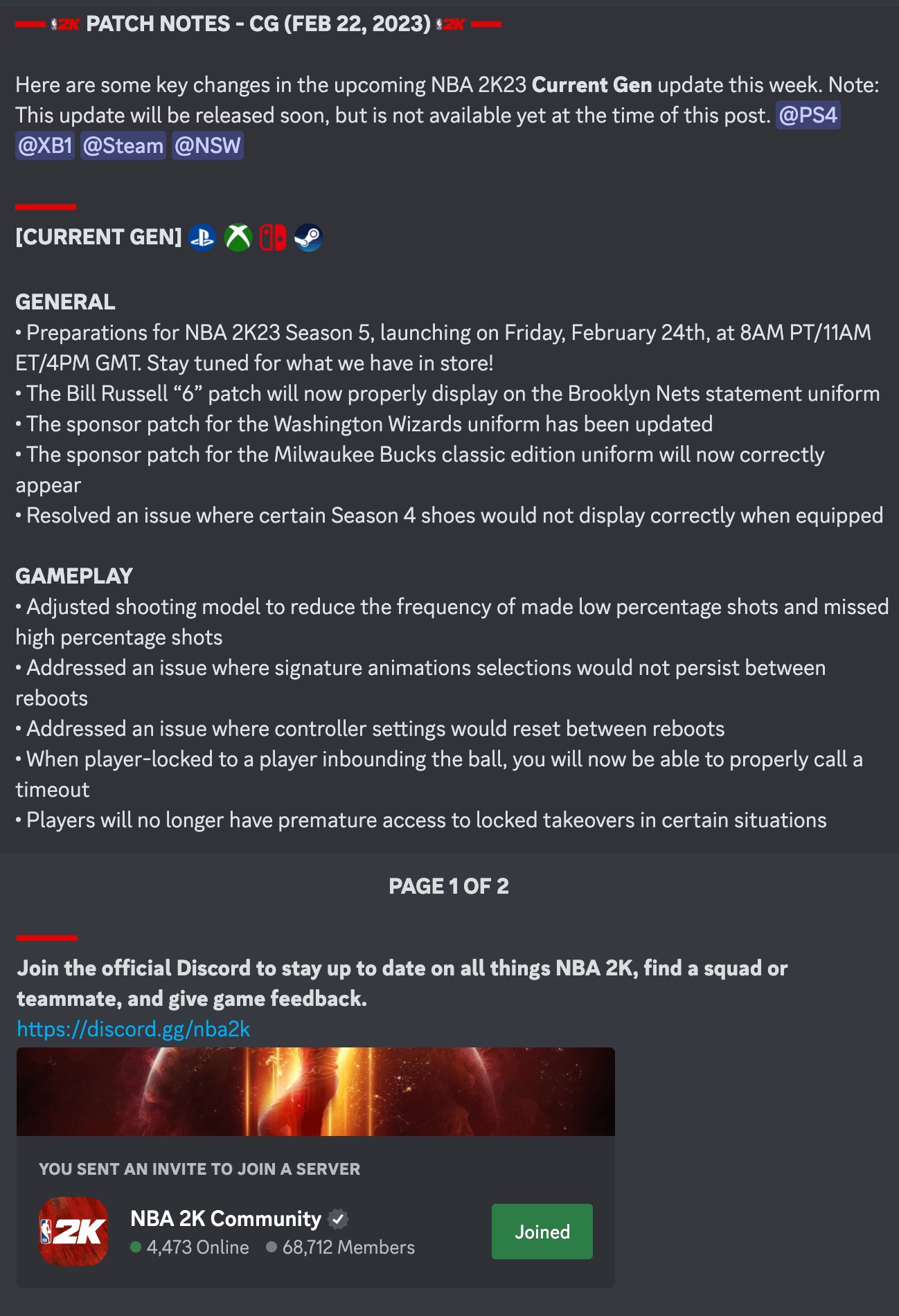
Here’s the fix: Ensure cloud saves are disabled in NBA 2K26 settings. This prevents settings conflicts and ensures your controller settings are saved locally, addressing the problem of controller settings resetting every time you launch NBA 2K26.
Is NBA 2K26 a constant source of frustration because your controller settings keep resetting? It’s incredibly annoying when you spend time perfecting your configuration, only to have it vanish upon restarting the game.
This blog post explores how to fix the controller settings resetting every time you launch NBA 2K26, offering clear solutions to finally lock in your preferred setup. Let’s get your game playing the way you want it to.

How to Fix Controller Settings Resetting Every Time You Launch NBA 2K26
Controller settings resetting in NBA 2K26 is a frustrating issue. Many players encounter this, losing their customized controls each time they start the game. Fortunately, there are several solutions you can try to resolve this problem.
Understanding the Problem
First, it’s important to understand why this is happening. Several factors could be responsible for your controller settings not saving. These reasons range from corrupted configuration files to permission issues.
Identifying the root cause will help you apply the most effective fix. Let’s examine some potential causes in more detail.
Potential Causes for Resetting Controller Settings
The issue can arise from various sources. Incorrect cloud sync settings or problems with game files are common culprits. User account control settings may also contribute to the problem.
Conflicting controller drivers or issues with the controller itself might be to blame. Understanding these causes is the first step to resolution. Let’s break down these issues further.
Corrupted Configuration Files
Game configuration files store your controller settings. If these files become corrupted, your settings may reset. This corruption can happen due to unexpected shutdowns or software conflicts.
Deleting and recreating these files can often solve the issue. You will likely need to reconfigure your controller after this process.
Cloud Sync Issues
NBA 2K26 uses cloud saves to synchronize your settings across devices. If the cloud sync malfunctions, your settings may not save correctly. Disabling cloud sync or clearing the cloud cache can resolve this.
Ensure your internet connection is stable during gameplay. A poor connection can interrupt the syncing process.
User Account Control (UAC)
User Account Control settings can restrict the game’s ability to write to certain folders. This restriction may prevent your controller settings from being saved. Adjusting UAC settings might resolve this.
Running the game as an administrator can also bypass these restrictions. It grants the game the necessary permissions to save your settings.
Controller Driver Conflicts
Conflicting controller drivers can interfere with NBA 2K26’s ability to recognize and save your controller settings. Outdated or incompatible drivers are common causes. Updating or reinstalling your controller drivers can fix this.
Check for driver updates through Device Manager. Consider using the official controller manufacturer’s software for drivers.
Controller Hardware Issues
Though less common, hardware issues with the controller itself could cause settings to reset. A faulty controller may not properly transmit or save settings. Try using a different controller to test this possibility.
If a different controller works, the original controller may need repair or replacement. This will help isolate if the issue lies with the hardware or software.
Solutions to Fix Resetting Controller Settings
Now that we’ve identified potential causes, let’s explore some solutions. These solutions include verifying game files, disabling cloud sync, adjusting UAC settings, and more. Follow the steps carefully to troubleshoot the issue.
Each solution is designed to address a specific cause of the problem. Start with the simplest solutions and work your way to the more complex ones.
Verifying Game File Integrity
Verifying game files ensures that all necessary files are present and uncorrupted. Steam and other platforms offer this feature. This process can automatically detect and repair missing or damaged files.
This is a relatively quick and easy way to rule out file corruption as the cause. Follow the steps outlined by your game platform to initiate this process.
Disabling Cloud Sync
Disabling cloud sync can prevent conflicts with the cloud save system. This forces the game to save settings locally. You can usually find the cloud sync settings in the game’s options menu or the platform’s settings.
After disabling, try configuring your controller settings again. See if the settings persist after restarting the game.
Adjusting User Account Control (UAC) Settings
Lowering the UAC settings can give the game more permissions to save files. Search for “UAC” in the Windows search bar to find the settings. Reducing the security level allows the game to write necessary data.
Be cautious when lowering UAC settings, as it can affect overall system security. It’s a good idea to set it back to recommended levels once you’ve confirmed this resolves your issue.
Running the Game as Administrator
Running NBA 2K26 as an administrator grants it elevated privileges. This can bypass permission restrictions that prevent settings from saving. Right-click on the game’s executable file and select “Run as administrator.”
This is a simple workaround to grant the game the necessary permissions. Always exercise caution when running applications as administrator.
Updating Controller Drivers
Outdated controller drivers can cause compatibility issues. Updating your drivers can resolve these conflicts. Use Device Manager to update your controller drivers.
You can also visit the controller manufacturer’s website to download the latest drivers. Keeping your drivers up-to-date is crucial for optimal performance.
Reinstalling Controller Drivers
Reinstalling controller drivers can fix corrupted or conflicting driver installations. Uninstall the existing drivers through Device Manager. Then, restart your computer and allow Windows to reinstall the drivers automatically.
Alternatively, you can download and install the drivers manually. This ensures a clean installation of the controller drivers.
Deleting and Recreating Configuration Files
Deleting and recreating configuration files forces the game to generate new, uncorrupted files. Locate the configuration files in the game’s installation directory or user profile folder. Delete these files and then launch the game.
The game will typically recreate these files with default settings. You will need to reconfigure your controller settings.
Checking Controller Configuration in Steam (if applicable)
If you’re using Steam, ensure your controller is properly configured within Steam’s settings. Steam has its own controller configuration settings that can sometimes interfere with the game’s settings. Navigate to Steam’s controller settings and adjust them accordingly.
Ensure that Steam recognizes your controller and that the configuration is set correctly. Experiment with different controller configuration options within Steam.
Using Controller Emulation Software (if applicable)
In some cases, controller emulation software like x360ce can help. This software can emulate an Xbox 360 controller, which is often better supported by games. Configure the software to recognize your controller and map the controls accordingly.
Be careful when using third-party software, and download from trusted sources. This can often be a solution when the game is not properly recognizing a specific controller type.
Checking for Game Updates
Game updates often include bug fixes and improvements. Make sure your NBA 2K26 is updated to the latest version. These updates could contain fixes for controller-related issues.
Check the game’s official website or platform for patch notes. Updates often address known issues reported by the community.
Creating a New User Profile
A corrupted user profile might be causing the issue. Creating a new user profile on your computer can sometimes resolve the problem. Log in with the new user profile and launch the game.
This can help isolate whether the issue is specific to your user profile. If the problem is resolved with a new profile, consider transferring your game saves.
Contacting 2K Support
If none of the above solutions work, consider contacting 2K Support. They may be able to provide more specific assistance. Explain the issue in detail and provide any relevant information.
Prepare to provide details about your system configuration and troubleshooting steps you’ve already taken. Their support team might have additional insights or solutions.
Troubleshooting Specific Controller Types
The fix for controller settings resetting might vary depending on the controller type. Xbox, PlayStation, and generic controllers may require different approaches. Let’s explore some specific troubleshooting steps for each type.
Identifying your controller type is important for targeted troubleshooting. The solutions might slightly differ based on your setup.
Xbox Controllers
Xbox controllers are generally well-supported by Windows. Ensure you have the latest Xbox Accessories app installed. This app can help you manage and configure your Xbox controller.
Check for firmware updates for your Xbox controller through the Xbox Accessories app. This ensures your controller is functioning optimally.
PlayStation Controllers
PlayStation controllers often require additional software to work correctly on Windows. Programs like DS4Windows can help map PlayStation controller inputs to Xbox controller inputs. Configure DS4Windows to recognize your PlayStation controller.
Ensure DS4Windows is running in the background while you play NBA 2K26. This ensures proper controller input mapping.
Generic Controllers
Generic controllers may require more configuration. Use the game’s input settings to manually map the controls. Experiment with different input settings to find the optimal configuration.
Controller emulation software might also be necessary for generic controllers. Ensure the controller is properly recognized by Windows before configuring it in the game.
Advanced Troubleshooting Steps
If basic troubleshooting steps fail, consider these advanced steps. These steps involve deeper system-level adjustments. Be cautious when making these changes.
These advanced steps should only be attempted if you are comfortable with system-level modifications. Always create a backup before making significant changes.
Checking Event Viewer for Errors
Event Viewer logs system events, including errors related to hardware and software. Check Event Viewer for any errors related to your controller or the game. This can provide valuable clues about the cause of the problem.
Filter the Event Viewer logs to show only errors and warnings. Look for entries that coincide with the times when your controller settings reset.
Performing a Clean Boot
A clean boot starts Windows with a minimal set of drivers and startup programs. This can help identify if a third-party program is interfering with the game. Perform a clean boot to isolate potential software conflicts.
Disable unnecessary startup programs and services through System Configuration. Restart your computer after disabling these items.
System File Checker (SFC) Scan
The System File Checker (SFC) scan can detect and repair corrupted system files. Run the SFC scan to ensure your system files are intact. Open Command Prompt as administrator and run the command `sfc /scannow`.
This process may take some time to complete. Allow the scan to finish and follow any instructions provided.
Checking Disk Health
A failing hard drive can cause various issues, including corrupted game files. Check the health of your hard drive to ensure it is functioning properly. Use a disk diagnostic tool to check for errors.
Replace the hard drive if it is showing signs of failure. This can prevent further data corruption.
Preventative Measures
Preventing the issue from recurring is as important as fixing it. Implementing preventative measures can save you time and frustration in the future. These measures include regular driver updates and safe shutdown practices.
Adopting these practices can minimize the risk of controller settings resetting. Consistency is key to maintaining a stable gaming environment.
Regular Driver Updates
Keep your controller drivers updated to the latest version. Regularly check for updates through Device Manager or the controller manufacturer’s website. This ensures compatibility and optimal performance.
Driver updates often include bug fixes and performance improvements. Keeping your drivers current can prevent various issues.
Safe Shutdown Practices
Avoid abruptly shutting down your computer while the game is running. Always exit the game properly before shutting down. This prevents data corruption and ensures that settings are saved correctly.
Unexpected shutdowns can lead to various issues. Following safe shutdown practices is crucial for system stability.
Maintaining Adequate System Resources
Ensure your computer has adequate system resources for running NBA 2K26. Close unnecessary programs to free up memory and processing power. This prevents the game from running into resource constraints.
Insufficient system resources can lead to performance issues and data corruption. Monitoring your system resources is important.
Regular System Maintenance
Perform regular system maintenance tasks, such as disk defragmentation and cleaning up temporary files. This keeps your system running smoothly and prevents data corruption. Regularly scan your system for malware.
System maintenance can improve performance and prevent various issues. A well-maintained system is less prone to errors.
By following these solutions and preventative measures, you should be able to resolve the controller settings resetting issue in NBA 2K26 and enjoy a seamless gaming experience. Remember to troubleshoot systematically and test each solution thoroughly.
5 SECRET Settings That You NEED To Use In NBA 2K25
Final Thoughts
To fix NBA 2K26 controller settings constantly resetting, ensure cloud saves are disabled. Cloud saves can sometimes override your local settings, causing the issue.
Next, verify the NBA 2K26 game files through your platform’s launcher (Steam, etc.). This action helps detect and repair any corrupted data.
Finally, you must grant NBA 2K26 administrator privileges. This action allows the game to properly save your configurations. Therefore, to fix the controller settings resetting every time you launch NBA 2K26, these steps should provide a solution.

