
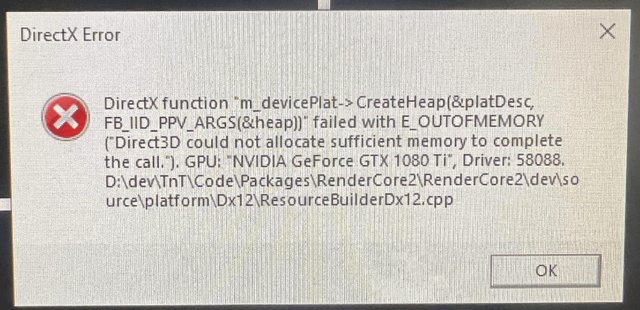
Here’s how to fix the DirectX error when launching Battlefield 6: Update your graphics card drivers to the latest version, ensure your DirectX version is up-to-date, and verify the game files through your game platform.
Battlefield 6 is here, but are you stuck with a frustrating DirectX error preventing launch? Many players face this issue, hindering them from experiencing the game. Fortunately, there are some simple steps to solve this problem.
This guide addresses exactly ‘how to fix the DirectX error when launching Battlefield 6’, offering practical solutions. Follow the advice here to quickly get back into the action and enjoy the game.

How to Fix the DirectX Error When Launching Battlefield 6
DirectX errors can prevent you from enjoying the latest Battlefield installment. These errors often indicate problems with your graphics card drivers, DirectX installation, or even the game files themselves. We’ll guide you through various troubleshooting steps to resolve this frustrating issue.
Understanding the DirectX Error
Before diving into solutions, it’s important to understand what a DirectX error signifies. DirectX is a collection of APIs (Application Programming Interfaces) that allow software, especially games, to interact directly with your hardware, particularly your graphics card.
A DirectX error suggests that something is interfering with this communication. This interference can range from outdated drivers to corrupted game files. Identifying the root cause will help you apply the appropriate fix.
Initial Troubleshooting Steps
These are some quick checks you should perform before more complex solutions. These steps often resolve the issue without requiring advanced technical knowledge.
- Restart Your Computer: A simple restart can often clear temporary glitches that might be causing the DirectX error.
Restarting the computer is always a good first step. This can resolve temporary software conflicts.
- Verify Game File Integrity: Most game launchers have a feature to verify the integrity of game files.
Steam, Origin, and other launchers can check for corrupted or missing files. This process will redownload any damaged data.
- Run the Game as Administrator: Granting administrator privileges to the game can bypass permission-related issues.
Right-click on the game’s executable file and select “Run as administrator”. This action provides the game with necessary access rights.
Updating Your Graphics Card Drivers
Outdated or corrupted graphics card drivers are a common culprit for DirectX errors. Ensuring you have the latest drivers can resolve compatibility issues and improve performance.
Identifying Your Graphics Card
Before downloading new drivers, you need to identify your graphics card model. This information is crucial for selecting the correct driver version.
You can find this information through the Device Manager. Press the Windows key, type “Device Manager,” and press Enter.
Expand the “Display adapters” section to see your graphics card. Note down the manufacturer (NVIDIA, AMD, or Intel) and the specific model.
Downloading the Latest Drivers
Visit the official website of your graphics card manufacturer to download the latest drivers. Here are the direct links:
- NVIDIA: Go to the NVIDIA website and navigate to the “Drivers” section.
You can manually search for your specific graphics card model or use NVIDIA’s automatic driver detection tool.
- AMD: Visit the AMD support website and locate the “Drivers & Support” section.
Similarly, AMD provides options for manual searches and automatic driver detection.
- Intel: Access the Intel Download Center on the Intel website.
Intel offers drivers for integrated graphics solutions; make sure to select the appropriate driver for your specific Intel integrated graphics.
Performing a Clean Driver Installation
A clean installation removes all previous driver files and settings, ensuring a fresh start. This method can resolve conflicts caused by older drivers.
Download the latest driver from the manufacturer’s website. During the installation process, look for a “Custom Installation” or “Advanced Options” option.
Select the “Perform a clean installation” checkbox (or similar wording). This will remove previous driver versions.
Reinstalling DirectX
A corrupted DirectX installation can also cause errors. Reinstalling DirectX can replace damaged files and resolve compatibility issues.
Downloading the DirectX End-User Runtime Web Installer
Download the DirectX End-User Runtime Web Installer from the Microsoft website. This installer will download and install the necessary DirectX components.
Running the DirectX Installer
Once downloaded, run the DirectX installer. Follow the on-screen instructions to complete the installation.
Restart your computer after the installation is complete. This step ensures that the changes take effect.
Checking for Windows Updates
An outdated operating system can sometimes cause DirectX errors. Windows Updates often include important system files and patches that can resolve compatibility issues.
Accessing Windows Update Settings
Press the Windows key, type “Windows Update,” and press Enter. This will open the Windows Update settings.
Checking for and Installing Updates
Click the “Check for updates” button. If updates are available, download and install them.
Restart your computer after installing the updates. This is often required to apply the changes.
Adjusting In-Game Graphics Settings
High graphics settings can sometimes strain your system and cause DirectX errors. Lowering the graphics settings can reduce the load on your GPU and resolve the issue.
Lowering Graphics Presets
In the game’s settings menu, reduce the overall graphics preset. Try starting with “Medium” or “Low”.
Disabling Advanced Graphics Features
Disable advanced graphics features such as ray tracing, ambient occlusion, and anti-aliasing. These features can be demanding on your GPU.
Adjusting Resolution
Lowering the game’s resolution can also improve performance and reduce the likelihood of DirectX errors. Experiment with different resolutions to find a balance between visual quality and performance.
Troubleshooting Specific Error Messages
Some DirectX errors come with specific error messages that can provide clues about the cause of the problem. Understanding these messages can help you narrow down the troubleshooting steps.
“DXGI_ERROR_DEVICE_REMOVED”
This error typically indicates that the graphics card has been physically removed or has encountered a critical error. It often occurs due to driver issues or hardware problems.
Reinstalling your graphics drivers with a clean installation is a good first step. You should also check the temperatures of your graphics card to ensure it is not overheating.
“DXGI_ERROR_DEVICE_HUNG”
This error suggests that the graphics card has stopped responding to the operating system. It can be caused by driver issues, overclocking, or hardware problems.
Try reverting to older graphics drivers. If you have overclocked your graphics card, revert to the default clock speeds.
“DXGI_ERROR_DEVICE_RESET”
This error indicates that the graphics card has been reset due to a software or hardware issue. It is similar to “DXGI_ERROR_DEVICE_HUNG” but implies a more severe problem.
Update your graphics drivers to the latest version. Check your system’s power supply to ensure it is providing sufficient power to your graphics card.
Checking Hardware Compatibility and System Requirements
Ensure that your computer meets the minimum and recommended system requirements for Battlefield 6. Running the game on hardware that is below the required specifications can lead to various errors, including DirectX errors.
Minimum System Requirements
These are the bare minimum specifications required to run the game. Playing with these specifications might result in low performance and graphical issues.
- Operating System: Windows 10 64-bit
- Processor: Intel Core i5-6600K or AMD Ryzen 5 1600
- Memory: 8 GB RAM
- Graphics Card: NVIDIA GeForce GTX 1050 Ti or AMD Radeon RX 560
- DirectX: Version 12
- Storage: 60 GB available space
Recommended System Requirements
These specifications are recommended for a smoother gaming experience with higher graphics settings. Meeting these requirements is more likely to provide a stable gaming experience.
- Operating System: Windows 10 64-bit
- Processor: Intel Core i7-8700K or AMD Ryzen 7 2700X
- Memory: 16 GB RAM
- Graphics Card: NVIDIA GeForce RTX 2060 or AMD Radeon RX 5700
- DirectX: Version 12
- Storage: 60 GB available space
Disabling Overlays and Background Applications
Overlays from applications like Discord, Steam, and NVIDIA GeForce Experience can sometimes interfere with the game and cause DirectX errors. Similarly, background applications can consume system resources and lead to conflicts.
Disabling Overlays
Disable overlays from all applications running in the background. This includes Discord, Steam, NVIDIA GeForce Experience, and any other similar programs.
In Discord, go to “User Settings” -> “Overlay” and disable “Enable in-game overlay”. In Steam, go to “Settings” -> “In-Game” and uncheck “Enable the Steam Overlay while in-game”.
Closing Background Applications
Close unnecessary background applications to free up system resources. Use the Task Manager (Ctrl+Shift+Esc) to identify and close resource-intensive applications.
Close applications that you are not actively using while playing the game. This will reduce the load on your system and improve performance.
Running System File Checker (SFC)
The System File Checker (SFC) is a built-in Windows tool that can scan for and repair corrupted system files. Running SFC can help resolve DirectX errors caused by damaged system files.
Opening Command Prompt as Administrator
Press the Windows key, type “cmd,” right-click on “Command Prompt,” and select “Run as administrator”.
Running the SFC Command
In the Command Prompt window, type `sfc /scannow` and press Enter. The scan will begin and may take some time to complete.
Following the On-Screen Instructions
Follow the on-screen instructions after the scan is complete. If SFC finds any corrupted files, it will attempt to repair them.
Restart your computer after the SFC scan is finished. This allows the repaired system files to take effect.
Performing a Clean Boot
A clean boot starts Windows with a minimal set of drivers and startup programs. This can help identify if a third-party application or service is causing the DirectX error.
Accessing System Configuration
Press the Windows key, type “msconfig,” and press Enter to open the System Configuration window.
Disabling Startup Services
In the System Configuration window, go to the “Services” tab. Check the “Hide all Microsoft services” box, and then click “Disable all”.
Disabling Startup Programs
Go to the “Startup” tab and click “Open Task Manager”. In the Task Manager, disable all startup programs.
Restarting Your Computer
Close the Task Manager and click “OK” in the System Configuration window. Restart your computer to perform a clean boot.
After restarting, launch Battlefield 6 to see if the DirectX error is resolved. If the error is gone, you can re-enable services and startup programs one by one to identify the culprit.
Checking Event Viewer for Errors
The Event Viewer logs system events, including errors related to DirectX. Checking the Event Viewer can provide more detailed information about the cause of the error.
Opening Event Viewer
Press the Windows key, type “Event Viewer,” and press Enter.
Navigating to Windows Logs
In the Event Viewer window, expand “Windows Logs” and select “Application”.
Filtering for Error Events
Filter the events by “Error” level to see only error events. Look for error events that are related to DirectX or the game.
Analyzing Error Details
Click on an error event to view its details. The details may provide clues about the cause of the error and possible solutions.
Testing Your RAM
Faulty RAM can sometimes cause DirectX errors and other system instability issues. Testing your RAM can help identify if it is the source of the problem.
Using Windows Memory Diagnostic Tool
Windows includes a built-in Memory Diagnostic Tool. Press the Windows key, type “Windows Memory Diagnostic,” and press Enter.
Running the Memory Test
Select “Restart now and check for problems”. Your computer will restart and run a memory test.
Analyzing the Results
After the test is complete, your computer will restart. The results of the test will be displayed in the notification area or in the Event Viewer.
If the memory test identifies any errors, you may need to replace your RAM modules.
Reinstalling Battlefield 6
As a last resort, try reinstalling Battlefield 6. This can resolve issues caused by corrupted game files or installation errors.
Uninstalling the Game
Uninstall the game through the Control Panel or the game launcher. Make sure to remove all associated files and folders.
Downloading and Installing the Game
Download the game again from the game launcher. Follow the on-screen instructions to install the game.
Testing the Game
After the installation is complete, launch the game to see if the DirectX error is resolved. This ensures a clean and fresh install.
Battlefield 6: How to Fix Directx Error & DXGI_ERROR_DEVICE_HUNG in PC
Final Thoughts
To fix the DirectX error when launching Battlefield 6, you must first update your graphics drivers. Visit the NVIDIA, AMD, or Intel website and download the latest version.
Also, verify the game files through your game launcher (Steam, Origin, etc.). This process will identify and replace any corrupted files.
Finally, ensure your operating system meets the minimum system requirements for Battlefield 6. Doing so will often resolve compatibility issues. By following these steps, you should be able to fix the DirectX error when launching Battlefield 6.

