
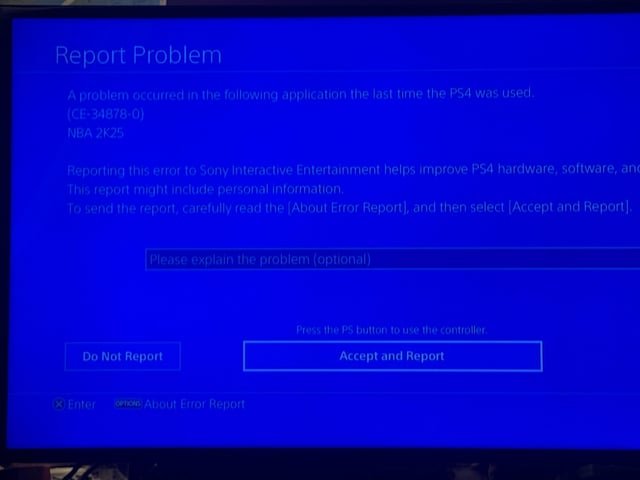
To fix the game crashing when you try to access MyTEAM in NBA 2K26, try clearing your console’s cache, verifying the game file integrity, or reinstalling the game completely.
Frustrated because NBA 2K26 keeps crashing when you try to dive into MyTEAM? You are not alone! This problem can prevent you from building your dream team.
Let’s get you back on the court! This guide will walk you through several proven solutions to address the frustrating issue of how to fix the game crashing when you try to access MyTEAM in NBA 2K26.
We’ll explore simple fixes and potentially more involved solutions to restore your MyTEAM experience.

How to Fix the Game Crashing When You Try to Access MyTEAM in NBA 2K26
MyTEAM crashing in NBA 2K26 can be incredibly frustrating. You’re ready to build your dream team, only to be met with a sudden and unexpected crash.
This guide will walk you through several troubleshooting steps to resolve this issue and get you back on the court. We will cover a variety of potential causes and solutions.
Check NBA 2K26 Server Status
Sometimes, the problem isn’t on your end. The NBA 2K26 servers might be experiencing issues.
Check the official NBA 2K social media channels or websites. Look for any announcements about server outages or maintenance.
If the servers are down, all you can do is wait for them to come back online. Trying to access MyTEAM during an outage is likely to result in crashes.
Verify Game File Integrity
Corrupted game files can cause all sorts of problems, including crashes. Verifying the integrity of your game files is a good first step.
This process checks for missing or damaged files and replaces them. The steps vary depending on your platform.
Steam Users
If you’re playing NBA 2K26 on Steam, follow these steps:
- Open Steam: Launch the Steam client on your computer.
- Go to Library: Click on “Library” in the top menu.
- Right-click NBA 2K26: Find NBA 2K26 in your game list and right-click on it.
- Select Properties: Choose “Properties” from the context menu.
- Go to Local Files: Click on the “Local Files” tab.
- Verify Integrity: Click the “Verify integrity of game files…” button.
Steam will now scan your game files and replace any that are missing or corrupted. This process may take some time.
PlayStation and Xbox Users
On consoles, the process is slightly different, but similar principles apply. You are essentially re-checking the installation.
On PlayStation, you can try rebuilding the database. On Xbox, try uninstalling and reinstalling the game.
- PlayStation (Rebuild Database): Turn off your PlayStation completely. Then, boot into safe mode (hold the power button until you hear two beeps) and select ‘Rebuild Database’.
- Xbox (Reinstall Game): Go to “My Games & Apps,” find NBA 2K26, and select “Uninstall.” Then, reinstall the game from the Xbox Store.
Rebuilding the database on PlayStation can take a while, depending on the size of your hard drive. Reinstalling the game will also take time.
Update Your Graphics Drivers
Outdated graphics drivers are a common cause of game crashes. Ensure you have the latest drivers installed for your graphics card.
Visit the website of your graphics card manufacturer (NVIDIA or AMD). Download and install the latest drivers.
- NVIDIA: Go to the NVIDIA website and download the GeForce Experience software.
- AMD: Go to the AMD website and download the AMD Adrenalin software.
These software packages will help you keep your drivers up to date. They also often include performance optimizations for specific games.
Close Background Applications
Other applications running in the background can sometimes interfere with NBA 2K26. Closing unnecessary applications can free up system resources and prevent crashes.
Close any programs that you are not actively using. This includes web browsers, music players, and other games.
Use the Task Manager (Windows) or Activity Monitor (Mac) to see which applications are using the most resources. Close those applications first.
Adjust Graphics Settings
High graphics settings can strain your system and lead to crashes. Lowering the graphics settings in NBA 2K26 can improve stability.
Experiment with different settings to find a balance between visual quality and performance. Start by lowering the overall graphics preset.
- Lower Resolution: Reduce the game’s resolution.
- Reduce Texture Quality: Lower the texture quality setting.
- Disable Anti-Aliasing: Turn off or reduce anti-aliasing.
- Lower Shadow Quality: Reduce the quality of shadows.
You can adjust these settings in the game’s graphics options menu. Restart the game after making changes to see if they have helped.
Check Your Internet Connection
A stable internet connection is essential for MyTEAM. An unstable connection can lead to disconnects and crashes.
Ensure you have a reliable internet connection. Try restarting your router and modem.
- Wired Connection: Use a wired Ethernet connection instead of Wi-Fi for a more stable connection.
- Run a Speed Test: Check your internet speed to ensure it meets the minimum requirements for NBA 2K26.
- Close Other Applications: Limit other devices using your internet connection while playing.
A slow or unstable internet connection can cause issues with online game modes like MyTEAM.
Clear the Game Cache
Sometimes, corrupted game cache files can cause issues. Clearing the cache can resolve these problems.
The method for clearing the cache varies depending on your platform. On PC, you can usually find the cache files in the game’s installation directory.
On consoles, you might need to clear the system cache. Refer to your console’s documentation for instructions.
- PC (Locate Cache Folder): Navigate to the NBA 2K26 installation folder and look for a “Cache” or “Temp” folder. Delete the contents of this folder.
- PlayStation (Clear System Cache): Power down your PlayStation completely. Unplug the power cord for 30 seconds, then plug it back in and restart.
- Xbox (Clear Persistent Storage): Go to Settings > Disc & Blu-ray > Persistent Storage and clear the storage.
Be careful when deleting files from your computer. Only delete files that you are sure are safe to remove.
Reinstall NBA 2K26
If none of the above steps work, try reinstalling NBA 2K26. This will ensure that you have a fresh copy of the game files.
Uninstall the game from your platform. Then, download and install it again.
- Back Up Saves: Before uninstalling, back up your save data if possible.
- Clean Installation: After uninstalling, delete any remaining NBA 2K26 files from your hard drive.
- Download and Install: Download the game again and install it.
Reinstalling the game can take a significant amount of time, but it can often resolve stubborn issues.
Check for Overheating
Overheating can cause your system to crash. Make sure your computer or console is properly ventilated.
Ensure that the fans are working correctly. Clean any dust that may be blocking the vents.
- Monitor Temperatures: Use monitoring software to check the temperature of your CPU and GPU.
- Improve Ventilation: Ensure your computer or console has adequate ventilation.
- Clean Dust: Clean any dust from the fans and vents.
Overheating can damage your hardware, so it’s important to address this issue promptly.
Run a Memory Test
Faulty RAM can cause game crashes. Run a memory test to check for errors.
Windows includes a built-in memory diagnostic tool. You can also use third-party memory testing software.
- Windows Memory Diagnostic: Search for “Windows Memory Diagnostic” in the Start menu and run the tool.
- Memtest86: Download and run Memtest86 from a bootable USB drive.
A memory test can take several hours to complete. If the test finds errors, you may need to replace your RAM.
Check Antivirus and Firewall Settings
Antivirus software and firewalls can sometimes interfere with games. Make sure NBA 2K26 is allowed through your firewall.
Temporarily disable your antivirus software to see if it resolves the issue. If it does, you may need to add NBA 2K26 to your antivirus exceptions list.
- Firewall Exceptions: Add NBA 2K26 to the list of allowed programs in your firewall settings.
- Antivirus Exceptions: Add the NBA 2K26 game folder to your antivirus exceptions list.
- Temporarily Disable: Temporarily disable your antivirus software to test if it is causing the issue.
Be careful when disabling your antivirus software. Only do so temporarily and re-enable it as soon as possible.
Contact 2K Support
If you’ve tried all of the above steps and you’re still experiencing crashes, contact 2K Support for assistance. They may be able to provide more specific troubleshooting steps.
Provide them with as much information as possible about the issue, including any error messages you’re seeing. The more information you give them, the better they will be able to help.
- Error Messages: Note down any error messages that appear when the game crashes.
- System Specifications: Provide your system specifications, including your CPU, GPU, RAM, and operating system.
- Troubleshooting Steps: Describe the troubleshooting steps you have already tried.
2K Support may be able to identify a specific issue with your system or account that is causing the crashes.
Operating System Compatibility
Ensure that your operating system is compatible with NBA 2K26. Using an outdated or unsupported operating system can cause problems.
Check the game’s system requirements to see which operating systems are supported. Upgrade your operating system if necessary.
- Minimum Requirements: Check the minimum operating system requirements for NBA 2K26.
- Upgrade OS: Consider upgrading to a newer version of Windows or macOS if necessary.
- Check for Updates: Make sure your operating system is up to date with the latest patches and updates.
Using a compatible operating system is essential for running NBA 2K26 smoothly.
Hardware Limitations
Sometimes, your hardware might not be powerful enough to run NBA 2K26 at the desired settings. Check the game’s system requirements.
Compare your hardware specifications to the minimum and recommended requirements. If your hardware is below the minimum requirements, you may need to upgrade.
- CPU: Check your CPU’s specifications and compare them to the game’s requirements.
- GPU: Check your GPU’s specifications and compare them to the game’s requirements.
- RAM: Ensure you have enough RAM to run the game.
Upgrading your hardware can improve performance and prevent crashes.
Check for Known Bugs and Patches
Sometimes, the crashes are due to a known bug in the game. Check the NBA 2K forums and social media channels for information about known issues.
2K often releases patches to fix bugs and improve performance. Make sure you have the latest version of the game installed.
- NBA 2K Forums: Check the official NBA 2K forums for information about known bugs.
- Social Media: Follow the NBA 2K social media channels for updates about patches and fixes.
- Game Updates: Ensure you have the latest version of the game installed.
Staying informed about known bugs and patches can help you avoid frustration and find solutions.
Disable Overlays
In-game overlays from applications like Discord, Steam, or NVIDIA GeForce Experience can sometimes cause conflicts and lead to crashes. Try disabling these overlays.
Disable the overlay in each application’s settings. Restart the game to see if this resolves the issue.
- Discord Overlay: Disable the in-game overlay in Discord’s settings.
- Steam Overlay: Disable the Steam overlay in Steam’s settings.
- NVIDIA GeForce Experience Overlay: Disable the in-game overlay in GeForce Experience’s settings.
Overlays can be useful, but they can also sometimes cause problems with game compatibility.
Check for Conflicting Software
Certain software programs can conflict with NBA 2K26 and cause crashes. This is rare, but worth investigating if all other solutions fail.
Consider if you’ve recently installed any new software, particularly anything that interacts with the game or your system’s drivers. Try temporarily uninstalling such programs to see if the crashing stops.
- Recently Installed Software: Consider any recent software installs as potential culprits.
- Driver Interaction: Programs that interact deeply with system drivers can sometimes cause conflicts.
- Temporary Uninstall: Try temporarily uninstalling suspicious programs to test for conflicts.
This is a more advanced troubleshooting step, but can be helpful in rare cases.
Run NBA 2K26 as Administrator
Granting NBA 2K26 administrator privileges can sometimes resolve issues related to permissions and access rights. This ensures the game has the necessary authority to function correctly.
Right-click on the NBA 2K26 executable file (the .exe file that launches the game) and select “Run as administrator.”
- Locate Executable: Find the NBA 2K26 executable file, usually located in the game’s installation directory.
- Right-Click: Right-click on the executable file.
- Run as Administrator: Select “Run as administrator” from the context menu.
This can bypass certain security restrictions and potentially prevent crashes.
How To Fix Freezing & Crashing Issues On NBA 2K25 – Updated
Final Thoughts
To fix the game crashing when you try to access MyTEAM in NBA 2K26, first, ensure your game is updated to the latest version. A corrupted game file must be addressed.
Next, clear your console’s cache. This simple step often resolves many issues.
Finally, if problems persist, contact 2K support. They can provide more targeted assistance. Following these suggestions should fix the game crashing when you try to access MyTEAM in NBA 2K26.

