
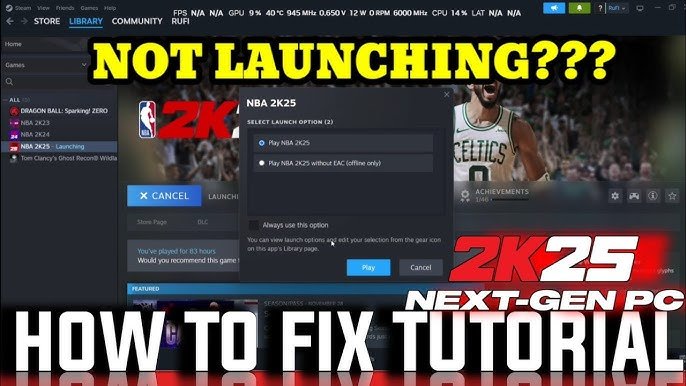
To fix the issue of NBA 2K26 not launching after an update, try verifying the game files through your platform (Steam, Epic Games, etc.), updating your graphics drivers, or reinstalling the game if necessary.
Frustrating, right? You just updated NBA 2K26, ready to hit the court, and…nothing. The game simply refuses to launch.
Don’t throw your controller just yet! We’re here to help you understand how to fix the issue of NBA 2K26 not launching after an update. This guide provides simple steps to get you back in the game quickly.

How to Fix the Issue of NBA 2K26 Not Launching After an Update
NBA 2K26 is finally here, and you’re pumped to hit the court. But what if, after the latest update, the game simply refuses to launch? Don’t worry, you’re not alone.
This is a common issue, and thankfully, there are several fixes you can try to get back in the game. We will cover various troubleshooting steps.
Let’s dive into the solutions.
Basic Troubleshooting Steps
Before trying more complex solutions, let’s start with some simple fixes. These are often the quickest and easiest ways to resolve the problem.
Restart Your System
Simple Restart: The first thing you should always try is restarting your computer or console. This can resolve temporary glitches and conflicts.
Full Power Cycle: For consoles, consider a full power cycle. Unplug the console for a minute, then plug it back in and turn it on.
Verify Game File Integrity
Steam Verification: If you’re playing on PC through Steam, verify the integrity of the game files. This will check for and replace any corrupted or missing files.
Other Platforms: Check the corresponding platform’s method for verifying game files if you aren’t using Steam. Each console ecosystem has its own mechanism.
To verify game files on Steam:
1. Open Steam.
2. Go to your Library.
3. Right-click on NBA 2K26.
4. Select Properties.
5. Go to the Local Files tab.
6. Click on "Verify integrity of game files..."
Steam will then check all game files and replace any that are damaged or missing. This process can take some time.
Check Minimum System Requirements
Confirm Compatibility: Make sure your system meets the minimum requirements to run NBA 2K26. An outdated system can cause launch issues, especially after an update.
Hardware Check: Compare your PC specs (CPU, GPU, RAM) against the game’s requirements. If you are close, consider upgrading components.
Advanced Troubleshooting
If the basic steps don’t work, it’s time to try some more advanced troubleshooting techniques. These may require a bit more technical knowledge, but they can often resolve more complex issues.
Update Graphics Drivers
Outdated Drivers: Outdated graphics drivers are a common cause of game launch problems. Make sure you have the latest drivers installed.
Driver Updates: Visit the NVIDIA, AMD, or Intel website (depending on your GPU) to download and install the latest drivers. Use their respective software tools for automated updates.
NVIDIA GeForce Experience: This application automatically checks for and installs the newest NVIDIA drivers. It also optimizes game settings.
AMD Radeon Software: Similar to GeForce Experience, AMD Radeon Software keeps your AMD drivers up-to-date and optimizes games.
Run the Game as Administrator
Elevated Privileges: Running the game as administrator gives it the necessary permissions to access system resources. This can bypass certain security restrictions.
Right-Click Option: To run as administrator, right-click on the game’s executable file and select “Run as administrator.”
Compatibility Tab: Alternatively, set the game to always run as administrator through the compatibility tab in the game’s properties.
Disable Antivirus Software Temporarily
False Positives: Antivirus software can sometimes mistakenly identify game files as threats. Temporarily disabling your antivirus can help determine if this is the cause.
Cautious Approach: Be careful when disabling your antivirus. Only do so temporarily and re-enable it immediately after testing.
Exclusion List: If the game launches with the antivirus disabled, add the game’s installation folder to the antivirus’s exclusion list. This will prevent it from interfering with the game in the future.
Check for Conflicting Applications
Background Processes: Certain applications running in the background can conflict with the game. Close any unnecessary programs before launching NBA 2K26.
Overlays and Monitoring Tools: Disable any overlays (e.g., Discord, Steam Overlay) or monitoring tools (e.g., MSI Afterburner) that might be interfering.
Clean Boot: Perform a clean boot to start Windows with a minimal set of drivers and startup programs. This can help identify conflicting software.
1. Press Win + R, type msconfig, and press Enter.
2. In the System Configuration window, go to the Services tab.
3. Check "Hide all Microsoft services" and click "Disable all".
4. Go to the Startup tab and click "Open Task Manager".
5. Disable all startup items in Task Manager.
6. Restart your computer.
After the clean boot, try launching the game. If it works, you can gradually re-enable services and startup items to identify the culprit.
Reinstall the Game
Last Resort: If none of the above solutions work, reinstalling the game might be necessary. This ensures that all game files are fresh and free from corruption.
Complete Uninstall: Before reinstalling, completely uninstall the game. Remove any leftover files or folders in the installation directory and in your documents folder.
Clean Installation: Download the latest version of the game and install it again. This will provide a clean installation of the game.
Platform-Specific Solutions
The specific steps to fix NBA 2K26 not launching can vary depending on the platform you’re playing on (PC, PlayStation, Xbox). Here’s a breakdown of solutions for each platform.
PC Solutions
PC gaming often requires more technical troubleshooting due to the variability of hardware and software configurations. Here are some PC-specific fixes.
DirectX and Visual C++ Redistributables
Essential Components: NBA 2K26 requires the latest versions of DirectX and Visual C++ Redistributables to function correctly. Ensure these are installed or updated.
DirectX Update: Download the latest DirectX version from Microsoft’s website and install it.
Visual C++: Download and install the latest Visual C++ Redistributables from Microsoft’s website. Install both the x86 and x64 versions.
Compatibility Mode
Older Operating Systems: If you’re using an older version of Windows, try running the game in compatibility mode. This can help resolve compatibility issues.
Compatibility Settings: Right-click on the game’s executable file, select Properties, go to the Compatibility tab, and select a compatible operating system.
Troubleshooting Tool: Use the Compatibility Troubleshooter in Windows to automatically detect and apply compatibility settings.
PlayStation Solutions
PlayStation consoles generally have a more streamlined gaming experience. However, launch issues can still occur.
Rebuild Database
Database Errors: Rebuilding the PlayStation database can resolve various system issues, including game launch problems.
Safe Mode: To rebuild the database, boot your PlayStation into Safe Mode.
1. Turn off your PlayStation completely.
2. Press and hold the power button until you hear two beeps.
3. Connect your controller via USB.
4. Select "Rebuild Database" from the Safe Mode menu.
This process can take some time, but it can often resolve launch issues.
Check for System Updates
Outdated Firmware: Make sure your PlayStation has the latest system software update. An outdated firmware can cause compatibility issues with the game.
Automatic Updates: Enable automatic system software updates in the PlayStation settings to ensure you always have the latest version.
Xbox Solutions
Similar to PlayStation, Xbox consoles aim for a seamless gaming experience. Here’s how to troubleshoot launch issues on Xbox.
Clear Persistent Storage
Cache Issues: Clearing the persistent storage can resolve cache-related issues that might be preventing the game from launching.
System Settings: To clear persistent storage, go to Settings > Devices & connections > Blu-ray > Persistent storage and select “Clear persistent storage.”
Hard Reset
Power Cycle: A hard reset (power cycle) can resolve various system issues. Turn off the Xbox, unplug it for a few minutes, and then plug it back in and turn it on.
Cache Clearing: This process clears the console’s cache, which can sometimes resolve launch problems.
Specific Error Codes and Their Solutions
Sometimes, NBA 2K26 might display a specific error code when it fails to launch. These codes can provide valuable clues about the cause of the problem and how to fix it.
Error Code: EFEAB30C or Similar
Connectivity Issues: This error code often indicates a problem with the game’s connection to the 2K servers.
Internet Connection: Check your internet connection. Ensure you have a stable and active connection.
Firewall Settings: Verify that your firewall isn’t blocking the game’s access to the internet. Add NBA 2K26 to your firewall’s exception list.
2K Server Status: Check the 2K support website or social media channels to see if there are any known server issues.
Error Code: ce-34878-0 (PlayStation)
General Error: This is a general error code on PlayStation that can indicate a variety of problems.
Restart Game/Console: Try restarting the game and your console. This often fixes temporary glitches.
Update Game/Console: Ensure both the game and your console have the latest updates installed.
Rebuild Database: Rebuilding the database can sometimes resolve this error.
Reinstall Game: If the error persists, try reinstalling the game.
Error Code: 0x80273efc (Xbox)
App Launch Failure: This error code on Xbox indicates that the application failed to launch.
Restart Game/Console: Try restarting the game and your console.
Check Xbox Live Status: Ensure Xbox Live is up and running.
Reinstall Game: If the error persists, try reinstalling the game.
Advanced PC Tweaks
For PC users, there are some additional tweaks you can try to improve game performance and resolve launch issues.
Adjusting Virtual Memory (Page File)
Insufficient Memory: If your system has limited RAM, increasing the virtual memory can help. Virtual memory uses a portion of your hard drive as RAM.
Settings: To adjust virtual memory, go to System Properties > Advanced > Performance > Settings > Advanced > Virtual memory > Change. Uncheck “Automatically manage paging file size for all drives” and set a custom size.
Recommended Settings: A good starting point is to set the initial size to 1.5 times your RAM and the maximum size to 3 times your RAM.
Disabling Fullscreen Optimizations
Compatibility Issues: Fullscreen optimizations in Windows can sometimes cause compatibility issues with games. Disabling this feature can improve performance and stability.
Properties: Right-click on the game’s executable file, select Properties, go to the Compatibility tab, and check “Disable fullscreen optimizations.”
Setting High Priority in Task Manager
Resource Allocation: Setting the game’s priority to high in Task Manager can allocate more system resources to it. This can improve performance, especially on lower-end systems.
Caution: Be cautious when using this option, as it can affect the performance of other applications.
To set high priority:
1. Launch NBA 2K26.
2. Open Task Manager (Ctrl + Shift + Esc).
3. Go to the Details tab.
4. Find the NBA 2K26 process.
5. Right-click on it and select "Set priority" > "High".
Contacting 2K Support
If you’ve tried all of the above solutions and still can’t get NBA 2K26 to launch, it’s time to contact 2K Support. They may be able to provide more specific assistance based on your system configuration and error logs.
Support Website: Visit the 2K Support website and submit a support ticket. Provide as much detail as possible about the issue, including any error codes you’re seeing, the troubleshooting steps you’ve already tried, and your system specifications.
NBA 2K26 NEWS: Everything You Need to Know #2k #nba2k #nba2k26 #2k26
Final Thoughts
To fix NBA 2K26 not launching after an update, first verify the game files. Corrupted files are often the culprit.
Then, update your graphics drivers and operating system. Outdated software can cause compatibility issues.
Finally, try running the game as administrator or reinstalling it completely. These steps must solve your launching problem.
In short, to fix the issue of NBA 2K26 not launching after an update, verify game files, update drivers/OS, and run as administrator or reinstall. These troubleshooting steps should get you back on the court quickly.

