
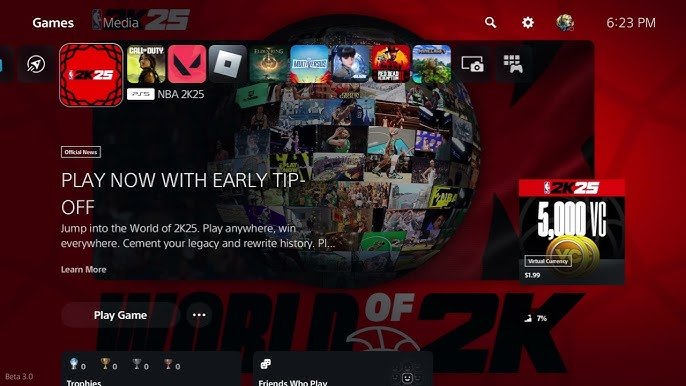
To fix the “unable to connect to servers” error in NBA 2K26, first check your internet connection. Then, verify the NBA 2K server status. Finally, restart your game and console/PC.
Frustrated that you can’t get online in NBA 2K26? Experiencing the dreaded “unable to connect to servers” error is a real buzzkill.
We get it. You’re ready to hit the court, but instead, you’re staring at a connection error.
This guide will show you how to fix the “unable to connect to servers” error in NBA 2K26. We’ll walk through some common solutions to get you back in the game quickly.

How to Fix the “Unable to Connect to Servers” Error in NBA 2K26
Experiencing the dreaded “Unable to Connect to Servers” error in NBA 2K26? You are not alone. Many players encounter this frustrating issue.
This guide provides troubleshooting steps to get you back on the court. We will cover various fixes, from basic checks to more advanced solutions.
Understanding the Error
The “Unable to Connect to Servers” error indicates your game cannot establish a connection with the NBA 2K26 servers. This prevents access to online modes, updates, and other online features.
Several factors can cause this problem. Knowing these factors can help you identify the root cause.
Common Causes
Server Issues: The NBA 2K26 servers might be experiencing downtime or maintenance. This is a common cause, especially after updates.
Internet Connection Problems: A weak or unstable internet connection can prevent the game from connecting to the servers. Check your connection speed and stability.
Firewall or Antivirus Interference: Security software might be blocking the game’s connection. Configure your firewall or antivirus to allow NBA 2K26.
Outdated Game Version: Running an outdated version of NBA 2K26 can cause compatibility issues. Ensure your game is updated to the latest version.
DNS Server Issues: Problems with your DNS server settings can hinder your connection. Try switching to a public DNS server.
Platform-Specific Issues: Sometimes, the issue might be related to your specific gaming platform (PlayStation, Xbox, PC, etc.). Check for platform-specific troubleshooting.
Preliminary Checks
Before diving into more complex solutions, perform these initial checks. These simple steps often resolve the issue.
Restart Your Game: Close NBA 2K26 completely and relaunch it. This can resolve temporary glitches.
Restart Your Device: Restart your gaming console or PC. This clears the system’s memory and can fix connection problems.
Check Your Internet Connection: Ensure your internet connection is stable and working correctly. Run a speed test to verify your bandwidth.
Check NBA 2K Server Status: Visit the official NBA 2K server status page or social media channels. See if there are any reported outages.
Basic Troubleshooting Steps
If the preliminary checks don’t work, try these basic troubleshooting steps. These are commonly effective solutions.
Checking Your Internet Connection
Run a Speed Test: Use a website like Speedtest.net to check your internet speed. Ensure you meet the minimum requirements for NBA 2K26.
Restart Your Router: Unplug your router for 30 seconds, then plug it back in. This can refresh your network connection.
Check Your Ethernet Cable: If using a wired connection, ensure the Ethernet cable is securely connected to your device and router. Try a different cable.
Test Your Wireless Connection: If using Wi-Fi, try moving closer to your router. Reduce potential interference.
Firewall and Antivirus Configuration
Add NBA 2K26 to Firewall Exceptions: Allow NBA 2K26 through your firewall. This prevents the firewall from blocking the game’s connection.
Windows Defender Firewall:
- Open Windows Security: Search for “Windows Security” in the Start Menu.
- Click on “Firewall & network protection”: Select this option to access firewall settings.
- Click on “Allow an app through firewall”: This opens the list of allowed apps.
- Click on “Change settings”: This requires administrator privileges.
- Click on “Allow another app…”: Browse to the NBA 2K26 installation directory and select the game’s executable file.
- Ensure both “Private” and “Public” boxes are checked: This allows the game to connect on both network types.
- Click “OK”: Save your changes.
Temporarily Disable Antivirus: Temporarily disable your antivirus software to see if it’s causing the issue. Remember to re-enable it afterward.
Updating NBA 2K26
Check for Updates: Ensure NBA 2K26 is updated to the latest version. Outdated versions can cause compatibility problems.
PlayStation: Go to the game in your library, press the Options button, and select “Check for Update.”
Xbox: Go to “My games & apps,” select NBA 2K26, and press the Menu button. Choose “Manage game & add-ons,” then “Updates.”
Steam (PC): Steam automatically updates games. Restart Steam to force a check.
Epic Games Launcher (PC): Epic Games Launcher also automatically updates games. Restart the launcher to initiate the update.
DNS Server Settings
Change DNS Servers: Try using public DNS servers like Google DNS or Cloudflare DNS. These are often more reliable.
Windows:
- Open Control Panel: Search for “Control Panel” in the Start Menu.
- Click on “Network and Internet”: Select this option.
- Click on “Network and Sharing Center”: Opens the network settings.
- Click on “Change adapter settings”: This shows your network adapters.
- Right-click on your network adapter: Select “Properties.”
- Select “Internet Protocol Version 4 (TCP/IPv4)”: Click “Properties.”
- Select “Use the following DNS server addresses”: Enter the following:
- Preferred DNS server: 8.8.8.8 (Google DNS)
- Alternate DNS server: 8.8.4.4 (Google DNS)
or
- Preferred DNS server: 1.1.1.1 (Cloudflare DNS)
- Alternate DNS server: 1.0.0.1 (Cloudflare DNS)
- Click “OK”: Save your changes.
PlayStation and Xbox: The process varies slightly, but you can typically find DNS settings in the network configuration menu under advanced settings or manual setup. Refer to your console’s manual.
Advanced Troubleshooting Steps
If the basic steps don’t resolve the issue, try these more advanced solutions. These may require more technical knowledge.
Port Forwarding
Open Necessary Ports: Port forwarding can improve connection stability. Open the necessary ports for NBA 2K26 in your router settings.
PlayStation 5: TCP: 3478-3480, UDP: 3074, 3478-3479
Xbox Series X/S: TCP: 3074, UDP: 88, 500, 3074, 3544, 4500
PC (Steam): TCP: 27015-27030, 27036-27037, UDP: 4380, 27000-27031, 27036
PC (Epic Games): TCP: 80, 443, 5222, 5223, 3478, 3479, 5060, 5062, 5221, 7777, UDP: 3478, 3479, 5060, 5062, 7777
How to Port Forward: Log in to your router’s configuration page (usually through a web browser). Navigate to the port forwarding section. Create new rules for each port listed above, specifying your device’s IP address.
Clearing Cache and Game Data
Clear Game Cache (PC): Clearing the game cache can resolve corrupted data issues.
Steam: Right-click on NBA 2K26 in your library, select “Properties,” go to the “Local Files” tab, and click “Verify integrity of game files.”
Epic Games Launcher: Click on the three dots next to NBA 2K26 in your library, select “Verify.”
Clear Console Cache (PlayStation/Xbox): Clear the console’s cache to remove temporary files that may be causing issues.
PlayStation: Turn off the console completely. Unplug the power cord for 30 seconds. Plug it back in and restart.
Xbox: Press and hold the power button on the console for 10 seconds until it turns off. Unplug the power cord for 30 seconds. Plug it back in and restart.
Reinstalling NBA 2K26
Reinstall the Game: If all else fails, reinstalling NBA 2K26 can often resolve persistent issues. This ensures a clean installation.
Back Up Saves: Before reinstalling, back up your save files to avoid losing progress. This is especially important for MyCareer mode.
Contacting 2K Support
Seek Professional Help: If you have tried all the above steps and are still experiencing the error, contact 2K Support. They can provide personalized assistance.
Provide Details: When contacting support, provide detailed information about the error, your system specifications, and the troubleshooting steps you have already tried. This will help them diagnose the problem more efficiently.
Platform Specific Considerations
The “Unable to connect to servers” error can sometimes be platform-specific. Here’s what you should know for each platform.
PlayStation
PSN Status: Check the PlayStation Network (PSN) status. If PSN is down, you will likely experience connection issues.
Update System Software: Ensure your PlayStation system software is up to date.
Rebuild Database: Rebuilding the PlayStation database can fix corrupted data issues. This option is found in Safe Mode.
Xbox
Xbox Live Status: Check the Xbox Live status. If Xbox Live is down, you will encounter connection problems.
Update System Software: Ensure your Xbox system software is updated.
Power Cycle: Perform a hard reset by holding the power button for 10 seconds.
PC
Driver Updates: Ensure your network adapter drivers are up to date. Outdated drivers can cause connection problems.
Background Applications: Close unnecessary background applications. These can consume bandwidth and interfere with the game’s connection.
VPN Issues: Disable any VPN software you are using. VPNs can sometimes interfere with game connections.
Preventative Measures
Taking preventative measures can reduce the likelihood of encountering the “Unable to Connect to Servers” error. These steps can improve your overall gaming experience.
Maintain a Stable Internet Connection: Ensure you have a reliable internet connection with sufficient bandwidth. Avoid using Wi-Fi if possible, and opt for a wired connection.
Regularly Update Your System and Game: Keep your gaming console, PC, and NBA 2K26 updated to the latest versions.
Monitor Server Status: Check the NBA 2K server status regularly, especially before playing online modes.
Avoid Peak Hours: Playing during off-peak hours can reduce server load and improve connection stability.
By following these troubleshooting steps and preventative measures, you can significantly reduce the chances of encountering the “Unable to Connect to Servers” error in NBA 2K26 and get back to enjoying the game. Remember to be patient and persistent, as resolving connection issues can sometimes take time and effort. Good luck, and see you on the court!
How To Fix Unable to Connect to 2K Server For NBA 2K25
Final Thoughts
To fix the “unable to connect to servers” error in NBA 2K26, first check your internet connection. Ensure your network is stable.
Next, restart your gaming device and router. This action often resolves temporary connectivity issues.
Finally, verify the NBA 2K26 server status. If the servers are down, you must wait until they are back online.

