
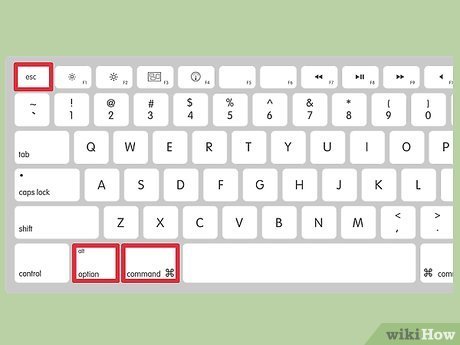
To force exit a game, use the keyboard shortcut Alt + F4 on Windows, Command + Option + Escape on macOS, or find the application in your system’s task manager and end the process.
Ever had a game freeze, refusing to respond to your commands? It’s frustrating, right? Sometimes you need to take matters into your own hands. This is where knowing how to force exit a game becomes essential.
This short guide will quickly show you those crucial keyboard shortcuts. You’ll learn to handle unresponsive games effectively. We’ll also discuss how to use the task manager. So you can regain control.

How to Force Exit a Game
Sometimes, games can get stuck. They might freeze, crash, or just refuse to close normally. It’s frustrating when this happens, but don’t worry! There are ways to make a game quit even when it doesn’t want to. This guide will show you different methods to force exit a game on your computer, phone, or gaming console.
Why Games Freeze and Need Force Quitting
Before we jump into the “how,” let’s quickly talk about the “why.” Games freeze or become unresponsive for several reasons. These can include:
- Too much going on: Your computer or console might be trying to do too many things at once. This can overload the system and make the game stop working.
- Software bugs: Sometimes, the game itself has errors in its code. These errors can cause the game to freeze or crash.
- Outdated drivers: The software that lets your computer talk to its video card might be old. This can cause problems with graphics and game performance.
- Hardware problems: Issues with your computer’s parts, like the graphics card or hard drive, might also cause games to freeze.
- Not enough memory: Your device might not have enough RAM (Random Access Memory) to run the game properly.
Knowing these causes can help you understand why force quitting is sometimes necessary.
Force Quitting on a Windows PC
Windows offers several ways to force quit a game. Here are the most common methods:
Using the Task Manager
The Task Manager is like the control center for all the programs running on your computer. Here’s how you can use it to force exit a game:
- Press Ctrl + Shift + Esc keys at the same time. This opens the Task Manager directly.
- If you can see only a small window with limited options, click “More details” at the bottom left.
- In the Task Manager window, look for the game’s name in the “Processes” tab. It might be listed under “Apps” or “Background processes.”
- Click on the game’s name to select it.
- Click the “End task” button at the bottom right of the Task Manager window.
This will usually close the game immediately. If the game is truly frozen, it might take a few seconds for the Task Manager to respond. Be patient.
Using Alt + F4
Another quick way to attempt a force exit on Windows is by using the Alt + F4 keyboard shortcut.
- Make sure the game window is active by clicking on it.
- Press the Alt key and the F4 key at the same time.
This shortcut attempts to close the current active window. While not a true “force quit” in the same way Task Manager is, it works most of the time. It’s a good first step before resorting to Task Manager.
Using Command Prompt (Advanced)
The Command Prompt is a powerful tool that allows you to give commands directly to the computer. You can use it to force quit a game, especially when the Task Manager doesn’t work. This is a slightly more advanced method, but it’s useful when other methods fail.
- Type “cmd” in the Windows search bar and press Enter to open the Command Prompt.
- Type
tasklistand press Enter. This command shows a list of all running processes. - Look for your game’s name in the list. Find the number listed under “PID” next to your game’s name. (PID means Process Identifier)
- Type the command
taskkill /pid [PID number] /f. Replace [PID number] with the number you just found. For example:taskkill /pid 1234 /f - Press Enter.
This command will forcefully terminate the process and should close the game immediately. The /f option ensures that the process is forced to close even if it’s not responding.
Using PowerShell (Another Advanced option)
Similar to Command Prompt, PowerShell is a command-line interface, often more powerful and used for more advanced tasks. Here’s how to force exit a game using PowerShell:
- Type “powershell” in the Windows search bar and press Enter.
- Type
Get-Processand press Enter. This shows a list of running processes. - Find the game’s name in the list and look for its ID (listed under the “Id” column).
- Type the command
Stop-Process -Id [ID number] -Force. Replace [ID number] with the ID you found. For example, Stop-Process -Id 5678 -Force - Press Enter.
This will also forcefully close the game. The -Force option makes sure the game stops even if it’s frozen.
Force Quitting on a Mac
On a Mac computer, you have methods similar to Windows for force quitting games.
Using Force Quit Applications
macOS has a built-in tool specifically for force quitting applications, including games. Here’s how to use it:
- Press Command (⌘) + Option (Alt) + Esc keys at the same time. This opens the Force Quit Applications window.
- Select the game you want to close from the list of running applications.
- Click the “Force Quit” button.
The application should close immediately. You might see a message asking if you’re sure you want to quit, just click “Force Quit” again.
Using the Apple Menu
You can also force quit through the Apple menu.
- Click on the Apple icon () in the top-left corner of your screen.
- Click on “Force Quit…” from the menu.
- Choose the game you wish to close from the Force Quit window.
- Click “Force Quit.”
This method does the same thing as using the keyboard shortcut, giving you another way to force quit.
Using the Activity Monitor (Advanced)
Like the Windows Task Manager, the Activity Monitor gives you more detailed control over running processes. Here’s how to force exit a game using it:
- Open Finder. Go to Applications, then Utilities, and find “Activity Monitor.” Open it.
- Look for your game’s name in the list of processes, in the “CPU” or “Memory” tabs.
- Click on the game’s name to select it.
- Click the “Stop” button (the ‘x’ symbol) at the top left of the window.
You’ll be prompted to confirm that you want to quit. Click “Force Quit” to close the game. This method is helpful if the basic force quit options are not working.
Using the Terminal (Another Advanced option)
Like Command Prompt on Windows, Terminal is a command-line interface on Mac that allows you to give commands directly to the operating system. Here’s how to force quit a game using the Terminal:
- Open Finder, go to Applications, then Utilities, and open “Terminal.”
- Type ps -ax | grep [game’s name] and press Enter. Replace [game’s name] with the name of the game (or part of the name). For example: ps -ax | grep minecraft
- Find the game in the results. Look for a number at the beginning of the line—this is the game’s process ID (PID).
- Type kill -9 [PID] and press Enter. Replace [PID] with the process ID you just found. For example: kill -9 1234.
This will immediately terminate the game. The -9 flag is a “kill signal” that forces the process to stop right away.
Force Quitting on a Smartphone (Android and iOS)
Sometimes, games on your smartphone can freeze or become unresponsive. Here’s how to force quit on Android and iOS devices:
Force Quitting on Android
Android has a few ways to force quit games:
Using the App Switcher
- Open the app switcher by swiping up from the bottom of the screen (or press the square button depending on your Android version).
- Find the game in the list of recently used apps.
- Swipe the game’s card up (or left/right, depending on your device) to close it.
This forces the game to close and stops it from running in the background. If it doesn’t work, try the method below.
Using the Settings App
- Open the “Settings” app.
- Go to “Apps” (or “Applications” or “Apps & Notifications”).
- Find the game in the list of apps.
- Tap on the game.
- Tap the “Force Stop” button.
This method forces the game to stop, even if it’s not responding.
Force Quitting on iOS (iPhone and iPad)
iOS devices also have a simple way to force quit games.
- Swipe up from the bottom of the screen and pause briefly in the middle (or double-click the Home button on older iPhones). This opens the app switcher.
- Swipe left or right to find the game you want to close.
- Swipe the game’s preview card upwards to close the game.
This method removes the app from your list of recently used apps and closes it completely.
Force Quitting on Gaming Consoles
Gaming consoles like PlayStation, Xbox, and Nintendo Switch also have ways to force quit games, although it might be slightly different.
Force Quitting on PlayStation (PS4 and PS5)
PS4
- Press and hold the PlayStation button on your controller. This will bring up the quick menu.
- Select “Close Application”.
- Click “OK” to confirm.
PS5
- Press the PlayStation button on your controller to bring up the Control Center.
- Select the game icon.
- Press the Options button on your controller (the three horizontal lines).
- Select “Close Game.”
Force Quitting on Xbox (Xbox One and Xbox Series X/S)
- Press the Xbox button on your controller to open the guide menu.
- Navigate to the game.
- Press the menu button (the button with three horizontal lines).
- Select “Quit.”
Force Quitting on Nintendo Switch
- Press the HOME button on your Joy-Con.
- If the game is unresponsive, press and hold the POWER button on your console until you get a menu. Select “Power Options” and “Turn Off.”
- If you can navigate the menus, press the X button while hovering on the Game to close and select “Close.”
Preventing Games from Freezing
While knowing how to force quit a game is important, it’s also good to try and prevent games from freezing or crashing in the first place. Here are some tips:
- Keep your software up to date: Make sure your computer’s operating system, graphics drivers, and the game itself are updated to the latest versions. Updates often fix bugs that can cause freezing.
- Close other applications: Don’t run too many apps at once. Close programs you’re not using to free up memory and processing power.
- Adjust game settings: If your game is crashing often, try lowering the graphics settings. This can reduce the strain on your computer or console.
- Clean your device: Remove dust or debris from your computer, laptop or console’s fans. Overheating is a common cause of crashes.
- Check your device’s requirements: Make sure your computer or console meets the minimum requirements for the game. If your system is underpowered, it will struggle to run the game smoothly.
Dealing with frozen games can be frustrating. However, with these methods, you now have the knowledge you need to force quit a game and get back to playing. Remember to also consider preventative measures to minimize future freezing issues.
HOW TO EXIT APP IN WINDOWS 10 WITH KEYBOARD SHORTCUT ⌨️#technology #tech #shorts #short
Final Thoughts
Forcing a game exit becomes essential when software freezes. On Windows, use Alt+F4 or Task Manager to close the application. Mac users can utilize Command+Option+Esc for similar result.
These methods offer a quick solution if your game doesn’t respond. Remember that force closing can sometimes cause data loss if game has not autosaved. Therefore, you must consider these actions as last resort.
Knowing how to force exit a game provides a vital skill. These techniques ensure you are not stuck with frozen software.

