
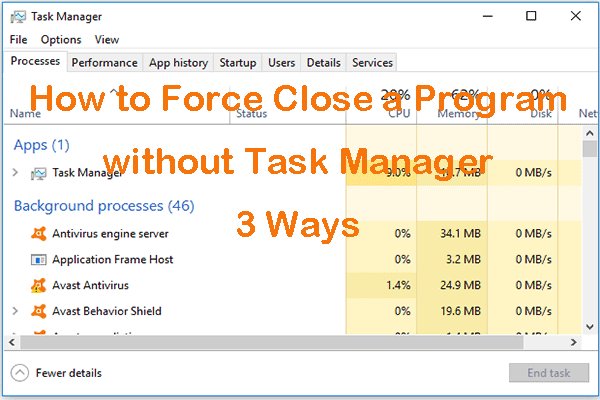
To force quit a game on PC, press Ctrl + Shift + Esc to open Task Manager, select the game, and then click ‘End Task’.
Ever been stuck in a game that refuses to close? It can be really frustrating when a game freezes up, and the usual exit buttons just won’t work. Knowing how to force quit a game on PC is a vital skill for any gamer. We’ve all been there, and thankfully, there’s a simple way to regain control of your computer. This short guide will show you just that, in easy steps.

How to Force Quit a Game on PC
Sometimes, games on your computer can freeze up, glitch out, or just stop working correctly. It’s frustrating when you’re in the middle of an exciting level and the game decides to take a break you didn’t ask for. When this happens, you can’t just click the “X” button to close the game – it’s like the game is stuck! That’s where knowing how to force quit a game becomes really important. Think of it like a superhero move for your computer when a game is misbehaving. We’ll explore different methods, from the simplest to the more advanced, so you’ll be prepared for any game that gives you trouble.
The Classic: Using the Task Manager
The Task Manager is like the control center for everything running on your computer. It’s your go-to tool for shutting down programs that aren’t responding, including troublesome games. Here’s how you can use it to force quit a game:
Opening Task Manager
There are a few quick ways to get the Task Manager open:
- Using the Keyboard Shortcut: The fastest way is to press the Ctrl + Shift + Esc keys all at the same time. This will immediately open the Task Manager window.
- Right-Clicking the Taskbar: You can also right-click on the taskbar at the bottom of your screen. A menu will pop up; click on “Task Manager”.
- Using the Ctrl + Alt + Delete keys: Press Ctrl + Alt + Delete at the same time. A screen will appear with a few options; click on “Task Manager”.
Locating the Problem Game
Once the Task Manager is open, you’ll see a list of all the applications and processes currently running on your PC. This list can be a bit overwhelming at first, but don’t worry! Games often have very clear names. Look for the name of the game that’s not responding. It may be in the “Processes” tab (if you’re using a newer version of Windows) or the “Applications” tab (on older versions). Sometimes, if the game is frozen very badly, it might be showing the status as “Not Responding”.
Force Quitting the Game
After you’ve located the troublesome game in the Task Manager, it’s time to shut it down forcefully:
- Select the game: Click on the game’s name in the list to select it.
- Click “End Task” or “End Process”: At the bottom right corner of the Task Manager window, there’s an “End Task” or “End Process” button. Click this button.
By clicking “End Task” or “End Process”, the Task Manager will tell your computer to stop running the selected game. This is the equivalent of flipping a switch and cutting the power to the game, forcing it to close. Be patient, sometimes it might take few seconds or a bit longer for the game to close completely, especially if it’s badly stuck.
The Alternative: Using Alt + F4
Sometimes, the Task Manager can be a bit overkill if you need a quicker way to shut a game down, especially if it is a simple freeze and not a complete lockup. Here’s where the Alt + F4 keyboard shortcut comes in handy. Think of it as a rapid exit button for most programs, including games.
How to use Alt + F4
Here’s how to use this handy shortcut:
- Make sure that the game you want to shut down is the active window. You can tell which window is active by looking at the title bar at the very top of the window; it’ll usually be a different color or be highlighted in some way. Click on the game screen if it’s not already highlighted.
- Press the Alt key and the F4 key simultaneously. That means you need to press and hold the Alt key down and then tap the F4 key and let go both keys at same time.
When you press these keys, the active window, which is the game, should close immediately. This method is usually much faster than using the Task Manager and should be your first option if the game is not completely frozen. If the game isn’t responding to the Alt+F4 keys, don’t worry, you still have other options.
It is worth noting that this method generally tries to close the game nicely by saving your game progress, if available. Therefore, this method is less forceful than using Task Manager and is considered a good first option before resorting to more extreme measures.
When Things Get Tricky: Using Command Prompt
If Task Manager and Alt+F4 don’t work, things become a bit tricky, but still manageable. The Command Prompt is a powerful tool on Windows that you can use to force quit programs. Think of it as a command-line interface that you can use to instruct your computer to stop programs. It can be a bit scary for new users, but don’t worry, we will break it down into very simple steps.
Opening Command Prompt as Administrator
You need to run the Command Prompt as an administrator, so that it has the proper permission to stop processes on your computer:
- Click on the Windows Start button (usually in the bottom-left corner of the screen).
- Type “cmd” or “command prompt”.
- You will see Command Prompt appear in the search results. Right click on “Command Prompt” and select “Run as administrator”. You might be asked if you allow it to make changes to your device; click “Yes” or “Allow”.
This will open a black window, which is the Command Prompt. The text shown should include “Administrator”. This is very important, if it doesn’t show “Administrator” at the beginning of the line, you need to make sure you are running it as administrator, otherwise this method will not work. If it does not show “Administrator”, close the black window and repeat the above steps.
Finding the Game’s Process ID (PID)
To close a program using Command Prompt, you need to know its Process ID (PID). This is a unique number that identifies each running program. You can find this PID through the Task Manager. Follow these steps:
- Open the Task Manager again, using one of the methods mentioned above (Ctrl + Shift + Esc, Right-click on taskbar, Ctrl + Alt + Delete).
- Go to the “Details” tab (Not the “Processes” tab).
- Look for the game’s executable file name in the “Name” column. Games usually have executable files with “.exe” at the end. For example, if you are playing “MyGame”, the game’s executable may be named “MyGame.exe”.
- In the column named “PID”, you will find a number next to that game’s name. This is the game’s Process ID or PID. Write it down, as you’ll need it for the next step.
Using Command Prompt to Force Quit the Game
Now that you have the PID, you can use the command prompt to force the game to close:
- In the Command Prompt window, type the following command, replacing
[PID]with the actual PID number that you noted in the last step:
taskkill /F /PID [PID]. For example, if you noted that the PID for “MyGame.exe” was 12345, you would typetaskkill /F /PID 12345and then press the Enter key on your keyboard. - Press “Enter” to execute the command.
The /F switch forces the application to close immediately. After you type this command and press the Enter key, the game should close. If the game was frozen, it might still take a few seconds to close. If the command was successful, the Command Prompt will show the message: “SUCCESS: The process with PID [PID] has been terminated.”, replacing [PID] with the number you entered. If for any reason you see “ERROR”, recheck the PID or you may need to restart your computer if there was a problem with terminating the game.
The Last Resort: Restarting Your PC
Sometimes, even the most forceful measures can fail. If your computer becomes completely unresponsive or a game refuses to close through all the methods above, you will have to resort to the most drastic method – restart your computer. While this method is not ideal, it can be a necessity when you are facing extremely frozen situations. Restarting your computer completely shuts down and restarts everything, which forces a fresh start. Here’s how you can do it:
- Using the Start Menu: Click on the Start button (usually the Windows logo in the lower left corner of the screen). Then, click the power icon and select “Restart”. This is the preferred method for restarting your computer if everything is working correctly except for the frozen game. This option is also usually available in the Ctrl+Alt+Del menu.
- Forcing a Restart (Power Button): If your computer is completely frozen and won’t respond, you can force a restart by holding down your computer’s power button for several seconds (usually around 5-10 seconds). This will immediately shut down your computer without any warning, so you should only use it as a last resort if all other methods fail.
Once your computer restarts, the troublesome game should no longer be running. Remember to save your work before using this method as all unsaved data will be lost. It’s best practice to restart your computer only if other methods don’t work.
Preventing Future Game Freezes
While knowing how to force quit a game is important, it’s even better to prevent freezes in the first place. Here are some things you can do:
Keep your game and graphic drivers updated
Game developers often release updates to fix bugs and improve performance. Similarly, the graphic drivers control how the graphics card works, so they are important for playing games smoothly. Keeping your game and graphic drivers updated is very important for smooth gaming.
- Update your games: Most games will automatically check for updates when you launch them. If not, they will usually have an option in the game’s menu for you to check for and download updates.
- Update your graphic drivers: Visit the website of the manufacturer of your graphics card (such as NVIDIA or AMD) and check for new drivers. You can also use the software that came with your graphic card to manage driver updates.
Adjust Game Settings
Games often come with different graphics and performance settings. If your computer is struggling to run a game smoothly, you might want to reduce the graphics quality. Turn down things like shadow quality, texture details, or anti-aliasing. Lowering these options can help the game run better and potentially reduce freezes and crashes.
Close Unnecessary Programs
Having too many programs running in the background can use up your computer’s memory and processing power. This can make the game lag and freeze. Closing unnecessary programs while playing can free up resources and improve performance.
Check your Computer’s Hardware
Sometimes, game crashes and freezes can be caused by outdated hardware. Make sure your computer meets the minimum system requirements for the games you are trying to play. If your computer is really old, it may struggle with some games.
Temperature Control
Your computer can also start to slow down if it becomes too hot. Make sure that your computer has adequate ventilation and that all the fans are working correctly.
Knowing how to force quit a game on your PC is an essential skill for any gamer. From using the Task Manager to keyboard shortcuts, command prompts, or even restarting your computer, this guide equips you with the knowledge to handle any gaming mishap. Remember, prevention is key so keeping your game and graphic drivers updated, adjusting game settings, closing unnecessary programs and making sure your hardware is adequate will help you have smooth gaming experiences.
How to Close a Frozen Game when Alt-f4 and the Task Manager don't work
Final Thoughts
Forcing a game closed involves using Task Manager (Ctrl+Shift+Esc) and selecting the game, then clicking “End Task”. Alternatively, try Alt+F4, which might work. These options quickly close frozen games.
‘How to force quit a game on PC’ involves these methods. Always attempt the normal exit first, but these force quit actions are handy when games become unresponsive. Using these techniques prevents system slowdowns.

