
To force update a game on Steam, restart the Steam client or verify the game files.
Have you ever found yourself impatiently waiting for a game update? It can be frustrating when a new patch is available but your game isn’t updating automatically. Learning how to force update a game on Steam can resolve this quickly and get you back in the action.
Sometimes, Steam might not immediately recognize a new update. This could be due to various reasons. You can easily trigger an update if you know the correct steps. It’s usually very simple.

How to Force Update a Game on Steam
Sometimes, you’re super excited to play a game, but it’s not the newest version. Maybe you’ve heard about a cool update or a fix for a bug, and you want it now. Steam, the popular platform for buying and playing games, usually handles updates automatically. But what happens when it doesn’t? That’s where forcing an update comes in! It’s like giving Steam a little nudge to get going. Let’s dive into the different ways you can make sure your games are up-to-date and ready to play.
Understanding Automatic Updates on Steam
Steam is generally pretty good at automatically keeping your games updated. It uses a system that checks for new versions and downloads them quietly in the background. This means that most of the time, you don’t have to think about it. When you go to play your game, it will simply be ready to go with all the latest goodies. This process works when your Steam client is open, and your game isn’t currently running. But there are some situations where this automatic process might not work as expected. This could be due to internet issues, Steam glitches, or how you have set up Steam’s download settings. Understanding when automatic updating might be failing can make the troubleshooting process much simpler.
Why Games Might Not Update Automatically
There are several reasons why your games might be stuck on an older version. Here’s a breakdown of some common causes:
Internet Connection Issues: If your internet connection is unstable or slow, Steam might have trouble downloading updates. This is a really common problem and usually the first thing to check. A weak or intermittent connection can interrupt the download process, causing it to stop before the update is finished.
Steam Client Problems: Sometimes, the Steam client itself can have problems that prevent it from updating games correctly. This might be a temporary glitch, or it could be due to an older version of the Steam software running on your computer.
Download Region Problems: Steam uses download regions to help provide fast and reliable downloads. If your selected region is having issues or is too far from you, downloads can slow down, or become stalled. Switching to a different region that is still reasonably close to your location might help.
Scheduled Update Times: Steam allows you to schedule updates, which are helpful if you use limited data or want to update during specific times. However, if you have it set up, your game may not update until your scheduled times. So you want to make sure this setting isn’t preventing a game update that you want immediately.
Game Files Corrupted: Sometimes, the game files themselves can become corrupted or damaged. This can interfere with the updating process, as Steam might not be able to apply changes to broken files.
Limited Disk Space: Steam requires enough room on your hard drive to download the updated game files and install them. If you have very limited disk space, it could cause the download to fail or not even begin.
Force-Checking for Updates on Steam
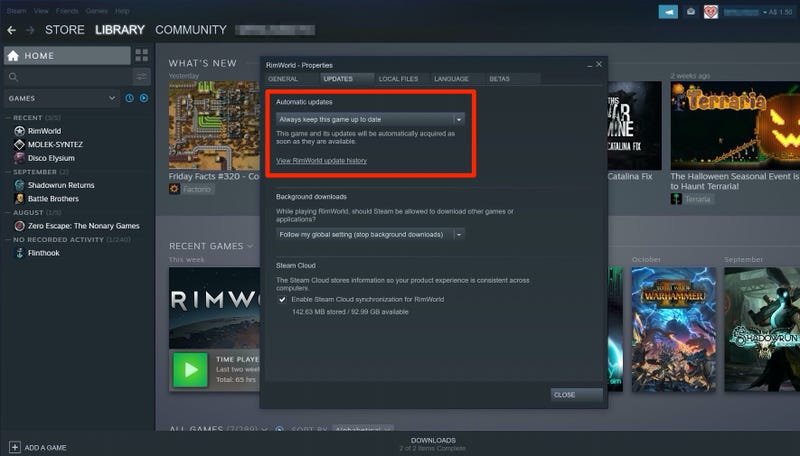
If you think a game is not updating correctly, you can manually tell Steam to check for updates. It’s a great first step to force the update. Here’s how you do that:
1. Open the Steam Client: First, you’ll need to open your Steam app.
2. Go to Your Library: Click on “Library” at the top of the Steam window. This shows all the games you own.
3. Find Your Game: Find the game that you are hoping to update in your list of games.
4. Right-Click the Game: Right-click on the game’s name or icon in the list.
5. Select Properties: From the menu that appears, click on “Properties.”
6. Go to the Updates Tab: In the new window that pops up, find and click on the “Updates” tab.
7. Click the Update Button: Look for a button that says “Check for Updates” or something similar. Steam will then go and check if the game is up-to-date.
This method is a direct way to tell Steam to go and see if there are any new versions for the game. It’s a really simple way to push the process forward when the automatic method is not working as expected.
Restarting Steam to Force an Update
Sometimes the Steam client gets a little confused, and the easiest fix is to restart it. This can often solve issues that are preventing game updates. It is similar to restarting your phone if it is acting up.
1. Completely Close Steam: Find the Steam icon in your system tray (the bottom right corner of your screen, usually) and right click it. Select “Exit Steam.” Don’t just close the window; you need to close the actual app.
2. Restart Steam: Once Steam is fully closed, you can restart it by clicking on the Steam shortcut on your desktop or in your Start Menu.
3. Check for Updates Again: After Steam has fully loaded, go through the “Force-Checking for Updates” process outlined in the previous section to see if restarting helped.
Restarting can clear up any temporary glitches, forcing Steam to re-check for updates and resolve the problems that have prevented the game updates.
Verifying Game File Integrity
Corrupted game files can make it difficult for a game to update. When Steam can’t apply an update to your game because something is damaged, you have to fix these files before you can play the newest version. Steam has a tool that can help to check and fix your files:
1. Open Steam and go to Library: Just like before, open the Steam client and go to your game library.
2. Right-Click the Game: Right-click on the name or icon of the game you are trying to update.
3. Select Properties: Again, select “Properties” from the menu.
4. Go to Local Files: This time, you need to click the “Local Files” tab, not the “Updates” tab.
5. Verify Integrity of Game Files: Click the button that says “Verify integrity of game files…” Steam will check every single game file, comparing them to the original files.
6. Wait for Completion: This process can take a while, depending on the size of the game. It will let you know when it is finished, whether there were any problems or not.
7. Check for Updates Again: Once the file verification is complete, check for game updates again.
This method helps replace broken or missing files, giving the game a better chance to update to the newest version. This ensures that the game is not having any problems with damaged game files.
Changing Steam’s Download Region
Sometimes, the problem isn’t your internet connection, it’s your chosen download server. Steam lets you pick a download region, and switching this might speed things up or allow downloads to start if your current region is having issues.
1. Open Steam Settings: Click on “Steam” in the top left corner of the Steam client, then click on “Settings”.
2. Go to Downloads Tab: In the settings window, click the “Downloads” tab.
3. Change Download Region: You will see a drop-down menu with “Download Region”. Click on this and pick a new region from the list. Try selecting a region near you or a region that is known to be stable.
4. Restart Steam: After you change the region, you’ll need to restart Steam for the changes to take effect.
5. Check for Updates: Once Steam has restarted, try checking for updates for the game again.
By changing to a different download region, you might be able to work around some server issues and get your game updated faster. It might take a little bit of experimenting to find the best region for you, so don’t be afraid to try different ones if the first one doesn’t fix the problem.
Checking Steam’s Download Restrictions
Steam has certain settings that can affect when and how updates are downloaded. If you have restricted downloads, that might be why the game isn’t updating when you expect. Here’s how you can check them:
1. Go to Steam Settings: As before, click on “Steam” at the top of the client and select “Settings”.
2. Go to Downloads Tab: Go to the “Downloads” tab.
3. Check Download Restrictions: Make sure that “Limit bandwidth” is turned off, or set to the highest possible setting if you need to limit the speed of downloads. Also, make sure the “Schedule Auto-Updates” setting isn’t stopping your game from downloading when you want. It is helpful to make sure there is no restriction set if you want your games to update as soon as possible.
4. Restart Steam: If you change these settings, make sure to restart Steam for the new settings to take effect.
5. Try to Update Again: Now that the download restrictions are adjusted, see if you can get the game to update.
Checking and adjusting these settings ensures that Steam isn’t being limited from downloading the necessary updates for your games.
Clearing Steam Download Cache
Sometimes, Steam’s download cache can get a bit cluttered or corrupted. Clearing this can help with download problems. It’s like cleaning out your computer’s “trash” folder to make it run better.
1. Open Steam Settings: Again, open the settings window using “Steam” in the upper-left corner.
2. Go to Downloads Tab: Click on the “Downloads” tab.
3. Clear Download Cache: Click on the button that says “Clear Download Cache”. Steam will ask you to confirm, click “OK” to clear it.
4. Restart Steam: Steam will restart automatically after clearing the cache.
5. Check for Updates: Once Steam is back open, try updating your game again.
Clearing the download cache can resolve issues that might be preventing Steam from updating games correctly and give you a fresh start.
Reinstalling the Game as a Last Resort
If nothing else works, reinstalling the game is your last resort. This can fix a lot of problems, but it does mean you have to wait for the game to be downloaded again.
1. Uninstall the Game: Right-click on the game in your Steam library and hover your mouse over “Manage”. Click the “Uninstall” option.
2. Confirm Uninstall: Steam will ask you to confirm if you are sure you want to uninstall the game, and click “Uninstall”.
3. Reinstall the Game: After the game is uninstalled, find the game again in your library, and click the “Install” button. This will download the game again.
Reinstalling will get you a fresh copy of the game, including the latest updates. It is a bit drastic, but it does ensure you have no more corrupted files.
Troubleshooting Specific Issues
While the above steps often work, some updates can cause unique issues. It’s often good to look up on the internet if other people are having the same problem as you.
Check Community Forums: Steam forums or the game’s dedicated community forums can often point to problems or fixes for specific updates.
Look for News from Developers: Sometimes, the game developers will mention a problem on their website, social media, or update notes. This can provide more specific troubleshooting advice.
Being aware of common issues can help you solve update problems quicker.
Tips for Keeping Your Games Up to Date
It’s usually easier to prevent problems than to fix them. Here are some easy things you can do to help keep your games updated.
Keep Steam Running: Make sure Steam is running in the background. This helps Steam update games when they are released, but also when you are not playing them.
Good Internet Connection: Having a stable and strong internet connection is essential for smooth game updates.
Enough Disk Space: Always make sure your computer has enough hard drive space. It prevents downloads from being stopped because you are running out of room.
Regularly Restart Steam: Close and restart Steam every now and then. This gives Steam a chance to refresh everything and work smoothly.
By following these simple tips, you can minimize issues with game updates on Steam.
Forcing an update on Steam is a process of troubleshooting. You check the obvious issues first, then move on to more complex fixes. The steps discussed here can help you handle most situations. Remember to check each solution thoroughly before moving on to the next one. While most updates happen smoothly in the background, knowing how to force an update will give you more control over when you are playing and when updates are installed. Taking the steps mentioned above ensures that you always have the latest version of your favorite games ready to play.
How to Manually Update Games On Steam
Final Thoughts
To force update a game on Steam, you can restart the client. This action prompts Steam to check for any available updates. You can also verify game file integrity within Steam’s game properties.
This process triggers a scan and forces a download for needed updates. This ensures your game is the latest version. Following these steps effectively demonstrates how to force update a game on steam.

