
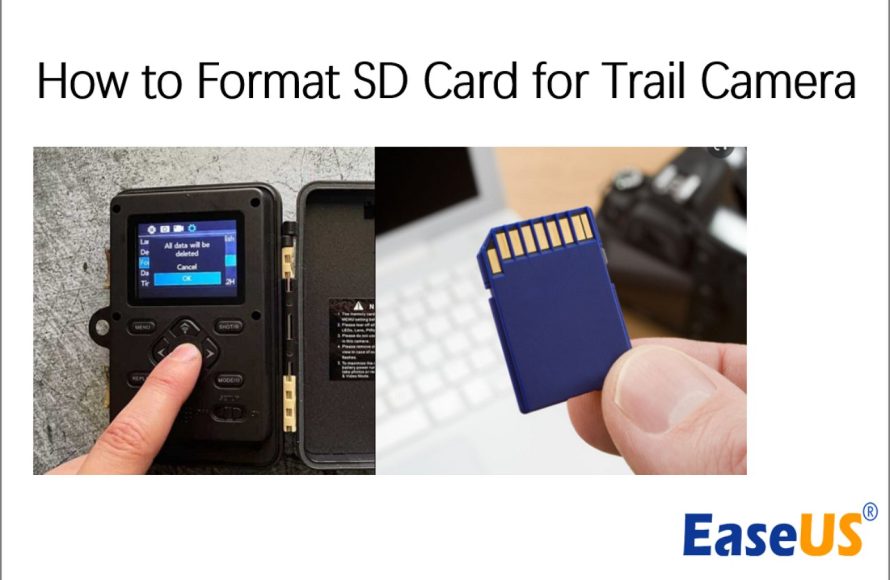
You should format your SD card in your game camera’s settings menu. This ensures compatibility and optimal performance for recording.
Ever wondered about that little card holding all your wildlife snapshots? It’s crucial to know how to format sd card for game camera correctly. Formatting clears the card, preparing it for new captures. You can do it directly using your camera’s menu.
This process removes all previous data and sets the card for your device. It’s a simple action but a vital step for reliable operation. Remember to back up anything important before formatting.

How to Format SD Card for Game Camera
Okay, let’s talk about something super important for your game camera: formatting your SD card. It’s like giving your memory card a fresh start, making sure it’s ready to capture all those cool wildlife photos and videos. Just like a messy room needs a good cleaning, your SD card sometimes needs a formatting to work its best with your camera. In this article, we will cover everything you need to know about formatting SD cards for your trail camera.
Why Format Your SD Card?
You might wonder, “Why do I even need to format my SD card?” Well, there are a few really good reasons!
Clean Slate
Imagine you’re using a notebook, but it’s all scribbled on with old notes. It can be hard to find space for your new notes. Formatting your SD card is like getting a brand new notebook. It removes all the old photos and videos, making space for new ones. This helps your game camera record without any problems.
Compatibility
Sometimes, the way information is stored on an SD card can be different. When you put an SD card into a game camera for the first time, the trail camera might have trouble reading it. Formatting the SD card lets the game camera set up the card with its own way of storing things so it can communicate without issues.
Fixing Issues
If your camera is acting up, like not saving photos or showing errors, formatting the SD card can often solve the issue. It gets rid of any glitches or problems that might be hanging around, making your camera work well again.
When to Format Your SD Card
It’s not always necessary to format your SD card, but there are certain times when it’s a good idea. Think of these situations like important reminders to take care of your memory card so you can record pictures properly.
- New SD Card: If you just bought a new SD card, format it before using it in your game camera. This makes sure it’s set up correctly for your camera.
- Before a New Season: Before starting a new hunting or wildlife watching season, formatting your card can help you clear out old files that might take up space and cause issues.
- Camera Errors: When your game camera shows errors or it’s not saving files properly, formatting can often fix these problems.
- Moving Between Cameras: If you use your SD card in different game cameras, it’s best to format it each time before you use it in a new camera.
Formatting Your SD Card: Two Main Ways
There are two main ways to format your SD card: directly in your camera or on your computer. Let’s go through each method in detail.
Formatting in Your Game Camera
Formatting directly in your game camera is usually the easiest and safest way to do it. Here’s how you do it step-by-step:
- Make sure your camera has batteries: First, ensure that the camera has sufficient battery power. You don’t want it to turn off in the middle of formatting.
- Insert the SD card: Make sure the SD card is inserted into the correct slot on the camera.
- Turn on the camera: Turn on your game camera and navigate to the menu section. Each trail camera is slightly different, so check your manual to find exactly where the “Format” option is located.
- Find the format option: Use the buttons on your game camera to find the “Format” or “Erase All Data” option in the camera’s menu settings. Sometimes, it is found under “Setup” or “System settings”.
- Select Format and Confirm: Select the “Format” option and confirm your choice. The camera will probably ask you if you are sure you want to format your SD card. Choose “Yes” or “OK”.
- Wait for completion: Let the camera format the card. Do not turn off the camera or remove the card while the formatting is taking place. Your camera will usually give you an indication that it is done, for example a message like ‘Format Complete’.
That’s it! Your SD card is now ready to go. It’s like a clean whiteboard, all ready to capture new memories.
Formatting Using Your Computer
Sometimes, you might prefer to format your SD card using your computer. This method works, and here is how to do it.
What You’ll Need
- SD Card Reader: You’ll need a card reader that plugs into your computer. Many laptops have a built-in card reader, but if yours does not, you can get an external one.
- Your computer: You’ll need your computer (laptop or desktop).
Steps for Formatting on a Computer
- Insert the SD Card: Place the SD card into the card reader, and then connect the card reader to your computer or directly to the SD card slot on your computer.
- Open File Explorer (Windows) or Finder (Mac): The card will show up on your computer as a new drive, often named something like ‘Removable Disk’.
- Find Your SD Card: Look for the drive that represents your SD card in file explorer (windows) or finder(Mac). Be sure to confirm it is the correct drive, so you don’t accidentally format the wrong disk.
- Right-Click and Select Format: Right-click on the SD card drive and select “Format.”
- Choose Settings: A format window will pop up. Here are the important settings to select.
- File System: For most game cameras, you should choose the “FAT32” file system. Some newer cameras also work with “exFAT”. Check your camera’s manual to be sure about the file format it requires.
- Allocation Unit Size: You can usually leave this at the default setting.
- Quick Format: Check the box for “Quick Format”. This makes the formatting faster.
- Start the Formatting: Click “Start” and confirm that you want to format the drive.
- Wait for Completion: The computer will format the card. Wait for the formatting process to finish.
- Safely Eject: Once the formatting is done, safely eject the SD card from your computer before removing it physically.
Choosing the Right File System: FAT32 vs. exFAT
When formatting your SD card on a computer, you might see a choice between FAT32 and exFAT. Here’s a simple explanation of the differences and which one is best for your game camera:
- FAT32: This is an older file system and it works with most game cameras. If you have an older camera, it’s very likely to use FAT32 format. It also does not support files bigger than 4GB, which is something to keep in mind if you have high quality video and long recording times.
- exFAT: This is a newer file system and is sometimes used by newer game cameras. One advantage is it can handle files that are larger than 4GB, meaning you can record more video in high definition without worrying about file size issues. If you have a new camera, your instruction manual will tell you if it supports exFAT format.
The key takeaway? If you’re unsure, use FAT32. It’s the more universally compatible option. However, if your camera manual specifies that it uses or supports exFAT, you can select that format for improved performance, especially if you’re recording long, high-resolution videos.
Troubleshooting
Sometimes, even with the best intentions, things might not go as planned. Here are some common issues you might face and how to solve them:
Camera Not Recognizing the SD Card
- Check the Card: Make sure that your SD card is properly placed in the slot and not crooked.
- Try Formatting: Try formatting the card, using the method for formatting in the camera. If this does not work, try formatting the card with a computer. If neither works, then the SD card may be damaged or the camera reader might need to be inspected.
- Compatibility Check: Make sure your camera supports the type and size of your SD card. Older cameras might not work well with very big or fast cards. Check your camera manual to be sure.
Formatting Fails
- Try Another Method: If formatting inside the camera fails, try formatting the SD card with your computer.
- Computer Problems: If formatting on your computer is not working, check that the SD card reader is working, try another reader, and try another USB port. If it still does not work, try another computer.
- Card Damage: If formatting is failing using multiple methods and devices, then the card may be damaged and require replacement.
Camera Still Acting Up
- Restart the Camera: Turn your camera off and back on.
- Update Firmware: Check for updates to your camera’s software (firmware). Updating this can fix many problems. Refer to your camera’s manual for how to do this.
- Check the Camera Settings: Make sure the date and time settings on the camera are correct, as this can sometimes interfere with proper functionality.
Tips For Keeping Your SD Cards Happy
Taking good care of your SD cards will extend the life of your SD card and help you to take better pictures and videos. Here are a few simple tips:
- Store Safely: Always keep your SD cards in a case or protective container when they are not in use. This will help protect from dust, scratches, or breakage.
- Avoid Extreme Temperatures: Do not expose your SD cards to very hot or very cold temperatures as this can damage them.
- Avoid Liquids: Try not to get your SD card wet. Water can cause corrosion and prevent it from working.
- Backup your pictures and videos: Make regular backups of the pictures and videos on your SD card to your computer, so you do not lose all of your data if something goes wrong.
And that’s all there is to it! Formatting your SD card might seem like a small thing, but it’s very important to keep your game camera working its best. By following these steps, you’ll be able to capture all those amazing moments in nature without a problem! Remember, taking a little time to prepare your card is worth it, it helps keep your camera working well so you can get the best photos and videos of all your favorite wildlife!
How to Format an SD Card for Your Trail Camera
Final Thoughts
Formatting ensures your SD card works correctly. Use your camera’s menu to format the card. This clears any old data and prepares it for new photos or videos.
The specific menu option name varies between models. Typically, you’ll find it under settings or setup. Confirm the format action to proceed.
Remember to back up important files first, as formatting erases everything. This process is crucial for consistent performance. Correctly following the steps for how to format sd card for game camera avoids issues.

