
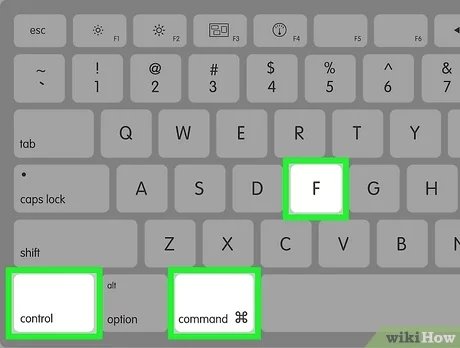
To full screen game on pc, press the Alt and Enter keys simultaneously, or select the full screen option in the game’s video settings.
Have you ever felt limited by small windows while gaming? Many players want to know how to full screen game on pc for an immersive experience. Games often default to windowed mode but a couple of simple tricks can fix this.
Knowing how to make a game full screen can significantly enhance your gameplay. This adjustment makes the game feel bigger and can improve focus. It’s a quick change that creates a massive difference to your enjoyment.

How to Full Screen Game on PC: A Complete Guide
Getting your favorite game to fill your entire screen can sometimes feel like a puzzle. You might see black bars on the sides, or maybe the game just looks small. But don’t worry! Making your game go full screen is usually pretty easy, and this guide will walk you through all the ways to do it. We will cover common methods, potential problems, and solutions to make sure you can enjoy your games at their best.
Understanding Full Screen Modes
Before we jump into how to do it, let’s understand the different types of “full screen” you might encounter. Not all full screens are created equal! There are generally three modes you’ll see:
True Full Screen (Exclusive Full Screen)
This is the king of performance! When a game runs in true full screen, it takes over your entire display. Windows can’t draw anything on top of it. That means the game has the most power available from your computer to run smoothly, without any interference. This mode also usually has the lowest input lag, making your actions feel quicker. Think of it like your game having its own private stage to perform on, and it doesn’t have to share the space with anyone else.
Why is it the best?
- Best Performance: Your computer focuses all its energy on the game.
- Lower Input Lag: Actions feel faster and more responsive.
- Smoothest Gameplay: Reduces the chance of stuttering or slowdowns.
Windowed Full Screen (Borderless Windowed)
This mode makes the game look full screen, but it’s actually running in a window without borders. It’s super convenient because you can quickly switch to other apps without minimizing the game. For example, you can easily alt-tab to another window or use a second monitor. However, it can sometimes come with a small performance hit since Windows is still involved in managing the visuals. It’s like a game playing on a stage but the background is still visible behind.
Why it’s good?
- Easy Alt-Tabbing: You can switch between apps without issues.
- Good for Multi-Tasking: Great if you need to do things while you play.
- Generally Good Performance: Works well for most computers.
Windowed Mode
This is the most basic. The game is contained within a window, and you can resize it. It’s handy if you need to see other things on your screen at the same time but often doesn’t look as good. Think of it as watching a game on a small screen rather than filling your whole view.
Why might you use it?
- Easy Resizing: You can drag the corners to make it smaller or bigger.
- Good for Tutorials: If you need to follow a guide while you play.
- Simple: Works on almost all games and systems.
Common Methods to Achieve Full Screen
Now let’s get into the actual ways to make your game fill the entire screen. We will start with the most common methods and then get into some tips and tricks.
Using In-Game Settings
The most direct way is to use the game’s built-in settings. Here’s how to look for it:
- Start the Game: Launch the game you want to play.
- Find the Settings Menu: Usually, there’s an “Options”, “Settings”, or “Video Settings” menu, sometimes marked with a gear icon.
- Look for Display Settings: In the settings, find the “Display”, “Graphics,” or “Video” section.
- Change the Display Mode: Here, you’ll see an option to change between “Full Screen”, “Windowed,” and “Borderless Windowed.” Select “Full Screen.” Sometimes it might be called “Exclusive Full Screen”.
- Apply Changes: Select “Apply” or “Save” to apply your change.
Pro Tip: If the game offers different screen resolution options, try matching the resolution of your monitor for the best picture quality. For example, if your monitor’s resolution is 1920 x 1080, select that option in the game settings.
Using Alt + Enter
There’s a very handy keyboard shortcut that works for many games: Alt + Enter.
- Launch the game: Start the game.
- Press Alt + Enter: While the game is running, press the “Alt” key and the “Enter” key at the same time.
This shortcut is a quick way to toggle between windowed mode and full screen. It’s simple and fast. If this doesn’t work, try pressing the keys again to see if it switches the window back.
Using Windows Display Settings
Sometimes you need to adjust settings in Windows itself. If in-game options or shortcuts aren’t working, you can try this method.
Changing Display Settings
- Open Windows Settings: Right-click on your desktop and select “Display Settings.” Alternatively, search for “Display Settings” in the start menu.
- Select Your Display: If you have multiple monitors, make sure you have selected the correct monitor, the one you play the game on.
- Adjust Resolution: Check the resolution you are currently using, and try adjusting the resolution or making it match your monitor.
- Advanced Display Settings: Click on “Advanced display settings”. Here, you may find additional display settings to tweak, including monitor refresh rate which should also be set to what your monitor can handle.
Graphics Card Settings
Your graphics card also has its own control panel, which can sometimes override a game’s display settings. Here’s how to check it:
Nvidia Control Panel
- Right Click: Right-click on your desktop and select “NVIDIA Control Panel.”
- Adjust Desktop Size: Look for an option like “Adjust desktop size and position.”
- Scaling: If you find an option called “scaling,” make sure it is set to “full-screen” rather than “aspect ratio.”
- Apply Changes: Press Apply to save changes.
AMD Radeon Settings
- Right Click: Right-click on your desktop and select “AMD Radeon Settings.”
- Display: Go to the Display section.
- Scaling: Find an option for scaling mode, and make sure it’s set to “full-screen,” not “centered” or “preserved aspect ratio.”
- Apply Changes: Select Apply to save changes.
Troubleshooting Common Full Screen Problems
Sometimes things don’t go smoothly. You may encounter issues such as black bars, the game not taking up the full screen, or crashes. Here are some troubleshooting tips.
Black Bars or Letterboxing
Black bars on the sides of your screen mean that the game’s resolution isn’t the same as your monitor’s. Here’s how to fix this issue:
- Check Game Settings: Make sure the game resolution matches the screen resolution. Check under video or display settings for resolution options in the game.
- Try different resolutions: If matching resolution doesn’t work, try different resolutions. Sometimes, trying other resolutions and switching back might fix the black bars issue.
- Graphics Card Settings: Double check your graphics card settings to ensure they are set to “full-screen” or “scaling”. Sometimes having two different places setting the scaling will have conflict.
Game Doesn’t Fit the Screen
If the game looks stretched or doesn’t fill the entire screen correctly:
- Check Aspect Ratio: Make sure your aspect ratio in-game matches your monitor’s aspect ratio. Most monitors are 16:9 aspect ratio, which is usually the default for games. For ultrawide monitors, the aspect ration can be 21:9.
- Test different settings: Try other aspect ratio options in the game, and find one that fits your screen correctly. Sometimes you need to toggle between different settings to find what looks best on your display.
- Update Graphics Drivers: If you are still having problems, make sure your graphics drivers are up to date. You can download the latest drivers from Nvidia or AMD’s official website.
Game Crashes or Freezes in Full Screen
If a game crashes or freezes when you switch to full screen, there are multiple potential reasons for that. Here’s how to approach this:
- Run as Administrator: Right-click the game executable and select “Run as administrator.” This gives the game more permissions and may resolve crashes or freezes.
- Compatibility Mode: Try running the game in compatibility mode for an older version of Windows. You can find this option by right-clicking on the game executable, selecting properties, going to the compatibility tab, and trying a different Windows version.
- Check for Updates: Verify that the game and Windows are up to date. Sometimes updates address such problems.
- Lower Graphics Settings: Reduce the game’s graphic settings. Sometimes, extremely high graphical settings can crash older computers when run in full screen.
Game Still Windowed
Sometimes the game won’t go to full screen, despite all your tries. Here’s how to troubleshoot this:
- Alt-Tab Trick: Try pressing Alt + Tab to switch to another window and then switch back to the game. This can sometimes force the game to display in full screen.
- Restart Game: Sometimes a simple restart can do the trick. Completely close the game and try again.
- Try Different Full Screen Modes: If you are using borderless full screen, try exclusive full screen. Some games have problems with certain full screen modes.
Advanced Tips and Tricks for Full Screen
If the common methods don’t work, don’t give up! Here are some more advanced tips that might help.
Using Third-Party Tools
There are some third-party tools that can help if all other methods fail. These tools usually allow you to force your game to run full screen.
- Special K: This tool helps with many compatibility issues and can force full screen modes for games. It is an advanced tool and should only be used if you know what you are doing.
- Borderless Gaming: This tool can force the borderless windowed mode into true full screen for some games. This tool is very easy to use and great for forcing borderless windowed to go truly full screen.
Understanding Game Configurations
Some games have configuration files, or .ini files, that you can edit to change settings. Usually, you can find these settings in the game’s install directory or in the Documents folder inside of a game specific folder.
- Locate Configuration Files: Check the game’s folder, or sometimes inside of appdata, for any configuration files, often with a .ini or .cfg extension.
- Change Full Screen Setting: Look for a line like “Fullscreen=0” and change to “Fullscreen=1” to force the game into full screen. Save the change and start the game.
Caution: Make sure to create a backup copy of the file before making changes. Incorrect changes can cause the game to fail to launch, or crash.
Refresh Rate Settings
Refresh rate is how many times your monitor refreshes the image each second. Setting your monitor refresh rate correctly can improve your game experience. You want to match your game refresh rate to what your monitor can handle.
- Check your monitor refresh rate: You can usually find this setting in display settings, under advanced display settings. You want to set your monitor to the highest refresh rate it can handle for best gameplay.
- Set refresh rate in game: If your game has refresh rate options, set them to match your monitor refresh rate.
By adjusting both your in-game settings and your PC settings, you can have a much better full screen experience with your games. Remember to try each step and take your time to find the optimal settings for each game.
Adjusting your game’s display settings to full screen can greatly improve your experience. Using these methods, you can ensure your game takes up your entire monitor, providing the best picture quality and optimal gameplay experience.
How to Go Full screen on Pc
Final Thoughts
To full screen a game, use Alt + Enter. Alternatively, check game settings for display options; a fullscreen choice usually exists there. Some games might require adjustments in your PC’s display settings.
Using the correct key combination or menu option easily changes a game’s view. This process ensures an immersive gaming experience. How to full screen game on pc is a straightforward adjustment.

