
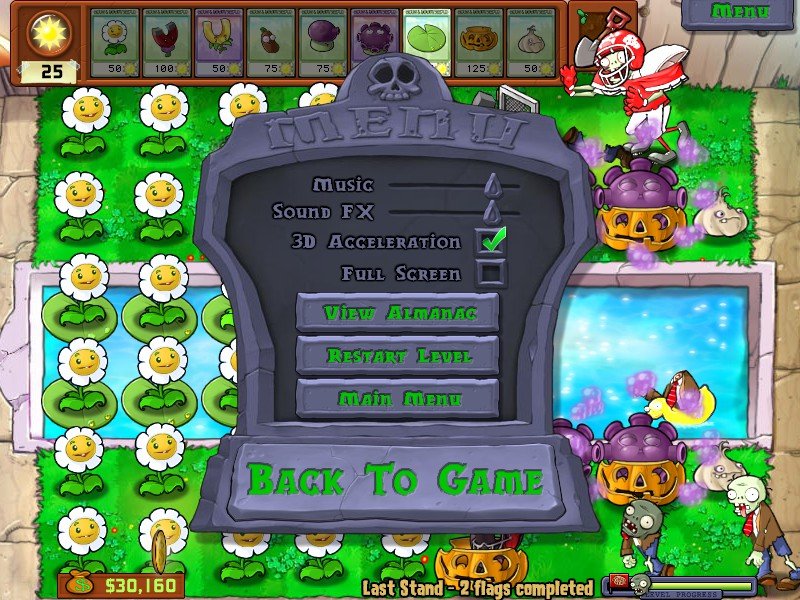
To full screen Plants vs. Zombies, press Alt + Enter on your keyboard while the game is running. This shortcut usually toggles between windowed and full screen modes.
Ever wished your Plants vs. Zombies experience stretched across your entire monitor? Playing in a small window can feel limiting, hindering the immersion when battling those relentless zombies. Many gamers wonder how to full screen Plants vs. Zombies, for a much better visual experience.
Luckily, it is very simple to make this change. You’ll be back to defending your lawn in full screen mode in no time with the correct keyboard shortcut. This adjustment makes the game so much more fun and easier to see those brain-eating foes!

How to Full Screen Plant and Zombie Game
Want to make your Plants vs. Zombies game fill your whole computer screen? It’s like watching a movie but you’re the one in charge of the action! Playing in full screen can really make the game feel more exciting and immersive. The good news is, it’s usually pretty easy to do. Let’s go through some ways to get your garden looking as big as possible, so you can focus on stopping those zombies!
Understanding Full Screen Modes
Before we jump into specific steps, let’s talk about what “full screen” actually means. When a game is in windowed mode, it’s like the game is playing inside a box on your screen. You can see the game and other things around it like your taskbar or other windows. Full screen mode makes the game take over your entire display, hiding those other elements. This makes the game feel more engaging and helps you focus on the action. There are two main ways that full screen is achieved: using the game’s built-in options, or changing settings in your computer.
Using the Game’s Built-In Options
The easiest way to go full screen is usually by using the game’s own settings. Many games include a full-screen option directly in their menus. Here’s how to check for it in Plants vs. Zombies:
Locating the Options Menu
First, you’ll need to start the game. Once you’re on the main screen, look for a button that says “Options,” “Settings,” or something similar. It might look like a little gear icon, too. Click on that button.
Checking Display Settings
Inside the options menu, you’ll likely find different categories like “Audio,” “Graphics,” or “Display.” Look for one that mentions “Display” or “Video” settings. You might need to scroll down a bit to find it. Once you’re there, you might see options like this:
- Windowed Mode: This is the default, where the game plays inside a window.
- Full Screen Mode: This is what we want!
- Resolution: This is the size of the game on your screen. You might need to adjust this to fit full screen.
Toggling Full Screen Mode
Click the button or checkbox that says “Full Screen” to turn it on. If you don’t see a checkbox, you may see a dropdown menu. If you see a dropdown menu, click it, and select an option that mentions “Full Screen”. You might see several options, but choosing the first one or simply selecting the option that includes “Full screen” without any additional specifications should be enough. After selecting it, the game should immediately switch to full screen, covering the whole display. If the screen does not change immediately, you might need to click “Apply” or “Save changes.” Once the screen changes, you are all set to play.
Adjusting Resolution if Needed
If the game looks stretched or blurry in full screen, you may need to adjust the resolution. Resolution refers to how many pixels are displayed on the screen. Think of it like tiny dots that make up the picture on your display. Try selecting different resolution options from the dropdown menu. Your computer’s display resolution, like 1920×1080, is a good starting point for your game’s resolution. Experiment until the game looks sharp and fills the screen correctly. Always apply or save the settings after changing resolution.
Here is how you can understand resolution and how it affects your display:
| Resolution | Description | Example |
|---|---|---|
| 800×600 | Lower resolution. Images may appear pixelated and less sharp. | Older computer monitors and very old game resolutions. |
| 1280×720 | 720p HD resolution. A good middle ground for many games. | Standard HD television resolution. |
| 1920×1080 | 1080p Full HD resolution. Sharp and clear picture. | Most common modern display and game resolution. |
| 2560×1440 | 1440p QHD/2K resolution. Very sharp and detailed. | Higher-end gaming monitors resolution. |
| 3840×2160 | 4K UHD resolution. Incredibly detailed and sharp. | Modern high-end televisions and very recent monitors resolution. |
Using Keyboard Shortcuts
Sometimes, there are also quick keyboard shortcuts that can toggle full screen mode in many programs, including games. This works if the game is already open.
Trying Alt + Enter
One of the most common keyboard shortcuts for toggling full screen mode is pressing the Alt key and the Enter key at the same time. This shortcut will often switch a windowed game to full screen and vice versa. While the game is open, hold the Alt key down and then press the Enter key, and see if the screen changes to full screen mode. If that didn’t work, try the other shortcut.
Trying F11
Another common keyboard shortcut for toggling full screen mode is pressing the F11 key. This shortcut works very well in different programs, including web browsers and games. While the game is open, just press the F11 key, and it might immediately switch to full screen mode. If that did not work, you can try combining Alt + Enter again.
Using Third-Party Software
In some cases, the game might not have a built-in full-screen option, or it might not work very well. In these situations, you might use third-party software to help force a game into full screen. But it is important that you should be very careful about downloading and installing third-party software. Make sure to get them from trusted sources, like the original website, and scan with your antivirus software. We will discuss only the common methods, and we won’t recommend any specific software.
Borderless Gaming Applications
Some software programs are specifically designed to force applications into “borderless windowed mode.” Borderless windowed mode isn’t exactly full screen, but it makes a window act like full screen. It covers your entire screen, but it might not have the same performance as full screen. The game window will look like it’s covering the whole screen, without the window border. If the game window fills your entire screen with borderless mode, it gives you almost the same experience as a native full screen. There are several programs you can search for using the term “borderless gaming application”. If you use any of these applications, you will need to set them up so that your specific game runs with borderless windowed mode.
DirectX or OpenGL Wrappers
Some technical utilities can force games to use different display methods, like switching from DirectDraw to DirectX or modifying how OpenGL operates. These utilities are generally more advanced and may require some computer knowledge to set up. Often, this is a case of trial and error, and you’ll need to adjust parameters to find the most suitable settings for your game. Remember to only use those tools if other methods fail. Incorrectly using these tools can sometimes cause the game to crash or not display properly.
Troubleshooting Common Issues
Sometimes, making a game full screen doesn’t go perfectly smooth. Here are some common issues you might come across and how to tackle them.
Game Appears Stretched or Distorted
If the game looks stretched or distorted, it usually means the resolution isn’t set correctly. Go back into the game’s options and adjust the resolution. Try setting it to your computer’s display resolution, which you can see in your computer settings. If you do not know how to find your screen resolution on windows, just right click on your desktop, and click “Display settings”. There you can see the display resolution set for your screen. Usually the resolution is set as recommended. Once you find your screen resolution from your computer settings, and select the same resolution in game display settings, that should resolve the distorted display issues.
Game Doesn’t Fill the Whole Screen
If there are black bars or empty space around the edges of the game when in full screen mode, this is often due to a different aspect ratio between the game’s resolution and your display’s resolution. An aspect ratio is the ratio of width to height. Check your display’s resolution and the in-game resolution settings. It might be the case that your game does not support a particular resolution. If the game does not support the resolution which your computer uses, you may need to select a different resolution in game settings which fits your screen better. Alternatively, you may have to try using a borderless window program as mentioned above. Using a borderless window application may resolve that particular issue. Experiment with different resolutions, or the borderless window method, to fill the screen properly.
Game Runs Slowly in Full Screen
If the game slows down or lags in full screen mode, try lowering the graphics settings within the game. You might try setting the game to a lower resolution, or turning down options like shadows, special effects and details. Some older games may not handle full screen and may require adjusting performance settings to run well. If your computer is very old or not powerful, you may not get the same performance in full screen as you would when playing in a window. If you can’t get the game to run well in full screen, you may need to play in a window.
Game Freezes or Crashes
If the game freezes or crashes when going into full screen, first try updating your video card drivers. Outdated drivers can cause problems with games. You may also try closing background programs which might be interfering with the game. If you recently installed a third-party tool, try uninstalling it, and then play the game to test if it is causing the problem. If the problem persists, it may be that the game itself is not compatible with full screen mode. If you are sure that all your drivers are updated, and you have tested the game without any third party program, you may want to search online to see if anyone else has encountered similar issues with full screen mode for this specific game.
Getting your Plants vs. Zombies game into full screen can make the gameplay much more exciting. We’ve explored methods from the game’s own settings to keyboard shortcuts, and even to using third-party software. Remember to adjust the resolution for a perfect fit, and do not hesitate to troubleshoot if you run into any problems. By following these guidelines, you can play Plants vs. Zombies like a pro, completely filling your screen with the fun of battling zombies with your garden of plants.
How to Enable Fullscreen in Plants vs. Zombies Hybrid | Step-by-Step Guide #pvzhybrid #pvz
Final Thoughts
To achieve full-screen mode for your Plants vs Zombies game, try pressing Alt + Enter. This simple keyboard shortcut often toggles between windowed and full-screen displays. You might also explore the game’s graphics settings for a full-screen option.
If those methods fail, consider checking your computer’s display settings. Sometimes, altering the screen resolution can help force the game into full screen. These tips cover how to full screen plant and zombie game easily. Enjoy playing!

