
Ensure your game capture source is correctly selected in OBS, and the game is running. Check that OBS is capturing the correct display or window, and ensure anti-cheat software is not interfering with the capture process.
Having trouble with getting your gameplay to appear in OBS? Many gamers face this issue, and it can be frustrating when your screen remains stubbornly blank. Let’s explore how to get game capture to show obs.
A few things can go wrong but most times it has a simple solution. Let’s dive right into troubleshooting the common causes and fixes. We will help you get those epic gaming moments recorded or streamed in no time.

How to Get Game Capture to Show in OBS
Getting your game footage to appear in OBS (Open Broadcaster Software) is crucial for streaming and recording gameplay. It might seem tricky at first, but with a little understanding and some troubleshooting, you can get it working smoothly. This guide will walk you through everything you need to know, from the basic setup to solving common problems.
Understanding Game Capture Sources
Before diving into the technical steps, let’s talk about what OBS uses to grab your game. OBS has different “sources,” which are like building blocks for your stream or recording. For capturing gameplay, the main sources we focus on are:
- Game Capture: This source is specifically designed to capture full-screen applications or games. It’s usually the best option for performance and stability.
- Window Capture: This source captures a specific window on your screen. This can be useful if your game runs in a window instead of full screen, or if you only want to show a portion of your screen.
- Display Capture: This source captures your entire monitor. While this works, it can sometimes cause performance issues or show things you don’t want to share on stream. It’s not usually the best choice for capturing only the game.
We will primarily focus on the “Game Capture” source for this guide, since it’s often the most reliable and efficient method for getting your game to show up in OBS. Now, let’s look at how to set it up correctly.
Setting up Game Capture in OBS
Here’s a step-by-step guide to adding a Game Capture source in OBS:
- Open OBS: Start up your OBS software.
- Select your Scene: In the bottom left panel, you will see “Scenes”. Make sure you have a scene selected where you want to add the Game Capture source. If you don’t have a scene yet, create one by clicking the “+” icon in the “Scenes” panel.
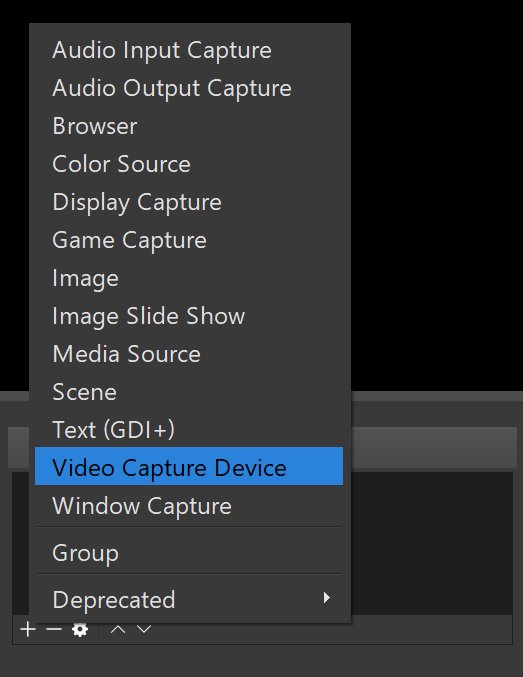
- Add a new source: In the panel next to “Scenes,” you will see “Sources”. Click the “+” icon at the bottom of the “Sources” panel. A menu will appear with a list of source options.
- Choose “Game Capture”: From the list, select “Game Capture.” This will open a window to configure the source.
- Name Your Source: Give the source a name. For example, you might name it the specific game you are playing, or something general like “Gameplay.” Click “OK.”
- Configure Game Capture settings: The Properties window for your Game Capture source will open. You’ll see several options here. Let’s go through the important ones.
Game Capture Configuration Options
Here’s what the settings in the Game Capture source window mean, and how to choose the right option for your setup:
- Mode: This is the most important setting. You have several options, including:
- Capture any specific full screen application: OBS will try to capture the game automatically when it enters fullscreen. This works well for many games. If you use this, make sure the game is running in full screen, not windowed or borderless windowed mode.
- Capture specific window: If you use this, you’ll need to choose a specific game window from the “Window” dropdown menu. Select this option if your game runs in windowed mode, or if the first option isn’t working correctly.
- Capture foreground window with hotkey: This allows you to capture the active window by using a hotkey, it is used when you want to switch window while streaming or recording.
- Window: This drop-down menu will only be active if you choose “Capture specific window.” Here, you’ll choose the specific game window you want to capture.
- Capture Cursor: A checkmark box to show or hide the cursor on the game display, by default this is checked.
- Capture third-party overlays: If you are using a third party overlay program like Discord, you can chose whether to capture it or not.
- Limit capture framerate: If this option is active, OBS will try to keep the game framerate according to the setting, normally you want this unchecked.
- Use anti-cheat compatibility hook: Some game that implement anti-cheat software might not get detected by OBS with normal settings. Activating this option may resolve the issue.
- Allow transparency: This makes transparent parts of the game window, transparent in OBS too.
Once you’ve adjusted these settings, click “OK”. Now you will see the game in the OBS Preview.
Troubleshooting Common Game Capture Issues
Sometimes, getting Game Capture to work in OBS isn’t as simple as setting it up. Here are some common problems and how to fix them:
The game isn’t showing in the OBS Preview
- Incorrect Capture Mode: Double-check that you selected the right mode in “Mode” option, if your game is full screen make sure “Capture specific full screen application” mode is selected, or if game is running in window mode, use “Capture specific window.”
- Game is not running: Make sure that the game is running correctly. Sometimes game doesn’t get detected correctly if not already running before you adding game capture source.
- Admin Privileges: If OBS does not have admin privileges you may not be able to capture some games. Try running OBS as administrator. To do this, right-click the OBS shortcut and select “Run as administrator.”
- Game in windowed mode: If your game is in windowed or borderless windowed mode, try to use the “Capture specific window” method in Game Capture settings.
- Game is running in different GPU: Some systems, particularly laptops, have multiple GPUs (one integrated, one dedicated). Make sure the game runs on same GPU as OBS. You can set the GPU for specific apps in your system settings.
- Overlay conflict: Disable other overlay applications that may be running, like Discord, Steam or GeForce Experience. Then try adding the game source again. Sometimes these overlays cause conflicts with OBS game capture.
The game is showing a black screen or flickering
- Restart both OBS and game: Sometimes, a simple restart of both OBS and the game can solve the problem.
- Change game display mode: Try to set the game in full screen or windowed mode, as sometimes one mode works better than other for OBS capture.
- Update drivers: Outdated video card drivers can cause capture issues. Be sure that your graphics card has the latest drivers.
- Check the priority order: In OBS sources, try moving the “Game Capture” source to the top of the list, if you have more sources.
- Use Directx or OpenGL: Try changing the rendering API of the game in the game settings. The API can be changed in the graphics settings of the game. Try to use either Directx or OpenGL for better results.
Game Capture is causing performance issues
- Lower game graphic settings: Try to lower the graphical settings of the game. High graphics settings will affect the OBS performance as both OBS and the game run on the same system.
- Close unused programs: Close all the unused application that you have running in background.
- OBS settings optimization: Change OBS settings for performance like, recording/streaming resolution, bitrate and frame rates. Also changing the encoder may help in improving the performance.
- Hardware upgrade: Sometimes if your hardware is outdated, it will not perform as you want it to, upgrading might help you achieve the desired results.
Alternative Capture Methods
If Game Capture isn’t working well for your game, here are a few alternative capture methods you can try:
Window Capture
- Select the source: Follow the same steps as adding a “Game Capture” source, but select “Window Capture” instead.
- Choose the Window: From the “Window” dropdown menu, select the game window you want to capture.
- Set “Capture method”: From the “Capture method” dropdown menu, try different capture methods. Some capture methods work better than other for different window capture.
- Capture Cursor: Check or uncheck the box to show or hide the cursor on the game display.
Window Capture is usually good if game is not running in fullscreen and you cannot use game capture mode in OBS.
Display Capture
- Select the source: Follow the same steps as adding a “Game Capture” source, but select “Display Capture” instead.
- Select Display: From the dropdown, select the display on which the game is being shown.
- Set “Capture Method”: From the dropdown, try different capture methods to find a best fit.
- Capture Cursor: Check or uncheck to display the cursor on display output.
Display capture will capture the whole display, so it is recommended to use Game Capture or Window Capture instead of this for optimal performance. Also, by using display capture you may accidentally reveal things that you don’t intend to, so always use Game Capture or Window Capture if possible.
Testing Your Setup
Once you’ve set up your capture method, it’s essential to test it. Here are the steps for testing:
- Start the game: Run the game you want to capture.
- Check the OBS preview: Look at the OBS preview window. Can you see your game? Does the game play smoothly and the visuals look as expected? If not, recheck the OBS settings you have selected.
- Record or stream: Do a short test recording or start a small stream with that game and check the result. If your recording is smooth, it means your OBS settings and game capture is setup correctly.
- Adjust settings: If the game does not display properly, recheck all your settings. The problems are normally caused by selecting wrong mode or window and sometimes by game settings, which might cause the game to be unrecognized by OBS.
By following these steps and troubleshooting tips, you will be able to get your gameplay to show up in OBS. Remember, sometimes it takes a little bit of trial and error to find what works best for your specific setup. Don’t get discouraged if it doesn’t work perfectly the first time, keep trying!
By understanding how Game Capture works and the different options available, you can effectively get your gameplay showing correctly in OBS, which will help you make great recordings and streams.
How to ADD a GAME CAPTURE In OBS STUDIO // Game Capture In OBS STUDIO (FAST)
Final Thoughts
To get game capture to show in OBS, ensure your game is running and OBS is also launched. Select the “Game Capture” source, and then choose the specific game application from the dropdown list. If the game is not showing, try running OBS as administrator. If the issue persists, check for any conflicting software or try a different capture method.
Make sure your game window setting is compatible with OBS game capture like full-screen mode or window mode. Verify the video driver is updated and also must check that the game and capture settings are correctly configured for the ‘how to get game capture to show obs’ issue.

