
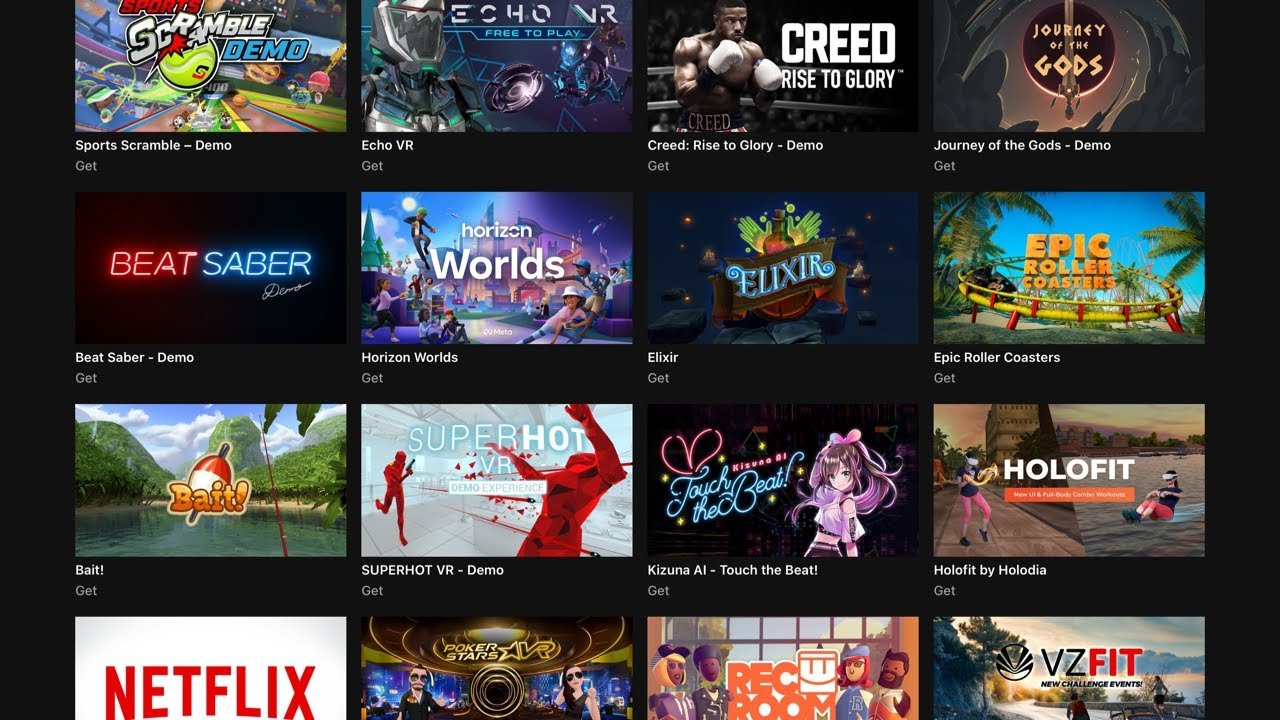
To get games for Meta Quest 2, you primarily use the Meta Quest Store accessible directly through your headset or via the Meta Quest mobile app. You can purchase and download games directly from the store.
Here’s the requested content:
Ready to jump into amazing virtual worlds? You’ve got a Meta Quest 2, and now you’re probably wondering: how to get games for Meta Quest 2? Don’t worry, getting your hands on exciting VR experiences is actually quite simple.
It’s all about accessing the Meta Quest Store. This digital storefront is your one-stop shop for all things gaming on your headset.
You can browse, purchase, and download titles either through your headset or the convenient mobile app. Get ready to explore!

How to Get Games for Meta Quest 2
The Meta Quest 2 (formerly Oculus Quest 2) offers a fantastic gateway to virtual reality. Accessing its library of games is surprisingly simple.
Let’s explore the various methods to expand your VR gaming collection.
The Official Meta Quest Store
The primary source for purchasing and downloading games is the official Meta Quest Store. Think of it as the Quest 2’s app store.
You can access it directly through your headset. Alternatively, you can use the Meta Quest mobile app on your smartphone or tablet.
Accessing the Store Through the Headset
Navigating the store inside the Quest 2 is intuitive. It’s designed for VR interaction.
Simply put on your headset and power it on. Use your controllers to navigate to the “Store” icon in the main menu.
The store interface allows you to browse by category, search for specific titles, and view featured games. You can also check out ratings and reviews before making a purchase.
Using the Meta Quest Mobile App
The Meta Quest mobile app mirrors much of the headset’s functionality. This allows for convenient browsing and purchasing when you aren’t actively using your Quest 2.
Download and install the Meta Quest app from your device’s app store (iOS or Android). Log in with your Meta account.
Navigate to the “Store” tab within the app. You’ll find the same selection of games as in the headset version.
Purchasing games through the app downloads them automatically to your Quest 2, as long as it’s connected to Wi-Fi.
App Lab: Discovering Hidden Gems
App Lab is a platform within the Meta Quest ecosystem. It showcases experimental and in-development games and experiences.
These titles haven’t gone through the same rigorous curation process as those in the main store. This often results in unique and innovative experiences.
How to Access App Lab Games
App Lab games aren’t directly visible within the main Quest Store. You need a direct link to the App Lab listing.
Developers typically share these links on their websites, social media, or through online communities.
Once you have a link, simply click it on your smartphone or computer. If you’re logged into your Meta account, it should direct you to the game’s page within the Meta Quest app or website, where you can then purchase or download it.
Alternatively, you can search the App Lab games directly through a third-party site. Websites such as App Lab DB are great resources for finding hidden gems.
Once you’ve found the game, use its name to search it via the Quest store search feature, making sure the “Show App Lab Content” filter is enabled.
Understanding the Risks and Rewards
App Lab offers the excitement of discovering unique VR experiences. However, bear in mind that these games are often less polished than those in the main store.
Expect potential bugs, incomplete features, or a generally rougher experience. Always read reviews and understand the game is still a work in progress.
SideQuest: Expanding Your Horizons
SideQuest is a third-party platform. It allows you to sideload content onto your Meta Quest 2.
Sideloading essentially means installing apps and games that aren’t officially available through the Meta Quest Store or App Lab. It opens up a wider range of experimental games, mods, and utilities.
Setting Up SideQuest
Sideloading requires a few steps to set up correctly. It’s slightly more technical than simply downloading from the store.
First, you need to enable Developer Mode on your Quest 2. This allows your headset to communicate with your computer for sideloading.
Next, download and install the SideQuest application on your computer (available for Windows, macOS, and Linux). You’ll also need to install the necessary USB drivers for your Quest 2.
Connect your Quest 2 to your computer using a USB cable. Follow the instructions in SideQuest to establish a connection.
Exploring SideQuest Content
SideQuest offers a diverse range of content. This includes indie games, mods for existing games, and various VR utilities.
The SideQuest interface is similar to an app store. You can browse by category, search for specific titles, and view ratings and reviews.
Downloading and installing content is straightforward. Simply select the game or app you want and click the “Install” button.
Understanding the Risks of Sideloading
Sideloading carries inherent risks. Installing content from unofficial sources could potentially expose your device to malware or unstable software.
Always download content from reputable sources and exercise caution when granting permissions to sideloaded apps. It is vital that you do your research before installing unknown software onto your device.
SteamVR: PC VR Gaming on Your Quest 2
SteamVR allows you to play PC VR games on your Meta Quest 2. This effectively transforms your Quest 2 into a PC-powered VR headset.
This opens up a vast library of high-fidelity VR games available on Steam. These games often boast superior graphics and more complex gameplay compared to standalone Quest titles.
Wired vs. Wireless PC VR
You can connect your Quest 2 to your PC via a USB cable (Oculus Link). Alternatively, you can use a wireless connection (Air Link or Virtual Desktop).
A wired connection generally provides a more stable and lower-latency experience. However, it restricts your movement due to the cable.
Wireless connections offer greater freedom of movement. But they can be susceptible to latency and connection issues depending on your Wi-Fi network.
Setting Up Oculus Link
To use Oculus Link, you’ll need a compatible USB cable. Meta officially recommends a high-quality USB-C to USB-C cable.
Install the Oculus desktop app on your PC. Connect your Quest 2 to your PC using the USB cable.
Follow the on-screen prompts in the Oculus app and on your Quest 2 to enable Oculus Link.
Using Air Link (Wireless PC VR)
Air Link offers wireless PC VR gaming. It requires a strong and stable Wi-Fi connection.
Ensure your PC is connected to your router via Ethernet cable. Your Quest 2 should be connected to the same Wi-Fi network.
Enable Air Link in the Oculus desktop app and on your Quest 2. Select your PC from the list of available devices on your headset.
Virtual Desktop (Alternative Wireless Solution)
Virtual Desktop is a paid app available on the Meta Quest Store. It provides an alternative method for wireless PC VR gaming.
Many users find Virtual Desktop offers superior performance and customization options compared to Air Link.
Purchase and install Virtual Desktop on your Quest 2. Install the Virtual Desktop streamer app on your PC.
Follow the instructions within the app to connect your Quest 2 to your PC.
PC VR System Requirements
Playing PC VR games on your Quest 2 requires a powerful gaming PC. The specific requirements vary depending on the game.
However, a dedicated graphics card (Nvidia GeForce GTX 1060 or better, or AMD Radeon RX 580 or better) is generally recommended. A fast processor and ample RAM are also crucial.
Make sure to check the minimum and recommended system requirements for each game before purchasing.
Purchasing Games as Gifts
You can easily gift games to friends and family who own a Meta Quest 2. This is a great way to introduce them to new VR experiences.
Gifting Through the Meta Quest Store
The Meta Quest Store offers a simple gifting option. Find the game you want to gift in the store, then select the “Buy for a friend” option.
You will need to know your friend’s Meta account email address. The recipient will receive an email with instructions on how to redeem the gift.
Gifting SteamVR Games
If you want to gift a SteamVR game, the process is similar to gifting any other Steam game. Find the game on Steam and select the “Purchase as a gift” option.
You can send the gift directly to your friend’s Steam account or generate a gift code. The recipient can then redeem the code to add the game to their Steam library.
Free Games and Demos
Before committing to a purchase, explore free games and demos. Many developers offer free trials or limited versions of their games.
This allows you to get a taste of the gameplay and see if you enjoy the experience. It also helps you test the game’s performance on your system.
Finding Free Content on the Meta Quest Store
The Meta Quest Store has a “Free” category. This showcases free games, demos, and other free experiences.
Browse this section regularly to discover new and interesting content.
Exploring Free Content on SteamVR
SteamVR also offers a wide selection of free games and demos. Use the Steam store filters to search for free VR titles.
Look for demos of popular PC VR games. This lets you try out high-fidelity VR experiences without spending any money.
Meta Quest+ Subscription Service
Meta Quest+ is a subscription service. It provides access to a curated library of VR games and experiences for a monthly fee.
Subscribers receive two new titles each month. These are available to play as long as you maintain your subscription.
How Meta Quest+ Works
Subscribing to Meta Quest+ grants access to a rotating catalog of games. The selection changes each month.
This offers a cost-effective way to try out a variety of VR experiences. It’s a great choice for those who enjoy discovering new games.
Benefits of Meta Quest+
The main benefit of Meta Quest+ is the cost savings. Accessing several games per month for a fixed fee can be cheaper than buying individual titles.
It also encourages you to try games you might not otherwise consider.
Limitations of Meta Quest+
The games available through Meta Quest+ are subject to change. If a game is removed from the catalog, you will no longer be able to play it unless you purchase it separately.
The selection of games might not always align with your personal preferences. Carefully consider your gaming habits before subscribing.
Game Bundles and Sales
Keep an eye out for game bundles and sales. These offer significant discounts on multiple games.
This is an excellent way to expand your VR library without breaking the bank.
Meta Quest Store Sales
The Meta Quest Store frequently hosts sales events. These often coincide with holidays or special occasions.
Check the store regularly for discounted games and bundles.
SteamVR Sales
Steam is known for its frequent and generous sales. The Steam Summer Sale and Steam Winter Sale are particularly popular.
These sales offer huge discounts on a wide range of VR games.
Humble Bundle VR
Humble Bundle often features VR game bundles. These bundles offer a collection of games at a discounted price.
A portion of the proceeds from Humble Bundle sales goes to charity. This provides an opportunity to support good causes while expanding your VR library.
Using Emulators for Retro Gaming
While not directly obtaining games for the Quest 2 itself, emulators expand its functionality. Emulators allow you to play classic video games on your Quest 2.
This offers a nostalgic trip back to the past. You can enjoy retro games in a unique VR environment.
Installing Emulators on Your Quest 2
Most emulators require sideloading via SideQuest. Download the emulator APK file from a reputable source.
Then, use SideQuest to install the emulator onto your Quest 2.
Finding ROMs
ROMs (Read-Only Memory) are digital copies of classic game cartridges or discs. Finding ROMs requires some research.
Be aware of the legal implications of downloading and playing ROMs. It’s generally considered illegal to download ROMs of games that you don’t own.
Popular Emulators for Quest 2
Several emulators are available for the Quest 2. These support various classic gaming systems.
RetroArch is a popular multi-system emulator. It supports a wide range of consoles and handhelds.
Other emulators are tailored to specific systems. These include emulators for the Nintendo 64, PlayStation 1, and Sega Genesis.
Endless FREE Quest 2 Games! #metaquest #quest #virtualrealityheadset
Final Thoughts
To summarize, you must first access the Meta Quest Store through your headset or the Meta Quest app on your phone. Browse the vast library of titles, purchase games using your linked payment method, and download them directly to your Quest 2.
Alternatively, you can explore App Lab, a platform for experimental and indie games. You will often find free or low-cost experiences there.
Finally, you can connect your Quest 2 to your PC using a Link cable or Air Link. This allows you to play PC VR games from platforms like SteamVR. So these are the methods for how to get games for meta quest 2.

