
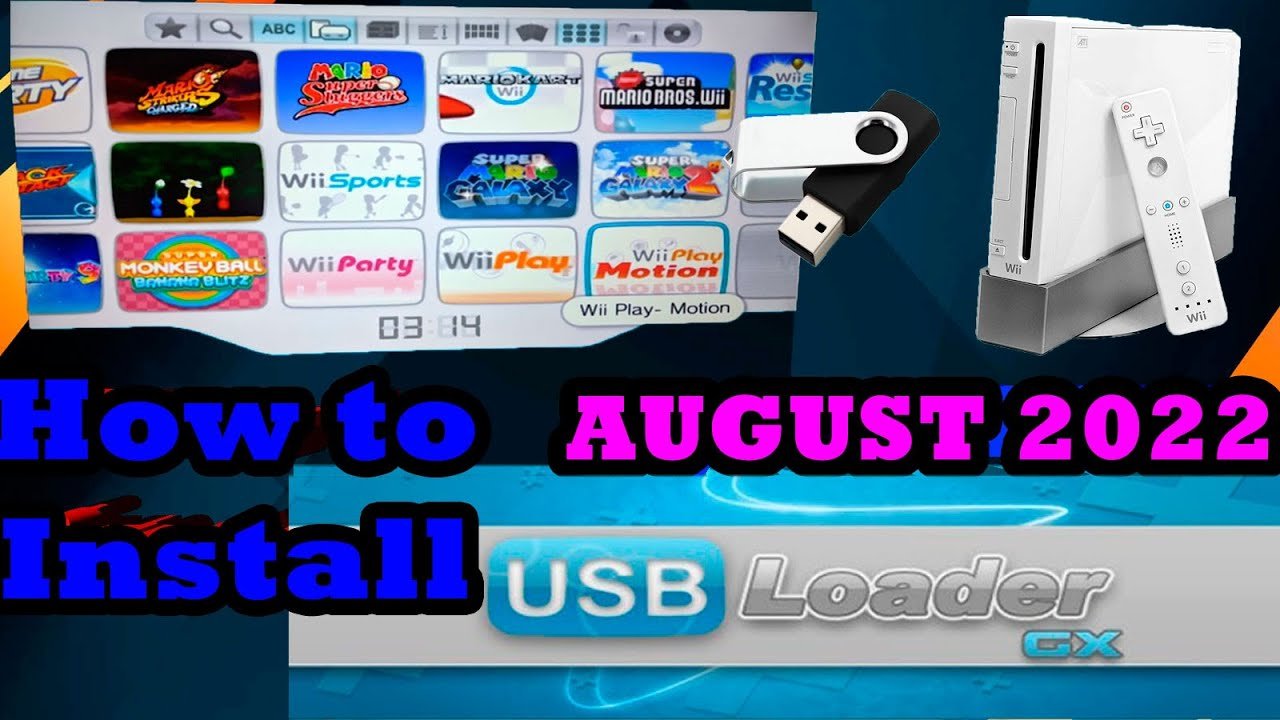
To get games on your homebrew Wii, you typically need to download game files (ROMs or ISOs) from online sources, then transfer them to a storage device like an SD card or USB drive. This device then connects to your Wii, and you launch the games using a homebrew application like a USB loader or emulator.
Ever wondered how to get games on homebrew wii and expand your gaming library? It’s a common question for anyone who has ventured into the world of Wii homebrew. You might be familiar with the official Wii channels, but the homebrew scene opens up exciting possibilities.
This guide will give you a brief overview of the basic steps involved. We’ll discuss what you need to get started and the types of files you’ll be looking for. So, get ready to explore a whole new way to play on your Wii.

How to Get Games on Homebrew Wii
So you’ve got a Wii that’s ready for some homebrew action, but now you’re wondering, “How do I actually get games on this thing?” It’s a great question, and it’s completely normal to feel a little lost at first. Don’t worry, we’re here to walk you through all the steps you need to know. Getting games on your homebrew Wii is like finding a secret level in your favorite video game – it might seem tricky, but it’s really just about understanding the process. We’ll cover the different ways to get games and what you should keep in mind along the way. Let’s get started!
Understanding Homebrew and Game Backups
Before we dive into how to get the games, it’s important to understand what “homebrew” means for your Wii, and why we talk about “backups.” When we say “homebrew,” we mean software that’s not officially made by Nintendo. Think of it like custom apps for your Wii. This allows you to do much more with your console. Now, backing up games means creating a digital copy of a game you already own. You do this so that you can play them from a hard drive or USB, rather than relying on the physical disc. This helps keep your game discs safe, and you can access your library of games much easier. Please remember that we always recommend you own the game before creating a backup of it. This is important because we want everyone to stay within the law and play fair!
Legal Considerations
It’s super important to know the rules when making backups of your games. The basic idea is this: it’s okay to make backups of games you already own. It’s like making a copy of a book for your own personal use. But it’s not okay to download games you haven’t paid for or share backups with others. Think of it like going to the library versus stealing from a store. Respect the hard work of the game developers, and always be mindful of the rules.
Ways to Get Games on Your Homebrew Wii
Now, let’s explore the main ways you can get games onto your homebrew Wii. There are several options, and the best one for you might depend on what you’re trying to do. You can mainly do these things:
- Copy your own game discs
- Download backups of your own games (this is a bit tricky!)
- Load games from a hard drive or USB
Copying Your Own Game Discs
This is the most common and legal way to get your games onto your Wii, ready to be played without the discs. To do this, you’ll need a piece of software called a “backup manager” or game loader. The most popular ones are usually installed on your Wii when you set up the homebrew channel, if you haven’t installed any, you can download them. Here’s a quick rundown of the general process:
- Make sure your Wii has the Homebrew Channel installed. This is where your homebrew apps and game loaders will live.
- Download or Copy a Game Loader. You’ll need to choose a game loader application and place it onto your SD card, then launch it via the homebrew channel. Some common ones include USB Loader GX and Wiiflow.
- Launch the Game Loader from the Homebrew Channel. The specific process depends on the application, but the overall way to use any game loader is similar.
- Insert your game disc. Place the Wii game disc you want to back up into the console.
- Select the backup option. In most loaders, there will be an option to “install,” “dump,” or “copy” the game to your USB drive.
- Wait for the copy process to finish. Depending on the game size, this may take some time.
After the copy process is complete, you’ll see your game in your game loader’s list. You can select it and start playing it directly from your USB storage device!
Important Considerations When Copying Your Game Discs:
- USB Storage Device: You’ll need a good quality external hard drive or USB flash drive formatted to FAT32 or NTFS to store the games. Choose a device with enough space to hold all the games you want to back up.
- Storage Space: Wii game sizes can vary. Make sure you have enough space on your USB storage device to store your backups. A 1TB hard drive is a great start.
- Speed: Some older or slower USB drives might cause loading delays, so make sure you have a drive that is compatible with Wii.
Downloading Backups (with Caution)
This is where things get a little more complicated. Downloading backups of games you don’t own is usually against the law and can lead to a lot of trouble. It’s like taking something from a store without paying; it’s just not okay. But, if you’re talking about backups of games you own, then you have to be very careful. Make sure you only get the games you own. When you download a backup game, you are getting the file of a full game on a computer, and then transfer it to your Wii via your USB storage device. You’ll need a game loader application to play this, like those mentioned above.
Important Note: We strongly recommend you do not download backups of games you do not own. The websites that provide downloads often include viruses or other harmful items, and using them could lead to serious problems with your computer or Wii. Remember that it’s always best to stick to the legal route and keep yourself and your console safe.
Setting Up Your Wii for Game Loading
Before you can start playing your backup games, you have to make sure your Wii is set up to do it. This means making sure you have the proper apps installed on the Wii. Let’s see what you need:
Essential Software
- Homebrew Channel: Think of this as your central hub for all your homebrew apps. It’s the first thing you need to install when starting your journey with a modded Wii.
- Game Loader (USB Loader GX, Wiiflow, etc.): These apps allow you to load the game backups from your USB device.
- cIOS (Custom iOS): These are modified versions of the Wii’s operating system that are required for many homebrew apps, particularly the game loaders. Usually when installing the homebrew channel, you have an option to install cIOS.
Setting up these will make your Wii be able to play the backups. There are several guides online on how to setup these properly, so make sure to get proper research done before starting. When you install these, it’s like getting the key to a secret room, and inside that room, all the magic of playing backup games can happen!
Setting Up Your USB Storage Device
Your USB storage device is where you’ll keep your games. You’ll need to make sure it’s formatted correctly. Here’s how:
- Choose a USB drive: Select a drive (external hard drive or USB flash drive) with enough space for your games.
- Back Up Data (if needed): If you have any data on the drive, back it up to your computer, because formatting will remove all data.
- Format the Drive: Connect the drive to your computer. Format the drive to FAT32 (for compatibility) or NTFS (for larger file sizes). To format to FAT32 in Windows, use the File Explorer. For NTFS, use the Disk Management tool in Windows. If your USB storage is above 32GB, use a 3rd party software like GUIFormat or Rufus, to format to FAT32, because Windows does not support this feature.
Once formatted, your USB drive is ready to hold all your backups! Make sure you plug it into the bottom port of the Wii, as some games won’t work correctly when plugged into the top port.
Using Game Loaders
Game loaders are the applications that read the game backup files and make them playable on your Wii. Let’s take a deeper dive into some of them.
USB Loader GX
USB Loader GX is a popular choice because it’s user-friendly and has a lot of great features. It makes finding, selecting, and playing games on your Wii really easy. Here’s what it looks like:
- Covers: You can download covers for your games, which makes the games list look really nice and easy to navigate.
- Game information: It provides details about each game, like its release date, publisher, etc.
- Settings: You can also tweak settings to make sure your games are loading in the best way possible for your TV and setup.
Wiiflow
Wiiflow is another game loader application that works just as well as USB Loader GX. It’s easy to set up and has a nice, clean interface. Here are some features of Wiiflow:
- Multiple game sources: It can load games from both USB and SD card devices.
- Theme support: You can use different themes to change how the game list looks.
- Easy setup: It is very easy to setup and play your games on it.
How to Use a Game Loader
While each loader has its differences, they function in a similar way. Here’s the general idea:
- Launch the Game Loader from the Homebrew Channel. Go to the Homebrew Channel and select the game loader you’ve downloaded to your SD card.
- Select the USB storage device. Usually the loader will automatically detect the device you use.
- Select a game: Navigate through the list of games and choose one.
- Press play: Select the game and press the play button, and your game should start running.
That’s pretty much all there is to it. The loader takes over and runs the game, and you can play the game directly from your storage device!
Troubleshooting Common Issues
Like with any technology, sometimes things can go wrong. Here are some common issues and how to solve them.
Game Not Loading
If a game doesn’t load, try these steps:
- Check the USB Connection: Make sure the USB drive is connected correctly to the bottom USB port of your Wii.
- Check USB File System: Ensure your USB drive is formatted to FAT32 or NTFS.
- Check Game Backup Quality: Make sure you have a good game backup. Bad backups won’t load.
- Try Different Loader Settings: Sometimes, changing settings within your loader, like the cIOS settings, can help.
Wii Freezing or Crashing
If your Wii freezes or crashes, try the following:
- Check for Conflicts: Some homebrew apps or settings might be conflicting with the game loader.
- Check Overheating: If your Wii is getting too hot, it might freeze. Try letting it cool down before playing again.
- Reinstall the Game Loader: Sometimes a corrupted game loader can cause issues. Try reinstalling it.
Other Troubleshooting Tips
- Update Your Homebrew Apps: Keeping your apps up to date is important for performance and compatibility.
- Use a Reputable Guide: Follow guides carefully when setting up your homebrew Wii.
- Ask for Help: If you’re stuck, don’t hesitate to seek help from online communities or forums for homebrew enthusiasts.
Remember, troubleshooting is a normal part of getting things to work. If one thing doesn’t work, try the next one until you get your games running smoothly.
Getting games on your homebrew Wii opens up a whole new world of playing and fun. You get to back up your games, protect your discs, and have them all ready to play from one simple location, making it a great experience. Just always make sure to stay legal and safe.
FULL GUIDE to Play Games on Wii (USB Loader GX Tutorial Working 2024)
Final Thoughts
To get games on your homebrew Wii, you’ll need a USB drive or SD card. Format it correctly, then copy your game files onto it. Then, use a loader application installed on your Wii to access those games. This is how to get games on homebrew wii.
Proper game formatting, like ISOs or WADs, is crucial. Ensure your file paths are correct. The specific loader application you use affects how your games will run. Remember research is key for a successful setup.

