
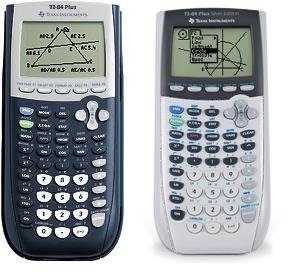
You can get games on your TI-84 by transferring files from a computer using a USB cable and TI Connect software, or by downloading them directly onto the calculator using a link cable.
Want to break free from just graphing equations on your TI-84 calculator? You might be surprised to find out that you can actually play games on it! Many wonder how to get games on ti 84 and it’s simpler than you think. It does not require any complex technical skills.
With a few easy steps, your calculator can become a source of entertainment, giving you a welcome break from study sessions. This little trick can make your calculator more useful beyond its intended function.

How to Get Games on TI-84
So, you’ve got a TI-84 calculator and you’re ready for some fun? Awesome! While it’s designed for math, your trusty calculator can actually play games. It’s a great way to pass the time during study hall or even just chill out. The good news is that getting games onto your TI-84 isn’t super hard. It just takes a few steps and you’ll be gaming in no time! This guide will walk you through everything you need to know, step by step, making sure you can enjoy games on your calculator without any confusing tech stuff.
Understanding TI-84 Games
Before we dive into getting games, let’s talk a bit about what kind of games we’re dealing with. TI-84 games aren’t like the fancy ones you play on your phone or computer. They are usually simple, often using basic shapes and black-and-white graphics. Think old-school games like Tetris or simple platformers. They’re not about amazing graphics, but about fun gameplay, and there are tons of free options available. These games are written using a programming language called TI-BASIC or in assembly language, which means they are perfect for your calculator’s capabilities. Don’t expect the next Grand Theft Auto, but expect lots of addictive fun.
Types of TI-84 Games
- Puzzle Games: These include classics like Tetris, Sudoku, and other logic puzzles. They are great for keeping your mind sharp.
- Arcade Games: Think simple platformers, space shooters, and variations of old-school arcade hits.
- Text-Based Adventures: These games use text to tell a story and you make choices that affect the outcome.
- Number Games: Games that revolve around numbers, such as guessing games and number sequences.
What You’ll Need
Before we begin, make sure you have these things ready:
- Your TI-84 Calculator: Make sure it’s charged up!
- TI Connect CE Software: This software is like a bridge that helps your computer talk to your calculator. You can download it for free from Texas Instruments’ website.
- A Mini-USB Cable: This cable is used to connect your calculator to your computer. It’s usually the same type of cable that charges many older Android phones.
- Games: You’ll need to find game files (.8xg or .8xp). There are many places on the internet where people share these files. I’ll explain more about finding games later.
- A Computer: You’ll need a computer with internet access to download the TI Connect CE software and game files.
Finding TI-84 Games
Now for the fun part – finding games! There are many places you can look. Because the TI-84 calculator is popular, there is a big community of people that create and share game files. Remember, because these games are simple, they’re typically free. Here are a few places where you can begin your search:
- TICALC.org: This is a very popular website dedicated to TI calculators and has a huge collection of programs, including tons of games. You can browse by category or search for specific titles. This site is like a treasure chest for TI-84 games.
- DetachedSolutions.com: This site has a nice list of games and programs. It’s easy to navigate and you can find games with clear descriptions and ratings.
- Omnimaga.org: This is another well-known TI calculator community where users share their own programs and games. It’s a great place to find some unique creations.
- Community Forums and Websites: Many forums dedicated to programming and calculators have threads dedicated to TI-84 games. You might find some hidden gems there. You can also find sites that might have a Google drive link or a direct download link on different forum platforms.
Understanding Game File Types (.8xg & .8xp)
When you download a game file, you’ll most likely see that it ends in either .8xg or .8xp. Here’s what they mean:
- .8xg Files: These are often ‘group’ files. They can contain multiple smaller programs, so think of them as little packages.
- .8xp Files: These are single programs, the most common type of game files.
It is also important to check which TI-84 calculator you have, because on some of the calculators some programs might not work correctly.
Setting Up TI Connect CE
Alright, you’ve got your games, now it’s time to get TI Connect CE working. Here’s a step-by-step guide:
- Download TI Connect CE: Go to the Texas Instruments website and look for the download page for TI Connect CE. Be sure to download the version that matches your computer’s operating system (Windows or macOS).
- Install TI Connect CE: Once the download is done, run the installer file. Just follow the on-screen instructions. It’s a pretty simple process. You’ll probably just have to keep clicking “Next” and agreeing to the terms.
- Connect Your Calculator: Use your mini-USB cable to connect your TI-84 calculator to your computer. Make sure your calculator is turned on.
- Open TI Connect CE: Launch the software. It should automatically recognize your calculator. If not, there might be a button or drop-down to refresh.
Transferring Games to Your TI-84
Now for the exciting part, sending those games to your calculator! Follow these steps carefully:
- Make sure your calculator is connected: Your TI Connect CE software should say that your calculator is connected.
- Open the TI Device Explorer in TI Connect CE: This allows you to see the files on your computer and on your calculator. It should be in the software’s interface.
- Find the game files: Locate the game files (.8xg or .8xp) on your computer. You’ll need to know where you saved them after you downloaded them.
- Drag and drop or use the send feature: In TI Connect CE, you can usually either drag and drop the game files from your computer to your calculator in the device explorer view or there should be a “send” or “transfer” option you can use. Select the game file and press the transfer button.
- Wait for the transfer to finish: The software will show you a progress bar. Don’t unplug your calculator until the transfer is complete.
- Confirm transfer on your calculator: Your calculator might ask for you to confirm the transfer, usually by pressing a key like “Enter” or “App”.
Troubleshooting Transfer Issues
Sometimes, things don’t go perfectly. Here are some common issues and how to deal with them:
- Calculator Not Recognized: If TI Connect CE doesn’t see your calculator, make sure the USB cable is securely connected at both ends. You might need to try a different USB port or even try restarting your computer and calculator. Also, check if the TI Connect CE software is updated to latest version.
- Transfer Errors: These can happen if the game file is corrupt, or if your calculator’s memory is full. Double-check the file source, or delete some old programs or data from your calculator to free up space.
- “Archived” Error: If your program says “archived”, you need to go into your calculator’s memory menu and un-archive the programs in order to run them.
Playing Games on Your TI-84
Okay, the games are now on your calculator! Here’s how you play them:
- Turn on your calculator: Make sure it’s powered up.
- Press the “PRGM” button: This is usually right next to the blue “Alpha” key. This will take you to the program menu.
- Find your game: You’ll see a list of programs that are on your calculator. Scroll up or down to find the name of the game you just transferred.
- Press “Enter”: This will select the game.
- Press “Enter” again to run the game: The game will now start to run.
Navigating Games
Most games use the arrow keys to move around or select things. You might also use the “Enter” key to make a selection, and other buttons might perform specific actions depending on the game you play. It’s helpful to remember that calculator games are simple, so the controls should be too. Check for any instructions or controls specific to the game you are trying to play. Some games might show you instructions on how to play them or a basic menu when they first start.
Managing Your Calculator’s Memory
Your TI-84 has a limited amount of space for storing programs and games. If you find that you’re running out of room, you’ll need to delete things you don’t use anymore. Here’s how:
- Press “2nd” and then “+” (MEM): This will take you to the calculator’s memory menu.
- Select “Mem Mgmt/Del” and press “Enter”: This is a place where you can see all of the programs on your calculator and decide which ones to delete.
- Choose “Program” and press “Enter”: This will show you all of the programs, including games you’ve loaded, on your calculator.
- Select programs to delete: Use the arrow keys to select program you want to delete and press the “Del” button to remove them.
- Confirm deletion: The calculator will ask to confirm deleting the program, press “Enter” to confirm.
Be careful not to delete anything important! If you are not sure what to delete, start with old games you are not playing any more. Deleting old programs you don’t need anymore is important to keeping your calculator running smoothly. If you think you might want to play a game again in the future, you can just save the .8xg or .8xp files on your computer for later.
A Few Important Tips
Here are some important things to remember:
- Be careful where you download games: Only get games from trusted websites. Downloading files from unknown sources can sometimes contain viruses.
- Back up your calculator: Before doing anything major with the memory, you can back up your calculator data to your computer using TI Connect CE. This way, you won’t lose any important information.
- Have fun!: The most important part of this whole process is enjoying the games.
- Experiment: There are many games out there, so try different games to see what you like best.
Now you know everything you need to get games on your TI-84! It might seem a little complicated at first, but once you’ve done it a few times, it will get much easier. You will be gaming on your calculator in no time and it is a great way to have a little fun while also maybe waiting for your next class or during a study break.
How to Put Games on the TI 84 Plus CE
Final Thoughts
To get games on a TI-84, you must first obtain the appropriate game files, usually in .8xg or .8xp format. Then, use a TI Connect software or similar program to transfer them from your computer to your calculator via a USB cable.
Always ensure that you are downloading games from reputable sources to avoid potential issues. This process lets you enjoy fun games on your calculator. Remember, how to get games on ti 84 involves careful file management and transfer procedures.

