
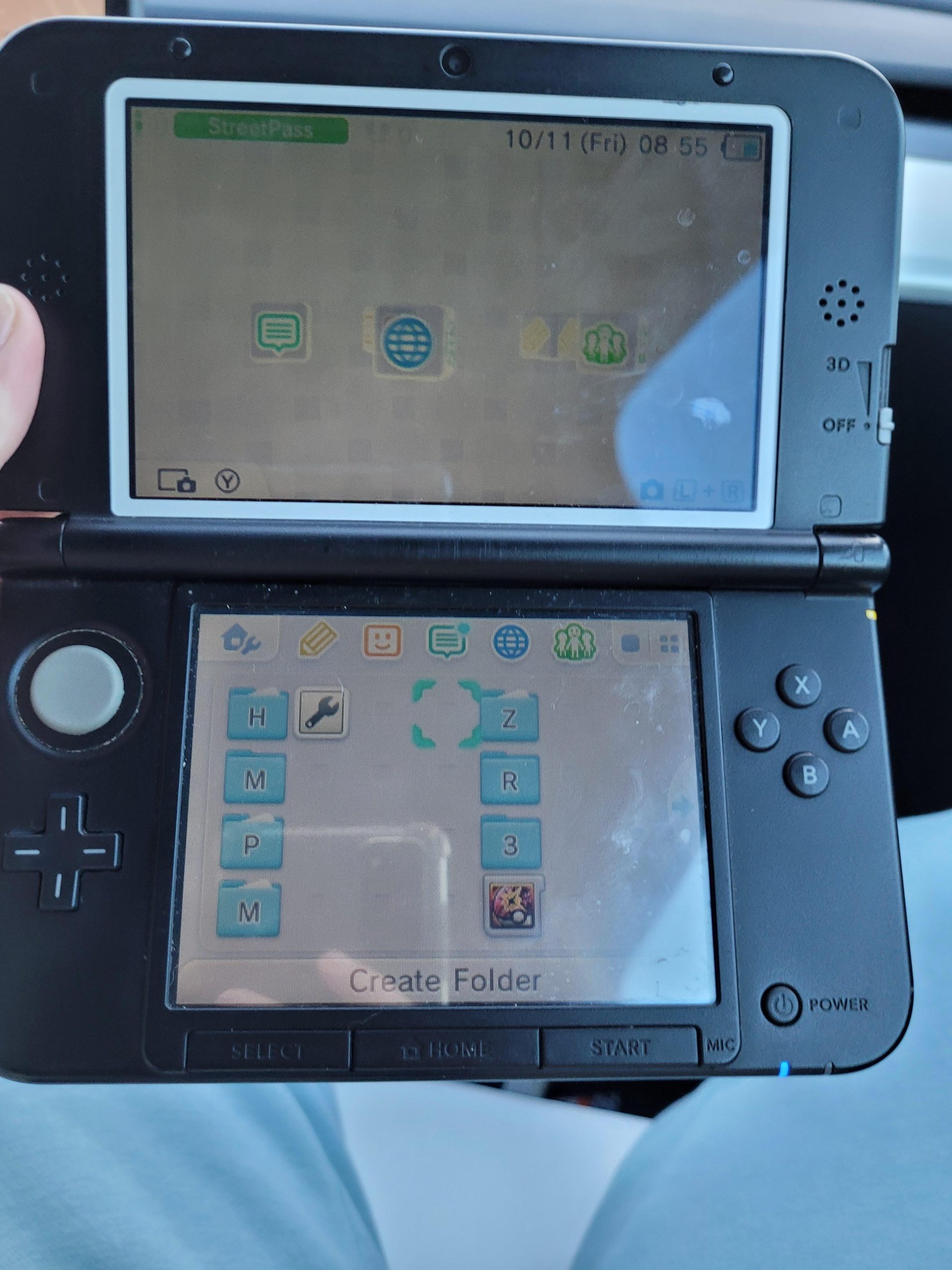
To get new games for a Luma 3DS, you typically need to download game files (often in .cia format) and then install them using a tool like FBI on your modified console.
So, you’ve got a 3DS rocking Luma custom firmware, and you’re itching for more games? It’s a common desire, and many people wonder how to get new games for a luma 3ds. It’s easier than you might think with the right knowledge.
First, you locate the game files. These are usually downloadable from various online sources. Then, you transfer them to your 3DS’s SD card. After that, a tool called FBI is used to install the games directly on your console.

How to Get New Games for a Luma 3DS
Alright, so you’ve got your 3DS rocking with Luma custom firmware, and you’re ready for some fresh gaming experiences! That’s fantastic! But now the big question pops up: how do you actually get those new games onto your handheld? It’s not as simple as popping in a cartridge, but it’s also not as complicated as it might seem at first. This article will guide you through all the different ways you can load up your Luma 3DS with new games, and it’s all designed to be super easy to understand. So, buckle up, get your 3DS ready, and let’s get started!
Understanding the Basics: Digital Games on a Luma 3DS
Before we jump into the how-to, let’s talk about the ‘what.’ We’re dealing primarily with digital games here, not the usual cartridges. These digital games, often referred to as ROMs (or specifically, “.cia” files for the 3DS), are like the digital downloads you get from an online store, but instead of going through the official eShop, you’ll be loading them onto your 3DS through different methods. Think of it like getting an app on your phone, but for your Luma 3DS. Because your 3DS has Luma installed, it allows you to run these digital games from an SD card without any hassle.
Where to Find 3DS Game Files
Okay, now that we know what we’re looking for, where do we find these game files? This is a critical point, and it’s important to be aware of the ethical and legal sides. Obtaining ROM files of games you don’t own from unofficial sources is generally considered piracy, and that’s not cool. This article focuses on game backups of games you already own or demos which are free.
Let’s explore some options:
- Dump Your Own Games: This is the safest and most ethical way to build your digital library. If you already own physical cartridges, you can make backups of them as .cia files. This is a way to play them digitally. This often requires special tools or software. We won’t go into specific dumping instructions here (as it varies depending on the chosen method). However, it is worth noting that is an entirely legal way to obtain games as digital backups of titles you own already.
- Free Demos and Homebrew: The eShop may no longer be around, but you can still find free demos of games through certain methods. Homebrew games are made by fans and are also a great way to get some free gaming. These are entirely safe and legitimate. You can find a wealth of free content this way, giving you more things to play.
- Digital Games You Purchased Before the eShop Closure: If you purchased games on the eShop before it closed, you can still download them, provided your Nintendo account is linked to your 3DS. These games are associated with your account.
A word of caution: Be careful about where you download game files. Some websites may offer files that contain viruses or malware. Always be mindful of the sources you choose and try to make sure you are obtaining legal copies of the games you want to play. Always scan files before moving them to your 3DS SD card, this is good practice.
The Importance of a Good SD Card
Your SD card is like the hard drive for your 3DS. It’s where the games are going to be stored. Getting a good quality SD card of the right size is essential for loading lots of games. Here are a few things to keep in mind:
- Size Matters: How many games you can have on your SD card depends on its size. A 32GB SD card will hold a decent number of games, but if you plan to have a lot of games, you might want to go for a 64GB or 128GB card. Keep in mind that larger capacity cards may need to be formatted to work well with your 3DS. Usually, FAT32 is needed.
- Speed is Important: Faster SD cards will make games load and run faster. Look for SD cards with a Class 10 rating for better performance. This speed rating indicates how quickly the SD card can read and write data.
- Brand Name: Stick with reputable brands like SanDisk, Samsung, or Kingston. These brands tend to be more reliable. Avoid very cheap or unbranded cards, as they could be prone to errors or failure.
Setting Up Your SD Card Correctly
For best results, your SD card needs to be formatted with FAT32. Here’s what you need to do:
- Back Up Your Data: If there’s anything on your SD card you want to keep, copy it to your computer. Formatting will erase everything on it.
- Download the Formatting Tool: There are special programs (like GUIFormat or similar) to format your SD card to FAT32 correctly, especially if it’s larger than 32GB.
- Format the Card: Connect your SD card to your computer using a card reader. Open the formatting tool and choose the drive letter associated with the SD card. Select FAT32 as the file system, and then click format. Make sure you pick the correct drive.
- Add Your Files: Once the format process is done, you are now ready to copy your files to the root of the SD card.
Installing Games Using FBI
The FBI app is like your game manager on your Luma 3DS. It’s a homebrew application that allows you to install .cia files onto your console. It is usually included when you install Luma. If it’s not on your system, you will need to install it. Once FBI is installed you can add games.
Here is a step-by-step guide on how to install games using FBI:
- Copy .cia Files: Transfer your .cia game files to the “cias” folder on your SD card. If you do not have a folder called “cias”, create one in the root of your SD card. The root is the main level of the SD card, not inside any other folder.
- Open FBI: Start up your 3DS and launch the FBI application. You can usually find this on your HOME Menu.
- Navigate to the SD Card: Once FBI opens, use the directional pad to navigate to the “SD” option, press A to select it.
- Locate the “cias” Folder: Then go to where you stored the .cia files and press A on it.
- Install Your Games: A list of your .cia files will appear. Select the .cia file you want to install and press A. You will see an option to install or delete. Select install to install the game. Repeat this for each game.
- Wait for Installation: Let the installation process finish, and do not interrupt it. When the installation is done, the screen will have a message saying that it was successfully installed.
- Exit FBI: When all the installations are done, press the home button on your 3DS and return to the main menu.
- Play Your New Game: Now, your installed games should be on your HOME Menu. Start them and enjoy!
Troubleshooting Common Problems
Sometimes, things don’t go exactly as planned. Here are some common issues you might come across and how to try to solve them:
Game Doesn’t Show Up
- Check Installation: Make sure the .cia file was installed correctly using FBI, and that it shows “installed successfully.”
- Correct Folder: Make sure the game files (.cia) are in the correct folder. The path needs to be SD:\cias\. If it’s not in the cias folder FBI can’t find it to install.
- Refresh the Menu: If you have installed a game, and you are not able to see it on your menu, simply restart your 3DS and the new game should now show on the home menu.
Game Won’t Start
- Update Luma: Sometimes out-of-date custom firmware may be a problem. Make sure you have the latest version of Luma installed.
- Check Region: Ensure the game is compatible with your region of 3DS. Some games are region-locked, but the Luma CFW often bypasses that region lock. This is not always guaranteed.
- Corrupted File: If you downloaded the game from a source, the game file might be broken or corrupted. Try redownloading it from a different source, and try again.
Error Messages
- Read Error Messages Carefully: Pay attention to the error message. It can often help you find the source of the issue. You can also search online for the error message to see if other people have had the same problem.
- Try a different SD Card: If your SD card is corrupted this may lead to issues with loading the game. Trying a different SD card is a good way to check the integrity of the SD card you are currently using.
- Clean the SD Card Reader: Sometimes dust or grime can interfere with your SD card. Try taking out the SD card and cleaning it and the reader on your 3DS with a dry cloth or compressed air.
Tips for a Smooth Gaming Experience
Here are a few extra tips to make your experience smoother:
- Regularly Update Luma: Keep your Luma custom firmware up to date. Updates bring improvements and bug fixes.
- Manage Your Games: Organize your .cia files into folders on your SD card, but make sure you have a separate “cias” folder where you add new game files. This makes it easier to keep track of your library.
- Be Patient: Installing games can take a little bit of time, depending on their size. Be patient and don’t interrupt the process.
- Use a Screen Protector: Keep your screen safe by using a screen protector. It will protect your screen from scratches.
- Have Fun!: The most important tip of all! With Luma on your 3DS, you have a lot of great games to play! Enjoy your new games and explore everything your console has to offer.
Alternative Methods (Briefly Mentioned)
While using FBI and .cia files is the most common method, here are a couple of other options that are worth a brief mention:
- Game Cartridge Backups: With a special dumping device you can create digital copies of your physical games. This method gives you backups of titles you own.
- Homebrew Apps: There are many great homebrew applications available for the 3DS. They range from emulators to games and other tools.
These options require some more research, but they are possible ways to get different games and apps on your Luma 3DS.
Adding new games to a Luma 3DS might seem daunting at first, but it’s really not that hard once you understand the process. Always use legal methods to obtain games, respect the rights of the developers, and enjoy all the fantastic gaming experiences that await you on your modded 3DS!
Do This To Prevent Your Modded 3DS From Getting Bricked 2023
Final Thoughts
To obtain new games for your Luma 3DS, you primarily utilize homebrew tools. These tools facilitate the installation of game files, often in .cia format. You generally acquire these game files from various online sources.
The process usually involves transferring the game files to your 3DS’s SD card. Then, you employ a tool like FBI to install the games. Following these steps, you can readily play the new titles. That is how to get new games for a luma 3ds.

