
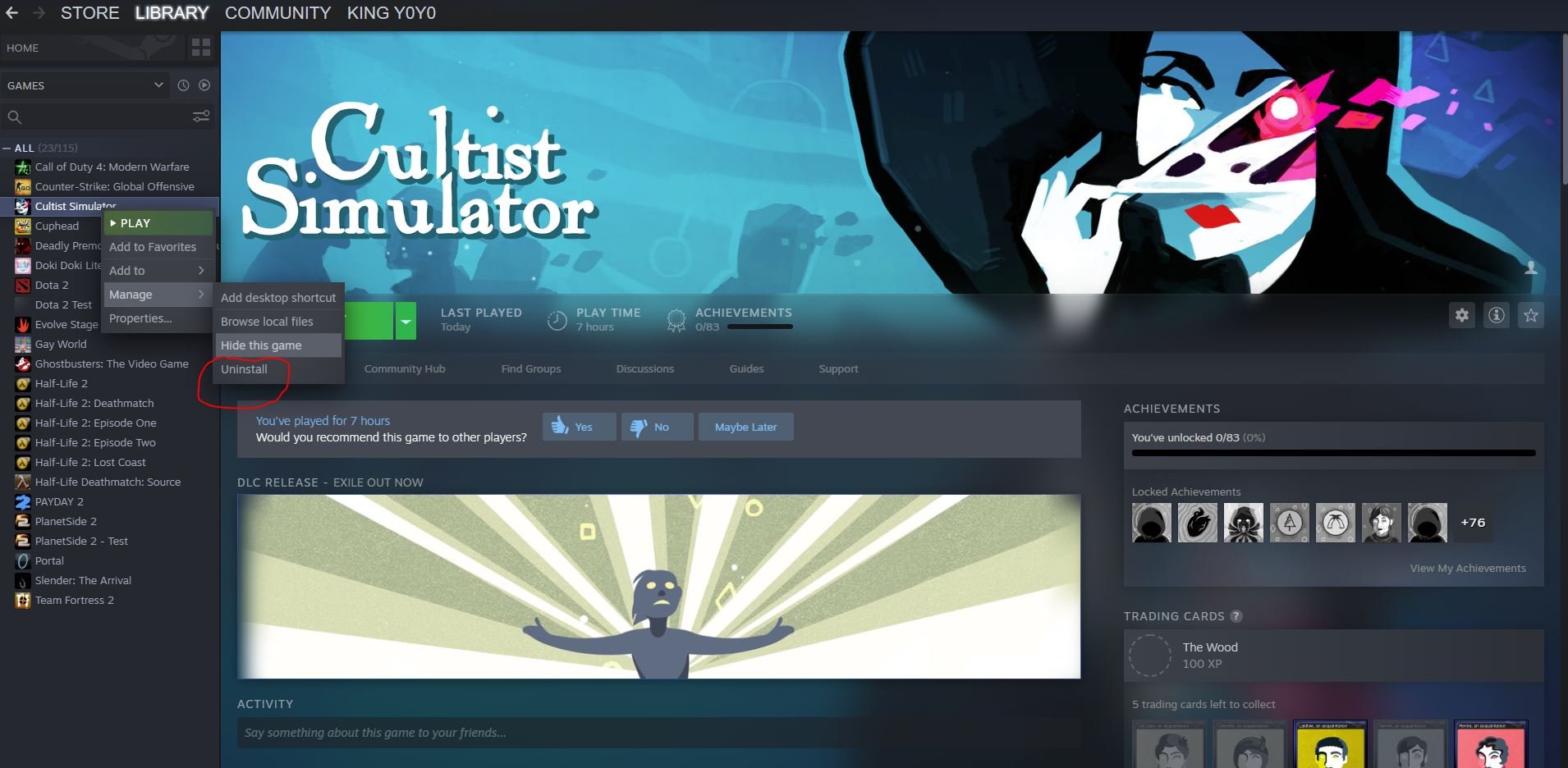
To get rid of games on Steam, either uninstall them from your library or, for a permanent removal, request a refund within the eligibility period.
Do you find your Steam library getting cluttered with games you no longer play? It’s a common problem for many gamers, and thankfully, there are simple solutions. Knowing how to get rid of games on Steam effectively can free up valuable hard drive space and simplify your gaming experience.
Whether you want a temporary break from a title or wish to remove it entirely, Steam offers straightforward methods. This guide helps you manage your digital library with ease.

How to Get Rid of Games on Steam
Okay, so you’ve got a Steam library that’s bursting at the seams, right? Maybe you’ve got games you never play, titles that just gather digital dust, or perhaps you’re making space for new adventures. Whatever your reason, cleaning up your Steam collection is totally doable. This guide will show you exactly how to get rid of those unwanted games, and we’ll cover everything from simple uninstalls to more complex situations like removing games permanently from your account.
Uninstalling Games: The Basics
The most common way to “get rid” of a game on Steam is by uninstalling it. This removes the game files from your computer but keeps the game in your library. You can always download and play it again later. Here’s how to do it:
Uninstalling from the Library
This is the method most people use. It’s quick and easy!
- Open Steam: Start by launching the Steam application on your computer.
- Go to Your Library: Click on the “Library” tab at the top of the Steam window.
- Find the Game: Look for the game you want to uninstall in your list of games. You can use the search bar to quickly find it if you have a large library.
- Right-Click the Game: Once you’ve found the game, right-click on it. A menu will appear.
- Select Manage: In the menu that pops up, hover your mouse over “Manage.” Another menu will appear next to it.
- Click Uninstall: In the “Manage” menu, click on “Uninstall”.
- Confirm the Uninstall: A pop-up window will appear asking if you’re sure you want to uninstall. Click “Uninstall” to proceed.
- Wait for the Uninstall: Steam will now remove the game files from your computer. This process might take a few minutes, depending on the game’s size.
Uninstalling from the Game’s Store Page
Another way you can uninstall games is by doing it directly from the game’s store page. This method is also straightforward:
- Find the Game’s Page: Use the Steam search bar to find the game.
- Go to the Store Page: Once found, click on the game title, which will take you to its store page.
- Click Manage: Look for the button that says “Manage” near the play button if you have the game installed.
- Select Uninstall: Once you click the manage button, you will see the “uninstall” option. Click it and wait for the uninstallation process.
Managing Download Queues
Sometimes you might have a game downloading that you want to stop and remove. Managing your downloads is simple and prevents you from filling up your hard drive with games you might not play right away.
How to Cancel Downloads
- Click Downloads: Look for the “Downloads” option at the bottom of the Steam window, you will see it next to the word ‘Community’ and click on it.
- Find the Game: You’ll see a list of your current downloads. Locate the game you want to cancel.
- Click Stop: To the right of the game, you’ll see a small “X” icon or “Pause” button. Click it to stop the download.
- Right-click to Remove: Right-click on the stopped download and select “Remove from Queue” if you want to fully remove it from the queue.
Hiding Games From Your Steam Library
If you don’t want to uninstall a game but also don’t want it cluttering your main library view, Steam has a handy “hide” feature. This allows you to keep the game in your account without seeing it regularly.
Steps to Hide a Game
- Open Your Library: Again, go to your Steam library tab.
- Right-Click the Game: Right-click the game you wish to hide.
- Select Manage: Hover over the “Manage” option.
- Click Hide: From the Manage submenu, choose “Hide this game”.
How to Find Hidden Games
Don’t worry; hidden games aren’t gone forever. You can view them by following these steps:
- Click “View”: In the Steam client, click the “View” menu at the top.
- Choose “Hidden Games”: In the View menu, click on “Hidden Games”.
- Unhide Games: You’ll now see a list of all the games you’ve hidden. To unhide one, right-click it and select “Manage” then “Remove from hidden”.
Permanently Removing Games from Your Steam Account
This is the most drastic step. Removing a game from your account means it’s gone. You won’t be able to play it again unless you buy it again. Use this option with caution!
Important Note: Steam’s support system changed things around so that self-removal of games from your account isn’t as readily accessible. It’s now more complex and often requires contacting Steam Support, and even they don’t always fulfill this request for non-refundable content. Before contacting support, consider the possibility that the game may receive future patches or updates that might make it fun for you once again.
Why Removing a Game is Tricky Now
Steam’s policies have evolved in response to users wanting to remove games from their accounts. This is because games are considered non-refundable, and removing them from your account would be like taking away something you’ve paid for. As a result, Steam prefers to keep a record of all purchases in your library. However, there are a few reasons you might still want to remove a game.
- Accidental Purchases: Perhaps you bought a game by mistake and it’s not something you’d want to keep.
- Testing: Maybe a game was part of a bundle that you didn’t like, and you don’t want it on the list anymore.
- Moral/Ethical Reasons: There could be specific games you no longer want to associate with due to ethical considerations.
How to Request Game Removal
If you’re set on removing a game from your account, here’s how to approach it:
- Go to Steam Support: Visit the Steam Support website (usually through a web browser) or use the support section in the Steam client.
- Select the Game: Look for the specific game you want to remove and click on it.
- Choose “I want to Permanently Remove this game from my account”: If you can see the option of “I want to Permanently Remove this game from my account” click it, then follow the instructions, this might be the most easy and quick way, but sometimes this option will not be available.
- Contact Steam Support: If the above mentioned option is not available, Then look for “It’s not what i expected” or a similar support issue. From this, describe clearly that you want to remove the game from your account permanently, provide the game’s full name, and state your reasons. Remember to be polite and respectful, as the agents might have to assess if your situation is valid.
- Wait for a Response: Steam Support will review your request. They might ask for more details or might decline to remove the game completely as they might believe that games should stay in your library since you purchased it. Be prepared for either answer.
- Follow Instructions: If Steam Support agrees to remove the game, they will provide instructions on the process.
Important Things to Consider Before Removing
- Loss of Access: Remember that removing a game is permanent, you will lose the game completely and you will need to repurchase it if you want to play it again. Think carefully before making the decision.
- Refunds: If you’re hoping for a refund after removing a game, it’s highly unlikely. Steam’s refund policy is usually only for recent purchases.
- Gifted Games: You can’t remove a game that someone gifted to you from your account. This requires contacting the person who gifted the game and asking them to refund it to them.
- Bundled Games: Removing a game from a bundle might not always be possible, or if it is possible then they might need to remove the whole bundle.
Using Steam Categories to Organize Your Library
Instead of removing games entirely, why not try organizing your library? Steam Categories are a really useful way of grouping your games and making it easier to find them.
Creating and Using Categories
- Right-click a Game: In your library, right-click a game you want to categorize.
- Select “Categories”: From the menu, hover over “Categories”.
- Add Categories: Click on the “Set Categories” option, and a box will pop up where you can type the name of the category you’d like (like “Completed Games”, “Multiplayer Games”, or “To Play”). If you need to create a new category, type its name, you can even click the box next to the name of the category, and click “ok”
- Assign Games: You can assign the same category to multiple games. Click apply, and it’s done.
- Filter by Category: In your library, you’ll see a menu on the left side with categories. Click on a category to only show those games.
Tips for Organizing
- Use descriptive categories: The more specific your category names, the easier it is to find what you’re looking for.
- Combine Categories: Assign multiple categories to a game for more flexible sorting. For example, a game can be in both “RPG” and “Singleplayer.”
- Regularly review: Keep your categories up to date as your game library changes.
Using Collections
Collections is another feature of Steam where you can create sub-libraries from the overall Steam library. These are useful in grouping and categorizing games, in a separate library.
Creating and Using Collections
- Open Your Library: Go to the Steam library tab.
- Click on ‘Collections’ section: On the left side bar, click on the ‘Collections’ title, which will allow you to show different collections you might have or to create a new one.
- Create New Collection: Click the plus sign (+) next to ‘Collections’. Then provide a new name for the collection, and a new collection will be created.
- Add games: After creating a collection, you will see an option “add games”. From there you can add desired games by simply clicking a box next to each title.
- Remove games: If you want to remove games from a collection, go to the specific collection, where you will see an option to edit the collection. In this edit page, you can click on the check box to remove it from the collection.
By exploring these different methods, you can keep your Steam library manageable and enjoyable. Whether it’s a quick uninstall, hiding clutter, or organizing by categories and collections, you have plenty of ways to customize your game experience. Remember to think carefully before permanently removing games, and enjoy a cleaner and more organized Steam library!
How to permanently remove a game from Steam – Quick Guide
Final Thoughts
To remove games from Steam, simply uninstall them from your library; this frees up storage space. For a more permanent removal, you can hide games.
Hiding a game means it will not appear in your main library view. Alternatively, request a permanent removal via Steam support, though this step is not always necessary.
In summary, we’ve explored different ways for how to get rid of games on steam; whether it’s a temporary uninstall, a hidden game or a permanent removal from the account. Choose the method that best meets your needs and account management goals.

