
To get rid of Xbox Game Bar, disable it through Windows Settings under the Gaming section, or uninstall the Xbox app completely.
Annoying pop-ups and unexpected overlays disrupting your game? Many users find the Xbox Game Bar interferes with their PC experience. You might be wondering how to get rid of xbox game bar permanently and reclaim your screen.
This guide provides simple steps to remove it. Follow these quick methods to regain control and enjoy an uninterrupted gaming or work session.

How to Get Rid of Xbox Game Bar: A Comprehensive Guide
Okay, so you’re here because you’re ready to say goodbye to the Xbox Game Bar. Maybe it pops up when you don’t want it to, or perhaps you just don’t use it and it’s taking up precious resources on your computer. Whatever your reason, you’ve come to the right place. This guide will walk you through all the different ways to get that pesky overlay off your screen and out of your way. We’ll cover everything from simple toggles to deeper settings, making sure you find the method that works best for you. So, let’s get started!
Understanding Xbox Game Bar and Why You Might Want to Disable It
Before we dive into how to remove it, let’s quickly talk about what the Xbox Game Bar actually is. It’s a feature built into Windows 10 and 11 that’s designed to make gaming easier. It gives you quick access to things like screen recording, taking screenshots, chatting with friends, and monitoring system performance. Sounds great, right? Well, not always. Here’s why some folks like you might want to disable it:
- Performance Issues: Sometimes, the Game Bar can use up system resources, leading to slower gameplay or even lag.
- Accidental Activation: Hitting the wrong keys can bring up the Game Bar at the most inconvenient times, disrupting your workflow.
- Unused Features: If you’re not a gamer, or if you use other programs for screen recording and communication, the Game Bar just becomes a needless distraction.
- Personal Preference: Maybe you just don’t like the way it looks or how it overlays on your screen. It’s all about personal choice!
Knowing these reasons can help you understand why disabling the Xbox Game Bar can actually improve your overall computer experience, even if you are a gamer. Now let’s explore the different ways you can do that.
Quick and Easy: Disabling Game Bar Using Windows Settings
The simplest way to get rid of the Xbox Game Bar is by turning it off directly in your Windows settings. This method is perfect for most users and should be your first port of call. Here’s how to do it:
Disabling Game Bar on Windows 10
If you’re using Windows 10, follow these steps:
- Click the Start button (the Windows logo) at the bottom left of your screen.
- Select the Settings icon (the gear symbol).
- Click on Gaming.
- In the left sidebar, select Xbox Game Bar.
- You will see a toggle switch labeled “Enable Xbox Game Bar.” Click this switch to the Off position. This is how you disable Xbox game bar.
That’s it! The Xbox Game Bar should no longer appear when you press the Win + G keys. If it still pops up, try restarting your computer to ensure the changes have taken effect.
Disabling Game Bar on Windows 11
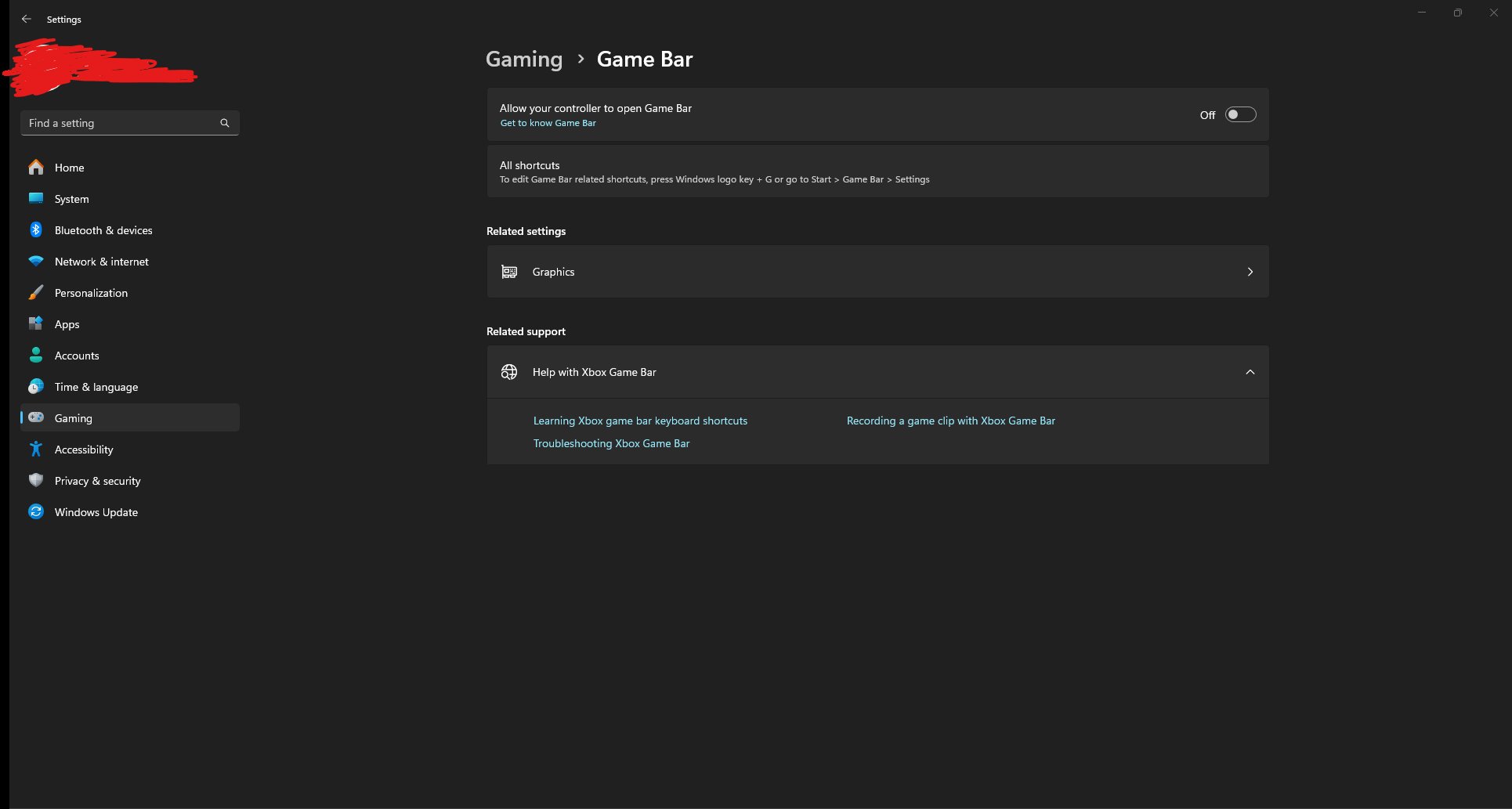
The process is slightly different on Windows 11, but still very easy to do:
- Click the Start button (the Windows logo) at the bottom left of your screen.
- Select the Settings icon (the gear symbol).
- Click on Gaming.
- Select Xbox Game Bar.
- Locate the switch that says “Open Xbox Game Bar with this button on a controller”. and toggle it to the Off position.
And that’s all you need to do to disable the Xbox game bar in Windows 11.
Deeper Dive: Disabling Game Bar Through the Registry Editor
If turning off the Game Bar in settings isn’t working or if you want to be extra sure that it’s gone, you can disable it through the Registry Editor. The Registry Editor is a powerful tool, so be careful when making changes here. Incorrect edits can cause problems with your computer. It is always a good idea to back up your registry before making any changes.
Warning: Editing the registry incorrectly can lead to serious issues. Please follow the instructions carefully. If you’re not comfortable with this method, it’s best to stick to the settings option above.
Backing up your Registry (Highly Recommended)
Before making any changes, let’s back up your registry:
- Press Windows key + R on your keyboard to open the Run dialog box.
- Type
regeditand press Enter to open the Registry Editor. - Click on File at the top left, then select Export.
- Choose a name and location to save the backup file, and click Save.
Now you have a backup in case anything goes wrong. If you need to restore your registry, just open the Registry Editor again, click File, then select Import, and choose your saved backup file.
Disabling the Game Bar Through Registry Editor
With the backup complete, we can proceed to disable Xbox Game Bar through Registry Editor:
- Open the Run dialog box again (Windows key + R).
- Type
regeditand press Enter to open the Registry Editor. - Navigate through the folder structure on the left-hand side. You need to find the following key:
HKEY_CURRENT_USER\Software\Microsoft\Windows\CurrentVersion\GameDVR - If you can’t find the “GameDVR” key, you may have to create it. If the “GameDVR” key does not exist, right-click the “CurrentVersion” key, select “New,” and then click “Key.” Name it
GameDVR. - In the right-hand pane, right-click anywhere and select New, then DWORD (32-bit) Value.
- Name this new value
AppCaptureEnabled. - Double-click on
AppCaptureEnabled, and in the “Value data” field, enter0(zero). Click OK. - Next, navigate to the following key in the Registry Editor:
HKEY_CURRENT_USER\System\GameConfigStore - If you can’t find the “GameConfigStore” key, you may have to create it. If the “GameConfigStore” key does not exist, right-click the “System” key, select “New,” and then click “Key.” Name it
GameConfigStore. - In the right-hand pane, find
GameDVR_FSEBehaviorMode. Double-click on it. - In the “Value data” field, enter
2, then click OK. - If you can’t find the
GameDVR_FSEBehaviorModevalue, you may have to create it. If the value does not exist, right-click in the right-hand pane, select “New,” and then click “DWORD (32-bit) Value.” Name itGameDVR_FSEBehaviorMode. Double-click on it and enter 2.
Close the Registry Editor and restart your computer for the changes to take full effect. The Xbox Game Bar should now be disabled completely.
Disabling Game Bar Services
The Xbox Game Bar relies on certain services to run. You can also disable those services to ensure that the game bar doesn’t start or function. However, be aware that doing this may have side effects on other applications or processes. Proceed with caution, and ensure that you are comfortable with disabling services.
Here’s how you do it:
- Press Windows key + R, type
services.msc, and press Enter to open the Services window. - Scroll through the list to find “Xbox Accessory Management Service.” Right click on it and select properties.
- In the “Startup Type” dropdown menu, select Disabled. Click Apply then OK.
- Find “Xbox Live Auth Manager.” Right click on it and select properties.
- In the “Startup Type” dropdown menu, select Disabled. Click Apply then OK.
- Find “Xbox Live Game Save.” Right click on it and select properties.
- In the “Startup Type” dropdown menu, select Disabled. Click Apply then OK.
- Find “Xbox Live Networking Service.” Right click on it and select properties.
- In the “Startup Type” dropdown menu, select Disabled. Click Apply then OK.
- Restart your computer.
These steps will disable the main services related to the Xbox Game Bar. Disabling them ensures that the game bar will not function even if the main toggles are enabled.
Uninstalling the Xbox Game Bar (Advanced)
If you’re still having trouble getting rid of the Game Bar and you’re comfortable using Windows PowerShell, you can actually uninstall the Xbox Game Bar application. Be aware that doing so is a bit more permanent and will require reinstallation if you change your mind later. Follow these steps very carefully.
Using PowerShell to Uninstall Game Bar
- Press the Windows key, type PowerShell, right click on “Windows PowerShell”, and then select “Run as Administrator”.
- In the PowerShell window, type or copy and paste the following command:
Get-AppxPackage Microsoft.XboxGamingOverlay | Remove-AppxPackage - Press Enter. This will uninstall the Xbox Game Bar package.
- After the process is complete, you can close the PowerShell window.
After you do this, the Xbox game bar will be uninstalled. If you ever want to get the game bar back, you will have to reinstall it through the Microsoft Store.
Preventing the Xbox Game Bar from Launching at Startup
Even if you have disabled the Game Bar, it might still try to start up when you turn on your computer. Here’s how to prevent that:
Using the Task Manager
- Press Ctrl + Shift + Esc to open the Task Manager.
- Click on the Startup tab.
- Look for “Xbox Game Bar” in the list.
- If you find it, click on it and then click Disable.
This will stop the Xbox Game Bar from starting automatically when your computer boots up.
Troubleshooting Common Issues
Sometimes, even after following these steps, you might experience issues where the Xbox Game Bar continues to appear. Here are a few things you can try:
- Restart Your Computer: A simple restart can often fix many minor software glitches and apply setting changes.
- Check for Windows Updates: Sometimes, outdated Windows versions can cause conflicts. Make sure you’re using the latest update.
- Reinstall Game Bar (If uninstalled): If you uninstalled the game bar, but you still get pop-up errors. It is better to reinstall it and then disable it via settings or other methods.
- Check for Conflicting Programs: Certain other programs or overlays might cause the Xbox Game Bar to act up. Try disabling any third-party software and see if that helps.
By using a combination of these methods, you should be able to get rid of the Xbox Game Bar completely and reclaim your computer’s resources or just improve your workflow.
Choosing the right method depends on your needs and your comfort level with different types of computer adjustments. Remember to always proceed with care, especially when working with the Registry Editor, and make sure you have a backup, if you decide to use it.
How to Remove the XBox Game Bar on Windows 11
Final Thoughts
To disable the Xbox Game Bar, access Windows Settings, then Gaming, and then Xbox Game Bar. Simply toggle the switch to off. You can also disable it through the Registry Editor for a deeper change if needed, which some might find useful.
This action stops the Game Bar from appearing during gameplay or when you press the Windows key + G combination. This concludes the simple process on how to get rid of xbox game bar. The game bar is now disabled.

