
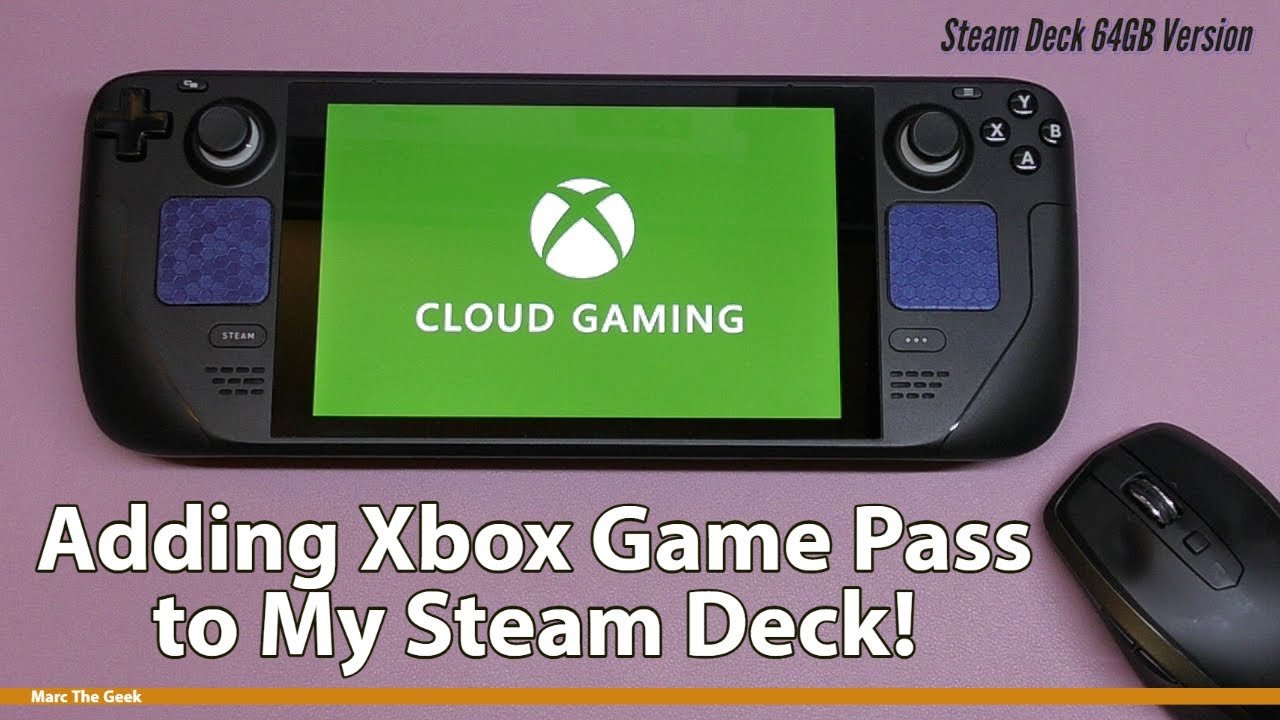
‘To get Xbox Game Pass on Steam Deck, you must use cloud gaming through a browser or install the Windows OS onto the device.’
Want to play your favorite Xbox games on the go? Many Steam Deck users are wondering how to get Xbox Game Pass on Steam Deck, and it’s definitely possible with a couple of options. You’ll be able to enjoy a wide variety of titles.
The good news is that it’s not overly difficult. You can either access the games via cloud gaming within a web browser, or you can install Windows directly onto your Steam Deck. Both of these methods will give you access to the Game Pass library, however, they each offer unique approaches.

How to Get Xbox Game Pass on Steam Deck
Okay, so you have a Steam Deck and you’re itching to play some of those awesome Xbox Game Pass games, right? It’s like having two amazing worlds of gaming colliding! But how do you actually get those Xbox games onto your handheld powerhouse? Don’t worry, it’s not as tricky as it might sound. We’re going to walk through all the steps so you can get playing in no time. Think of this as your friendly guide to bringing the world of Xbox to your Steam Deck.
Understanding the Challenge: Why It’s Not a Simple Download
First things first, let’s talk about why getting Xbox Game Pass on your Steam Deck isn’t as simple as downloading an app. The Steam Deck runs on SteamOS, which is based on Linux. Xbox Game Pass, on the other hand, is designed to work with Windows and Xbox consoles. This means we can’t just install the Xbox app directly. So, how do we bridge this gap? We use a clever method called cloud gaming, also known as Xbox Cloud Gaming (xCloud). Instead of running the games directly on the Steam Deck, we stream them from powerful Microsoft servers. Think of it like watching a movie online, but instead of watching, you’re playing!
The Solution: Xbox Cloud Gaming (xCloud)
xCloud lets you play Xbox games on devices that usually can’t. It’s the key to getting your Game Pass titles onto your Steam Deck. Here’s how it works:
- Game Runs on Microsoft Servers: The actual game is running on powerful computers in Microsoft’s data centers.
- Video Stream to You: A video of the game is streamed to your Steam Deck over the internet.
- Your Controller Input Back: When you press buttons on your Steam Deck, those commands are sent back to the Microsoft servers, and the game responds.
It’s important to know that this means you need a good, stable internet connection. We’ll talk more about that later.
Setting Up Your Steam Deck for xCloud
Before we can jump into gaming, we need to get our Steam Deck ready for xCloud. We’ll be using a web browser for this because there isn’t an Xbox app for SteamOS yet. Here’s what you need to do:
Step 1: Make Sure You Have Xbox Game Pass Ultimate
To use xCloud, you need an Xbox Game Pass Ultimate subscription. Regular Game Pass won’t work. If you don’t have it, you’ll need to sign up for Game Pass Ultimate on the Microsoft website. You can often find deals for this, so keep an eye out!
Step 2: Enter Desktop Mode
Your Steam Deck has two modes: Game Mode and Desktop Mode. We need to be in Desktop Mode to set up xCloud. Here’s how to switch:
- Press the Steam button.
- Go down to “Power”.
- Select “Switch to Desktop”.
The screen will briefly go black, and then you’ll see the Steam Deck’s desktop. This looks similar to a regular computer’s desktop.
Step 3: Install a Web Browser (If Needed)
The Steam Deck usually comes with the Firefox browser pre-installed. If you don’t have it, or prefer a different browser like Google Chrome, you can install it through the “Discover” app store. To find the “Discover” app, look at the bottom left side of the screen for the blue bag icon. Click this to open the software center. Then search for your browser of choice, and click install. Wait for it to install before you proceed.
Step 4: Launch Your Web Browser
Once your browser is ready, open it. You’ll use this to access the Xbox Cloud Gaming website.
Step 5: Navigate to Xbox Cloud Gaming Website
In your browser, go to xbox.com/play. This is the website where you access xCloud. The site may look a little small. This is fine.
Step 6: Sign Into Your Microsoft Account
Click the “Sign In” button on the top right of the Xbox website. Use the same Microsoft account that is linked to your Xbox Game Pass Ultimate subscription to log in. You might need to use a keyboard and mouse for this part. You can connect a Bluetooth keyboard and mouse or use the touch screen of the steam deck to log in. Follow the prompts to sign in securely.
Step 7: Create a Shortcut to Xbox Cloud Gaming
Now, for easier access, we’ll make a shortcut. This will allow us to play games from game mode. Here’s how:
- Minimize the browser.
- Look for the Steam application icon, it should be at the bottom left of your screen. Click on it.
- Choose “Add a Game” on the bottom left of the steam window.
- Select “Add a Non-Steam Game.”
- Scroll down the list and find your browser. For example, you might see Firefox or Google Chrome.
- Tick the checkbox beside it.
- Click the “Add Selected Programs” button.
- Close the Steam window.
- Minimize your browser and you should see the Steam icon in your bottom bar again, click on it.
- Click on the “Library” tab at the top of the Steam window, so you can see all of your games.
- Scroll down the left hand list of games until you see the browser you added, select it.
- On the right, in the “Details” section, click the cogwheel/gear icon.
- Click “Properties.”
- Change the name at the top to something like “Xbox Cloud Gaming”.
- In the “Target” box, you’ll see the path to your browser, add this to the end of it:
–app=https://www.xbox.com/play
It should look something like this:
/usr/bin/firefox –app=https://www.xbox.com/play
If you have Google Chrome, it may look similar to:
/usr/bin/google-chrome-stable –app=https://www.xbox.com/play
- Close the Properties window.
Step 8: Return to Game Mode
Now we’re almost there! It’s time to switch back to Game Mode:
- Click the Steam icon in the bottom left.
- Select “Power” then “Return to Gaming Mode.”
Playing Games in Game Mode
Now that we have our shortcut, playing Xbox games from Game Mode is straightforward:
- Press the Steam button to open your Steam Library.
- You’ll see the “Xbox Cloud Gaming” shortcut. Select it to open the Xbox website.
- You may need to sign in to the Xbox website.
- Choose a game from the list and press the “Play” button.
- A game controller overlay will appear on screen. Click the play button again, to make the game fullscreen.
Optimizing Your Experience: Tips for Smooth Gaming
To make sure your gaming experience is as good as possible, here are a few tips:
Strong Internet Connection
Remember, because we’re streaming, your internet connection is super important. You’ll need a stable and reasonably fast internet for the best results. A wired connection is always best, but good wifi will usually work well. A minimum download speed of 10 Mbps is recommended, but 25 Mbps or higher is better, especially if you’re sharing the internet with other devices.
Using the Steam Decks Game Controls
The Steam Deck’s built-in controls work just like they would on a regular Xbox. The buttons, triggers, and joysticks should all function as you’d expect. You can also use external controllers if you prefer them, by using the bluetooth connectivity.
Graphics Settings
Xbox Cloud Gaming automatically adjusts the graphics settings to fit your internet connection. If you notice things are a little blurry or choppy, this could mean you don’t have the best internet connection. Unfortunately, you cannot manually adjust these settings.
Keyboard and Mouse
While most games are designed for controllers, some games will benefit from keyboard and mouse, especially if you want to play strategy titles or other games where a mouse is necessary. You can use bluetooth devices or connect using USB-C.
Battery Life
Cloud gaming can be more taxing on the Steam Deck battery than playing a local game. Be prepared to charge your Steam Deck more often. To extend battery life, you can adjust the display brightness and turn off unused features like Bluetooth when not required.
Consider External Display
Although the Steam Deck has a nice little display, if you want to play games on a bigger screen, you can connect the Steam Deck to a monitor or TV using a USB-C hub or a docking station.
Troubleshooting Common Issues
Even with all the steps carefully followed, sometimes things might not work perfectly. Here are some solutions to common problems:
Game Doesn’t Load
If the game isn’t loading, first make sure your internet connection is working. Try refreshing the page on your web browser, sometimes the game may time out. Ensure you are logged into the correct Microsoft account that has Xbox Game Pass Ultimate subscription. If that does not work, try restarting your browser and try to launch the game again.
Lag or Choppiness
If your game is lagging or looks choppy, this usually indicates internet connection issues. Try the following:
- Ensure no one else is using the internet at the same time.
- If using Wi-fi, move closer to the router.
- Restart your router or modem.
- Ensure there is nothing blocking your router.
Controller Not Working
If the controls aren’t working, first try closing your browser and opening it again. Check if your controller works with other Steam games. You can also try to use a different controller if you have one available. If using a Bluetooth controller, try disconnecting and reconnecting it. Sometimes, it also helps to restart the Steam Deck.
Audio Problems
If you have sound issues, check the audio settings in the Steam Deck, and make sure the audio output is correct, you might have headphones connected that you do not want to use. Make sure the sound in your web browser is not muted.
Game Freezes or Crashes
If the game freezes or crashes, try to close the game and reload the web browser and then try launching it again. If you still experience issues after multiple attempts, it may indicate that xCloud servers are temporarily having problems, and it might be worth trying again at a later time.
The Future of Xbox Game Pass on Steam Deck
While cloud gaming is a good method to bring Xbox Game Pass to the Steam Deck, there’s always room for improvement. Microsoft may officially release an Xbox application for the Steam Deck in the future, that will make the process much easier. Valve, the maker of Steam Deck are also working hard to make the Steam Deck work seamlessly with all kinds of services, so we might see better xCloud support in the future.
Getting Xbox Game Pass on your Steam Deck can feel a little like magic, but it’s just good tech working well together. While you wait for the future, xCloud is a convenient way to enjoy many fantastic Xbox games on your Steam Deck. With this guide and a good internet connection, you will be gaming in no time.
How to easily set up Xbox Cloud Gaming / Xbox Game Pass Ultimate on Steam Deck | Setup Guide
Final Thoughts
To get Xbox Game Pass on Steam Deck, you need to use the Xbox Cloud Gaming service via a web browser. Simply open a browser on your Steam Deck, go to the Xbox website, and sign in to your account. Then you can play games.
Another option for accessing a native Xbox app exists through installing Windows on the Steam Deck. This installation permits direct Game Pass use through the dedicated Windows Xbox app, allowing you to install and play games locally.
Therefore, the primary way to enjoy Xbox games is cloud-based play. Understanding these methods helps you get Xbox Game Pass on Steam Deck efficiently.

