
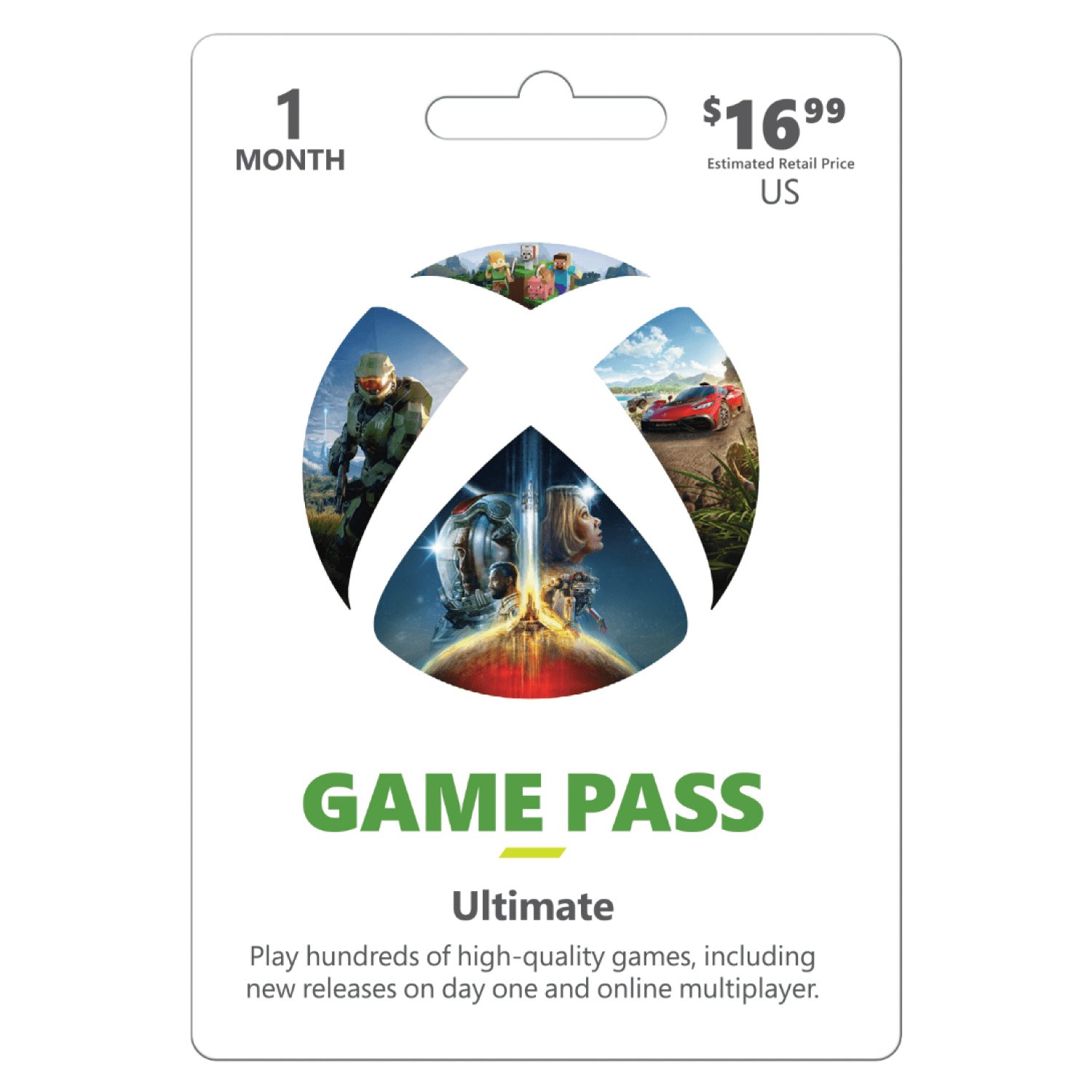
To gift Game Pass Ultimate, you can purchase a digital code from the Microsoft Store or participating retailers and then share that code with your recipient.
Want to surprise a friend or family member with endless gaming fun? You can easily give the gift of Game Pass Ultimate, allowing them access to a huge library of games. Figuring out how to gift game pass ultimate is straightforward and makes for an amazing present.
This digital gift will provide your loved one with access to hundreds of fantastic titles for their Xbox or PC. The process is very simple, and we’ll walk you through it. It will be the perfect present for gamers.

How to Gift Game Pass Ultimate: A Complete Guide
So, you want to give the gift of endless gaming fun? That’s awesome! Xbox Game Pass Ultimate is a fantastic present for any gamer, letting them play tons of games on their console, PC, and even on the cloud. But how exactly do you go about gifting it? Don’t worry, it’s not as tricky as beating a final boss. This guide will walk you through everything you need to know about giving the gift of Game Pass Ultimate.
Understanding Game Pass Ultimate
Before we dive into the gifting process, let’s make sure we’re all on the same page about what Game Pass Ultimate actually is. It’s like a giant all-you-can-play buffet for video games. With a Game Pass Ultimate membership, someone gets access to:
- Hundreds of games on Xbox consoles.
- A huge library of games on PC.
- Cloud gaming, which lets you play some games on phones and tablets.
- Xbox Live Gold, which is needed to play online multiplayer games.
- Exclusive deals and discounts on games.
Basically, it’s the best Xbox subscription package around, and it makes a perfect gift for any gamer. Now, let’s get to the how-to!
Different Ways to Gift Game Pass Ultimate
There are mainly a few ways you can give the joy of Xbox Game Pass Ultimate. Let’s break them down:
Gifting Through the Microsoft Store Online
The most straightforward way is through the Microsoft Store website. It’s like buying anything online, but instead of a new pair of shoes, you’re gifting a world of games. Here’s how it works:
- Go to the Microsoft Store: Open your web browser and head over to the official Microsoft Store website.
- Find Game Pass Ultimate: Use the search bar at the top, typing in “Game Pass Ultimate”. You’ll see it as a subscription option.
- Select “Buy as Gift”: Instead of clicking the typical “Buy” button, find the option that says “Buy as Gift”. Sometimes it’s a small text link or a button next to the main one. Click that.
- Enter the Recipient’s Email: You’ll be prompted to enter the email address of the person you want to gift to. Make sure you enter the correct email. A mistake here means your friend might not get their gift.
- Choose the Duration: Pick how long you want the gift to last, such as one month, three months, or more. Note: Longer durations often give better value for money.
- Add a Personal Note: Most of the time, you can type a message to go with the gift. Make it personal and add some excitement!
- Review and Pay: Double-check all the info, especially the email, before paying. Choose your method of payment, and complete the transaction.
- Confirmation: After the purchase, you and the gift receiver will get a confirmation email. Your friend or family member will get the code or a link that they use to activate the subscription.
Gifting Through Xbox Console
If you have an Xbox console, you can easily gift Game Pass Ultimate through it, without having to jump on a computer. Here’s the process:
- Turn on your Xbox: Make sure your Xbox is powered up and you’re signed into your account.
- Go to the Store: From the main dashboard, go to the “Store” section. This is usually an icon on the right side of the screen.
- Search for Game Pass Ultimate: Use the search function within the store and type in “Game Pass Ultimate.”
- Select “Buy as Gift”: Just like on the website, look for the button that says “Buy as Gift” instead of the standard “Buy.”
- Pick Recipient’s Gamertag or Email : You’ll need to pick the gamertag of your recipient from your friend’s list, or enter their email if they are not on your friend list.
- Choose Duration: Select how long you would like the gift membership to be.
- Add a message: You can personalize your gift by adding message.
- Complete the Transaction: Confirm everything and finalize your purchase.
- Confirmation: Your friend will get a message that they can use to activate the membership.
Buying a Physical Gift Card
For people who prefer a more traditional gift, or if you don’t have access to the recipient’s email address, a physical gift card can be a good option. These cards can be found at many stores that sell video games or online retailers.
- Purchase a Gift Card: Grab an Xbox gift card from a local or online store. Make sure the gift card has sufficient amount for the desired duration.
- Give the Gift Card: You can give them the card in person or mail it to them.
- Redemption: The person who receives the card can go to their Xbox console or the Microsoft Store online to redeem it. They will need to scratch off the code on the back of the card and enter it on their account.
- Activation: Once redeemed, their Game Pass Ultimate membership will start!
Using Digital Gift Codes
Digital gift codes are another great option, especially if you’re in a hurry. These codes come directly to your email, and you can forward them to the recipient or even print them out.
- Find Digital Codes: You can purchase digital gift codes from online retailers or from Microsoft itself.
- Receive the Code: After purchasing the code, you will get the code through email.
- Share the Code: Forward it to your recipient by email, text or print it out and hand it to them.
- Redemption: Your recipient will then follow the instructions provided to redeem the code on their xbox console or through the microsoft store.
- Activation: Once code is redeemed, their game pass ultimate subscription will be activated.
Important Things to Keep in Mind
Before you gift, there are a few extra things you should know to make sure everything goes smoothly.
Region Compatibility
Game Pass Ultimate subscriptions are often region-specific. If you and the person you’re gifting to are in different regions, there might be a problem. It’s always a good idea to buy a gift from the same region the recipient’s account is in. For instance, you can’t gift game pass bought in US to someone in Europe, or someone in India.
Avoiding Scams
Be careful when buying gift codes or cards from websites you don’t know. Stick to well-known stores or the Microsoft Store itself to stay safe from scams.
Double Check Email Addresses
Make absolutely sure that the email you enter when gifting is correct. A typo can mean the gift ends up in the wrong hands.
Check if the Person Already Has Game Pass Ultimate
Before you spend money gifting a subscription, you might want to check if the person you’re gifting already has an active membership. If they do, you can still gift, and it will add more time to their existing subscription, but you may want to check first, if they would prefer a different gift.
How the Recipient Activates Their Gift
Once the gift is sent, the recipient will usually get an email or message with instructions. They will have to redeem it either by clicking a link or entering the code in their Xbox account. It’s super important they redeem it through the correct account.
Troubleshooting Common Issues
Sometimes, things might not go perfectly. Here’s how to deal with some common issues:
Gift Code Doesn’t Work
If the recipient says the code isn’t working, double-check that they are entering the code correctly. If it still doesn’t work, contact Microsoft support, who can help.
Recipient Didn’t Get the Email
If your gift email hasn’t shown up, tell the recipient to check their spam folder. If it’s not there either, contact Microsoft support to see if there is a problem.
Region Issues
If you accidentally bought a gift for the wrong region, you might need to get support from the retailer where you bought it. Usually, they’ll help with a return or exchange. Always try to ensure the region match when you buy.
Making the Gift Extra Special
While a gift of Game Pass Ultimate is fantastic on its own, you can add a little extra to make the gift feel really special. Here are some simple ideas:
- Personalized Card: Pair your digital gift with a handwritten card. A little personal message adds a lot.
- Gaming Snacks: Give some snacks or treats that the recipient can enjoy while gaming, like popcorn or candy.
- List of Recommended Games: If you know the kind of games your recipient enjoys, add a list of games you think they should try.
- Surprise Setup: If they have not used game pass before, help them set everything up on their PC or Xbox console.
Gift the Fun!
Gifting Game Pass Ultimate is a wonderful way to bring joy to any gamer. It opens up a whole world of fun that anyone can enjoy. By following these instructions and tips, you’ll make someone’s day extra amazing!
Remember to pay attention to the details like region compatibility and correct email addresses, and you’ll be a gifting pro in no time. Happy gifting!
How To Get Xbox Gamepass Ultimate For Free!
Final Thoughts
Gifting Xbox Game Pass Ultimate is simple. You can buy a digital code from Microsoft or retailers. This code is directly redeemable on the recipient’s account.
Alternatively, purchase a physical gift card. The recipient inputs the code on their console or online. That is how to gift game pass ultimate. Remember to check the region before buying. Make sure the purchased code is for correct region to avoid problems.

