
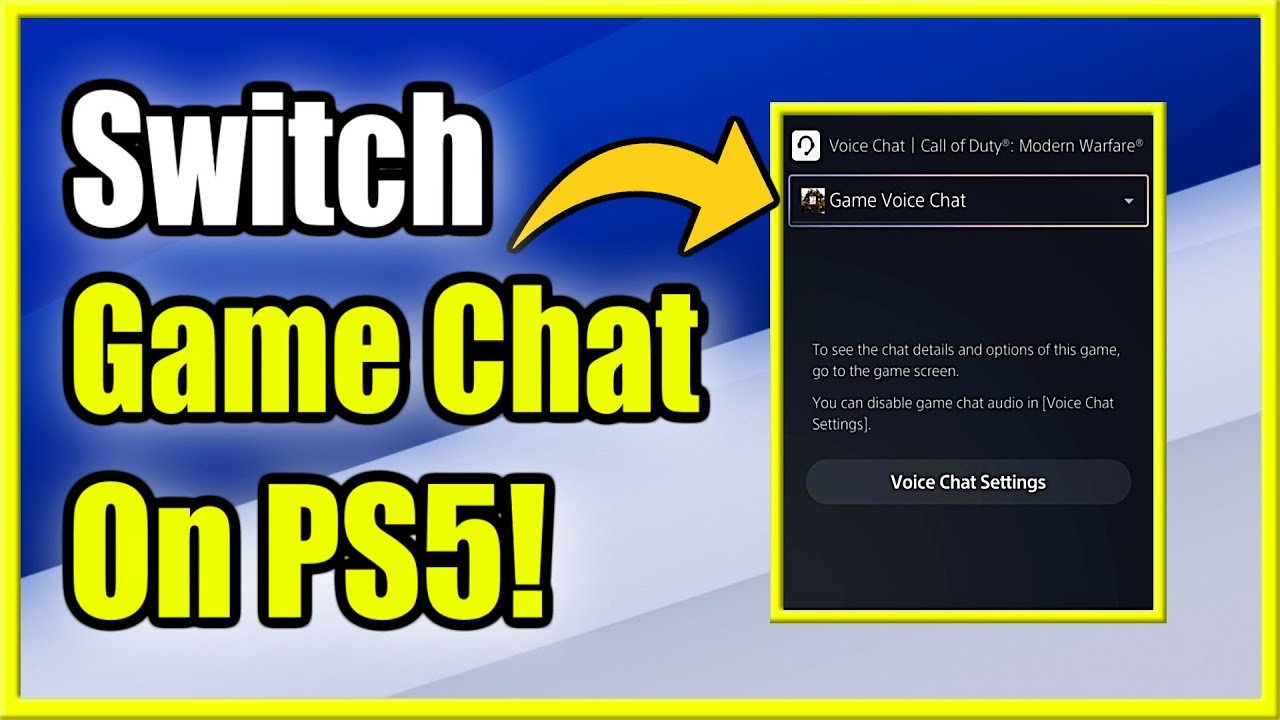
To go into game chat on PS5, press the PlayStation button, navigate to the “Voice” tab, select the party or game chat option you want, and then join.
Want to communicate effectively with your teammates or opponents during intense online gaming sessions? Knowing how to go into game chat on PS5 is vital for seamless collaboration and trash talk. It’s a straightforward process, but sometimes figuring out the exact steps can be a little tricky.
This quick guide will help you easily connect your headset and join in the conversation. Let’s jump right in and ensure you’re always part of the action and coordinating with your buddies in real-time.

How to Go Into Game Chat on PS5
Ready to chat with your friends while you play your favorite games on the PlayStation 5? It’s super easy, and it makes gaming so much more fun! This article will guide you through all the ways you can join game chat on your PS5, so you can team up, strategize, and have a blast with your buddies. Whether you’re new to the PS5 or just want a refresher, we’ve got you covered. We’ll explore different methods and settings to help you get talking in no time.
Understanding Game Chat on PS5
Game chat on the PS5 lets you talk with other players in real time. This can be other members of your party, or players within the specific game you’re playing. It’s different from party chat, which is more like a private call between friends who might be playing different games, we will cover that too but in a simple way. Think of game chat as a way to communicate within the game’s world, while party chat connects you to a group of friends no matter what you’re playing. Using game chat allows for better teamwork and making new friends within games. Before jumping into a game, let’s get a grip on some basic requirements.
What You Need for Game Chat
To use game chat on your PS5, you’ll need a few things:
- A PlayStation 5 Console: Obviously, you need the console itself.
- A PlayStation Network Account: You need an active PSN account. This is your passport to online gaming and communication.
- An Internet Connection: A stable internet connection is a must for online gaming and voice chat.
- A Microphone: This can be a headset with a mic, or the built-in microphone on your DualSense controller.
- A Game that Supports Chat: Not all games have the same voice chat capabilities. Some games use their own voice chat systems, while others rely on the PS5 system.
Joining Game Chat Through the Game
Many games feature their own in-game voice chat feature, letting you talk directly with players in the same match as you. Here’s how to join game chat through a game.
Accessing Game Chat Within a Game
The way to join game chat varies a bit from game to game. However, here’s a general way how to do it:
- Start Your Game: First things first, start the game you want to play.
- Look for the Option: Usually, you’ll find the game chat option in the game’s settings or menu. Look for something like “Voice Chat,” “Audio,” or “Communication.”
- Enable Game Chat: Turn on the game chat setting. Sometimes, you might have to choose to join a specific channel or set a push-to-talk button if required.
- Connect Your Mic: Be sure your mic is connected and working properly. Check your PS5’s audio settings to make sure it is the chosen input device.
- Start Talking: If the option is open you are now in game chat! Sometimes there will be a small speaker icon or nameplate by your character or username to signify you are talking.
Common In-Game Voice Chat Settings
Games may have different kinds of settings for voice chat. Here are some you might encounter:
- Push-to-Talk vs. Open Mic: Push-to-talk means you have to press a button to talk, while open mic is always on (make sure to turn your mic volume down if you choose open mic).
- Voice Chat Volume: Adjust how loud the other players’ voices are so they sound good to you.
- Microphone Sensitivity: Adjust how sensitive your microphone is so you have a clear voice.
- Voice Chat Channels: Some games have different channels you can join, like team chats or squad chats.
Examples of In-Game Voice Chat
Let’s look at how you might use in-game voice chat with a couple of popular games:
- Call of Duty: In Call of Duty, you can usually enable voice chat from the game’s audio settings. You can often choose to talk to your team only or all players in the match. You can also adjust the microphone sensitivity for a clear sound.
- Fortnite: Fortnite also allows you to enable voice chat in the audio settings. You can speak to your squad or the entire lobby, depending on the game mode. Fortnite also has a quick mute function if someone is being too loud.
Please note that exact steps may differ slightly depending on game’s design.
Using PlayStation Party Chat
While game chat is specific to the game you are playing, PS5 party chat lets you talk to a group of friends regardless of what game each member is playing. This is useful for when you want to chat with your friends no matter what and share advice and tips for the same, or different games.
Creating a Party Chat
Starting a party on the PS5 is super easy. Here’s how:
- Press the PlayStation Button: Press the PlayStation button on your controller to open the Control Center.
- Go to the Game Base: Select “Game Base” icon in the main menu (it is sometimes labeled as Gamebase or Game Hub).
- Start a Party: Now select the “Start Party” option.
- Invite Friends: Choose who you want to invite from your friends list.
- Select Your Audio Options: Decide whether your microphone is automatically on when you join the party or on a push to talk basis.
Managing Party Chat Settings
Once you’re in a party, you have several settings to control your voice chat experience.
- Adjust Mic Volume: Manage your microphone volume, if other players are saying you are too loud you may want to reduce this setting.
- Adjust Volume of Other Players: Control the volume of the voices of other party members, you can quieten any players that may be too loud.
- Mute Players: You can mute individual players if you need a little peace and quiet, or if they have poor microphone quality.
- Leave the Party: When you want to leave party chat, select “Leave Party” option.
Using Game Chat & Party Chat Simultaneously
You can even participate in party chat and game chat at the same time. This way, you can talk to your friends in party chat, but also speak to other players in the game you are playing. Here is what to remember when using both at the same time:
- Check Game Chat Settings: Most games prioritize game chat automatically, but you may have to change this if you want to hear the party more.
- Set Priorities: If you want to use game chat alongside party chat be sure to adjust the volumes of both, as not to overwhelm your headset with many voices.
- Mute when Needed: To avoid being a nuisance in any game chat, remember to mute yourself in the party chat when playing if you do not need to speak to party members
Troubleshooting Game Chat Issues
Sometimes things can go wrong with voice chat. Here are some common problems and how to fix them:
My Mic Isn’t Working
If your microphone isn’t working, try these steps:
- Check Connections: Make sure your headset or microphone is properly connected to your controller or console.
- Check Your Audio Settings: In the PS5 settings menu, go to “Sound” then “Microphone” and confirm that the correct microphone is selected as your input device.
- Test Your Mic: There is an option to test your microphone to see if it is picking up sound, you can then adjust if needed.
- Update Controller Software: Be sure your PS5 controller is up to date as this can cause some audio glitches.
- Try a Different Mic: If you have another headset with a mic, try using that to see if the issue is the mic itself.
I Can’t Hear Anyone
If you can’t hear other players, try these fixes:
- Check Volume Levels: Make sure your headset volume is turned up and that your mute button isn’t enabled on the controller or headset.
- Check Game Settings: See if you need to change the game’s voice chat options in the settings menu.
- Check Audio Output: Go into the PlayStation’s “Sound” section to make sure the correct output device is chosen as headphones.
- Restart Your Game: Sometimes restarting the game can help if there is a bug causing no sound to output.
- Check Party Chat Settings: If you’re using party chat, make sure that you are not muted and you have the volume up.
Sound Quality Is Bad
If the voice chat sounds bad, try these adjustments:
- Adjust Microphone Sensitivity: In the PS5’s microphone settings, try adjusting the microphone sensitivity to eliminate background noise or reduce feedback.
- Adjust Game Chat Settings: Some games have options to improve the quality of voice chat.
- Check Your Internet: Poor internet can cause lag and bad audio quality.
- Use Headphones: This stops your voice from echoing if the microphone and speakers are in close proximity to each other.
- Try a Different Mic: If all else fails, test a new mic, sometimes your current mic may be of poor quality.
If all else fails, you can always reach out to PlayStation support or the game’s support site for further assistance.
Tips for Clear and Enjoyable Game Chat
Here are some tips to help you have a great voice chat experience:
- Find a Quiet Place: Try to chat in a place with less background noise for clearer audio.
- Use Headphones: Headphones help reduce echoing, improving your sound quality.
- Be Respectful: Be courteous and polite to the other people in the voice chat.
- Check your Mic: Be sure to check if the mic is working properly and isn’t muffled or too loud before joining any game chat sessions.
- Adjust Volume: If you are too loud or quiet, it will hinder your overall experience. Try to maintain a mid level volume, so all others can hear you clearly without being too loud.
- Use Push-To-Talk: If your keyboard has the option for push to talk, use that as it means you won’t always be sending audio, this will help reduce background noise.
By following these steps and tips, you’ll be chatting with your friends and fellow gamers on your PS5 in no time. Game chat can add a whole new dimension to your gaming experience, making it more fun, more social, and more engaging. So, grab your headset, join a party, and get ready to communicate!
Now that you’ve learned all about game chat, you are ready to go make some new friends or connect with your current ones in online play. Remember to adjust your settings in the games you play, and in the system settings, to find the right audio settings for your setup. With a little bit of practice, you’ll be talking and playing like a pro. Have fun and happy gaming!
PS5: How to Switch From Party Chat to Game Chat Tutorial! (For Beginners) 2024
Final Thoughts
To quickly join game chat, press the PlayStation button to access the control center. Then select the ‘Voice’ option from the menu. A list of your active game parties will appear and you can pick the one you want.
This method provides instant access and makes joining voice chat very simple. Remember, a headset must be connected. ‘how to go into game chat on ps5’ is now a quick process with these easy steps. You must follow the control center option and voice select to achieve this.

