
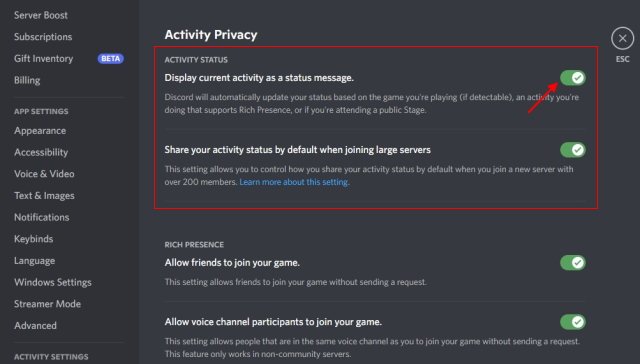
To have Discord not show what game you’re playing, navigate to User Settings > Activity Privacy and toggle off “Display current activity as a status message.”
Ever felt like you’re under a digital microscope while gaming? Sometimes you just want to chill without your friends knowing exactly what you’re playing. This brings us to the question of how to have discord not show what game youre playing. It’s a common desire for privacy, and thankfully, it’s easily achievable with a simple setting change.
We all enjoy some quiet time, so let’s walk through the few steps you need to take to keep your gaming habits under wraps. The steps are very straightforward and require little technical skill.

How to Have Discord Not Show What Game You’re Playing
Ever wanted to game in peace without your Discord friends knowing exactly what you’re up to? Maybe you’re trying out a new game and don’t want to be spammed with invites, or perhaps you simply prefer a little privacy. Discord, by default, shows your current game activity to everyone on your server and friend list. This can be handy for finding teammates or showing off your cool new game, but sometimes, you just want to play without the public eye. Fortunately, Discord offers several ways to hide your game activity. Let’s dive into how you can achieve this peace and quiet.
The Simple Way: Turning off Game Activity
The quickest and easiest method to stop Discord from displaying your game activity involves adjusting your user settings. This is a great starting point for anyone who wants immediate privacy.
How to Disable Game Activity Status
Here’s how to turn off game activity status, step-by-step:
- Open the Discord application on your computer (either the desktop app or the browser version).
- Click on the “User Settings” icon. This looks like a small gear located near your username at the bottom-left of the screen.
- In the User Settings menu, find and click on “Activity Privacy” under the “Activity Settings” section on the left side.
- You’ll see an option labeled “Display current activity as a status message.” Simply toggle this switch to the “off” position (it should be greyed out).
- That’s it! Now, your friends won’t see what game you are playing.
By switching off this feature, Discord stops updating your status with your current game. This is a global change, meaning it applies to all games and activities.
The Detailed Approach: Manually Adding Games
Sometimes, you might want Discord to show some activities, but not all of them. Discord lets you manually add a game to your list of recognized games. When you add a game manually and turn off the “Display current activity as a status message” toggle, the game will not be shown. It still works like the “Display current activity as a status message” toggle but only for the specific game that you have added to your activity list. Let’s see how we can do that.
How to Add Games Manually to Discord
Here’s how to add games manually and prevent them from being displayed:
- Open the Discord application.
- Click on the “User Settings” icon.
- Go to “Registered Games” under the “Activity Settings”.
- If Discord is already detecting the game you’re playing, it should appear at the top of the window. If not, click on “Add it!” to add a specific game.
- Select the game from the list of running applications.
- Turn off the “Display current activity as a status message” toggle if it was turned on before.
- Repeat these steps for every game you want to hide on Discord.
This method gives you more control over what Discord shows and hides. You can now choose to hide specific games, while still allowing Discord to display other activities or games.
Customizing Your Status: A More Subtle Approach
While hiding game activity completely is one way, you might want to give your friends a hint about what you’re up to without directly showing the game title. Discord allows you to customize your status, which can be a fun way to show you are playing without directly showing the game title. It’s a good middle-ground if you want some interaction but not the full transparency of game status.
Using Custom Status Messages
Here’s how to use a custom status message:
- Open Discord.
- Click on your profile picture at the bottom left.
- Select “Set a custom status.”
- Type your preferred status message. For example, “Exploring a new world” or “Battling dragons”. You can use emojis to spice things up.
- Choose how long your custom status will last. This can be anything from “Don’t clear” to “1 day”.
- Click “Save.”
This will replace the default game status with your custom message. This approach allows you to control the narrative about what you’re doing without revealing the specifics. Your friends might be curious, but they won’t know the exact game.
When Things Don’t Work as Expected: Troubleshooting
Sometimes, even after adjusting your settings, Discord might still show your game activity. This can be frustrating, so let’s look at some potential causes and solutions.
Common Problems and How to Fix Them
- Discord App Needs an Update: Make sure your Discord application is up to date. Outdated versions might have bugs affecting activity privacy settings. Update it from the app or Discord website.
- Restarting Discord: Sometimes, a simple restart can resolve issues. Close Discord completely and reopen it.
- Game Overlay Interference: Some games have their own in-game overlays that conflict with Discord’s settings. Try turning off any in-game overlays. You might need to check the game’s settings to turn them off.
- Administrator Privileges: Make sure Discord is running with administrator privileges. Right-click the Discord shortcut and select “Run as administrator.” This might help Discord properly apply your settings.
- Reinstalling Discord: If all else fails, consider uninstalling and reinstalling Discord. This can resolve hidden issues or corrupted files.
- Privacy Settings in the Game: Some games have their own privacy settings. Check to see if they have an option that overrides your Discord settings, try changing them.
- Multiple Discord Instances: Ensure you don’t have multiple instances of Discord running. Having more than one instance running can cause issues.
Advanced Privacy: Using Discord’s Invisible Mode
If you want to take your privacy a step further, consider using Discord’s “Invisible” mode. This will hide your online status completely, making it seem as if you’re offline to all your friends. This can be particularly useful when you want complete solitude, or when you want to not be disturbed during your gaming session.
How to Appear Offline
Here are the steps to enable invisible mode:
- Open Discord.
- Click on your profile picture at the bottom left of the window.
- Click on your current online status (it should be green by default).
- Select “Invisible.”
By setting your status to invisible, your friends won’t see your online status or what you’re doing. They will see that you are offline. You can still use Discord but you will be completely invisible.
Third-Party Tools and Risks
You might stumble upon third-party tools promising to give you more control over Discord’s activity tracking. While some tools might have interesting features, be very careful about using them.
Potential Dangers of Third-Party Tools
- Malware and Security Risks: Some tools might contain malware or viruses. This can harm your computer. Make sure you only download software from trusted sources.
- Account Bans: Using unofficial tools can sometimes go against Discord’s terms of service and could get your account banned.
- Privacy Concerns: Some tools might collect your personal data without your knowledge. Stick to official Discord settings for privacy.
It’s generally safer to use the built-in features provided by Discord. The official settings offer enough control for most users.
Why Would You Want to Hide Your Game Activity?
There are many valid reasons why someone might choose to hide their game activity. It is not just about being secretive. Sometimes, it’s about being comfortable and enjoying your gaming experience.
Reasons for Hiding Game Activity
- Avoiding Distractions: Sometimes you want to game without being disturbed by invites or messages. Hiding activity helps you focus on your game.
- Testing New Games: If you’re trying a new game and don’t want your friends to know your opinion of it, hiding activity can give you some privacy until you decide what you think of it.
- Privacy Concerns: Maybe you simply prefer to keep your gaming habits private. Not everyone wants their friends to know exactly what they’re doing all the time.
- Avoiding Spoilers: If you are playing a narrative driven game, you might want to avoid spoilers by keeping your gaming private.
- Playing Single-Player Games: When enjoying a single-player game, you might not need or want to connect with others. Hiding game activity allows you to play uninterrupted.
- Personal Preference: Sometimes you just prefer to play without the attention. Hiding your activity is a simple way to do that.
Combining Techniques for Enhanced Privacy
For maximum privacy, you can use a combination of the methods we discussed. For example, you could turn off the “Display current activity as a status message” toggle, add specific games to your “Registered Games” and set your status to “Invisible”. This combination gives you complete control over what your friends see and don’t see.
Strategies for Maximum Privacy
- Disable “Display current activity as a status message:” This prevents Discord from showing any game activity by default.
- Manually Add Games: Add any games you play to your “Registered Games”, and make sure their corresponding “Display current activity as a status message” toggle is turned off.
- Use a Custom Status: Add some subtle custom status message to give a hint without revealing specifics.
- Go Invisible: Set your status to “Invisible” when you want complete privacy.
By combining these techniques, you can effectively control your online visibility and ensure your gaming sessions remain as private as you wish.
In conclusion, managing your game activity on Discord is simpler than you might think. By adjusting your settings, using custom status messages, and understanding your privacy options, you can easily control what information your friends see. Whether you want complete privacy, a hint of mystery, or just some peace and quiet, Discord provides you with the tools you need. Remember to stick to official settings and avoid unofficial tools to maintain the security of your account and computer. Now you can game in comfort, knowing that your activity is under your control.
How to Show What Game You're Playing on Discord
Final Thoughts
To stop Discord from displaying your game, simply adjust your activity privacy settings. You can find this option within the user settings menu under the “Activity Privacy” tab. This action will prevent others from seeing what you are playing.
Specifically, disable the “Display current activity as a status message” toggle. This is the key option, and doing so will achieve the goal of ‘how to have discord not show what game youre playing’. This setting is a must for maintaining your privacy when you choose.

