
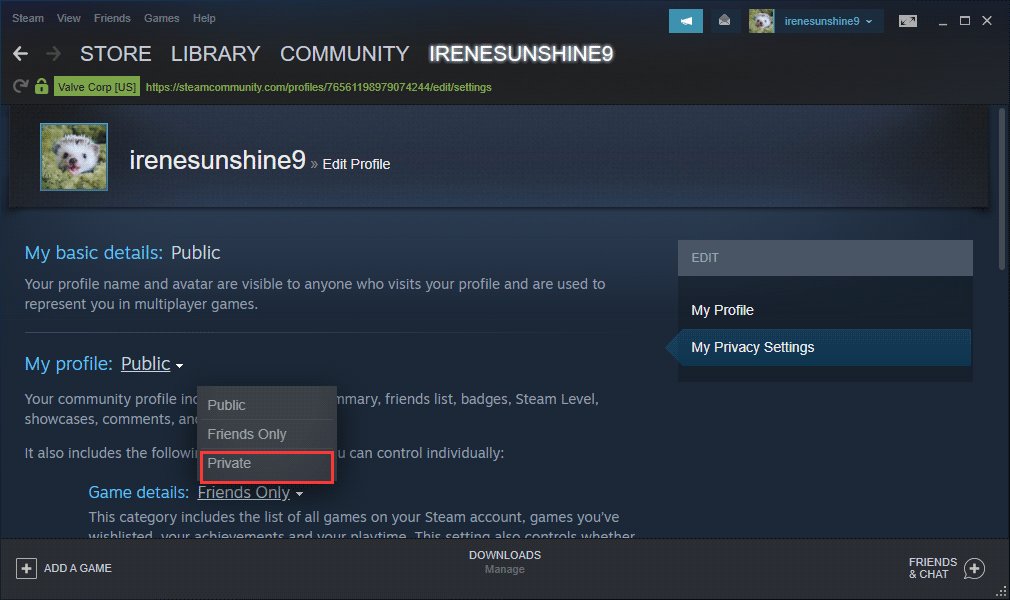
You can hide games from friends on Steam by setting your game details to private within your profile privacy settings.
Ever wanted to keep your gaming habits a secret? Maybe you’re ashamed of that guilty pleasure title, or perhaps you prefer a bit of solo gaming without prying eyes. It’s completely normal to want control over what others see. This article will guide you through the straightforward process of how to hide games from friends on Steam.
We will show you how to adjust those privacy settings so your playtime remains your business. It’s a quick and easy way to enjoy your games on your own terms. Let’s get started and reclaim your privacy on Steam.

How to Hide Games from Friends on Steam
Sometimes, you just want to play your games in peace, without your friends seeing what you’re up to. Maybe you’re trying out a new game and don’t want to be bothered, or perhaps you’re replaying an old favorite and prefer some alone time. Steam, being the popular platform that it is, offers several ways to control what your friends see about your gaming activity. Let’s explore all the options you have to hide those games from your friends on Steam. We’ll cover everything, including making your profile completely private, setting individual game visibility, and even appearing offline.
Understanding Steam Privacy Settings
Before diving into specific methods, let’s understand the core of Steam’s privacy system. Steam lets you control who can see different parts of your profile, from your game library to your playtime. These settings are not all or nothing; you have a surprising amount of control. It’s a good idea to get familiar with these settings as they are crucial to understanding all the options for keeping your gaming activity hidden from friends. You access these settings through your profile within the Steam client or on the Steam website. Knowing what each option does will make hiding games much easier.
Accessing Privacy Settings
First, open the Steam application or website and log into your account. Then follow these steps:
- In the Steam Client: Click on your profile name at the top, then select “View my Profile.” Then click the “Edit Profile” button on the right and then choose the “Privacy Settings” tab.
- On the Steam Website: Hover over your profile name at the top, then click “Profile”. Once your profile loads, click “Edit Profile” and select “Privacy Settings” from the sidebar.
Now, you’re looking at the various privacy controls that Steam offers. Let’s go through the main sections that directly impact game visibility. The sections are usually grouped under the headings My Profile, Game Details, Friends List, and Inventory, so pay special attention to “Game Details,” because that’s where the key settings are for hiding games.
Making Your Profile Completely Private
One of the easiest ways to hide almost all your game activity is to make your entire profile private. This means your friends won’t see your game library, playtime, recent activity, achievements, or even your wish list. It’s like putting up a big “Do Not Disturb” sign on your profile. This might be the right option if you want maximum privacy, although this would also prevent others from seeing your other information such as your level, badges, and groups, but it’s good to know you can do it.
How to Make Your Profile Private
To make your Steam profile private, follow these instructions after reaching the Privacy Settings page we described earlier:
- Find the “My Profile” section.
- You’ll see a dropdown menu labeled “My Profile.” Click on the dropdown and select “Private”.
- Click save to finalize these new settings.
By selecting ‘Private’ here, you are effectively making your whole profile invisible to other people. Remember, if you want to share some details later, you can always return to this section and change it. However, the profile private setting is a global setting, so it will affect every part of your profile.
Setting Game Details Privacy
If you want more control and prefer not to hide everything, you can adjust the visibility of your game details specifically. This way, you might want to hide just specific games while still allowing your friends to see your other games and activities. Steam gives you several options here, so let’s dive into how to make it work.
Options for Game Details Privacy
Within the “Privacy Settings” page on Steam, you’ll see a section called “Game Details”. Here’s what each option means:
- Public: Anyone can see your game list, play time, achievements, and other game-related information. This is the default setting.
- Friends Only: Only your Steam friends can view your game details.
- Private: Only you can view your game details. This is perfect for hiding all of your games at the same time.
If you select the ‘Private’ option here, you’ll notice that your games, your playtime, and your achievements will all be hidden from other users. You can combine this with other settings if you want to keep your profile mostly visible but just want to hide your game library completely.
Hiding Individual Games on Steam
Now, let’s get to the real magic: hiding individual games. You can choose specific games to be hidden while leaving others visible. This means you could be playing your favorite single player game and not have anyone know. Or maybe you’re playing something you aren’t ready to talk about with your friends. Steam provides a way to do this for each of your games.
How to Hide Individual Games
Here’s how to do it from your Steam Library:
- Open your Steam application and go to your library.
- Find the game you want to hide from your friends list.
- Right click on that game from the list.
- Select Manage from the right-click menu.
- Then select “Set Private.”
You will notice that the game’s name will now appear greyed out in your library. This lets you know that the specific game will be hidden from your Steam friends list. Nobody but you can see you playing this game. To unhide it again just perform the same steps again and you’ll be able to reverse the change using the same steps. Instead of seeing the “Set Private” option, you’ll now see a “Set Public” option.
This is very useful when you want to keep certain games on the down-low. Maybe you’re practicing a new game and aren’t ready for your friends to see you just yet. Or maybe you want to finish a specific game without anyone asking you about how far you’ve got.
Appearing Offline on Steam
Another common method to avoid unwanted attention on Steam is to appear offline. This is great if you want to play games without your friends knowing you are online at all. They will not see you on their friend lists or see you playing any game on Steam.
How to Appear Offline
To appear offline follow these steps:
- At the bottom of your Steam application you should see the word “Friends”.
- Click the word “Friends” to open up the friends list window.
- At the top of the friends list window, you will see your profile name and a small arrow to the right side of it. Click that arrow.
- A small menu will appear. In that menu, you’ll see options like “Online,” “Away,” “Invisible,” and “Offline.” Select “Offline”.
When you choose to be offline, your friends won’t see you in their online lists, and won’t be able to see you in-game. This means that your activity is hidden. Your status at the bottom of the application, will also change to ‘Offline’. Keep in mind that you will also be unable to see which of your friends are online if you do this.
Using “Invisible” Status
The “invisible” status is different from the offline status, and it can be a good option if you want to remain logged in and accessible, without necessarily being “visible” to your friends. In the same friends list menu described in the section above, you can choose ‘Invisible’.
Understanding Invisible Mode
Here’s how the invisible option works:
- You will remain online: You’re still connected to Steam, and you can still chat and join games.
- Hidden from your friend list: Your friends will see that you are offline when viewing their friends list, so they will have no idea you are actually online.
- Game visibility: Your game activity is still subject to your privacy settings. So, if your game details are private, they can’t see you playing. But, if they’re set to friends only, or public, they will be able to see you in game.
This status is perfect if you want to avoid unwanted messages or game invitations, but still use steam normally.
Combining Privacy Methods for Maximum Stealth
For ultimate control, you can combine multiple privacy settings. For example, you could set your profile to “Friends Only,” hide specific games individually, and also use the “Invisible” status to avoid any interruptions. This approach gives you a great ability to control how much, or how little, others can see of your gaming habits. You could have a completely private profile, set certain games to private, and appear offline at the same time. Or, you could have certain parts of your profile viewable, while also still hiding certain games and appearing invisible. It’s entirely up to you to decide what to hide and what not to.
Steam Groups and Activity Feeds
Steam groups have their own activity feeds, and sometimes your activity can show up there. For the most part though, these activity feeds are only showing public content. If you’ve made your profile and game details private, you probably won’t have to worry about your content showing up here. So, keep your eye out for your activity there. If you want to have a quick review of all of your activity, you can see a feed of your games, achievements, and other public activities by visiting your profile. Then on the right hand side, you’ll see a menu that says “Activity”. Click the link that says “View all”. This will show you what Steam is listing in the public activity feed. This can be helpful if you want to see exactly what is being made available to the public.
Keeping Your Privacy Updated
Steam’s interface and features can change from time to time, so it’s useful to review your privacy settings regularly to make sure everything is set the way you like it. Doing so ensures that you always maintain the level of privacy you want and that any new changes to Steam haven’t made your account more public than you prefer. Setting reminders on your phone or your calendar can be a good way to do this regularly.
Tips for Managing Steam Privacy
Here are some handy tips to keep your privacy on Steam nice and tidy:
- Review regularly: Make it a habit to check your privacy settings once a month to stay on top of any changes.
- Test your settings: Check the settings using a different account to confirm that your profile looks the way you expect it to.
- Be careful what you share: Remember that what you share in public can be seen by everyone, so be aware of what you post.
- Use multiple settings: Combining privacy options gives you the best control over who sees what.
By being proactive with your settings, you can make sure you have the best possible experience when gaming on Steam.
In summary, Steam provides several options for controlling who sees your gaming activity. Whether you want a completely private profile, hidden individual games, or just prefer to appear offline, it’s all about choosing what works best for you. By going through the privacy settings and experimenting with the options available, you can easily play your games the way you want without any interruptions.
How to Hide Embarrassing Steam Games from Friends (Full 2024 Guide)
Final Thoughts
You can easily hide your games from specific friends using Steam’s privacy settings. Simply navigate to your profile, choose “Edit Profile,” and then “Privacy Settings.” From there, customize who can see your game details. This is great if you want to keep certain games a secret.
This method provides simple control. you select specific friends. These adjustments impact which games they view on your profile. The steps are quick and the process of how to hide games from friends on steam is very effective. This is a must for tailored privacy.

