
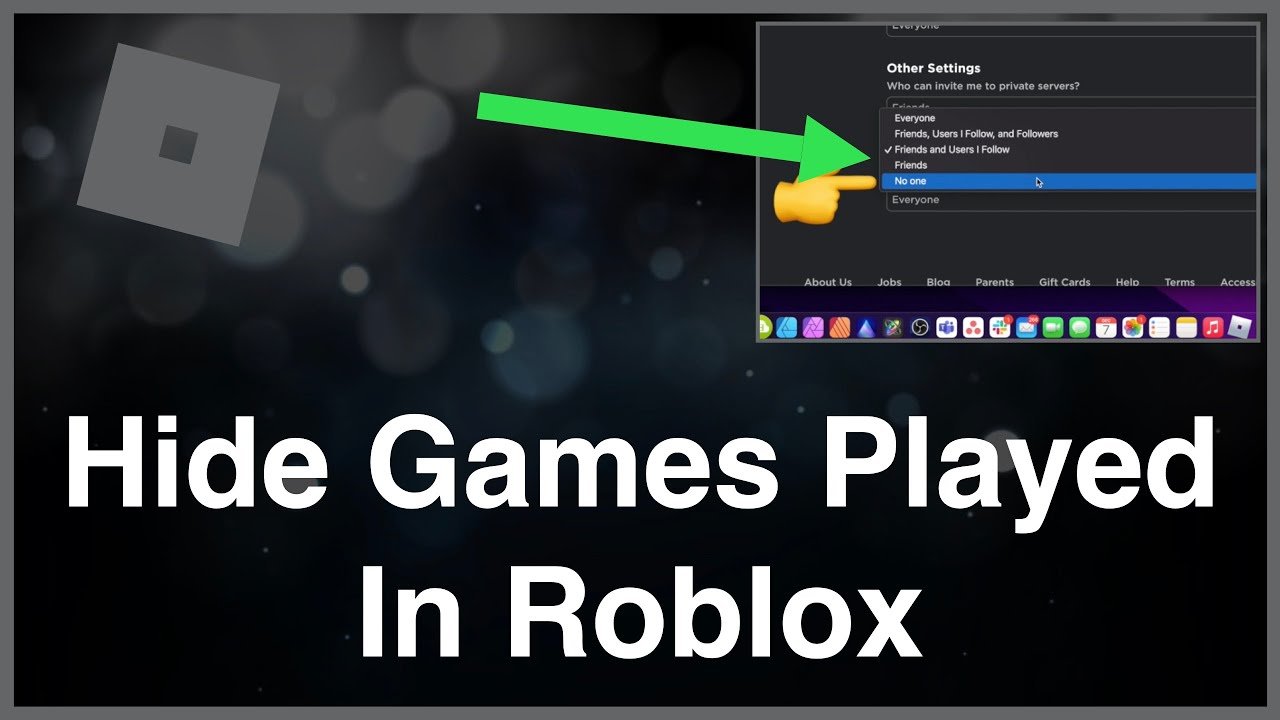
You can hide what game you’re playing on Roblox by adjusting your privacy settings to make your activity invisible to others.
Want to keep your Roblox gaming sessions a bit more private? Many players wonder how to hide what game you’re playing on Roblox, and it’s totally understandable. Luckily, Roblox gives you the control to manage who sees your in-game activity.
It’s quite simple to adjust your settings. By changing who can view your in-game activity within the privacy menu, you gain a much greater level of personal control over your profile. You can choose to show your activity only to friends, or hide it completely from everyone.

How to Hide What Game You’re Playing on Roblox
Ever wanted to play Roblox without everyone knowing exactly which game you’re in? Maybe you want to surprise your friends later, or just enjoy some quiet time without getting bombarded with join requests. It’s totally understandable! Roblox, by default, shows your friends which game you’re currently playing. But don’t worry, there are simple ways to keep your gaming activities a bit more private. Let’s dive into how you can easily hide what game you’re playing on Roblox.
Understanding Roblox Privacy Settings
Before we get into the specific steps, it’s important to understand how Roblox’s privacy settings work. These settings are your control panel for who sees what about your activity on the platform. They’re pretty straightforward, but knowing your way around them is key to keeping your game choices private. These settings control things like who can see your inventory, who can message you, and, most importantly for this article, who can see what game you’re playing.
Accessing Your Privacy Settings
Getting to your privacy settings is easy. Whether you’re on a computer, tablet, or phone, the process is similar. Here’s a quick guide:
- On the Website: Log into your Roblox account on a web browser. Look for the gear icon at the top-right corner of the screen. Click it, and then select “Settings”. In the settings menu, click “Privacy”. You’ll see a bunch of options here, and this is where the magic happens.
- On the App: Open the Roblox app on your phone or tablet. Tap the three dots icon (usually at the bottom of the screen) to open the menu. Scroll down and find “Settings,” then select “Privacy”. Just like on the website, you’ll be taken to your privacy control panel.
The “Who can see my experience” Setting
The most important setting for hiding your current game is the “Who can see my experience” option. This setting determines who can see the games you’re actively playing. Roblox gives you a few choices for this setting. Let’s look at them:
Available Options
- Everyone: This is the default setting. It allows everyone, even people who aren’t your friends, to see the game you are playing.
- Friends: Choosing this means only your Roblox friends can see your current game. This is a good middle ground if you don’t want complete secrecy, but want to share with people you know.
- No one: This is what you need if you want to play completely privately. With this option selected, nobody, not even your friends, will be able to see the game you’re currently playing. You’ll be playing in secret!
How to Change the Setting
To change who can see your game, follow these simple steps:
- Go to the Privacy settings page, using the steps mentioned before.
- Find the “Who can see my experience” option. It’s usually at the top of the list.
- Click the drop-down menu next to it.
- Choose the option you want – “Everyone,” “Friends,” or “No one.”
- The settings will automatically be saved. You can close the setting window and continue with your private gaming.
Why Hide Your Game Activity?
You might wonder, “Why would someone want to hide their game activity?” There are many reasons why people might prefer a little privacy while playing. Here are a few common ones:
- Surprise Parties: Maybe you’re planning a surprise get-together with friends in a specific Roblox game. If they see you playing it beforehand, it would spoil the surprise! Hiding your activity keeps your plans under wraps.
- Avoiding Join Requests: Sometimes, you just want to play a game by yourself or with a very small group. Having everyone see what you’re playing can lead to lots of join requests, which can be a bit distracting and not good for playing calmly.
- Testing New Games: When you’re trying out new games or experimenting with builds, it’s helpful to do so without the pressure of people watching your progress.
- Playing Underrated Games: You might enjoy a less popular game, and you don’t want friends to see and judge your choices. Hiding your activity lets you explore and enjoy different games without feeling self-conscious.
- Concentration: Sometimes you just want to focus on the game, without any distractions. When people know what game you are playing, you may get bombarded with join request and messages which can be frustrating at times.
Other Privacy Settings on Roblox
While the “Who can see my experience” setting is the main one for hiding what game you are playing, there are other privacy settings you might find helpful for overall privacy on Roblox. Let’s quickly touch on a few important ones:
Who can message me?
This option lets you choose who can send you private messages on Roblox. You can choose: “Everyone,” “Friends,” or “No one.” Setting this to “Friends” or “No one” can limit interruptions while gaming.
Who can chat with me in app?
This option is similar to the messaging setting, but it controls who can chat with you directly in the Roblox app while you’re playing a game. Again, setting it to “Friends” or “No one” can help keep your gameplay focused.
Who can invite me to private servers?
This setting determines who can invite you to join private servers. If you prefer to join servers on your own terms, you can set this to “Friends” or “No one.”
Who can see my inventory?
This setting isn’t directly related to hiding game activity, but it’s good to know. It lets you choose who can see what items you own in your Roblox inventory. You can set it to “Everyone,” “Friends,” or “No one.”
Combining Settings for Maximum Privacy
For the most private Roblox experience, it’s smart to use several privacy settings in combination. For example, you could:
- Set “Who can see my experience” to “No one.”
- Set “Who can message me” to “Friends” (or “No one” if you want complete silence).
- Set “Who can chat with me in app” to “Friends” (or “No one”).
- Set “Who can invite me to private servers” to “Friends” (or “No one”).
Using these settings together gives you the most control over your Roblox experience, giving you the privacy you want.
Hiding Game Activity on Different Devices
Whether you play Roblox on a computer, a phone, or a tablet, the steps for hiding your game activity are generally the same. Access the privacy settings through the gear icon on the website or the three dots menu in the app and adjust the “Who can see my experience” setting according to your choice.
- Computer: Go to the Roblox website in a web browser. Log in and go to the privacy settings.
- Phone/Tablet (App): Open the Roblox app, navigate to settings and then privacy.
Troubleshooting Common Issues
Sometimes, even after you change your privacy settings, you might think that your friends are still seeing your game. Here are some things to check:
- Double-Check the Setting: Make sure you’ve actually changed the “Who can see my experience” setting to “No one” or “Friends” as desired. It’s easy to accidentally choose the wrong one.
- Log Out and Back In: Sometimes, changes don’t take effect immediately. Try logging out of your Roblox account and then logging back in to see if the changes are applied.
- Refresh the Page: If you are using the website, try refreshing the page in your web browser to make sure the updated settings are displayed correctly.
- Clear Your Browser Cache: Occasionally, old data can interfere with new settings. Try clearing your browser cache and cookies to ensure the browser is displaying your current account state.
- Restart the App: If you are using the app, try completely closing it and opening it again. This will give the app a fresh start.
- Ask a Friend: If you’re still unsure, ask a trusted friend to check if they can see your game. This is the easiest way to confirm if your changes are working correctly.
Keeping Your Roblox Account Safe
While privacy is important, so is the safety of your Roblox account. Here are a few quick tips to keep your account secure:
- Use a Strong Password: Make sure your Roblox password is complex and difficult to guess. Use a combination of upper and lower case letters, numbers, and symbols.
- Enable 2-Step Verification: This adds an extra layer of security to your account. When you log in from a new device, you’ll need to enter a code sent to your email or phone.
- Don’t Share Your Password: Never give your password to anyone, no matter how much you trust them.
- Be Careful of Phishing Scams: If someone asks for your password or personal information in Roblox messages or on other websites, don’t give it to them.
Enjoying Your Private Gaming Experience
Now that you know how to hide what game you’re playing, you can enjoy your Roblox adventures with more privacy and control. These tips allow you to have more freedom to explore games without the pressure of others watching. Whether you’re planning a surprise, testing new games, or just wanting some peace and quiet, these settings are here to help. Remember, it’s all about playing Roblox your way!
So, go ahead and play! Feel free to switch between different games in stealth mode and enjoy your Roblox playtime. These methods for keeping your game choices private are easy to use and give you more control over your gaming journey. You now have the necessary tools to customize your privacy settings to have a fun and peaceful experience playing on Roblox.
How To Play Roblox in Fullscreen & Hide Taskbar on Windows
Final Thoughts
In summary, you can easily hide your Roblox game activity by adjusting your privacy settings. Go to settings, find the privacy tab, and modify who can see your current gameplay. This ensures your friends won’t know which Roblox experience you’re in. You must change the “Who can see my current experience” option.
This simple setting adjustment gives you control. This process allows you to keep your gameplay private, providing a more personalized experience. Remember, it is easy to change this anytime you want to hide what game youre playing on roblox.

