
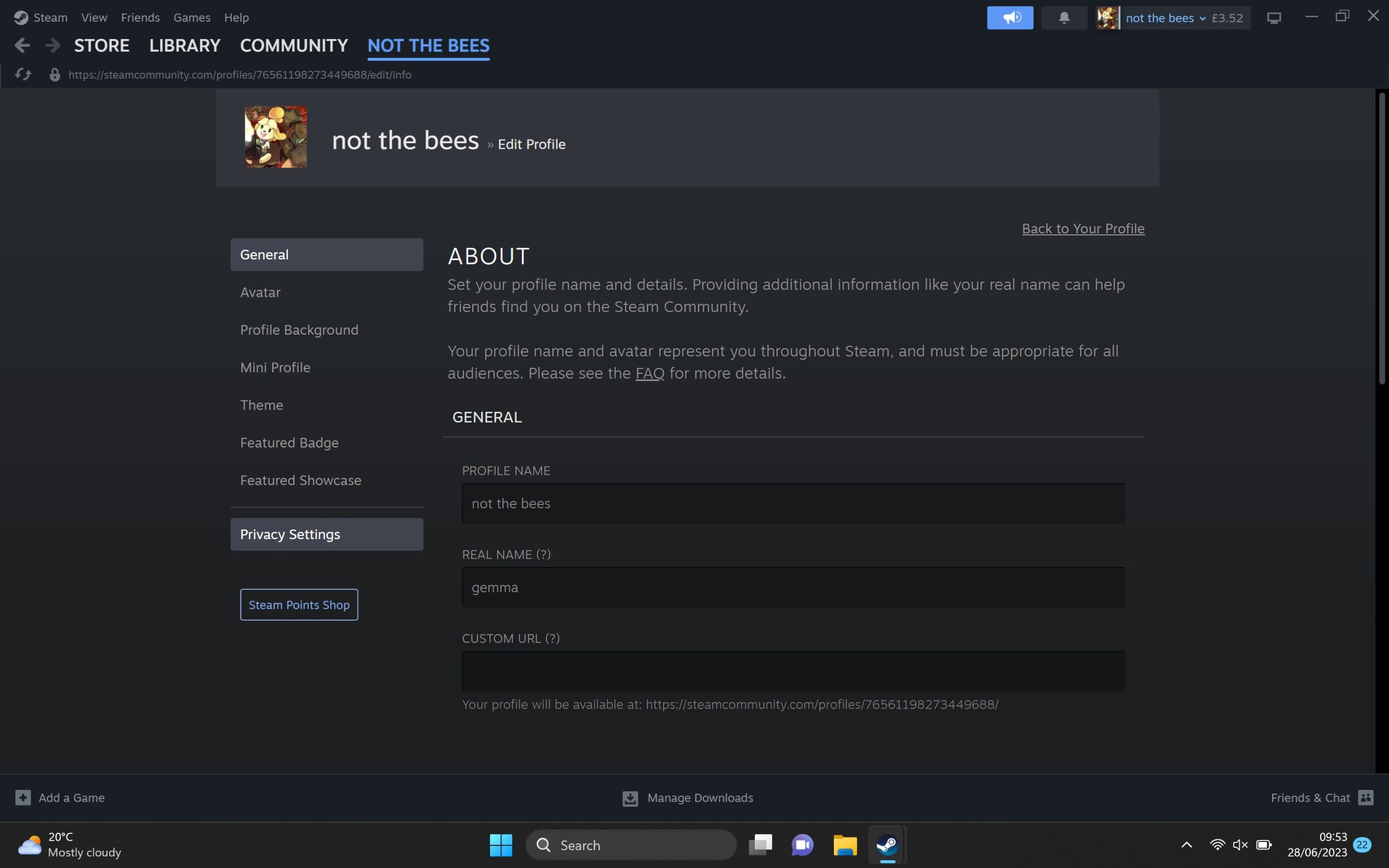
To hide what game you’re playing on Steam, you need to adjust your privacy settings. Go to your profile, then ‘Edit Profile,’ followed by ‘Privacy Settings,’ and set ‘Game details’ to ‘Private’.
Ever felt the urge to game in peace without your friends knowing exactly what you’re up to? Maybe you’re diving into a guilty pleasure, or simply crave some solo time without the constant invites. You’re not alone; many gamers wonder how to hide what game you’re playing on Steam.
Fortunately, Steam has a feature built-in to manage your privacy. This means you can enjoy your games without broadcasting your every move to your friends list. With a quick adjustment of settings you control what is seen.

How to Hide What Game You’re Playing on Steam
Ever wanted to game in peace without your friends knowing what you’re up to? Maybe you’re trying a new game and don’t want anyone to spoil it, or perhaps you just prefer some solo time without the usual “join me” messages. Good news! Steam, the popular platform for playing computer games, has settings that let you hide your gaming activity. This article will guide you through all the ways to become a stealth gamer. Let’s get started!
Why Hide Your Steam Game Activity?
Before we dive into the ‘how,’ let’s quickly touch upon the ‘why.’ There are plenty of reasons why you might want to keep your game choices under wraps. Here are a few common scenarios:
- Avoiding Spoilers: You’re starting a new story-based game and don’t want your friends to accidentally reveal plot points.
- Privacy: Sometimes, you just want some quiet time to yourself without having to explain your game choices.
- Playing Something “Embarrassing”: Maybe you’re into a casual game that you’d rather not have your hardcore gamer friends know about. There is nothing to be ashamed about though, every game is a fun game.
- Trying Out a Game Before Sharing: You might be testing a game and want to form your own opinion before your friends chime in.
- Avoiding Unwanted Invites: You are deeply into an important match or trying to finish a level, and your friend sees you online playing the game, and wants to join your game. Now, you have to leave your match or your game, so this way you can avoid the unwanted invites.
Methods for Hiding Your Steam Activity
Steam offers a few different ways to control what your friends see about your gaming habits. We’ll cover each option step-by-step so you can choose the best fit for your needs.
Changing Your Steam Privacy Settings
The most effective method to hide your current game is through Steam’s privacy settings. These settings let you control who can see your game activity, profile details, and friends list. Here’s how to adjust them:
- Open the Steam Client: Start by opening the Steam application on your computer.
- Access Your Profile: Click on your profile name in the top menu bar, and select ‘Profile’ from the dropdown menu.
- Edit Your Profile: Click the ‘Edit Profile’ button located on the right-hand side of your profile page.
- Go to Privacy Settings: On the left side menu, click on ‘Privacy Settings’.
- Customize Your Activity Status: Under the ‘My Privacy Settings’ section, you’ll find several options related to visibility. Look for the section titled “Game details” .
- Choose Your Visibility: Click the dropdown menu next to ‘Game details,’ and select from the options:
- Public: Everyone can see your game activity.
- Friends Only: Only your Steam friends can see what game you are playing.
- Private: No one can see what game you are playing. This is the option you want to use if you are trying to hide the game you are playing on steam.
- Save Your Changes: After you make your selection, Steam will automatically save your changes.
By selecting ‘Private’ for game details, no one will see the game you are playing, your play time, or when you are online in the game. This is the best way to hide your activity when you don’t want anyone to know what game you are playing.
Appear Offline on Steam
Another option is to appear offline. This will show your friends as if you are not even on Steam, making it impossible for them to see what you are playing. This is different from just making your game details private; this will make you look completely offline, so you won’t get invites or messages that you are online.
- Open Steam Client: Open the Steam app.
- Click on “Friends”: In the bottom right of the steam application, you will see the tab of “Friends”, you will have to click on it.
- Change your status: Now, a small window will appear where your friends list is shown. On the top of the window, you will see your username and a green dot. Click on the username and select “Appear Offline”.
- Confirm: Once you select Appear Offline, the green dot near your username will be replaced with a gray dot. This confirms that you are now appearing offline to all your friends.
When you choose to appear offline, all your friends will see your status as offline, and thus, they will not be able to see what you are playing.
Customizing Your Profile Settings
Beyond just the game details, you can also control other aspects of your profile visibility. For example, you may want to hide your total game time played or the games you own. Here’s how to customize those settings.
Hiding Your Game Library
While making game details private will hide your current activity, some might also want to hide their library from others. This prevents others from seeing the total games you have.
- Go to Privacy Settings: Follow steps 1-4 from the previous “Changing your steam privacy settings” instructions to access your privacy settings.
- Adjust Game Details: Find the section labeled “Game Details”.
- Choose Your Visibility: Just like hiding your currently played game, you can change the visibility for your total games you own, you can choose from “Public”, “Friends Only”, or “Private”.
- Save Changes: Steam saves changes automatically.
Setting your game library to ‘Private’ will prevent other users from seeing the list of games you own. This also will help in hiding which games you play.
Hiding Your Playtime
Along with hiding your current game, you might also not want others to see how much time you spend on certain games. You can also adjust that in the privacy settings.
- Access Privacy Settings: Go to your Privacy Settings by following steps 1-4 from “Changing your Steam Privacy Settings”.
- Find “Game Details”: Find the “Game Details” section like the ones above.
- Select Visibility: Similar to game visibility, you can also select the visibility of your total playtime of each game. You can choose between “Public”, “Friends Only”, and “Private”.
- Save Changes: Steam saves changes automatically.
Setting your playtime to ‘Private’ hides this detail from other users on your profile. They will not be able to see the total time you played a specific game.
Using Third-Party Tools (Use with Caution)
While Steam’s built-in settings are generally enough, some users look for third-party tools to provide even more control over their privacy. These tools can help with more granular privacy settings. However, it’s vital to exercise caution when using such applications, as some might not be safe.
Here are a few popular tools available. Do not try to use these tools unless you know the developer and if the tool is safe to use.
- Steam Privacy Manager: This tool gives more custom privacy settings but is available through Github.
- Steam Desktop Authenticator: While designed for two-factor authentication, some users use its features to manage their Steam profile appearance.
Remember, using third-party tools carries some risk. Always research the developer and ensure the software is reputable before providing access to your Steam account.
How Visibility Affects Other Players
Understanding how these visibility settings affect other players can help you manage your experience better. Here’s a quick breakdown:
- Public: Allows anyone on Steam to see what you’re playing, your game library, and total playtime.
- Friends Only: Only your friends on Steam will be able to see these activities.
- Private: Hides these details from all other players on the platform.
Choose the level of privacy that best fits your preferences and social interactions on Steam. Remember, you can change these settings anytime.
Tips and Tricks for Stealth Gaming
Here are some extra tips to help you stay under the radar while gaming on Steam:
- Use the Steam Mobile App: You can manage your privacy settings and appear offline through the Steam Mobile app. This is handy if you are away from your computer.
- Be Aware of Game-Specific Settings: Some games have their own in-game privacy settings. Check these settings if you notice some unusual behavior.
- Regularly Review Your Settings: Steam sometimes updates its settings. It’s a good practice to check your privacy settings now and then to ensure everything is configured how you like.
- Communicate with Your Friends: if your friends are constantly requesting to join, sometimes the best way is to communicate, that you will play later, or just simply that you want to play in private.
Troubleshooting Common Issues
Sometimes, settings might not work the way you expect. Here are common problems and their solutions:
Steam Still Shows You Playing
- Double-Check Your Settings: Ensure that your game details and online status are set correctly. Double check to see if you have changed the correct settings, there are a lot of similar settings in the privacy tab.
- Restart Steam: Sometimes, a simple restart of the Steam application can fix small issues.
- Check for Updates: Make sure Steam is up to date. Sometimes, bugs that cause this problem are fixed with an update.
Friends Can See You Even When Offline
- Verify Offline Status: Make sure you are indeed set to “Appear Offline” and not just invisible. “Appear Offline” will appear gray near your username, and invisible will still have the normal color green but with an outline.
- Check Steam Mobile App: Ensure that you also appear offline on the mobile app if you use it.
Settings Don’t Save
- Try Again: Sometimes, settings changes will not save, just try again to make sure that they save properly.
- Check Internet: Make sure you have a stable internet connection. Sometimes the changes will not save because of the internet connection.
By following these tips and steps, you can easily hide your activity and enjoy your gaming experience without unwanted attention.
Hiding your gaming activity on Steam is a simple process that can greatly improve your privacy and gaming enjoyment. By using the privacy settings, you can control who sees your activity, allowing you to game without interruptions or spoilers. Whether you choose to hide what you are playing, appear offline, or fine-tune your visibility, these options are in your hands. Don’t forget to regularly review and adjust your settings to suit your evolving gaming needs.
How to Hide Embarrassing Steam Games from Friends🔒Mark Steam Game as PRIVATE 2024
Final Thoughts
To hide your current game, set your Steam profile to private or use the “invisible” status. This makes your in-game activity hidden from friends. You can also customize privacy settings further.
The option must be located within your Steam settings. It’s a quick adjustment.
By following these simple steps, you effectively control what others see. Therefore, you know how to hide what game you’re playing on steam.

