
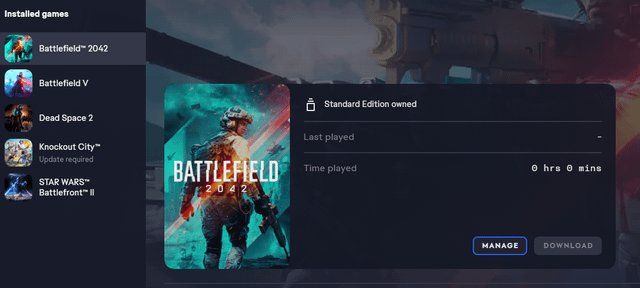
To install Battlefield V with Game Pass, locate the game within the Xbox app or Microsoft Store, and click the install button. Ensure your Game Pass subscription is active before proceeding with the download.
Ready to jump into the intense battles of World War II? You’re probably wondering how to install Battlefield V with Game Pass, and thankfully, it’s quite a simple process. This guide will quickly walk you through the needed steps so you can be in the action in no time. We understand that you want to get gaming quickly.

How to Install Battlefield V with Game Pass
So you’re ready to jump into the action-packed world of Battlefield V, and you’ve got Xbox Game Pass? Awesome! That’s a great combo for getting your World War II shooter fix. Installing the game with Game Pass is pretty simple, but we’ll walk through every step so you don’t miss anything. Let’s get you playing!
Understanding Game Pass and Battlefield V
Before we start the installation process, let’s talk a bit about what Game Pass actually is and how it works with Battlefield V. Xbox Game Pass is like a video game rental service. You pay a monthly fee, and you get access to a bunch of games you can download and play on your Xbox or PC. The lineup changes from time to time, but Battlefield V is often included in the library. So, as long as your subscription is active, you can play Battlefield V without needing to buy the game separately. Pretty sweet, right?
Battlefield V takes you back to World War II, letting you battle it out across many maps in all sorts of game modes. There are intense squad battles, large-scale combined arms fights, and even the single-player war stories. It’s a big game with lots to offer, so it’s a perfect one to add to your Game Pass collection.
Checking Game Pass Availability
First thing’s first: make sure Battlefield V is actually available on Game Pass in your region. The games available can change based on where you live. Here’s how to quickly check:
- On Xbox Console: Go to the Game Pass section on your Xbox Dashboard. Look through the “Games” list, or use the search option and type “Battlefield V”. If you see the game with the ‘Install’ option, you’re good to go!
- On PC (using the Xbox App): Open the Xbox App on your computer. Click on “Game Pass” then either find it on the list or use the search box to search for “Battlefield V”.
- On the Xbox Website: Visit the Xbox Game Pass website. Then, use the “Browse Games” feature and search for Battlefield V. You will be able to check if it’s included in your membership.
It’s always good to do this check before you start the download, just to make sure there won’t be any surprises.
Installing Battlefield V on Xbox
Now, let’s get to the fun part – installing Battlefield V on your Xbox. Here’s how it is done.
Step-by-Step Guide for Xbox Installation
- Power On and Sign In: Turn on your Xbox and make sure you’re signed in with the account that has your Game Pass subscription.
- Go to Game Pass: From the Xbox Home screen, go to “My games & apps” and then “See all” or just go to the Game Pass area on the Home dashboard.
- Find Battlefield V: In Game Pass, you can either browse through the list of games or use the search bar to type in “Battlefield V”.
- Select the Game: Click on the game tile when you see it.
- Click Install: You’ll see an install button, so select it. The Xbox will then begin downloading Battlefield V.
- Check Installation Progress: You can see the installation progress by going to “My games & apps” and checking the “Queue.”
- Wait for Completion: Battlefield V is a pretty big game, so the download will take some time. This will depend on your internet speed. While you wait you can do other things on your Xbox like play other games or watch a movie.
- Launch the Game: Once it’s done, the game will appear in your “Ready to Play” list. Click the Battlefield V icon, and get ready to play!
That’s all you need to do to install Battlefield V on your Xbox. You can now go fight in epic battles!
Troubleshooting Installation Issues on Xbox
Sometimes, things don’t go as smoothly as we would like them to. If you are experiencing issues while installing Battlefield V on your Xbox, here are a few things you can check:
- Check Your Internet Connection: Make sure your internet connection is working correctly. You can try to restart your router. Poor internet speeds will slow down the download and might even stop it.
- Check Xbox Live Status: Sometimes, there are issues with Xbox Live. Check the status page to see if there are problems. If there are issues on the server side, that could be causing problems.
- Restart Your Xbox: Turn your Xbox completely off and then back on again. This will help fix any errors on your Xbox.
- Make Sure You Have Enough Storage: Check if you have enough space on your Xbox hard drive to install the game. You will need a fair amount of free space to install Battlefield V because it is a big game.
- Pause and Restart the Installation: If the download looks stuck, try pausing the installation and then resuming it.
- Contact Xbox Support: If you’re still having issues, contact Xbox Support for help. They have more tools to help you out and fix the problem.
Usually, one of these steps helps with most issues. Don’t stress, you’ll be battling in no time.
Installing Battlefield V on PC
If you have Game Pass on PC, the steps are slightly different but still very straightforward. Let’s get Battlefield V installed on your computer!
Step-by-Step Guide for PC Installation
- Get the Xbox App: First, make sure you have the Xbox App installed on your Windows PC. If you don’t have it, you can download it from the Microsoft Store.
- Sign In: Open the Xbox app and sign in with the account that is connected to your Game Pass.
- Go to Game Pass: Click on “Game Pass” on the left sidebar of the Xbox app.
- Find Battlefield V: You can browse the Game Pass list or use the search bar to find “Battlefield V”.
- Select the Game: Click on the game’s title or cover.
- Click Install: You will see an “Install” button, click it.
- Choose Install Location: It will ask you where you want to install the game on your PC. Choose the location where you have enough space.
- Wait for Installation: It will take some time for the game to download and install. This will depend on your internet connection.
- Play the Game: After installation completes, you can launch the game right from the Xbox app.
That’s it! You are ready to go with Battlefield V on your PC. Get ready for some intense battles!
Troubleshooting Installation Issues on PC
Like on Xbox, there are some issues that you may run into when installing Battlefield V on your PC. Here are some solutions to try:
- Check your PC Specs: Make sure that your computer meets the minimum requirements to run Battlefield V. You should check the recommended specs as well if you want the game to run smoothly. If your PC is not good enough to run the game, that can cause installation or performance problems.
- Update Graphics Drivers: Outdated graphics drivers can sometimes cause issues. Ensure your graphics drivers are up to date by going to the website for your graphics card and getting the latest drivers for your PC.
- Check Internet Connection: Same as with Xbox, check if your internet is working as it should. If your internet is not good, this could cause slow downloads and problems. Try restarting your modem and router.
- Check for Windows Updates: Ensure your Windows operating system is up to date. Outdated Windows versions can lead to issues. You can check for updates through the Windows Settings menu.
- Run Xbox App as Administrator: Sometimes, running the Xbox App as administrator will fix installation issues. You can do this by right-clicking on the Xbox app shortcut and choosing “Run as administrator”.
- Restart Your PC: Try to restart your PC. Sometimes, a simple restart fixes everything.
- Reinstall the Xbox App: If none of these fix the problem, try to uninstall the Xbox App and then reinstall it.
- Contact Microsoft Support: If none of these fixes work for you, contact Microsoft Support for help.
These should help you out. If you have any problems, you can always reach out for help. Don’t give up!
Essential Game Settings After Installation
After you’ve installed Battlefield V, you will want to change a few settings in the game to have the best gaming experience.
Graphics Settings
Optimizing your graphics settings can greatly affect the performance of the game. Here’s what you should look at:
- Resolution: Make sure the game’s resolution matches the resolution of your monitor for the best image quality.
- Graphics Preset: Select a preset that matches your PC or Xbox’s abilities. Start with “Medium” or “Low” to see how your system performs and move upwards if you have headroom.
- Field of View (FOV): Adjust the FOV to your preference. Many players prefer a larger FOV for better peripheral vision.
- V-Sync: If you see screen tearing, turn on V-Sync. If not, you should turn it off for a smoother gameplay.
Audio Settings
Sound is just as important as graphics for a great gaming experience. Here are some suggestions:
- Sound Device: Select your correct audio output device, whether it’s speakers or a headset.
- Volume Levels: Adjust master volume, music volume, and effect volume until you can hear important sounds clearly and without issues.
- Audio Mix: Experiment with different audio mixes, such as Headphones or War Tapes, to find what works best for you.
Controller Settings
If you play with a controller, these settings will be helpful:
- Controller Sensitivity: Adjust this to your liking. Some players prefer higher sensitivity for quicker movements, while others prefer slower sensitivity for more precise aiming.
- Button Mapping: You can customize your button mapping to match your play style and improve gameplay.
- Aim Assist: If you want some help, you can turn on aim assist. This feature makes it easier to target enemies. You might want to experiment with different aim assist settings to find one that works for you.
Gameplay Settings
Also, check some important gameplay settings before starting your game:
- HUD Settings: You can customize how the HUD (heads-up display) appears on your screen. You can also hide elements that you do not need.
- Accessibility Options: Look through the accessibility options for settings like colorblind modes.
After you get the settings that are right for you, you can start playing Battlefield V!
Additional Tips for Playing Battlefield V
Here are a few additional tips that will help you have a better gameplay experience with Battlefield V.
- Play the Training Missions: Before you jump into real online battles, play through the training missions. It will help you learn the different game mechanics, how to play, and controls.
- Find a Game Mode You Like: Battlefield V has various game modes. Experiment with them and see what you like. There are big battles with combined arms, squad-based battles, and solo story missions.
- Play With Friends: Playing with friends is always better. You can work together as a team to take down enemies.
- Use Cover: In Battlefield V, using cover is important to survive. Make sure you always have cover so that you do not get shot easily.
- Learn the Maps: Learning the different maps can give you an edge. Knowing the locations can help you win.
- Communicate With Your Team: Battlefield is a team-based game. If you are playing with others you should communicate with them.
- Don’t Give Up: If you lose a battle, do not give up. Learn from your mistakes.
That’s all. Just relax, have fun, and enjoy the game.
Installing and playing Battlefield V with Xbox Game Pass is a straightforward process. With the steps outlined above, you’ll be battling it out in no time. Now go and have fun! The battlefield awaits.
How To Download/Install Battlefield V On PC For Xbox Game Pass Users
Final Thoughts
To install Battlefield V with Game Pass, first ensure your Xbox or PC has an active subscription. Next, find Battlefield V within the Game Pass library and select the download option. Installation will then begin automatically, making sure you have enough space.
The download process might take a while depending on your internet speed. After installing, you can launch the game and begin playing. That’s how to install Battlefield V with Game Pass, enjoy your gaming experience!

