
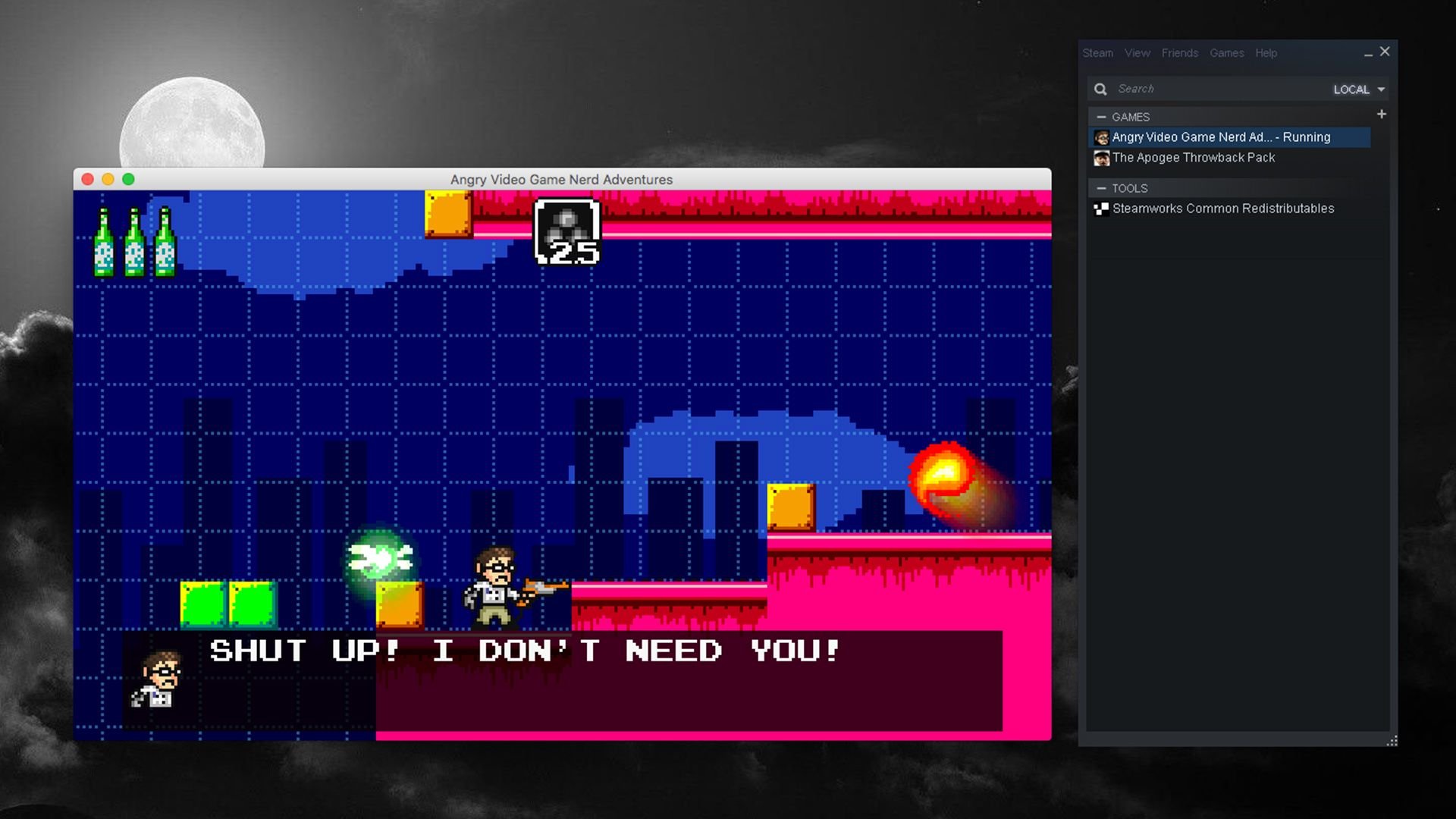
To install games from PlayOnMac, you will need to select the ‘Install a program’ option, choose your desired game from the list or install from a setup file, then follow the on-screen instructions.
Want to play your favorite Windows games on your Mac? It’s absolutely possible with PlayOnMac! This free software acts as a bridge, allowing you to enjoy many titles not natively available for macOS. The process of how to install games from playonmac might seem a little technical initially, but we’ve broken it down for you. This makes gaming on your Mac much easier.

How to Install Games Using PlayOnMac
Alright, let’s dive into the exciting world of playing Windows games on your Mac using PlayOnMac! It might sound a little tricky, but don’t worry, it’s easier than you think. We’re going to walk through all the steps so you can get to gaming quickly. PlayOnMac is like a special helper that lets your Mac understand and run Windows software, including many of your favorite games.
What is PlayOnMac and Why Use It?
Before we start installing games, let’s talk about what PlayOnMac actually is. Imagine your Mac speaks one language, and Windows games speak another. PlayOnMac acts like an interpreter, translating what the Windows game needs so your Mac can understand and run it. This lets you play games made for Windows, even if you don’t have a Windows computer.
Key Benefits of Using PlayOnMac
- Play Windows Games on Your Mac: This is the main reason, of course! Access a huge library of games designed for Windows.
- It’s Free: PlayOnMac is a free program, which means you don’t need to pay anything extra to play your favorite games.
- Easy to Use: While it might seem complicated, PlayOnMac is built to be user-friendly.
- No Need for a Windows License: You don’t have to buy a Windows operating system to enjoy Windows games.
Preparing Your Mac for PlayOnMac
Before we get into the actual installation, let’s make sure your Mac is ready to go. This part is really important, so don’t skip it.
Checking System Requirements
First, let’s see if your Mac can handle PlayOnMac and the games you want to play. Generally, you’ll need:
- A Mac running macOS 10.8 (Mountain Lion) or later: Most modern Macs should work fine, but check your system to make sure. You can find this information by clicking on the Apple icon at the top left corner of your screen, and then click on “About This Mac”.
- Sufficient Disk Space: Games can take up a lot of room, so you should have a good amount of space on your hard drive for PlayOnMac and your games.
- A Good Internet Connection: You’ll need this to download PlayOnMac and to download game files.
- Enough RAM: RAM, or Random Access Memory, helps your computer run programs smoothly. Games need plenty of RAM, so make sure your Mac has enough.
Downloading and Installing PlayOnMac
Now that your Mac is ready, let’s get PlayOnMac downloaded and set up:
- Go to the Official Website: Open your web browser (like Safari, Chrome or Firefox), and go to the official PlayOnMac website. This helps ensure you’re getting a safe and correct file. You can easily find it by searching “PlayOnMac download” on the search engine.
- Download the DMG File: Find the download link for the latest version of PlayOnMac. It will likely be a .dmg file. Click on this link to download the file.
- Open the DMG File: Once the download is complete, find the downloaded file. It’s most likely in your “Downloads” folder. Double-click the DMG file to open it.
- Drag and Drop to Applications: Inside the opened DMG file, you will see the PlayOnMac icon. Drag this icon to the Applications folder on the side of the window. This will install PlayOnMac to your applications directory.
- Open PlayOnMac: Go to your “Applications” folder and click on the PlayOnMac icon to open the program.
Installing Your First Game Using PlayOnMac
Okay, PlayOnMac is installed, and now the fun part begins! Let’s install your first game. This process might seem complicated at first, but it becomes easy with practice.
Finding Your Game’s Installer
Before you can install your game in PlayOnMac, you must first have a game installer. This is a file, or group of files, that are needed to install the game onto your computer. The installer might be on a disk, or be a file you downloaded from the internet. Here are the two most common places you’ll find your game files:
- From a Disc: If your game came on a CD or DVD, you’ll need the disc.
Insert the game disc into your Mac’s disc drive (if you have one). If your Mac doesn’t have a disc drive, you may need an external disc drive. Once the disc is inserted, the game installer should appear on your desktop. If it doesn’t, open Finder and look for the disk in the sidebar under devices. Click on the disc, then find the installer. Usually it is called setup.exe, install.exe or something similar.
- Downloaded from the Internet: If you bought the game online, you probably downloaded an installer file.
Usually, this file will be in your downloads folder. Check your downloads for the game’s installer. This file will likely be .exe extension, like a file named gameinstaller.exe.
Using the PlayOnMac Interface
Now, let’s learn about the PlayOnMac user interface. When you open PlayOnMac, you’ll see a window with a few options:
- Install a Program: This is the button you’ll use to install your games.
- Run: This section shows your installed games and allows you to launch them.
- Configuration: Use the configuration option to configure PlayOnMac for each game separately.
Steps to Install Your Game
With the game installer ready and PlayOnMac open, we can finally install the game:
- Click “Install a Program”: In PlayOnMac, click the button that says “Install a program.”
- Choose “Install an Unlisted Program”: A new window will appear. Here, click on “Install an unlisted program” at the bottom of the list.
- Manual Installation Wizard: The installation wizard will appear. Click “Next” to go through each screen.
- Choose Install in a new virtual drive: You’ll see the option to “Install a program in a new virtual drive”. Select this option. This means PlayOnMac will create a special place for your game, separate from your other computer files.
- Name Your Virtual Drive: Pick a name for your virtual drive. This can be the name of the game, or anything you like, then click “Next.”
- Configure Wine: The installation wizard will ask for the type of Wine configuration you want to use. Select the “Use default Wine configuration” unless you know what you’re doing. Then click “Next” to proceed.
- Choose the Game Installer: The wizard will ask you to pick the installer for your game. Click on the “Browse” button and find the game’s .exe installer file we talked about earlier. Select the installer and click “Open.”
- Follow the Game Installer Instructions: Once you’ve selected the installer, the game’s own installer will launch. Follow the instructions just like you would on a Windows computer. The game installer might ask you where you want to install the game. Just click “Next” until the installation starts.
- Wait for Installation: Installation might take some time depending on the game size. Be patient, and let it finish the process.
- Shortcut Creation (If Needed): After the game is installed, PlayOnMac might ask if you want to make shortcuts. It’s a good idea to say “Yes”, so you can easily access your game later. PlayOnMac might ask for the executable file (the .exe file used to launch the game) for creating shortcut. Find the file in the virtual drive directory. Usually the file is located at C:\Program Files(x86)\the_game_name\the_game_name.exe
- Launch the Game: Once everything is done, PlayOnMac should have a shortcut for your new game. You can now launch it from the PlayOnMac window.
Troubleshooting Common Issues
Sometimes things don’t go perfectly, and that’s okay! Let’s talk about some common problems you might run into and how to fix them.
Game Not Launching
If your game doesn’t launch after installation, try these solutions:
- Restart Your Mac: Sometimes just restarting your computer can fix many problems.
- Reinstall the Game: If restarting doesn’t help, try uninstalling the game (using PlayOnMac’s uninstall option) and then install again following the steps above.
- Check for Dependencies: Some games need additional software installed to work correctly. Check the game’s requirements online and make sure everything is installed.
- Update PlayOnMac: An outdated PlayOnMac version might cause issues. Make sure you are using the latest version of PlayOnMac.
Game Crashing or Freezing
If your game starts, but then crashes or freezes, here’s what you can try:
- Lower Graphics Settings: Sometimes games need less power. In the game settings, try lowering the graphics quality to see if it helps.
- Close Other Programs: Make sure you are not running any other heavy programs that might take up your Mac’s power. Close any other running applications.
- Check System Resources: Open the Activity Monitor on your Mac (found in Utilities under Applications) and see if your CPU or RAM are being overused. If either is close to 100%, that can cause the problems.
Installation Errors
If you run into errors while installing, try these solutions:
- Run the Installer as Administrator: Some installers might need administrator permissions. In PlayOnMac, you can use the “Run” tab, select your game, and try the “Run with administrator mode” option.
- Use a Different Wine Version: PlayOnMac allows you to use different Wine versions. Sometimes an older version might work better. Go into the settings and choose a different Wine version. You can also look for online tips and guides for the specific game and try the recommended Wine version for that game.
- Check the Game Compatibility: PlayOnMac can run many Windows games, but not all of them. Check online to see if others have been able to install the game successfully on PlayOnMac.
Tips for a Better Gaming Experience
Here are some extra tips to make your gaming experience even better:
Regularly Update PlayOnMac
Always keep PlayOnMac updated to the latest version. Updates often fix bugs and improve compatibility with games. Check for updates within PlayOnMac itself, or by downloading the latest version from the website again.
Use a Mouse and Keyboard
Although you can play with the trackpad on your Macbook, using an external mouse and keyboard will improve your gaming experience, especially for fast paced games. Use an USB mouse and keyboard, or wireless alternatives for better gaming experience.
Research Game Compatibility
Before you get too excited about installing a specific game, do some research online. See if other Mac users have had success running that game on PlayOnMac. This could save you from frustration.
Explore Wine Configuration
As you get more experienced, you can start to explore the advanced Wine settings within PlayOnMac. For example, using different Wine versions, or changing certain configurations, can sometimes resolve some problems. Be careful though! Changing some of these settings, if you are not sure what you are doing, might make the game stop working.
Use Game Controllers
Many games are much easier to play using a dedicated game controller. If you have a game controller, like an Xbox or PlayStation controller, try connecting it to your Mac and playing the game with it. You may have to install drivers or additional configuration software for your controller to be recognized by your Mac. You might also need to use some additional software for the game to detect the controller. Check online tutorials to see how to get your game controller to work on PlayOnMac.
Installing games with PlayOnMac might feel a little challenging at first, but once you get the hang of it, you’ll have a whole new world of games to enjoy on your Mac. Remember to be patient, follow the steps, and don’t be afraid to try different solutions if something doesn’t work right away.
How to Install PlayOnMac to Run Windows Apps on Mac/macOS | SYSNETTECH Solutions
Final Thoughts
To install games from PlayOnMac, first, download the program. Then, you should find the game installer file you have. Next, select the “Install a non-listed program” option within PlayOnMac.
Follow the prompts, usually including pointing PlayOnMac to your installer. PlayOnMac will often handle the rest, creating a virtual drive for the game. It’s a helpful tool to get Windows games running on macOS. The process of how to install games from playonmac is usually quite straightforward.

