
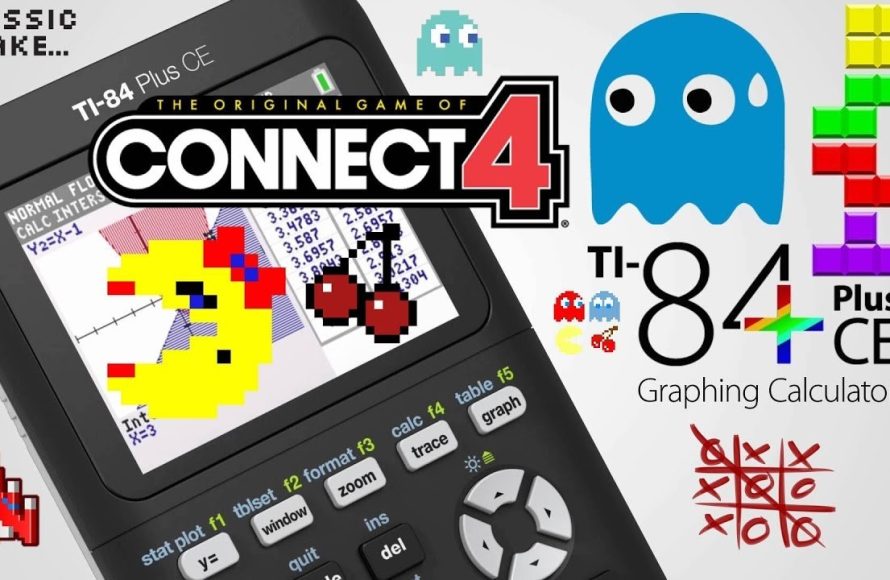
To install games on a TI 84 Plus CE, you need to transfer compatible game files from your computer using the TI Connect CE software and a USB cable.
Ever wondered how to spice up those dull math classes? You can learn how to install games on a TI 84 Plus CE and turn your calculator into a mini entertainment system. It’s simpler than you might think.
This process opens up a world of classic and custom games. You just need the right software and some game files. Let’s explore the steps to get your TI-84 Plus CE gaming ready!

How to Install Games on a TI-84 Plus CE
So, you’ve got a TI-84 Plus CE calculator and you’re ready for some fun? Maybe math class isn’t exactly a thrill ride, but did you know your calculator can play games? Yes, you heard right! It’s not just for equations and graphs. You can actually load some pretty cool games onto your TI-84 Plus CE. It’s like having a mini-game console right in your backpack. But, how exactly do you do that? Don’t worry, it’s not rocket science. This guide will walk you through every step so you can get to gaming in no time.
Understanding the Basics
Before we get started, it’s good to understand a few things. Your TI-84 Plus CE uses a special type of files, usually with the extensions “.8xk” or “.8xp.” These files contain the game programs. Think of them as the game cartridges for your calculator. You can’t just download any old file from the internet; it has to be specifically designed for your calculator. The good news is there are many free games available online created by other users. You will need a computer and a USB cable to transfer these files. We’ll talk about that process in detail next.
Finding TI-84 Plus CE Games
The first step in your gaming journey is to find some games. There are several reputable places online where you can find them, but be careful! Not every site is safe, so make sure you’re downloading from trustworthy sources. Some good places to look include:
- TI-Planet: A popular community website dedicated to TI calculators. You can find a wide range of games and programs here.
- Cemetech: Another great resource for calculator enthusiasts. They have a large library of programs and games that are compatible with the TI-84 Plus CE.
- The TI-Basic Developer Group Forums: These forums are filled with users that have created and shared their games.
- Omnimaga: Another dedicated TI calculator forum where people have shared many games.
When you are searching for games, make sure to look for games specifically created for the TI-84 Plus CE. Games for the old TI-83/84 or other calculators won’t work on your CE. Always check that it says it is made for the CE and pay attention to the file extension (.8xk or .8xp) before you start the download. You should also read user reviews or comments about the game so you can see what others say. If there is something suspicious mentioned, or it seems like there may be a virus, or a harmful file, you should avoid downloading it.
Once you have located a game you’d like to try, download the .8xk or .8xp file to your computer. It’s best practice to create a special folder for these files so that you can find them again easily. This keeps you organized and helps with future game loading.
Essential Software: TI Connect CE
Now that you have the game files, you’ll need some software to get them onto your calculator. The official software from Texas Instruments is called “TI Connect CE”. This program is essential for transferring files between your computer and your calculator. Think of TI Connect CE as the bridge that allows your computer and calculator to talk to each other.
Here’s how you can get TI Connect CE:
- Go to the official Texas Instruments website and search for “TI Connect CE.” Make sure you go to the official TI site.
- Download the software that is compatible with your operating system (Windows or macOS).
- Once the download is complete, install the software on your computer. Follow the instructions on your screen for the installation process.
After installation, launch TI Connect CE and let’s get that calculator connected!
Connecting Your Calculator to Your Computer
With the TI Connect CE software installed, the next step involves connecting your calculator to your computer. Here’s a simple breakdown:
- Grab the USB cable that came with your TI-84 Plus CE calculator. It has a mini-USB port on one end and a standard USB on the other.
- Plug the mini-USB end of the cable into the USB port on the top of your calculator. It is on the same side as the charging port.
- Plug the standard USB end of the cable into an available USB port on your computer.
When your computer and calculator are connected correctly, TI Connect CE should recognize your TI-84 Plus CE calculator. You should see it in the program, which means you are now ready to move the game files.
Transferring Games to Your TI-84 Plus CE
Now for the exciting part – getting those games onto your calculator! It’s actually quite simple once everything is set up. Here’s a step-by-step guide:
Using the TI Connect CE Send Function
The Send function is one of the most reliable and direct methods for transferring games:
- Open the TI Connect CE software on your computer if it isn’t already running.
- Make sure your TI-84 Plus CE is connected to your computer with the USB cable. You should see your calculator listed in the TI Connect CE program window. If you have multiple calculators connected, double check that you have selected the correct one.
- In the TI Connect CE software, locate the “Send” option. It should be a prominent button or menu choice.
- A window will open, where you can find the game file that you want to send to your calculator. Go to the folder where you saved your .8xk or .8xp files.
- Select the .8xk or .8xp file for the game you wish to transfer. You can select more than one game if you like.
- Click the “Send” or “Transfer” button. TI Connect CE will now begin sending the selected files to your TI-84 Plus CE calculator.
The transfer process is usually quick, but the time can depend on the size of the game. Once the transfer is finished, you’ll receive a confirmation message in the TI Connect CE software. Then you can safely disconnect the USB cable from your calculator.
Alternative Transfer Methods: Using the Calculator Explorer
TI Connect CE also has a “Calculator Explorer” feature, which lets you view the files currently stored on your calculator. This is another method for transferring files. Here’s how it works:
- Open TI Connect CE and connect your calculator.
- In TI Connect CE, look for and click the “Calculator Explorer” option.
- In the Calculator Explorer window, you will see two panes. The left one shows the contents of your computer and the right one shows what is currently on your calculator.
- Navigate the left pane to the folder containing your .8xk or .8xp game files.
- Drag and drop the files you want to transfer from the left pane (your computer) to the right pane (your calculator).
Similar to the previous method, the Calculator Explorer should provide a notification to confirm the transfer is complete. Disconnect the calculator when the transfer is finished.
Locating and Playing Games on Your Calculator
After you have transferred the games to your TI-84 Plus CE, it is time to find them on your calculator and start playing! Here’s how to do it:
- Turn on your TI-84 Plus CE calculator.
- Press the “prgm” button (it’s usually located near the top of your calculator’s keypad).
- This will open the PROGRAM menu. You should see a list of available programs, including the games you just transferred. They will have the names that were used when the games were created. If you transferred a game named “Mario”, you would see Mario on the list.
- Use the up and down arrow keys to scroll through the list until you find the game you want to play.
- Once you have highlighted the game, press the “enter” key. This will select the game.
- Press “enter” again to run the game.
The game should now start. You can use the arrow keys, the number keys, the “enter” key, and other buttons depending on how the game was made. Each game will have different instructions, so pay attention to any on-screen directions or documentation included with the game, which is normally a text document that is included with the game download. These can be different for each game. If you are unsure of how to play a game, check online for a walkthrough of the game, or check for a forum or social media group where that game has been talked about.
Troubleshooting Common Issues
Sometimes, things don’t go as smoothly as we’d like. Here are a few common issues and how to tackle them when installing games:
My Calculator is Not Recognizing the Files
If your calculator isn’t showing the transferred files, consider the following:
- Check the File Type: Make sure the files you transferred are .8xk or .8xp. Files with other extensions will not be recognized by your calculator.
- Check the Calculator Model: Double-check that you are downloading games designed for the TI-84 Plus CE. Games for older models won’t work.
- File Corruption: Try downloading the game file again. Sometimes files can become corrupted during the download process.
- Refresh the List: Sometimes the program list on the calculator is not automatically refreshed. Try to exit out of the program menu by pressing the “clear” button and then going back to the program list again by pressing “prgm”.
TI Connect CE Isn’t Recognizing My Calculator
If TI Connect CE doesn’t recognize your calculator, you might try these solutions:
- Check USB Connections: Make sure the USB cable is securely plugged into both your computer and calculator. Try a different USB port on your computer if one doesn’t seem to work.
- Try a Different Cable: The USB cable itself might be faulty. If you have another one handy, try using it.
- Restart Everything: Sometimes, restarting your computer, calculator, and TI Connect CE can solve the problem.
- Check Drivers: Sometimes the drivers for the calculator might not be installed correctly. You can uninstall them and let Windows, or Mac OS reinstall them when the calculator is connected again.
Game Won’t Run
If a game you’ve transferred won’t run or it just seems to crash, try these tips:
- Check the Game’s Compatibility: Ensure that the game was designed for your calculator model and operating system version.
- Remove Corrupted Programs: Remove any programs that might be corrupted or causing issues and then re-transfer the game.
- Calculator Memory: Make sure your calculator has enough free memory to run the game. You can delete other unused programs from your calculator in the program menu, by pressing “del” while that program is selected and then pressing “enter”.
- Look for Patches or Updates: Check if there are any updates or patches for the game that may fix the issue. Some programmers update their games to fix common issues.
Tips for a Smooth Gaming Experience
To make sure you have a great gaming experience on your calculator, keep these tips in mind:
- Stay Organized: Keep your downloaded game files in a dedicated folder on your computer. This helps you find them again.
- Backup Your Calculator: Back up the files and programs on your calculator to your computer. If you ever make a mistake you can restore your calculator to its previous state.
- Read Game Instructions: Always check any documentation or instructions with the game. Some games might require extra steps or have unique controls.
- Explore Different Games: There are many free games available to download online. Check out as many as you can to get the most entertainment out of your calculator.
- Share With Others: If you enjoyed a game, tell others that have the same calculator about it.
Installing games on a TI-84 Plus CE can be a great way to make your math class a bit more fun, or to just have some fun on the go. With the right tools and a little patience, you can have a library of games on your calculator. From simple puzzles to complex adventures, there’s a lot to explore. Now go ahead, load up your favorite games and have a great time!
How to Put Games on the TI 84 Plus CE
Final Thoughts
Installing games on a TI-84 Plus CE involves transferring files using a computer. You need the game files, appropriate TI-Connect software, and a USB cable. Connect your calculator and transfer the program files.
Remember the file type must match your calculator’s requirements for it to function properly. Now, you can find and play the newly added game.
Essentially, how to install games on a ti 84 plus ce requires a simple transfer process. The overall method is straightforward once you have correct files.

