
To install games on Dolphin emulator, you need to obtain game ISO files, place them in a designated folder, and then use Dolphin’s “Open” feature to load the game.
Ever wanted to play your favorite GameCube or Wii games on your computer? It is certainly possible with the Dolphin emulator. Many users often wonder how to install games on Dolphin emulator. Let’s clarify the process so you can enjoy these classic titles quickly.
The key is having the game files, usually in ISO format. You need to place these files in a place that the emulator can access. After that, using Dolphin’s file browser you simply select the game file and start enjoying.

How to Install Games on Dolphin Emulator
Getting your favorite GameCube and Wii games running on your computer with Dolphin Emulator is pretty awesome! It’s like having a classic console on your PC. But first, you need to know how to get those games onto the emulator. It’s not as hard as it might sound, and we’re here to guide you through each step. Let’s get started!
Understanding Game Formats
Before you start downloading games, it’s important to know about the different types of game files you might come across. These files are usually in a special format that the Dolphin emulator understands. Knowing what these are will help you avoid any problems when you try to play your games. Here are the most common formats:
- ISO (.iso): Think of this as a complete copy of the game disc, like a digital clone. It contains everything needed to run the game. It’s usually the biggest type of file.
- GCM (.gcm): This is similar to an ISO but can be specific to GameCube games. It’s also a direct copy of the disc’s data.
- WBFS (.wbfs): This format is more specific to Wii games. It’s often compressed, which means it takes up less space on your computer but can take a little bit longer to load.
- NKit (.nkits.iso/.nkits.gcz): This is a relatively newer format, that also uses compression but aims to have less data than a typical iso without any data loss.
- RVZ (.rvz): This is another compressed format. RVZ files are more modern and also can take a little longer to load.
It’s always good practice to obtain your game files legally, usually by backing up games you own. It’s super important to respect the work that developers have put in. Remember, downloading copyrighted games without owning them is against the law.
Finding Game Files
Okay, now you have a basic understanding of game file formats. Let’s talk about how to get them. This is an important part, and you’ll want to do it safely. The easiest method is backing up your own physical games. If you own original GameCube or Wii discs, you can use software on your Wii or PC to create digital copies. For Wii, it’s common to use Homebrew software to do this.
Backing up your games from Wii
First, you need to prepare your wii for backing up your games. You will need some kind of homebrew application on your wii, for this you will need to do a little bit of research online, for a good guide for this. This process involves some hacking to your wii, so proceed with caution and make sure that you understand the risks. You will need a SD card formatted in FAT32 and a USB hard drive, formatted in FAT32 or NTFS, after doing all the steps, you will be able to rip your games from your Wii in different formats, for example, .iso or .wbfs. There are a variety of applications that you can use in your Wii, such as CleanRip, or WiiBackupManager.
Backing Up your games from GameCube
Backing Up your games from GameCube can be a little more trickier than from Wii, for that, you will need to have a DVD drive on your computer, but not every drive works, you will need a specific type of DVD drive, a good one is a hitachi-lg Gdr-8164b or similar, you can search online for compatible DVD drives. To do this you will need software such as Rawdump to rip your games from your GameCube, with this software you can rip your GameCube games in formats like .iso or .gcm.
Setting Up Dolphin Emulator
Before you can play any games, you need to have the Dolphin emulator installed on your computer. Make sure you download it from the official website: dolphin-emu.org . This is the best way to ensure you have the right file and avoid any nasty surprises like viruses. After downloading the installer, run the program and follow the steps on the screen. It’s pretty straightforward and only takes a few minutes.
Adding Games to Dolphin Emulator
Now for the exciting part – adding your game files to Dolphin so you can play! It’s very easy to do, and once you’ve done it once, you’ll never forget. Here’s how:
Using the Game Directory Feature
This is the most common way to add games to your Dolphin library. It lets Dolphin find all game files within a specific folder, so you don’t have to add every game file individually.
- Create a Games Folder: First, make a new folder on your computer, give it an easy-to-remember name like “Dolphin Games,”. Put all of your game files (.iso, .gcm, .wbfs, .nkits.iso, .nkits.gcz, .rvz) in this folder.
- Open Dolphin: Launch the Dolphin emulator.
- Go to Config: In Dolphin, find the “Config” button at the top. Click it to open the settings menu.
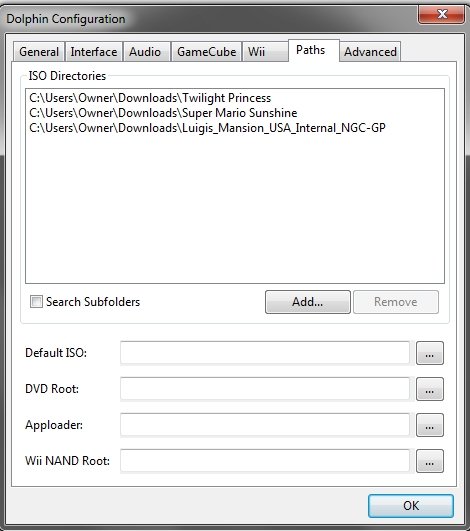
- Navigate to Paths: In the configuration window, click on the “Paths” tab.
- Add Your Game Directory: Look for the “Game directories” section and click “Add.” Find and select the “Dolphin Games” folder you created earlier.
- Click OK: After you have added the folder click ok and the emulator will find all of your games in this directory.
Now, your games should appear in the main Dolphin window and ready to play. You can see the list of games that Dolphin has identified in the main window.
Adding Games Manually (Less Common)
In special situations, if you want to add a single game you can use this method, but it’s not the recommended way, since it involves adding your game file one by one. This method is also good if you only have one game, and you don’t want to make a game folder.
- Open Dolphin: Launch the Dolphin emulator.
- Right Click on empty space: in the main dolphin window, right click on any empty space.
- Click on “Load”: after right clicking in the space, a window with a couple of options will appear, click on the “Load” option.
- Find and Select the Game: Now you must find the folder where your game file is, and select your game, after that, just click on “Open”
After completing these steps, the game that you selected should be displayed in the main dolphin window. It should also appear in the list with all of the games, and be ready to play.
Troubleshooting Common Issues
Sometimes, things don’t go as planned. Here are some of the most common issues and how to fix them:
Game Not Showing Up in the List
- Check the File Format: Make sure your game file is in one of the supported formats (.iso, .gcm, .wbfs, .nkits.iso, .nkits.gcz, .rvz). If the game is in a different format, Dolphin won’t be able to recognize it.
- Verify Game Directory: In the Dolphin settings, ensure the correct game folder is selected. If the directory is wrong, Dolphin can’t find the games. You should also make sure that you have write and read privileges for the folder.
- Check if the Folder is Empty: Also check if the folder that you have added contains game files, if it is an empty folder, no games will show up.
Game Freezes or Crashes
- Use the latest version: Ensure you’re using the latest version of Dolphin Emulator. Updates often include fixes that can help make games run more smoothly.
- Adjust Graphics Settings: In the Dolphin settings, experiment with different graphics settings. Try switching between backends like Vulkan, OpenGL, or Direct3D to see if one works better. Also, try reducing or increasing the internal resolution or the anti-aliasing.
- Look at Specific game issues: Some games might require special settings to work properly. Try looking at forums or guides about the game you are having trouble with, since this problem may be solved by a particular setting.
- Computer Performance: Make sure that your computer has enough power to run the game properly, if it’s an old computer or a low performance computer, some games may not work as well as they should.
Audio Problems
- Audio Backend: Test different audio backends in Dolphin settings. Sometimes switching to different audio backend can solve some audio problems.
- Check Audio Drivers: Verify that your audio drivers are up-to-date. Old drivers can cause problems with sound in some cases.
- Try Restarting: If you have a weird issue, you can try restarting Dolphin Emulator, and also restarting your computer.
Game Runs too Slow
- Lower Internal Resolution: Lower the internal resolution in the graphics settings. This will reduce the graphics load, allowing the game to run more smoothly on less powerful machines.
- Turn Off Enhancements: Turn off or decrease graphics enhancements, such as anti-aliasing, anisotropic filtering or other post-processing features.
- Close unnecessary Apps: Make sure to close unnecessary programs or applications that may be running in the background, as this will help free resources in your computer.
- Check Your PC Specs: Make sure that your computer meets the minimum system requirements of Dolphin Emulator, if your computer is below the minimum requirements, you may need to upgrade your computer.
Tips for a Smooth Gaming Experience
To get the best performance out of Dolphin Emulator, here are some tips that might help you:
- Use a Gamepad: Playing with a gamepad makes playing GameCube and Wii games way more fun. Dolphin has a lot of options for different types of controllers, and it allows you to rebind the buttons, to your liking.
- Update Dolphin Regularly: Keep your Dolphin emulator updated to the latest version. Each update brings new fixes and improvements, so always update to the latest build.
- Experiment with Settings: Every game is different, and every computer is different. Don’t be afraid to experiment with the settings to find the best combination for your computer.
- Be Patient: It takes some time to get everything set up properly. Don’t get frustrated and be patient, you will get it right eventually.
- Back Up your Saves: Periodically back up your game save data to avoid losing any of your progress, in case of a problem.
Installing games on Dolphin Emulator might seem tricky at first, but with a little patience, you’ll be playing your favorite games in no time! Remember to get your game files legally and to always be aware of the best settings for your computer.
How to Add Games to Dolphin (Updated)
Final Thoughts
To install games on Dolphin emulator, first, obtain game ROM files from a legitimate source. Next, configure Dolphin’s settings to your preference. Then, simply load the game ISO or ROM file via the “open” function within the emulator.
Proper configuration ensures smooth gameplay. Remember to check for correct graphic settings for best performance. You should explore the control options too.
Following these steps makes how to install games on dolphin emulator straightforward. Enjoy your favorite GameCube and Wii titles using the emulator.

