
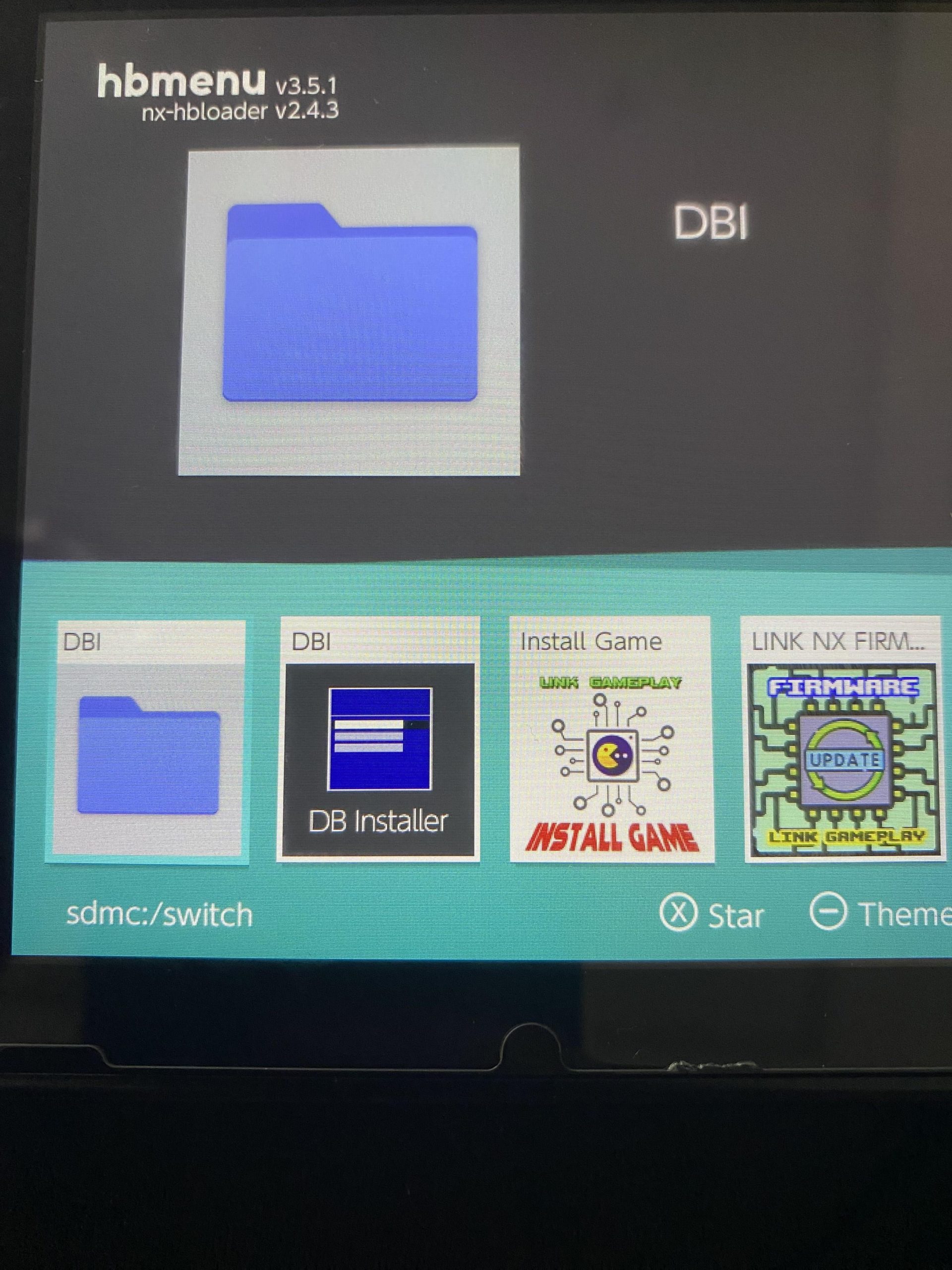
Installing games on a modded Switch typically requires using homebrew software like Tinfoil or DBI to transfer game files (usually in .nsp or .xci format) to your console’s storage.
Wanting to expand your game library on your modded Nintendo Switch? You’re not alone! Many users are curious about how to install games on modded switch. It’s a popular topic, and the process isn’t as complicated as you might think.
This process usually involves obtaining game files and using specific applications designed for modified consoles. We’ll guide you through the basic steps so you can begin enjoying more games on your modded Switch.

How to Install Games on Modded Switch
So, you’ve got a modded Nintendo Switch, and you’re ready to dive into a world of games. That’s awesome! But, maybe you’re a little unsure about how to actually get those games onto your console. Don’t worry; it’s not as tricky as it might seem. This guide will walk you through everything you need to know about installing games on your modded Switch, step by step.
Understanding the Basics: What You’ll Need
Before we begin, let’s make sure you have all the necessary tools and knowledge. Think of it like preparing your ingredients before you start baking a cake. First, your Nintendo Switch needs to be properly modded. This usually means using custom firmware (CFW).
Essential Equipment
- A Modded Nintendo Switch: This is the most important thing. It should be running a custom firmware like Atmosphere or SX OS.
- A microSD card: You’ll need a microSD card for storing your games. A large capacity one (128GB or higher) is recommended.
- A Computer: Either a Windows PC, a Mac, or a Linux computer with an SD card reader.
- Game Files: These are the actual game files, often in the form of NSP, XCI, or NSZ files.
- Software Installer: You need to use a software like DBI or Tinfoil to install the game files on the Switch.
Important Game File Types
Understanding different game file types is super important. They come in various formats. Here are some of the most common ones:
- NSP Files: These files are like digital copies of Switch games, much like how you would purchase them from the Nintendo eShop.
- XCI Files: These are like the digital versions of the physical game cartridges. They contain the full game data.
- NSZ Files: These are compressed versions of NSP files. They take up less space on your SD card.
Choosing Your Installation Method: DBI vs Tinfoil
Now that you have the needed tools, let’s explore two popular methods for installing games on your modded Switch. These methods involve using application installers that let you transfer and install the games directly to the system.
Using DBI Installer
DBI is a popular choice. It’s known for its ease of use and flexibility. Here’s how you can use it:
- Download DBI: Get the latest version of DBI from a trusted source. It usually comes as an NRO file.
- Copy DBI to your Switch: Place the DBI .nro file in the ‘/switch/’ folder on your microSD card.
- Launch DBI: Boot into your CFW, go to the Homebrew menu, and launch DBI.
- Connect via USB: On your PC, copy the game files onto a folder (let’s name it “games”) then, in DBI, select “Run MTP Responder”. Connect your Switch to your computer using a USB cable. Your Switch’s SD card will be recognized as a drive.
- Transfer Game Files: Transfer the files inside the folder “games” from your computer to your switch’s SD Card. Usually, these are .nsp, .xci, or .nsz files.
- Install the Games: Once the files are copied, disconnect the USB and go back to DBI. Select “Install from MTP”. You’ll see the games in a list, select the ones you want and install.
Using Tinfoil Installer
Tinfoil is another powerful option, loved by many Switch users. Here’s how to install games with Tinfoil:
- Download Tinfoil: Grab the latest version of Tinfoil. This is often distributed as a .nro file.
- Copy Tinfoil to your Switch: Put the Tinfoil .nro file in the ‘/switch/’ folder on your microSD card.
- Launch Tinfoil: Boot into your CFW, find the Homebrew menu, and then launch Tinfoil.
- Navigate to Your Game Files: Select your SD card as a source and find where the games are stored.
- Install Your Games: Select the game files you want to install. Tinfoil will install them to your Switch.
Preparing Your SD Card: File Organization
Before you start moving any files, It is a good idea to keep your SD card organized. This can help you quickly find game files and keep everything tidy. You can do this by creating separate folders for games, saves, homebrew apps, etc.
Creating a Basic Folder Structure
Here’s an example of how you can organize your SD card:
- /games/: This folder will hold all your game files (NSP, XCI, NSZ).
- /switch/: This folder contains your homebrew apps, like DBI or Tinfoil.
- /saves/: This folder could hold any game save data you may want to backup.
Transferring Game Files to the SD Card
Whether you’re using a card reader or connecting your Switch to your computer, you will need to transfer the game files to the SD card. You can either copy them directly to the SD card using your PC, or via the USB method using an application like DBI. Here’s how:
- Using a Card Reader: If you’re using a card reader, insert your microSD card into the reader, connect to your computer, and drag and drop your game files into the ‘/games/’ folder.
- Using USB via DBI or other similar method: With your Switch connected to your PC via USB, using DBI or other similar method, copy the game files from your PC to the desired location on the microSD card.
Troubleshooting Common Installation Issues
Sometimes things don’t go perfectly the first time. That’s okay! Here are some common problems you might run into and how to fix them.
Game Won’t Install
- Corrupted Files: Make sure your files are downloaded correctly. Try downloading them again from a different source.
- Insufficient SD Card Space: Make sure you have enough free space on your microSD card.
- Incorrect Firmware: Be sure your CFW is up to date. Old firmware can have issues with some games.
- Conflicting Software: Try disabling any other apps or homebrew that might be running in the background.
Games Crash After Installation
- Bad File: The game file might be corrupt. Try downloading it from a different source.
- Incompatible Firmware: The game might need a newer version of the CFW. Try updating to the latest version.
- Damaged System Files: Sometimes, system files can get corrupted. Make sure all is updated to latest version.
Tinfoil or DBI Not Working
- Outdated Version: Ensure you are running the latest version of Tinfoil or DBI.
- Missing Dependencies: Some applications need specific files to run. Search for required dependencies for the application you are using.
- Improper Installation: Make sure you’ve placed the .nro file in the correct folder. Check folder structure, to ensure your SD Card structure matches the requirements.
Additional Tips for Smooth Game Installation
Here are a few extra tips to make the whole process easier and more enjoyable.
Keep Your CFW Updated
Staying up-to-date with the latest version of your custom firmware is super important for getting the newest games to work correctly. New CFW versions usually include fixes for bugs, compatibility improvements, and support for the newest titles.
Verify File Integrity
Before trying to install any game, make sure the game files are okay. This will help prevent any problems during installation or when starting the game. Use a program that lets you verify file integrity.
Backup Your NAND
Before you make any changes to your system, create a backup of your NAND. This backup lets you revert to the original state of your console if something goes wrong. It’s like having a reset button for your Switch. The NAND backup can save you from some problems if you happen to mess up any system files.
Use Trusted Sources
Make sure to only download game files and applications from sources that are reliable. This helps you avoid corrupted or harmful files. Always exercise caution when downloading things from the internet. You want to avoid any issues like viruses or corrupted game files.
Managing and Organizing Installed Games
After all your games are installed, you need to keep things organized so you can quickly find the game you’re looking for. Here’s how you can manage your installed games.
Using Folders and Themes
- Organize Your Games: Put your games into folders to make it easier to find. You can make folders based on game types or themes.
- Set a Theme: Set a custom theme for your Switch so it’s more fun to look at and easy to navigate.
Deleting Games You No Longer Play
- Uninstall Games: When you want to free up space, use Tinfoil or DBI to uninstall games. You can do this by selecting the game and choosing the uninstall option.
- Manage your SD card: Check the free space you have available on your SD card to avoid issues in the future, if necessary, remove old games to free up space.
Installing games on a modded Nintendo Switch is not as hard as it may seem at first. Follow this guide and you should be on your way to having some fun. Remember to always stay careful and always back up your data.
How to Install Games on a Modded Nintendo Switch (TinFoil)
Final Thoughts
To summarize, you need custom firmware on your Switch. Then, utilize a homebrew app like Tinfoil or DBI. These tools manage game installations. You generally copy game files to the SD card before installation.
Follow the software’s prompts for a successful installation process. Doing it carefully ensures you can install and play your desired games. Remember, how to install games on modded switch involves these steps.

