
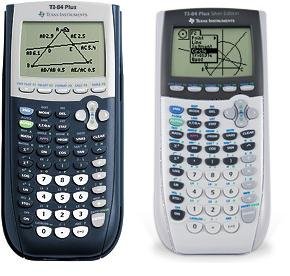
To install games on TI 84 Plus, you’ll typically use a computer, a USB cable, and specialized software like TI Connect CE to transfer the game files to your calculator.
Have you ever been stuck in math class wishing you had something more entertaining to do? The TI-84 Plus calculator, while primarily for academics, can surprisingly host games. Many people wonder how to install games on TI 84 plus.
It’s not as straightforward as downloading an app store, but with the right tools and a few steps, you can load simple games onto your calculator for some fun during downtime.

How to Install Games on TI 84 Plus
Want to make your math class a bit more fun? You can add games to your TI-84 Plus calculator! It’s like having a mini game console right in your pocket. But how do you actually get those games onto your calculator? Don’t worry; it’s not as hard as you might think. This guide will walk you through all the steps.
Understanding TI-84 Plus Games
Before we dive into installation, let’s talk about the types of games you can get. TI-84 Plus games are usually small programs, often written in a language called TI-BASIC or assembly. These programs are specifically made to work on the calculator’s hardware. This also means not every computer game will work on your calculator! You need to find games specifically designed for the TI-84 Plus. These games come as files, and we’ll show you how to move those files onto your calculator.
Types of TI-84 Plus Game Files
You’ll usually encounter two main types of game files:
- .8xp Files: These are the most common type of TI-84 Plus program files, including games. They are usually written in TI-BASIC.
- .8xg Files: These files often contain assembly programs. Assembly games can be faster and more advanced, but they are also a little trickier to get working.
You’ll also see files with other extensions, but for games, you’ll primarily see .8xp and .8xg files.
Gathering Your Supplies
Before starting, you need some things. Make sure you have these:
- TI-84 Plus Calculator: Of course! You can’t install games without one. This guide is specifically for the TI-84 Plus family of calculators.
- Computer: You need a computer to download the games and transfer them. It can be a Windows PC or a Mac.
- TI Connectivity Cable: This is a special cable that connects your calculator to your computer. It usually has a USB end for your computer and a smaller end that plugs into your calculator. This cable is vital for sending the game files to your calculator. If you don’t have one, you’ll need to get one.
- TI Connect Software: This is free software from Texas Instruments that helps your computer talk to your calculator. You need it to transfer files. You can download it from the Texas Instruments website.
- Game Files (.8xp or .8xg): You need the actual game files that you want to play. There are lots of places online where you can find these. Just be sure to download game files from trusted sources to protect your computer and calculator.
Installing TI Connect Software
First, you need to install the TI Connect software on your computer. Here’s how:
- Go to the Texas Instruments website and look for the downloads section for the TI-84 Plus.
- Find and download the correct version of TI Connect software for your operating system (Windows or macOS).
- Run the installer and follow the instructions on your screen. It’s usually as simple as clicking “Next” a few times.
- Once installed, open the TI Connect software.
If you have trouble finding the software, try searching for “TI Connect download” using a search engine. Remember to get it from the official Texas Instruments website to ensure you have the right version and it’s safe.
Finding and Downloading Games
Now comes the fun part – finding some games! There are many websites dedicated to TI-84 Plus games. Here’s what to keep in mind:
- Search Carefully: Search for “TI-84 Plus games” or “TI-84 games.” This will give you many options.
- Check Ratings and Reviews: Just like with any download, be careful. Look for games with positive ratings or reviews. This can help you avoid downloading broken or unsafe files.
- Stick to Safe Sites: Download only from well-known and trusted websites. Forums and community websites dedicated to the TI-84 Plus are good places to start. Avoid any site that looks suspicious or has a lot of pop-up ads.
- Download the Right Files: Remember you are looking for .8xp and .8xg files. Be sure you’re getting the game and not just a picture or a text file.
Once you’ve found a game you like, download the file and save it to a folder that’s easy to find (like your Downloads folder or a new folder on your desktop). It is a good idea to make a folder called “TI-84 Games” to store all of your downloaded games.
Connecting Your Calculator to the Computer
Now it’s time to connect your TI-84 Plus to your computer. Follow these steps carefully:
- Take your TI connectivity cable and plug the smaller end into the port on the top of your TI-84 Plus.
- Plug the USB end of the cable into a USB port on your computer.
- Turn your calculator on. You should see the regular home screen.
- Once connected, your TI Connect software on your computer should detect that your calculator is connected. If it doesn’t, check that all the cables are plugged in correctly.
Sometimes, you might have to tell the TI Connect software to manually look for the calculator, so keep that in mind. Usually the software can find it automatically.
Transferring Game Files Using TI Connect
Now that your calculator is connected and the software is open, you’re ready to transfer the game files. This process is also called “sending” the files.
Here’s how to do it:
- In the TI Connect software, you should see an area for transferring files. Look for a button or menu option that says “Send to TI Device” or something similar.
- Click the “Send to TI Device” button. A window should appear that lets you browse for files.
- Navigate to the folder where you saved the game files (.8xp or .8xg).
- Select the game file you want to transfer and click “Open” or “Send.” You can usually select more than one file if you want to transfer multiple games at once.
- The software will begin sending the files to your calculator. You may see a progress bar. This process may take a few seconds or minutes, depending on the file size.
- When the transfer is complete, the software will tell you. Disconnect the cable from your calculator and computer.
If the transfer fails, check your connections again and ensure the TI Connect software is working correctly.
Running Games on Your TI-84 Plus
Now for the moment of truth – playing the games! Here’s how you run the games on your calculator:
- Press the [PRGM] button on your TI-84 Plus calculator. This button is usually located near the top left of the keypad.
- You should see a list of programs and games on your screen. Use the arrow keys to navigate through the list until you see the name of the game you just transferred.
- Once the game is highlighted, press [ENTER]. The game should start playing.
If you get an error message, make sure that you installed the right game file for your calculator. Also, some games require special conditions, so read any instructions that may come with the game. Each game may have different controls, so experiment to see what works.
Troubleshooting Common Issues
Sometimes things don’t go as planned. Here are a few common problems and solutions:
- Calculator Not Detected:
- Make sure the cable is securely plugged into both the calculator and computer.
- Check that the TI Connect software recognizes that your calculator is connected.
- Try a different USB port.
- Restart your calculator and computer.
- File Transfer Fails:
- Make sure you have the correct type of game file (.8xp or .8xg).
- Try transferring one game file at a time.
- Close and reopen the TI Connect software.
- Game Doesn’t Run or Shows an Error:
- Make sure that you downloaded the game from a trusted source, and it’s definitely designed for your calculator model.
- Check to see if the game file is not corrupted or incomplete.
- Some assembly games might require you to install an additional shell program (for example: MirageOS).
If problems continue after trying these steps, consider searching online forums or communities dedicated to TI calculators for additional help.
Game Management
After you install a bunch of games, you might want to delete some to free up space or just clear out the ones you don’t play anymore. Here’s how you can manage the games on your calculator:
Deleting Games
To remove games from your calculator, follow these steps:
- Press the [2nd] button, then press the [MEM] button (it’s the plus sign (+) above the MATH button)
- Use the arrow keys to scroll and select “Mem Mgmt/Del…”. Press [ENTER].
- Choose the “Program…” option and press [ENTER].
- Use the arrow keys to highlight the program you wish to delete.
- Press the [DEL] button.
- A menu will ask “Delete this Program?”. Select “Yes” and press [ENTER].
Be careful while deleting to ensure you are deleting the right files, because deleted files cannot be recovered on your calculator.
Organizing Games
On the TI-84 Plus, there isn’t really a folder system to organize the programs. Instead, they appear in a list. The easiest way to manage a lot of games is to keep the names clear and easy to remember.
- Consider deleting games you don’t play often.
- Keep a list of the games you downloaded on your computer so you know which ones to retransfer if needed.
Remember that keeping the number of games reasonable can help you easily find what you need.
Now you have a great start to playing fun games on your TI-84 Plus calculator. Have fun and be responsible with your device!
How to Put Games on the TI 84 Plus CE
Final Thoughts
You install games on your TI-84 Plus by connecting it to your computer. Use the TI Connect software to transfer game files. Make sure the game files are in the correct format.
Carefully follow these steps to ensure successful transfer. Once transferred, access them from your calculator’s program menu. The process of ‘how to install games on ti 84 plus’ is straightforward if you have the required tools and proper files. Enjoy your games on your calculator.

