
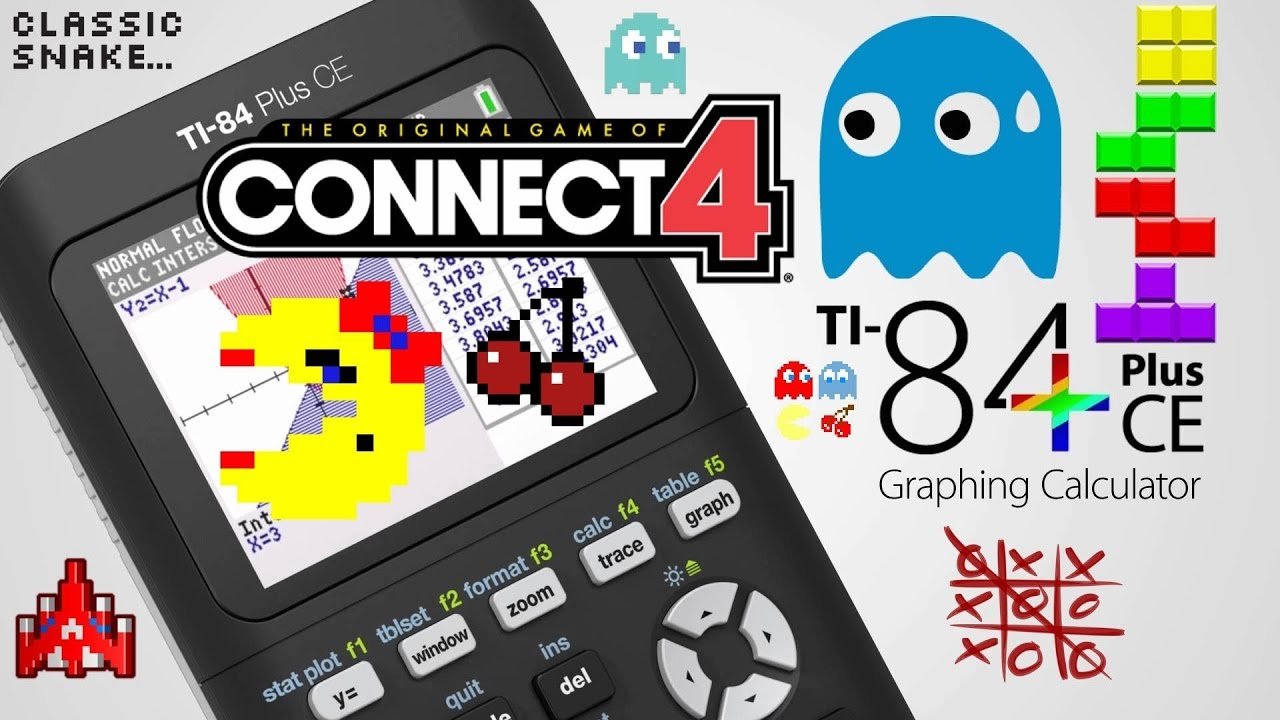
To install games onto a TI-84 Plus CE, you need to connect it to your computer, transfer the game files (usually .8xg or .8xp) using TI Connect CE software, and then send the files to the calculator.
Ever wished your TI-84 Plus CE could do more than just math? You are not alone! Many users want to expand their calculator’s functionality. The question, of course, is how to install games onto ti 84 plus ce?
This process might seem complex, but it is actually quite manageable. We will guide you through each step so you can enjoy games on your calculator quickly. Get ready to transform your TI-84 Plus CE into a portable gaming device!

How to Install Games onto TI-84 Plus CE
So, you’ve got a TI-84 Plus CE calculator, and you’re itching to play some games on it? That’s awesome! Your calculator isn’t just for math; it can be a source of fun too. It’s totally possible to get games onto your trusty TI-84 Plus CE, and it’s not as hard as you might think. This guide will walk you through everything you need to know, from what you’ll need, to the steps involved, and even some troubleshooting tips. Let’s get started turning your calculator into a gaming machine!
What You’ll Need Before You Start
Before we dive into the installation process, let’s gather all the tools you’ll need. It’s like getting your ingredients ready before you bake a cake. Having everything in place will make the process much smoother.
- Your TI-84 Plus CE Calculator: This one is pretty obvious, but just making sure! It’s the star of our show. Make sure it has a good battery charge, too.
- A Computer: You’ll need a computer (Windows PC or a Mac) to download the games and transfer them to your calculator.
- A Mini-USB Cable: This is the cable that usually comes with the calculator. It’s used to connect your calculator to the computer. You’ll use this to move games from the computer to the calculator.
- TI Connect CE Software: This is a special software from Texas Instruments that allows your computer to communicate with your calculator. You can download this software for free from the Texas Instruments website. This is a crucial part, because without this your computer can’t talk with the calculator.
- Game Files: These are the actual files that contain the game. They usually have extensions like “.8xg” or “.8xp”. You can find these files on many websites dedicated to TI calculator games. Make sure that these are compatible with your CE calculator.
Finding Games for Your TI-84 Plus CE
Now that you’ve got your gear, it’s time to go game hunting! Finding games for your TI-84 Plus CE is easier than ever, thanks to the internet. There are lots of sites that offer free games that are created by other people. Here is what to remember when searching for them online:
Where to Look for Games
- TI-Calculator Game Websites: Many websites and forums specifically cater to TI calculator users. They often have large collections of games ready for download. Just do a search for “TI-84 Plus CE games” and you will see many of them.
- YouTube and Other Video Platforms: Sometimes, users share links to their favorite game files within video descriptions. Keep an eye out for these links as you explore calculator related videos.
- Online Forums: Forums dedicated to calculators can also be a great resource. Users often post links to new games and share tips. Check the post date, to make sure they are still valid.
Things to Keep in Mind
- File Compatibility: Make sure the games you download are compatible with your TI-84 Plus CE. Look for games with a “.8xg” or “.8xp” extension. Older games that were made for other calculators might not work on yours.
- Trustworthy Sources: Be cautious when downloading files from the internet. Only use well-known websites or forums that you trust to avoid viruses. It is a good idea to use antivirus software when downloading files.
- File Organization: Keep your game files organized. Create a specific folder on your computer where you save all of your downloaded games. This will make it easier to manage them later on.
Installing TI Connect CE Software
Before you can send games to your calculator, you need to install TI Connect CE software on your computer. This software acts as a bridge between your computer and calculator, allowing you to transfer files.
Downloading the Software
- Go to the official Texas Instruments website.
- Find the “TI Connect CE” software download page. Search for this if you can’t find the button.
- Choose the correct version for your computer (Windows or Mac).
- Download the installer.
Installing the Software
- Find the downloaded file, which will be in your “Downloads” folder or the place you chose to download the file in.
- Double-click the installer to start the setup process.
- Follow the on-screen instructions, accepting all terms of use.
- Once finished, you may be prompted to restart your computer. Please do, this will ensure the program works correctly.
- Now open up the TI Connect CE Software and make sure it’s working correctly.
Connecting Your Calculator to Your Computer
Now that you have the TI Connect CE software ready to go, the next step is connecting your TI-84 Plus CE calculator to your computer. This allows your computer and calculator to “talk” to each other.
- Get your mini-USB cable and plug one end into your calculator and the other end into a USB port on your computer.
- Turn on your calculator. Make sure it has a good charge, otherwise it might disconnect during the process.
- If everything is working correctly, your computer should recognize the calculator as a connected device.
In TI Connect CE software, you should see your calculator listed as an attached device. If you don’t see your calculator listed, check that the cable is plugged in correctly and try again. You might have to try another USB port as well.
Transferring Games to Your TI-84 Plus CE
The moment you’ve been waiting for—transferring games to your calculator! This process is quite simple once your calculator is connected and the software is working.
Using TI Connect CE to Send Games
- Open the TI Connect CE software.
- In the software, find the “Send to Device” or “Send File” option. You will see a device on the left hand side, just under that there will be some icons, you can hover your mouse over the icons to see which one is the “send file” option.
- A file explorer window will pop up, and you need to go to the location where you saved the games.
- Select one or more game files that you want to install (remember the file has to end in .8xg or .8xp).
- Click the “Send” button.
- The software will now transfer the game files to your TI-84 Plus CE. This might take a few moments, so please wait patiently.
What To Do if Your Game Isn’t Working
Sometimes a game may not work the first time you try it. Here are some troubleshooting tips:
- Check Compatibility: Make sure the game is compatible with your TI-84 Plus CE. Older games or games made for other calculators may not work.
- Check File Extension: Make sure the game file has the correct extension (either “.8xg” or “.8xp”).
- Try a Different Game: The game may just be faulty or not working for some reason. Try downloading another game and see if that works.
- Check Your Calculator’s Operating System (OS): Older versions of the OS might not support some games, make sure your TI-84 Plus CE is up-to-date.
- Check TI Connect Software: Make sure that it is installed correctly. Try uninstalling and reinstalling to see if this fixes the issue.
Playing Games on Your TI-84 Plus CE
Now that you’ve sent games to your calculator, it’s time for the fun part – playing them!
Finding the Games on Your Calculator
- Press the [PRGM] button on your TI-84 Plus CE. This is the button to see all your programs.
- Use the arrow keys to scroll through the list of programs. The games you’ve transferred should be listed there.
- Select the game you want to play by pressing [ENTER].
- Follow the instructions of the game, and enjoy!
Navigating the Game
Controls for different games will vary. Some common buttons used are the arrow keys and the [ENTER] button, and the other buttons around the number pad. You may need to read the game’s instructions on how to play, which are often included in a text file with the game. Usually there are not too many buttons that are used, most games are pretty simple.
Managing Games on Your TI-84 Plus CE
Over time, you might have many games on your calculator. Here’s how to manage them:
Deleting Games
- Press the [2nd] button and then the [MEM] button (which is above the + symbol), which will bring you to the “MEM” menu.
- Select “2: Mem Mgmt/Del…” by pressing the 2 key, or using the arrow keys to get to it, and then pressing enter.
- Select “7: Prgm…” by pressing the 7 key, or using the arrow keys to get to it, and then pressing enter.
- Use the arrow keys to navigate to the program (game) you wish to delete, then press the [DEL] key.
- Confirm your choice to delete by pressing [ENTER]. This will completely delete the program from your calculator.
Organizing Games
Unfortunately, the TI-84 Plus CE doesn’t have the ability to create folders to store different games. You will need to remember the order you placed them. To make things easier it is a good idea to delete games you are no longer playing.
Troubleshooting Common Issues
Sometimes, things don’t go as smoothly as we planned. Here are some common issues and their solutions.
Calculator Not Recognized by Computer
- Make sure the USB cable is plugged in correctly at both ends.
- Try using a different USB port on your computer.
- Check if the calculator is turned on.
- Restart both your computer and calculator.
- Make sure that the TI Connect CE Software is properly installed, if not, uninstall and reinstall it.
- Make sure the cable is working properly by plugging in a different device that uses a mini-usb cable.
Game Not Starting
- Check the game file extension (it should be “.8xg” or “.8xp”).
- Make sure the game is compatible with your TI-84 Plus CE.
- Try deleting the game and sending it again to the calculator.
- Try downloading a different copy of the game, the game you have might be corrupted.
- Make sure the OS on the calculator is up to date.
Transferring is Not Working
- Make sure TI Connect CE is installed and running.
- Ensure your calculator is correctly listed in the TI Connect CE device list.
- Try a different USB cable.
- Restart your computer.
With a little patience and careful attention, you’ll be gaming on your TI-84 Plus CE in no time. Remember, that while these are all safe methods to transfer files, always exercise caution when downloading files from the internet. Enjoy the new gaming capabilities of your calculator!
How to Put Games on the TI 84 Plus CE
Final Thoughts
You install games onto your TI-84 Plus CE using a computer. First, download game files to your computer. Then connect your calculator with a USB cable. Use TI Connect software to transfer those files.
Make sure you have compatible file types for the calculator. The process to install games onto ti 84 plus ce involves moving files. After successful transfer you can find games on the calculator’s program menu.

