
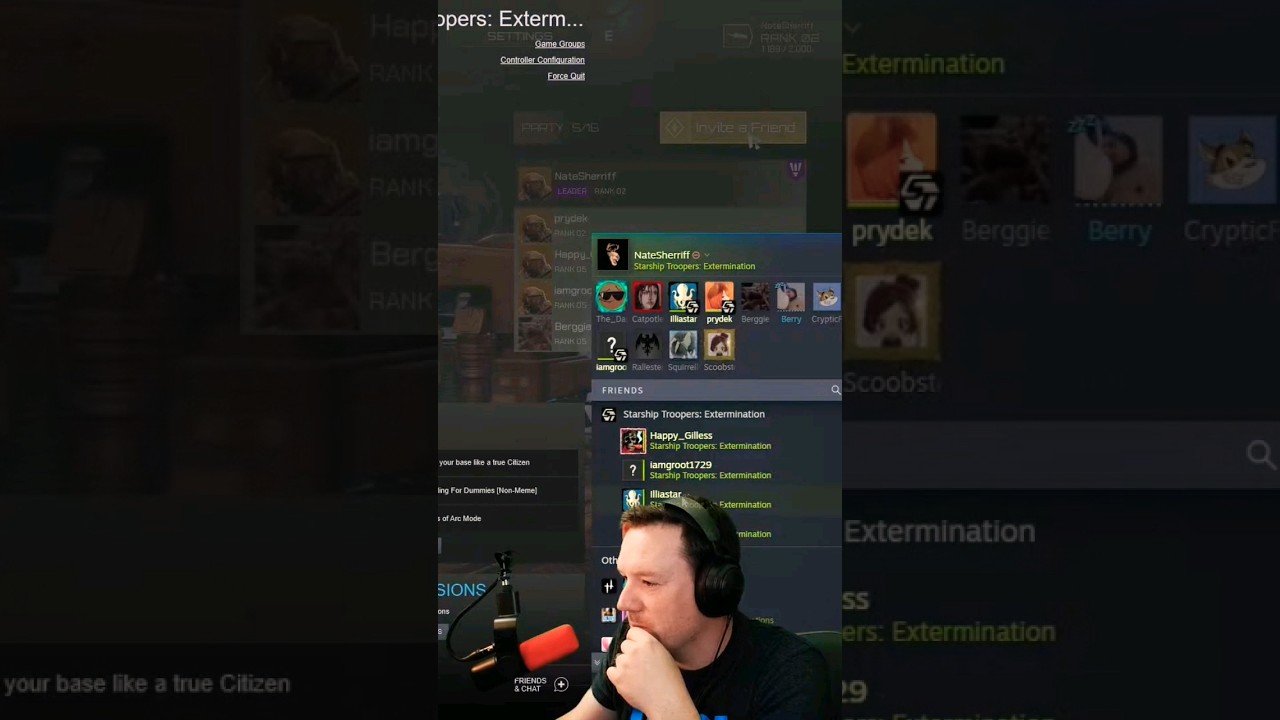
To invite someone to a game on Steam, open your friends list, locate the friend, right-click their name, and select “Invite to Game.”
Ever find yourself wanting to team up with a friend on Steam but unsure of the process? It’s a common question: how to invite someone to a game on Steam. The platform makes it simple, but it’s easy to miss if you’re new or haven’t done it in a while.
This short guide will show you the quickest way to get your game on with your buddies. It’s very straight-forward once you know where to look, and in seconds, you will be ready to play together.

How to Invite Someone to a Game on Steam
Okay, so you’re ready to play some awesome games with your friends on Steam? That’s fantastic! Steam is a super popular place to play games, and it’s even more fun when you can team up or compete with your pals. But how do you actually get them into your game? Don’t worry, it’s easier than you might think. This guide will walk you through all the ways you can invite someone to play on Steam, whether they’re already your friend on the platform or not. We will cover everything from the basic steps, different methods to send invites, and even some troubleshooting tips if things aren’t working correctly. Let’s dive in!
Inviting Friends Who Are Already on Your Steam List
The most common and usually the easiest way to invite someone to a game is if they’re already on your Steam friends list. Think of it like having their number in your phone – you can quickly message or call them up to play. Here’s how:
Using the Steam Overlay in Game
The Steam overlay is like a secret menu that pops up when you’re actually in a game. It’s super useful! To access it, simply press Shift + Tab on your keyboard (these are usually the defaults, if you have changed this go with what you set up). When the overlay appears, you will see your friends list. Here’s what you do next:
Find your Friend: Scroll through your friend list until you find the friend you want to invite.
Click the Arrow: Next to your friend’s name, you’ll see a little arrow or a dropdown icon. Click it!
Select “Invite to Game”: A menu will pop up, and you’ll see the option “Invite to Game.” Click it.
Wait for Them to Join: Your friend will get a notification, and they can click “Join” to enter your game session.
Enjoy Gaming: Once they’ve joined, you can start playing together!
This is probably the fastest and most convenient way to invite your friends, especially if you’re already in a game. This method works for a lot of games that are supported by the steam platform, and a lot of people utilize this feature when playing with friends.
Using the Steam Client
If you’re not in a game yet, or for some reason the Steam overlay isn’t working, you can also invite your friends directly from the Steam client (the main application on your computer). It’s also quite simple and here’s how you do it:
Open Steam: Launch the Steam application on your computer.
Go to Your Friends List: On the bottom right corner of the Steam window, you’ll see a “Friends & Chat” button. Click it.
Find your Friend: Your friends list will open up. Find the friend you want to invite.
Right-Click on Their Name: Right-click on the friend’s name.
Select “Invite to Game”: From the menu that appears, select “Invite to Game.” If you already have a game open, it might say “Join Game” or something like that instead.
Wait for Them to Accept: Your friend will get a notification, and once they accept, they’ll be in your game!
This works almost exactly the same as the overlay method, just from the main Steam client window.
Inviting Friends Using Steam Chat
Another way to invite friends is through the steam chat feature. This method lets you chat with your friends, and quickly send them an invitation without any hassle. Here’s how you can do it:
Open Your Chat Window: Find the friend on the “Friends & Chat” list, and click on their name. This will open up your chat window with them.
Find the Invite Option: In the chat window, usually near the top or bottom, you will see a “Invite to Game” button or an icon which looks like a game controller. Click on that.
Send the Invitation: Steam will now send an invite to your friend, they will receive a notification on their end to join the game.
Wait for Your Friend to Join: Once your friend joins the game, you can start playing together.
This method can be really useful when you are chatting with a friend about a particular game, and you want to quickly get them into a game session, without doing much. It’s very fast and convenient.
Inviting Someone Who Is Not on Your Steam Friends List
What if you want to play with someone who isn’t yet a friend on Steam? No problem! There are a couple of different methods you can use.
Using a Game Invite Link
Some games, especially the multiplayer ones, allow you to create a special invite link. This link is like a secret code that you can share with anyone, and it will take them directly to your game session. Here’s how you can create and share an invite link.
Start or Join a Game: You need to be either in a lobby or in a multiplayer match for this method to work.
Look for the Invite Link Option: Inside the game itself, go to the menu or the option which will give you the option to “Create invite link” or something similar to that. The exact wording can be different depending on the game.
Copy the Link: Once you click the option, it will generate an invite link, then you can copy that link.
Share the Link: Paste the link into any platform you like – a chat message, an email, a text, any messaging app.
They Click the Link: The person you share the link with just needs to click it, and it will open Steam (if they have it installed) and take them to your game session.
This method is incredibly useful when you want to play with someone you are not yet friends with, or you want to invite multiple players at once without sending individual invites. This method is not supported by all games, and it really depends on which game you are playing.
Adding Them as a Friend and Then Inviting
If you want to play with someone regularly, it’s a good idea to add them as a friend on Steam. This will make inviting them to games easier in the future. It also gives you access to their steam activity. Here’s how you can add someone as a friend and then invite them to play:
Get their Steam Profile Link or Friend Code: You need to either get the unique link to their steam profile, or their friend code. You can do this by asking them, or looking at their profile if you have played with them before.
Open the “Add a Friend” Menu: In the Steam client, click on “Friends & Chat” on the bottom right. Then, click on “Add a Friend.” It looks like a person with a plus icon.
Enter the Link or Friend Code: Paste the link or the friend code into the provided box.
Send Friend Request: Click “Send Request.”
Wait for Acceptance: Your friend will get a friend request. Once they accept, they’ll be on your friend list.
Invite Them to Your Game: Now that they’re on your list, you can invite them to a game using any of the methods described above.
Adding a friend is super simple, and this is also the most convenient way to play with your friends in the future.
Troubleshooting Invitation Problems
Sometimes things don’t go as smoothly as we’d like. Here are some common problems and how to fix them.
Game Invite Not Showing Up
If your friend is not receiving your invite, here are a few things to check:
Check Internet Connection: Make sure that both you and your friend have a stable internet connection.
Steam Server Issues: Sometimes Steam servers can have problems. Check the Steam server status online to see if there are any issues in your region.
Firewall Settings: Check your computer’s firewall settings, and make sure that Steam is allowed through the firewall. Your friend should also do the same.
Game Settings: Some games have specific settings that prevent invites from working correctly. Check the in-game settings, or in some cases check your game files.
Restart Steam: Sometimes restarting Steam can fix minor bugs. Close Steam completely, then re-open it.
Can’t Join a Friend’s Game
If you can’t join your friend’s game, here’s what might be happening:
Game Version Mismatch: Make sure that both you and your friend are playing on the same game version. Sometimes you will need to update to the latest game build to play with each other.
Game Server Full: The game server might be full. If that’s the case, you will just have to wait for a spot to open up.
Game Settings: Some games have settings that allow only a certain amount of people to play on their hosted session. Double check that game settings are correct.
Geographic Restrictions: Some games have servers that are specific to certain regions. If you are too far apart, you might not be able to play together.
Ask Your Friend for Help: If all else fails, talk to your friend who is hosting the game, and they might be able to see any problems.
Steam Overlay Not Working
If the Steam overlay is not working for you, here are a couple of things you can try:
Restart Steam: A simple restart can fix some minor bugs.
Disable and Re-enable Overlay: Go to the Steam settings and disable the Steam overlay. Then enable it back again.
Update your Graphics Drivers: Check and update your graphics drivers as outdated drivers can sometimes cause problems with the overlay.
Run Steam as Admin: Right click on the Steam shortcut icon, and click “Run as Administrator”. This will make sure that Steam has all permissions it needs.
Additional Tips
Communicate: If you’re having trouble, try communicating with your friend through chat or voice. This will help you troubleshoot more easily.
Check Game Forums: Sometimes the problem might be with a specific game. Look for the specific game forums and see if others have had the same issue.
Keep Steam Updated: Ensure your steam client is always updated to the latest version. This will help you avoid many known bugs.
These are just a couple of common troubleshooting issues you might face when trying to invite your friend to play with you. Sometimes these can be tricky to figure out, but by going through these methods, you will be able to troubleshoot most problems.
Inviting someone to a game on Steam should be a simple process, and with all the options available, you should be able to play with all of your friends without much hassle. From using the in-game overlay and Steam Client to sharing invitation links and adding new friends, Steam provides many tools to enhance your gaming experience. Remember, clear communication, proper settings checks, and a bit of patience will be key to enjoying some good gaming sessions with your friends. Now that you have this guide, get out there and game with your friends!
How To Invite Steam Friends To Games (Quick & Easy)
Final Thoughts
Inviting friends on Steam is easy. You can invite them directly from your friend list or within a game lobby. The process might slightly differ between games.
Remember, the ‘how to invite someone to a game on steam’ process is straightforward. Find their name, then click the invite button. Games also offer in-game mechanisms.

