
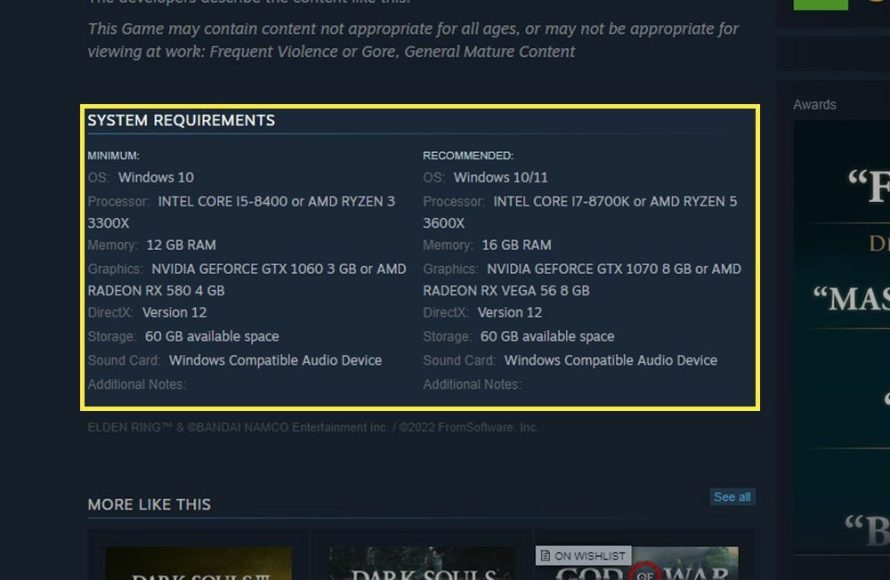
To know if your PC can run a game, compare your computer’s specifications (CPU, GPU, RAM, operating system) against the game’s minimum and recommended system requirements, which are usually listed on the game’s store page or website.
Ever bought a game, excited to play, only to find your computer struggling to run it? It’s a frustrating experience. Learning how to know if my pc can run a game beforehand saves you time and potential disappointment. You can avoid such headaches by understanding a few simple checks. It is about making sure your system is compatible.
Before making a purchase, check the game’s requirements. Websites like Steam usually list these details. Compare this to your PC specs. This helps you assess its capability to handle the game.

How to Know if My PC Can Run a Game
So, you’ve got your eye on a new game, maybe a high-flying adventure or a fast-paced racing challenge. You’re super excited to play, but a little voice in your head is asking, “Can my computer actually handle this?” It’s a question every gamer faces. Don’t worry, figuring it out isn’t as tricky as it might seem. We’re here to break it down step-by-step, helping you avoid the disappointment of buying a game your PC just can’t manage. This guide will walk you through everything you need to know, from checking your computer’s specs to understanding game requirements and what it all means for smooth gameplay.
Understanding the Minimum and Recommended Game Requirements
Before we dive into your computer’s insides, let’s talk about what game developers do. When a game comes out, the people who made it put out a list of computer parts it needs to work properly. These are called “system requirements,” and they usually come in two flavors: minimum and recommended.
Minimum Requirements
Think of minimum requirements as the bare essentials. It’s like saying, “Okay, your computer needs at least this to start the game, even if it’s not going to look as good or run as smoothly as it could.” Playing with minimum requirements might mean lower graphics, slower frame rates (how smooth the game moves), and sometimes a less enjoyable overall experience. You might get some choppy gameplay or the game might crash. Think of it as the game barely squeezing by.
Recommended Requirements
Recommended requirements are more like the game developer’s way of saying, “This is what your computer should have if you want the game to look and perform as we intended.” Meeting these specs usually means you’ll get to play with high graphics settings, have smooth frame rates, and see all the cool visual details the game has to offer. It’s the sweet spot for good gameplay. If your computer meets or exceeds the recommended requirements, you’re in for a treat!
Game requirements are typically listed with the following elements:
- Operating System: (e.g., Windows 10, Windows 11, macOS). This is the main program that runs your computer.
- Processor (CPU): (e.g., Intel Core i5, AMD Ryzen 5). This is the computer’s brain, doing all the number crunching.
- Memory (RAM): (e.g., 8GB, 16GB). RAM is used to store information for the programs that are currently running.
- Graphics Card (GPU): (e.g., NVIDIA GeForce GTX 1650, AMD Radeon RX 580). The graphics card is responsible for creating all the visuals you see on your screen.
- Storage Space: (e.g., 50GB, 100GB). This is how much space the game needs on your hard drive or solid-state drive (SSD).
You can usually find these requirements on the game’s store page, on the developer’s website, or sometimes even on the game box itself if you’re buying a physical copy. Understanding these details is the first big step in figuring out if your PC is game ready!
How to Find Your Computer’s Specifications
Now that you understand what game requirements are, the next thing you need to do is to find out what parts your computer has. Don’t worry, you don’t need to open up your computer with a screwdriver for this! Windows, and macOS have tools to help you find this info.
Finding Your PC Specs on Windows
Here’s how to check your PC’s specifications on Windows:
- Press the Windows key + R on your keyboard. This will open the “Run” dialog box.
- Type “dxdiag” (without the quotes) and press Enter. This will open the DirectX Diagnostic Tool.
- A pop-up window will appear. This tool will automatically collect the information about your pc specifications.
- Look at the “System” tab. Here, you’ll find information like:
- Operating System: This tells you which version of Windows you’re using (e.g., Windows 10, Windows 11).
- Processor: This shows the name and speed of your computer’s CPU.
- Memory: This is the amount of RAM your PC has.
- Click the “Display” tab. Here, you’ll find information about your graphics card (GPU), including its name and how much dedicated memory it has.
Finding Your Mac Specs on macOS
If you’re on a Mac, you can find your computer specs using these steps:
- Click the Apple logo in the top-left corner of your screen.
- Select “About This Mac.”
- A new window will appear. Here, you will find the information about your Mac specifications.
- You will find the following information:
- Overview Tab: This tab shows information about your processor, memory (RAM), and graphics card (GPU).
- Storage tab: This shows information about how much storage space you have and if you are using SSD or HDD for storage purposes.
Comparing Your Specs to the Game Requirements
Now comes the moment of truth – comparing your computer’s specs to those game requirements. It’s like matching puzzle pieces; see if your pieces fit the game’s requirements. Here’s how to do it:
Processor (CPU)
Check the game’s minimum and recommended CPU requirements. Compare the names of the CPU. Sometimes, game requirements will specify exact models and the generation of your CPU. For example, “Intel Core i5-8400” or “AMD Ryzen 5 2600”. Compare the generation (e.g., 8400 is 8th generation). The higher the number is, the newer it usually is, and generally, that’s better. Pay attention to the clock speed as well, which is measured in GHz (gigahertz). If your processor is equal or higher than the minimum, you can run the game. If it’s on par with the recommended, that’s even better!
Memory (RAM)
Look at the game’s RAM requirements. Most games will tell you how many gigabytes (GB) of RAM they need. If you have equal or more RAM than the minimum requirement then good. Having the recommended RAM means that you will be having a better experience. Having more RAM helps your computer handle multiple tasks at once. Modern games usually require 8GB to 16GB of RAM to run smoothly. If you don’t meet this requirement, you will have a hard time playing the game.
Graphics Card (GPU)
The graphics card (GPU) is very important for running games, because it creates all the visuals you see on your screen. When you are comparing your GPU with the game requirement, you need to compare the name and the model number. Just like the processor, the newer the model, the better it is likely to perform. If the game requirement specifies a card like “NVIDIA GeForce GTX 1650” or “AMD Radeon RX 580”. If you have the same model number or a card with a higher number and if it is a newer version, then you are good to go. Graphics card memory (VRAM) is also important. The game requirements might say how much VRAM it needs (e.g., 4GB, 8GB). VRAM is used by your GPU to store graphic data. If the game says it needs 4GB VRAM, and your card has 4GB or higher, then you meet this part of the requirement.
Operating System
Check if the game’s operating system requirement matches your computer’s operating system. If the game says that it only supports Windows 10 and you are running Windows 7, then the game won’t run. Make sure your OS is equal or higher than the minimum requirement. If you are running a very old version of Windows, you will need to update to a newer version before playing modern games.
Storage Space
Make sure that you have enough space to install the game on your hard drive or SSD. Games are usually very large. If the requirement is 60 GB and your storage space is less than that, then it is not possible for you to install the game. Also, note that SSDs are better than HDDs for installing games since they provide faster loading times and overall better performance.
Here is a basic table which will guide you on if your pc can run the game or not:
| Component | Game Requirement | Your Computer | Can Your PC Run The Game? |
|---|---|---|---|
| Processor | Intel Core i5-8400 | Intel Core i7-9700K | Yes, probably with good performance. |
| Memory | 8 GB RAM | 16 GB RAM | Yes, with good performance. |
| Graphics Card | NVIDIA GeForce GTX 1650 | NVIDIA GeForce GTX 1050 | No, it’s below the minimum. |
| Operating System | Windows 10 | Windows 11 | Yes, it meets or exceeds. |
| Storage Space | 60 GB | 100 GB free | Yes, you have enough space. |
| Processor | AMD Ryzen 5 2600 | AMD Ryzen 3 1200 | No, it’s below the minimum. |
Using Websites to Check Compatibility Automatically
If comparing individual specs seems a little complicated, don’t worry! There are websites designed to automatically check your computer’s specs against a game’s requirements. These tools save you time by making the comparisons themselves.
Can You RUN It
“Can You RUN It” is a popular website that checks your computer against thousands of games. It’s free and easy to use. Here’s how:
- Go to the Can You RUN It website.
- Select the game that you want to check.
- Click the “Can You Run It” button.
- The website will run a program, which you will need to download and install. After that the program will automatically detect your computer specifications.
- The website will tell you if your computer meets the minimum or recommended requirements, or if it can’t run it.
System Requirements Lab
System Requirements Lab is another popular website that provides a system checker, which can determine if your pc can run the game or not. This tool will automatically detect your computer’s hardware and compare it with the game requirements.
- Go to the System Requirements Lab website.
- Select the game you want to check from the list or search for it.
- Click the “Can You Run It” button.
- The website will prompt you to install the detector. After installing it, the website will analyze your computer and provides you with information about compatibility with the game.
These websites simplify the process of figuring out if you can play a game, even for beginners. They are very helpful when you’re not sure what all the numbers mean, giving you a quick answer and reducing the chance of buying a game you can’t run!
What If My PC Doesn’t Meet the Requirements?
Okay, so you’ve checked your specs, and maybe your computer isn’t quite up to snuff for the game you really want to play. Don’t give up on gaming just yet! Here’s what you can do:
Adjusting Graphics Settings
If your computer only meets the minimum requirements, or if it is slightly below them, you can tweak the in-game graphics settings. Many games let you change things like texture quality, shadow details, and lighting effects. Turning these settings down will require less from your PC and can significantly boost how smoothly the game runs. When you start the game, go to graphic settings, and start lowering the setting one by one. Keep trying till the game runs smoothly.
Upgrading Your PC Parts
Sometimes, the only way to play a game smoothly is to upgrade one or more parts of your PC. This can be a more expensive option, but it’s an investment that can improve your gaming experience for many years. The two main parts that can benefit games the most are your GPU and RAM:
- Graphics Card: Upgrading your GPU can provide a massive performance boost in games. When getting a new GPU make sure that your computer’s power supply is sufficient to support it and that the graphics card is compatible with your motherboard and it is physically fitted in your case.
- RAM: Adding more RAM can help your computer handle the game better, especially if you are below the recommended. Make sure you are getting compatible RAM for your system. Check your motherboard specifications for compatibility.
It is important to note that not every PC is upgradeable. Some laptops have soldered components and can’t be upgraded. Also, upgrading PC can require some technical know-how, so if you’re not comfortable with that, ask for help from someone who does.
Cloud Gaming Services
If upgrading isn’t an option, you can use cloud gaming services. These services stream the game from powerful servers to your screen. That means you don’t need powerful local hardware because all the heavy lifting is being done elsewhere. You just need a stable, fast internet connection, and you will be able to play graphically intensive games without having a gaming computer. Examples of cloud gaming services are: GeForce Now, Xbox Cloud Gaming and Amazon Luna.
Consider Other Games
If your computer isn’t up to par for a certain game, there are still countless amazing games out there that your computer might be able to run smoothly. There are older titles and indie games which don’t require too much computer power and are still fun to play.
Additional Tips for Smooth Gameplay
Even if your computer meets all the requirements, you may still encounter some issues. Here are some tips for keeping your games running well:
- Update your drivers: Graphics card drivers play an important part in the performance of your games. Make sure you have the latest drivers installed for your graphics card. This will help your system to optimize gaming performance. You can get drivers from the NVIDIA or AMD website.
- Close background programs: Before starting a game, close any programs that you don’t need. Running multiple things at the same time can slow down your computer. Close all the unnecessary programs to free up more RAM and CPU processing power.
- Keep your system clean: Delete old files and applications that you don’t use. You can use a disk cleaner to remove junk files. This will free up more space and help your computer perform better.
- Monitor temperatures: If your computer is getting too hot, it can start slowing down. Make sure your computer has proper ventilation and that all the cooling systems are working properly.
By following these tips, you can help make sure that your games run at their best.
Figuring out if your computer can run a game doesn’t have to be a mystery. By checking your computer’s specs, comparing them to the game’s needs, and keeping an open mind, you can enjoy a great gaming experience. Whether you are matching specifications or using automatic checker websites, the process is very straightforward. So now go and get ready to play games without any doubts!
How To Find Out If Your PC Can Run A Specific Game [Simple]
Final Thoughts
To determine if your PC can run a game, compare its specifications with the game’s minimum and recommended requirements. Check your CPU, GPU, RAM, and storage space against what the game needs. You must check each component carefully.
Use websites like ‘Can You Run It’ for an automatic system check. These tools analyze your setup and give you a quick answer. Pay special attention to graphics card, which is important for smooth gameplay.
Essentially, knowing how to know if my pc can run a game boils down to detailed comparison. Match your hardware against the game’s demands, using resources and tools to understand compatibility.

