
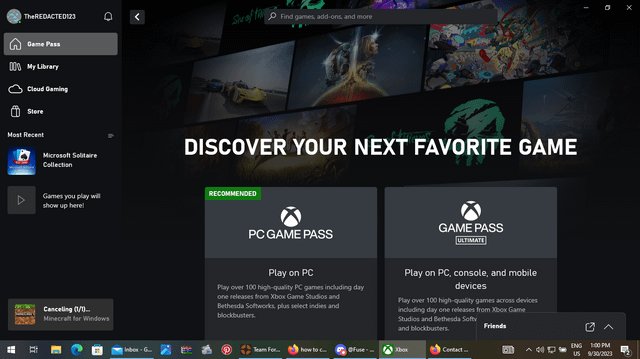
You can check if you have Game Pass Ultimate by going to your Microsoft account subscriptions page or by checking the Xbox app or console settings. It will be clearly listed there if it’s active.
Are you unsure about your current Xbox subscription status? It’s easy to get confused with different gaming services. Knowing your access level to the large library of games is important. If you are asking yourself “how to know if you have Game Pass Ultimate”, you are not alone. Many gamers find it confusing.
This quick guide will help you confirm your subscription status instantly. We will highlight the simple steps you can take. You’ll be back to gaming quickly.

How to Know If You Have Game Pass Ultimate
Okay, so you’re wondering if you’re living the high life with Xbox Game Pass Ultimate? It’s a great question! Sometimes it’s easy to get a little lost in the world of subscriptions and gaming. We’ve all been there! Maybe you signed up for a free trial, or a friend shared their account, or perhaps you simply forgot which awesome deal you snagged. No worries, we’re going to break down all the ways you can check and be totally sure about your Game Pass Ultimate status. Let’s dive in and figure this out together!
Checking on Your Xbox Console
The most common place to see if you have Game Pass Ultimate is right on your Xbox console. If you play games on a regular Xbox, this is usually the quickest method. Here’s how you do it:
Navigating to the Subscriptions Section
First things first, turn on your Xbox. Make sure you’re logged in to the correct Xbox profile, the one you think might have Game Pass Ultimate. Now, use your controller and follow these steps:
- Press the Xbox button on your controller (the one that lights up with the Xbox logo). This will open up the guide menu on the left of your screen.
- Navigate using the directional pad or left joystick down to the “Profile & System” section. This is the section that shows your avatar and name.
- Select “Settings”. This is usually the gear icon. You’ll go to the main settings menu here.
- In the Settings menu, go to “Account”.
- Select “Subscriptions”. This is where you will find a list of all your active subscriptions.
Identifying Game Pass Ultimate
Once you are on the subscriptions page, carefully look for your Game Pass subscriptions. What you need to find is “Xbox Game Pass Ultimate.”
- If you see “Xbox Game Pass Ultimate” listed and the word “Active” next to it, then congratulations! You have Game Pass Ultimate! You will also likely see the date of renewal for your subscription.
- If you see “Xbox Game Pass for Console” or “Xbox Game Pass for PC” but not Ultimate, you have the standard versions of Game Pass, not Ultimate, and will not have access to everything Game Pass Ultimate offers.
- If you see “Xbox Live Gold” alongside Game Pass (for Console or PC) but not Ultimate, you’re missing out on the benefits of Ultimate. You might have been grandfathered into using Gold, but Ultimate is the best value.
- If you don’t see any Game Pass subscription at all, then you don’t have any currently.
Pay close attention to the exact wording and any expiration dates displayed. It’s important that you’re looking at “Game Pass Ultimate” and not the standard versions. If you have multiple subscriptions, check each one to see if one of them is Ultimate.
Checking on the Xbox Website
Don’t have your console nearby? That’s not an issue at all! You can check your Game Pass Ultimate status on the official Xbox website using any web browser. This method is useful if you’re on a phone, tablet, or computer.
Accessing the Microsoft Account Website
First, open your favorite web browser (like Chrome, Firefox, Safari, or Edge) on your computer, phone, or tablet. Then, go to the official Microsoft Account website. You can do this by typing “Microsoft Account” into your browser’s search bar or directly going to account.microsoft.com.
Signing in With Your Account
Now, click on the “Sign In” button. Enter the email address and password associated with your Xbox account, the same one you use on your console. Make sure you are signing into the correct account. Once signed in, you will see your account dashboard.
Finding Your Subscriptions
On your dashboard, you will see several sections like Profile, Devices, Orders, etc. Look for and click on the “Services & Subscriptions” section. This section contains information about all your current subscriptions associated with your Microsoft account, which is linked to your Xbox account.
Locating Game Pass Ultimate
Now, just like on your console, carefully review the list of active subscriptions.
- Look for “Xbox Game Pass Ultimate.” If it is there and listed as “Active,” you’re good to go! It will show the date when your subscription renews, also.
- Again, make sure it’s “Ultimate” and not just “Game Pass for Console” or “Game Pass for PC.” If you see these without Ultimate you don’t have access to the entire catalog of Ultimate games and features.
- If you see “Xbox Live Gold,” it means you have an old subscription. You need to purchase Ultimate to gain its benefits.
- If you don’t see any Game Pass listed, you don’t have a current subscription to any Game Pass service.
Once again, double-check to make sure you have the right subscription. Pay attention to the subscription name and the details to see when the subscription will expire.
Checking on the Xbox Mobile App
Did you know you can use your phone to manage your Xbox account and subscriptions? The Xbox mobile app is available for both Android and Apple (iOS) devices. It’s super handy for checking things when you’re not at your console or PC.
Downloading the Xbox App
First, go to the app store on your device. This could be the Google Play Store for Android or the Apple App Store for iPhones. Search for “Xbox app” and download it. Once installed, open it.
Signing in With Your Account
Once the app is open, you’ll need to sign in using the same Microsoft account information you use for your Xbox and website access. Make sure you’re logged in to the correct profile.
Finding Your Profile and Subscriptions
Once logged in, usually, you see a menu button (usually three horizontal lines) on the top left corner. Tap on that. Then, you’ll see your profile image and gamertag. Tap on it. Now, you are on your profile page. Here you may find a section named “Subscriptions”. Tap on that or a similar option like “Account & Subscriptions”.
Confirming Your Game Pass Ultimate Status
Now look carefully through your list of subscriptions.
- If you see “Xbox Game Pass Ultimate” with a status that says “Active,” you have Game Pass Ultimate. It may even show you the next payment date.
- If you see “Xbox Game Pass for Console” or “Xbox Game Pass for PC,” you only have the standard Game Pass and not the Ultimate version.
- If you see “Xbox Live Gold”, then you’re probably running on an older subscription and would not gain all the benefits of Game Pass Ultimate.
- If you don’t see any Game Pass, then you do not have an active subscription.
Again, verify the name and details carefully to ensure it is Game Pass Ultimate that is listed. It’s easy to get confused between the standard and the ultimate versions.
Understanding the Different Game Pass Options
It’s important to know that there are different types of Game Pass subscriptions. Knowing the differences will help you easily identify whether you have the Ultimate version or not. Let’s break down the main types:
Xbox Game Pass for Console
This plan lets you play a huge library of games on your Xbox console only. You cannot use this to play games on your PC or via cloud streaming. So if you have this, and see that you don’t have it on PC or cloud, then you would not have the ultimate subscription. It’s a great value if you just play on your console, but it lacks many of the great benefits of Ultimate.
Xbox Game Pass for PC
This one allows you to play games on your Windows PC. Again, this one is limited to PC and not your console or via cloud streaming. It is not the Game Pass Ultimate. This one is excellent for PC gamers who want to play a big collection of games on their computer. But it doesn’t include console or cloud access.
Xbox Game Pass Ultimate
This is the top-tier subscription and provides the best value. It includes all the benefits of both Xbox Game Pass for Console and Xbox Game Pass for PC. And that’s not all! It also includes Xbox Cloud Gaming (allowing you to play on phones, tablets, and even certain TVs). Plus, it gives you Xbox Live Gold benefits (which let you play online multiplayer games) and EA Play access (access to a catalog of EA games). This is the “ultimate” experience of the Game Pass ecosystem.
Key Differences Summarized
Let’s look at a table to see the different options side by side:
| Feature | Xbox Game Pass for Console | Xbox Game Pass for PC | Xbox Game Pass Ultimate |
|---|---|---|---|
| Console Games | Yes | No | Yes |
| PC Games | No | Yes | Yes |
| Xbox Live Gold | No | No | Yes |
| Xbox Cloud Gaming | No | No | Yes |
| EA Play | No | No | Yes |
By looking at this table you can see that the Xbox Game Pass Ultimate provides the most benefit to its users. Also, if you are unsure which one you have then you can just check the Xbox Console or Xbox Mobile App or Xbox Website which is described above.
Checking If Your Game is Part of the Game Pass
Sometimes, you might not be certain if a particular game you want to play is available through your Game Pass subscription. This is a very good question as all the games are not included with it. Here’s how to check if the games are part of your Game Pass Ultimate membership:
On Your Xbox Console
If you’re on your Xbox, finding if the games are part of Game Pass is very easy. You can easily follow the steps given below:
- Go to the Xbox dashboard.
- Navigate to the “Game Pass” section. Usually, you will find this on the dashboard or in your apps and games.
- In the Game Pass section, you can explore the list of games that are available with the service.
- You can also use the search function inside the Game Pass section to find the name of the particular game you are looking for.
- If a game is part of the Game Pass service, it will often have a little Game Pass icon on its picture/cover. Or it might say “Included with Game Pass” in the game description. This is important to note.
On the Xbox Mobile App
You can also quickly check on the Xbox mobile app. Follow the steps below:
- Open the Xbox mobile app.
- Tap the search bar. This may be at the top of the screen.
- Search for the name of the game you wish to check.
- If it is part of your Game Pass, it will be shown with the Game Pass logo on its image, or it will be mentioned in the description that is included with the Game Pass.
On the Xbox Website
Finally, the method is also similar on the Xbox website. Follow the steps given below:
- Go to the official Xbox website and sign in with your account.
- Navigate to the “Game Pass” section. Or go to the search bar of the website
- You will find a list of games available with the service.
- If you still don’t find the game you can search for its name using the search bar.
- Check for the Game Pass icon or a note in the game details to confirm it’s in the Game Pass library.
By checking in these ways, you’ll be certain if the game you want to play is included in Game Pass. Remember, the Game Pass catalog changes every month with new games added and some games removed from the service. So, it’s a good idea to stay updated about it, so you don’t miss any of the games.
What to Do If You Don’t Have Game Pass Ultimate
Okay, so what if you checked all the places and you don’t have Game Pass Ultimate? Don’t worry! It’s very easy to get signed up.
Purchasing Game Pass Ultimate
The easiest way to get Game Pass Ultimate is by purchasing it from either the Xbox Store on your console, the Microsoft Store on your PC, or the Xbox website. Here’s how you can generally do it:
- Go to the Xbox Store on your console, the Microsoft Store on your PC, or the Xbox Website.
- Search for “Xbox Game Pass Ultimate” on the search bar.
- Select the option for the “Xbox Game Pass Ultimate.”
- Follow the instructions for the payment method and complete the purchase.
You can also look for special offers or trial periods. Sometimes, Microsoft will have deals where you can get it at a reduced rate for the first month or a free trial for a limited time, so keep an eye out for that!
Upgrading from a Lower Tier
If you currently have one of the other Game Pass plans, like “Game Pass for Console” or “Game Pass for PC,” it’s easy to upgrade to Ultimate. You can often do this right from your Xbox settings or on the Xbox website in your subscription settings. Usually, it will only cost the difference in price, and you won’t lose your existing subscription time. The system will automatically calculate and upgrade you in a simplified way.
Using Gift Cards or Codes
Another way to get Game Pass Ultimate is to use gift cards or codes. You can purchase these at many stores, or sometimes you can get them as gifts. To redeem a gift card or code:
- Go to the Xbox Store on your console or the Microsoft Store on your PC.
- In the store, look for the “Redeem a Code” option.
- Enter the code exactly as it is on the card or that you were given and press enter.
- If it’s for Game Pass Ultimate, it will apply to your account.
Keep in mind, the code may be region-locked, so make sure to buy codes in your correct country.
By using one of these methods, you’ll be playing games with Game Pass Ultimate in no time! It’s a very simple process that can be done in a few minutes.
Ultimately, knowing if you have Game Pass Ultimate is all about checking your subscription details on your Xbox console, the Xbox website, or the Xbox mobile app. Pay careful attention to the wording and always look for “Ultimate” to make sure you have the top-tier Game Pass subscription. Don’t forget to check if your favorite games are included in the subscription catalog. And if you don’t have it yet, getting started is quick and easy with several available options.
How To Get Xbox Gamepass Ultimate For Free!
Final Thoughts
To confirm your Game Pass Ultimate status, check your Microsoft account. Sign into the account you use for Xbox or the Microsoft Store. The subscriptions section clearly lists your active memberships.
If it shows ‘Game Pass Ultimate’, you definitely have it. You can also verify via the Xbox console or mobile app. Both platforms display your current subscription type. This information is essential.
Therefore, how to know if you have game pass ultimate is simple: check your account details. The presence of Game Pass Ultimate clearly indicates an active subscription; the easiest way is through official microsoft platforms.

